
10 Free Software to Mount ISO Image Files as Virtual Drives


 11 min. read
  Published on

The original idea to create an exact copy of a CD-ROM disc and place the data into a file which can be stored on a hard drive or USB flash drive was a great invention. This made it possible to store collections or backups of your important optical media in one location. These files, which can also store a copy of DVD or Blu-ray media, are more commonly known as ISO images. Even Microsoft utilizes ISO image files and the Windows install DVD is these days distributed as an ISO.
ISO image files can easily be created using software such as WinX DVD Ripper, all you need is a ROM drive and an optical disc. Or they can be downloaded from the internet. Once you have the file, there are several things you can do with it. The ISO can be burned to a CD or DVD to create a copy of the original disc. It can also be written to a USB flash drive to install something like Windows or Linux faster. Another option is using a program to make the ISO image behave like a real disc. This allows you to install software, read or play the disc contents like it was physically inserted into your computer.
This is known as virtual drive software because the drive isn’t real and it just emulates a real optical drive. The ISO image is then mounted to the virtual drive to create a virtual disc. Windows 10 has basic ISO mounting built in but here we list 10 free virtual drive emulators that you can use to mount ISO images and other types of disc images so they behave like real discs. All tools were tested in Windows 10 and 7 64-bit.
1. Virtual CloneDrive
Virtual CloneDrive has been around since 2005 and the company behind it, Elaborate Bytes, are the same people behind the famous CloneDVD and CloneBD ripping software. It hasn’t been updated in the last few years and the latest version is from 2016. Virtual CloneDrive is still fully compatible with Windows 10 though.

Several different image file formats to mount a virtual disc are supported and up to 15 virtual drives are allowed at the same time. An image file can be mounted by double clicking on it or right clicking on the tray icon and selecting Mount. The tray icon menu has an option to unmount each active drive as well as a recent history list of files that can be mounted at the click of a button.
2. DVDFab Virtual Drive
Many users that like ripping and converting media will know of DVDFab and its shareware software. Virtual Drive is one of a few standalone free tools that are also found in their flagship DVDFab Suite.
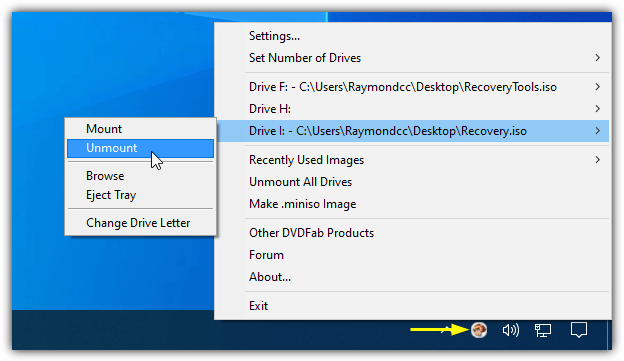
Virtual Drive has support for up to 18 virtual drives at once from 8 different types of disc image. One of those image types is the .Miniso DVD/Blu-Ray format that allows you to mount a DVD or Blu-ray ISO image or folder so it can be played in a media player like PowerDVD. Most functions are accessed via the tray icon menu but other options like changing the drive icons, Windows integration and hotkeys can be changed in the Settings window.
3. WinCDEmu
WinCDEmu is an open source tool that’s been around for over a decade. Sadly, it doesn’t seem to be actively developed anymore but all recent operating systems are fully compatible. A portable WinCDEmu is also available but it’s still on version 4.0 whereas the installer version is 4.1.

After install, all you need to do is to double click on an ISO file to automatically mount it to a drive letter. To not be asked which drive letter to use, check the “Manage drive letters automatically” box. If you want to unmount, just right click on the drive in Explorer and select Eject. WinCDEmu has a simple option to create an ISO from a CD/DVD or Blu-Ray disc, just right click on the drive in Explorer and select “Create an ISO Image”. A useful option for administrators is the requirement of admin rights to mount an ISO image.
4. Alcohol Portable
Alcohol Soft released a free for personal use version of their software in 2015 called Alcohol Portable. Apart from installing a system service and driver while running, Alcohol Portable is a standalone executable that can be launched from anywhere.

The maximum number of mounted virtual drives is four and it accepts around a dozen different disc image formats. Just drop an ISO onto the upper part of the window and it will mount automatically. Right click on a virtual drive to unmount, mount another ISO or change the drive letter. A list of image files can be added in the lower half of the window for quick access. If you have finished with Alcohol Portable, click File > “Exit + Remove Device Driver and Service” to remove it from the system completely.
While the free version of Alcohol 52% is still available to install, we’d recommend against using it. Crapware called Smart File Advisor gets installed alongside Alcohol, you cannot deselect it during install and it cannot be uninstalled without removing Alcohol as well.
5. Daemon Tools Lite
Long time PC users might remember Daemon Tools used to be the go to software for mounting protected disc images. Since then, it has changed a lot. The free Lite version has many disabled features along with adware and upgrade nags during install. We’re not sure if the Mountspace statistics function is still used but it’s worth disabling usage statistics during install just in case. Make sure to select “Free License” during install or you’ll get a trial of the paid version.

Daemon Tools is still a capable virtual disc program. The number of supported image formats to mount ISOs is around 20 and you can also create an image from a physical CD, DVD or Blu-Ray disc. Up to three normal virtual drives are supported but the SCSI option which can emulate disc protections is now disabled. A feature which some might find useful is Catch! which allows sharing of images over your local network.
6. WinArchiver Virtual Drive
Power Software makes WinArchiver Virtual Drive and gBurner Virtual Drive. They are both free and very similar but we’ll look at the WinArchiver version here because it has a few extra features. Power Software also makes WinArchiver, PowerISO, gBurner, and the freeware disc burning software Anyburn.
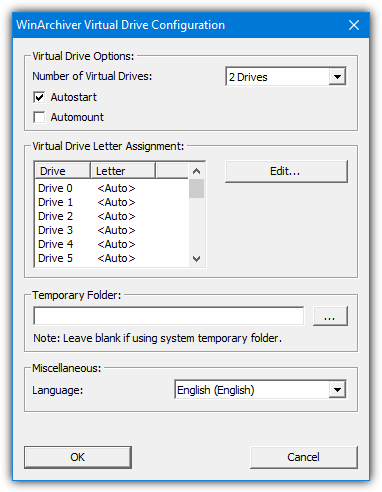
The program is able to create up to 23 virtual drives from around 25 different image formats. Each drive can have a specific letter assigned to it. A useful feature is the ability to mount just about any type of file archive as a virtual drive. Zip, 7z, RAR, WIM, CAB and many other archives can be mounted without extracting the contents of the archive first. WinArchiver Virtual Drive is from 2012 but worked without issue in Windows 10
As we’ve mentioned, gBurner Virtual Drive is slightly different and not quite as powerful. It lacks the archive mounting feature, can create 16 virtual drives instead of 23 and doesn’t have a custom Temp folder option. However, it is much newer being released in 2018, so might have better compatibility in the future.
Download WinArchiver Virtual Drive
7. ImDisk Toolkit
The Toolkit version of ImDisk takes the standard ImDisk Virtual Disk Driver and adds a more friendly user interface along with a few other tweaks and improvements. This makes it much easier to use. ImDisk can also mount and create Ramdisks but if you don’t want to use it the option can be turned off during install.
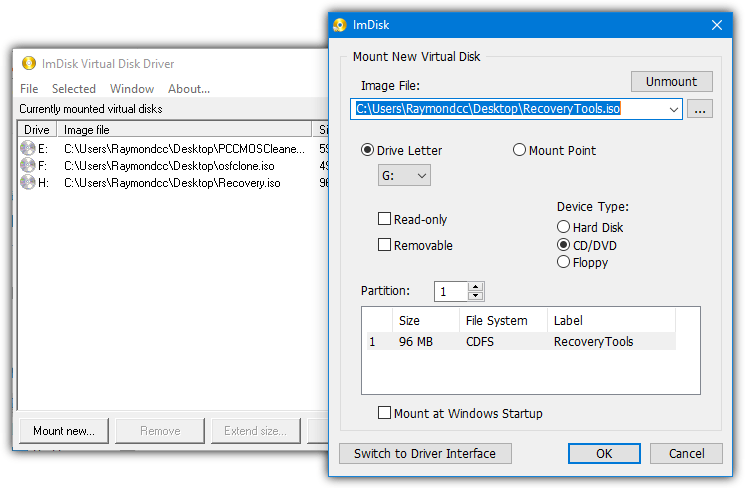
An image file can be mounted to any available drive letter. Right click on a file and select “Mount as ImDisk…” or launch the Mount Image File shortcut. Apart from drive letter selection or the ability to mount the image file on startup, the other options in the mount new window don’t need to be touched unless you know what they do. The standard ImDisk Virtual Disk Driver user interface and Control Panel applet are still there if you want access to the more advanced options.
8. ImgDrive
Yubsoft’s ImgDrive doesn’t seem to get much mention around the internet but it’s a lightweight and useful virtual drive mounting tool to have around. In addition to an installer version, there’s also a portable version of ImgDrive. It needs to install a driver while running but the driver can be removed again before you exit the program.
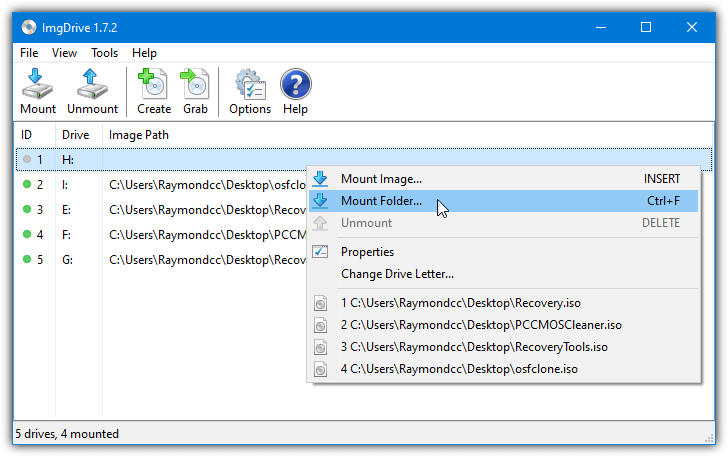
ImgDrive can mount up to seven virtual drives at once and it supports six different types of image file. Files can be mounted with a double click, from the context menu, from the tray icon menu or from the GUI. A useful feature is the ability to mount a folder as a virtual drive. There’s also a couple of options to create an ISO from a folder or from a physical disc. ImgDrive supports command line options which is great for batch files or mounting from desktop shortcuts.
9. PassMark OSFMount
OSFMount is a freeware tool which is designed to be used alongside Passmark OSForensics but can be freely used by anyone to mount virtual drives. It started out life as a version of IMDisk which was then branched into a separate tool. Note the latest version of OSFMount is 64-bit only, download a previous version if you need 32-bit.
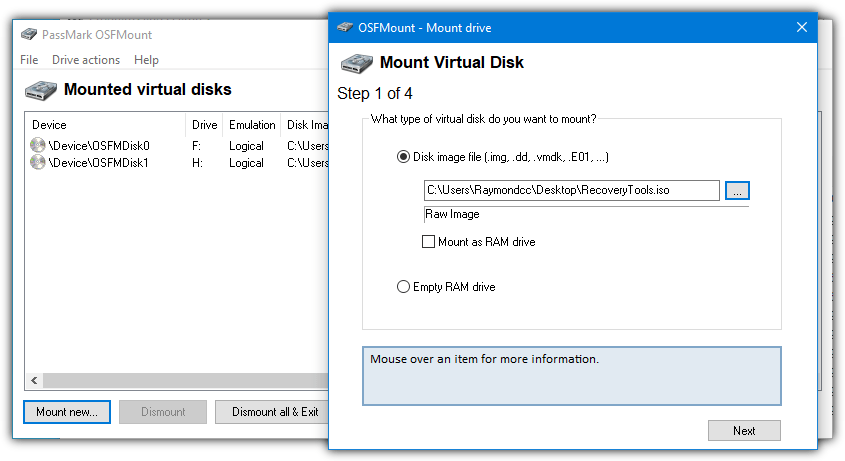
You can pretty much mount as many virtual drives as you have available drive letters, a total of 11 image file formats are supported. OSFMount has some more advanced features such as mounting the ISO as a virtual RAM drive or creating a new RAM drive, mounting as a removable drive, writing to some image formats (not ISO) and selecting the drive emulation and type. All of those advanced options can be ignored if you don’t need them, just press Mount new, select an ISO file and click Next > Next > Mount.
10. Microsoft Virtual CDRom Control Panel
Virtual CDRom Control Panel dates back to 2001 and was re-released in 2013 with the announcement that the program does still run on XP, Vista and 7. The biggest problem with this tool is it doesn’t work on a 64-bit Windows or properly on Windows 10 32-bit. It’s now a bit of a niche tool for old OS users.
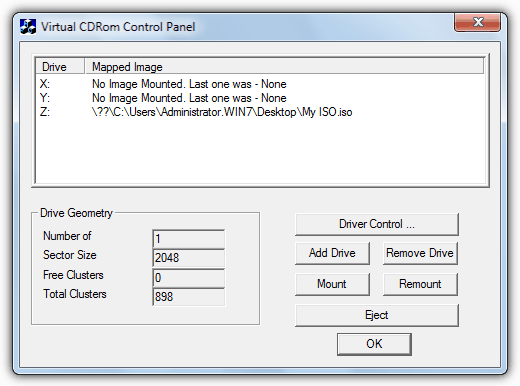
The whole package is under 60KB in size consisting of only a driver file, an executable and a Readme file. The executable is portable (needs to be run as admin) and can be used from anywhere but the driver still needs to be installed correctly. It isn’t as intuitive and easy to use as many other tools and requires some manual work to install the driver, so make sure to read the Readme.txt carefully.
Download Microsoft Virtual CDRom Control Panel
Mounting ISO Files in Windows 10
As we mentioned earlier, Windows 10 has a basic ISO mounting feature already built in. While it has no extra features or advanced options, this makes the ISO mounter very easy to use and it might be all you need.
All you have to do is locate the ISO file and double click on it or right click and select Mount. The ISO will automatically mount itself to the first available drive letter. If you want to mount another ISO file simply do the same again and it will attach to the next free drive letter. In addition to ISO files, Windows will also accept and mount IMG files.
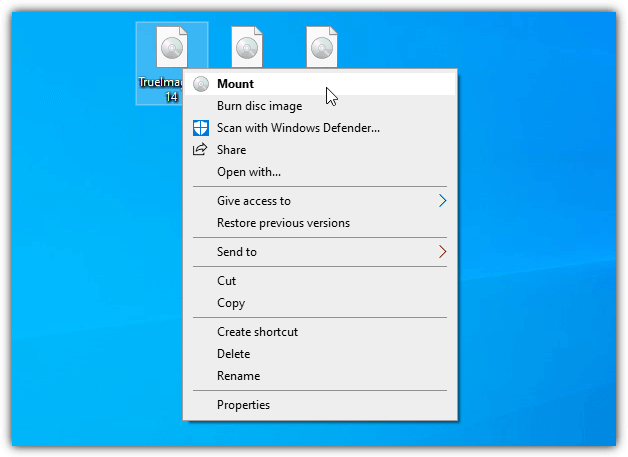
Unmounting an ISO from the virtual drive is quite easy. Open a File Explorer window and go to This PC, find the drive in the list, right click on it and select Eject. There are also options to mount and eject ISOs from the File Explorer ribbon menu, which are in the Disc Image Tools or Drive Tools tabs.

If the right click or Explorer ribbon mount options are not visible, it’s likely a third party tool has at some point taken over the ISO file type. To reset the association back to Windows, download this ISO Mount Reset registry file. Open the Zip, double click the .REG file and import the data into your registry. The options should then become visible again.



Improve this guide

User forum
0 messages