Backdoor Windows 7 Password to Create a New User
As long as there is physical access to a computer, it is always possible to gain access to the operating system even if it is password protected. For example, you can use Kon-Boot to login to any user account in Windows with any password by booting up the computer with the CD or USB. If BIOS is secured with a password to prevent changing of boot order, you can change the jumpers or remove the battery from the motherboard to clear the CMOS settings. As long as you can boot up the computer with CD or USB, there are quite a lot of tools that allows you to reset the user account password even if you don’t know the original password.
Here is an interesting method which I recently discovered that allows you to plant a backdoor to your Windows 7 operating system so that you can always reset or even add a new user account without even first logging in to Windows. This method is a bit restrictive because it requires an administrator privilege to the computer in order to make changes to the system but it does not involve installing any third party software or changing any system files like the old DreamPackPL.
This backdoor allows you to run command prompt (cmd.exe) with system privilege from the Windows 7 login screen. So with a system privilege command prompt in your hands, you can actually do a lot of stuff including creating new accounts to resetting administrator password to gain access to the password protected Windows. Check out these step-by-step instructions:1. First, make sure you are logged in as an administrator. Click on the start button, type cmd in the Search programs and files bar, right click on the cmd.exe that is displayed on the list and select “Run as administrator”.
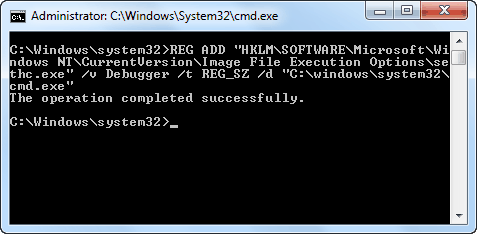
2. Copy the command below and paste it to the command prompt.
REG ADD “HKLM\SOFTWARE\Microsoft\Windows NT\CurrentVersion\Image File Execution Options\sethc.exe” /v Debugger /t REG_SZ /d “C:\windows\system32\cmd.exe”
If you see the message that says “The operation completed successfully”, that means you have installed the backdoor. If not, make sure you are logged in to a user account with administrator privilege and also run the cmd as administrator.
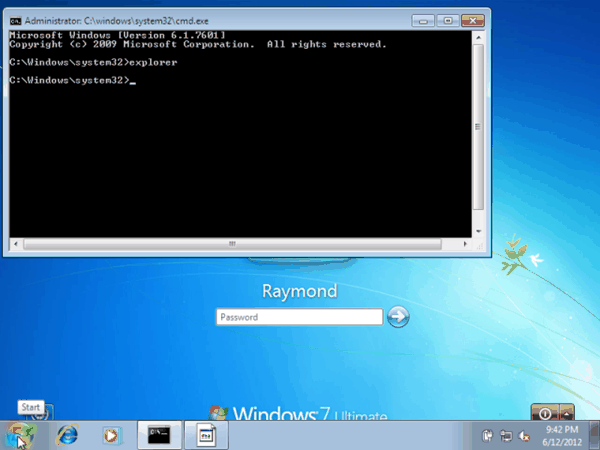
3. When you are at the login screen, you can either press the SHIFT key continuously for 5 times or Alt+Shift+PrintScreen which will open a command prompt with system privilege. You can now do whatever you want with it such as typing:
Explorer – To launch explorer and give you access to Start menu and taskbar. Any attempt to run Windows Explorer will prompt an error saying “The server process could not be started because the configured identity is incorrect. Check the username and password”. If you need to check the files and folders on the sytem, use the dir command instead in cmd.
Net user user_name new_password – This command allows you to set a new password to any username without knowing the current password.
Net user user_name password /add – This command allows you to add a new user to the system so you can login to Windows without touching the existing user accounts.
This proof of concept has been around for a very long time and is not really an exploit which is why Microsoft does not intend to patch and block it. To remove or uninstall the backdoor, simply delete the registry value that you have added or paste the command below to an elevated command prompt followed by pressing the Y key to confirm the deletion.
REG DELETE “HKLM\SOFTWARE\Microsoft\Windows NT\CurrentVersion\Image File Execution Options\sethc.exe”
Here is a simple explanation on how this backdoor works. In the Windows login screen, you are allowed to turn on sticky keys or high contrast using the hotkeys (Shift x 5 OR Alt+Shift+PrintScreen). Attempting to turn on either one with launch the sethc.exe file. Adding the provided registry will tell Windows that you want to run cmd.exe as a debugger for sethc.exe but the problem is Windows does not check if it is a valid debugger. So whenever you try to launch sticky keys or high contrast in the Windows 7 login screen, you will run the command prompt instead.
Below is a video demo to show how the whole thing works.





Im using windows 7 im sure iv hit repair & others iv really seem to have messed it up i woz sure id removed admin as only me as acess iv locked myself out of locial account awell but i no id removed password , coz im trying learn how use internet best as my health is poor im guna really depend on it but cant seem get out of were im stuck , i dont feel very confidant trying do make a disk myself
Can you help me to open my administrator account’s password without resetting it?
ERROR: Access is denied.
why ?
right click start menu and select command prompt (Administrator or admin). Paste the above comment in the terminal.
Becuase you have no admin access
Used this backdoor multiple times before. Always worked as a charm… But not work with my Windows 10 laptop. Windows Defender found and blocked the modified ‘sethc.exe’, stating it is a trojan “Win32/AccessibilityEscalation”. This was found after I removed my password with PCUnlocker and logged back in. To get the backdoor to work, we may need to rename the .exe of Windows Defender so it won’t run.
You can also accomplish this by forcing a windows repair by holding the power button when the window is about to load the login panel. Then locate the cmd and type notepad.exe or simply notepad and press enter. Then locate your system32 and rename sethc.exe to lets say sethc_bak.exe and create a copy of the cmd.exe to make cmd2.exe now rename the copy of cmd.exe to sethc.exe and restart your computer. Hit shift five times when the window login panel shows and now type net user [the name of the account shown] * then enter. for example ( net user john * ). Now enter the password u want or simply press enter all through if you dont want any new password and u have access to that account or any other account on the login panel….
Hi.
If i can not get to c: (after i press x:\…)
The win say i have to format it…
What can i do?
Regards
THAT IS WONDERFUL
There is another way of doing it using an exploit in the auto repair system that does not require any administrator privileges in the first place. It is time consuming but well worth it.
Do you have a link to how to accomplish this?
really works
It’s Good work
You could also just replace osk.exe with a renamed cmd.exe – then lock pc/reboot and start the on screen keyboard.. works in all versions of windows :)
thank you very much RAYMOND , Nice work . keep it man
Or you could try to boot Ubuntu or another type of Linux, then mount your windows drive, backup sethc .exe (cut it into another folder), temporarily replace sethc.exe with cmd.exe (make a copy of of cmd.exe, rename it to sethc.exe), restart into windows, shift x 5, run
net user (your username) *
Then boot Ubuntu again, mount your windows drive, and paste the original sethc back
No admin privileges needed!
I used this when my boss forgot his password in one of his laptiops.. I used the Win7 Installation CD to boot into command prompt, and copied cmd.exe to sethc.exe (after backing the original one up), and then rebooted, used the shift x 5 to get into command prompt and changed his password. Scored a point. :-)
This is very good but there’s a similar old trick where you boot into an externalOS such as windows PE (ie: win7 setup cd) and using the command prompt (Shift F10) , directly replacing sethc.exe with a copy of cmd.exe This way, you don’t need administrative privillages like your method. Much easier to remember to do than a registry key. You cant do this in the local windows installation itself because system files are write protected when in use
Modified Utilman Hack :)
this hack uses windows dvd and works vista, windows 7, Server 2008, 2008 R2…
youtube.com/watch?v=Ar-VoO9ogHc
Hi,
Thanks for this info .
Best regards !
PS. Please check the Forum Mr. Raymond . Thank you .
@Ublaze You only need to log in as admin in the prompt when you’re adding the initial registry values, not when you access the backdoor. If you don’t have admin rights in the first place then you should not have access to getting into the computer and should go get an admin.
@Raymond thanx for this. I have created a batch file to run form the prompt and called it backdoor.bat to help automate the preocess. Here’s the code:
@echo off
set name=
set pass=
set /P name=”Enter Username:”
set /P pass=”Enter Password:”
net user %name% %pass%
pause
Of course, you can take the pause out if you like.
@Hector Osorio: It should work on Vista but not sure if it will work on XP.
ublze: This is a proof of concept on how you can “plant a backdoor” to run command prompt in windows login screen.
Good Work
Does it works just in windows 7? Will it work in Vista or XP?
I dont get it ,with this method still u need to have an admin login to add the registry ryt so its worthless in my point of view .
thank u, very much ray…this is the useful information u have given.. of course i haven’t use it till now,but i think this is goona work….thanx again..i was waiting for this from a long time…
thanks ray
useful
V. Nice Thanks…