
Raymond.CC Blog
  • Home
  • Forum
  • Giveaway
  • X-Ray 2.0
  • Contact
  • About
  • I’m Feeling Lucky
Search the site...
You are here: Home » Software » Backup and Restore Activation Files for Windows 7, Vista and Office 2010

Backup and Restore Activation Files for Windows 7, Vista and Office 2010

Updated by HAL9000 - 1 year ago - Software
10
  • Like
  • +1
  • Tweet
  • Printer Friendly and PDF
advancedtokensmanager-1

Sometimes when your Windows installation starts to get a bit slow or unstable, you might be thinking about wiping it off and putting a nice, clean, new install back on. Many of you will have taken image backups of your own system but personally speaking, if it’s been at least a few months since the last install, I prefer to start afresh. Many users also like to wipe and reinstall even a new system when it comes preloaded with the manufacturer’s bloated software and third party trials of Office and a security suite etc. Quite often, when dealing with someone else’s computer and all they have to fall back on is an old system recovery image created by the OEM, a reinstall is really the only logical option.

The problem when you reinstall is having to reactivate the operating system. This obviously means entering your 25 digit product key and then activating online. Or if you’re unlucky and Microsoft thinks you have done this one too many times for its liking, you may have to reach for the phone and go through the extra activation steps on there. What I see happening quite often these days as well, is on laptops and netbooks the product key is getting rubbed off the COA sticker because it is made from paper and doesn’t have the clear plastic coating to protect it like the old days. This could stop the ordinary user from using their own key to reinstall. Using something like Produkey in this scenario to get the key from the current installation would simply show the OEM’s generic key which cannot simply be entered on reinstall unless you know the steps to reactivate with an OEM license.

A simple solution to get round the need to activate when you reinstall Windows is backing up the required activation files and information from the old install, and then restoring it when the new install is complete. No reaching for a magnifying glass to read the key, no need for internet access, and no need for the phone to be nearby.

Advanced Tokens Manager is a free and portable utility to backup and restore the activation information for any version of Windows Vista, 7 and Server 2008/2011 with a couple of clicks. It also supports Office 2010 activation backup and restore, not any previous versions like 2007/2003 though. What it does is back up the product key and a file called tokens.dat that holds the activation information for Windows and also Office 2010. A similar thing has been achieved over the years by backing up the WPA.dbl file in XP.

A couple of things you can’t do with this method of backing up the activation is trying to restore onto a different PC or hardware. There is a hardware ID stored in the tokens file that will not allow it. Also, you cannot restore to a different version of Windows from which you backed up from. For example; if the backup is from Win 7 Home Premium, it has to be restored on to Win 7 Home Premium. It should however, work if you want to switch between 32bit and 64bit versions. Download, extract the zip and right click to ‘Run as Administrator’.

Advanced Tokens Manager is very easy to use, simply click ‘Backup Activation’ to backup the Tokens.dat on the Windows install you’re going to remove. A folder called ‘Windows Activation Backup’ will be created in the same folder as the program with the tokens.dat and an ini file with a few bits of information like product key, Windows version, tokens file CRC etc. Keep this folder safe as without it, you cannot restore any saved activations. If you want to backup Office 2010, click the button at the bottom and click the backup button again.

Then reinstall your version of Windows, look at a previous article for Official Windows 7 ISO’s if you need them. Don’t choose to enter a product key or activate during the reinstall. When at the desktop, run Advanced Tokens Manager and there should be the button to restore in place of backup.
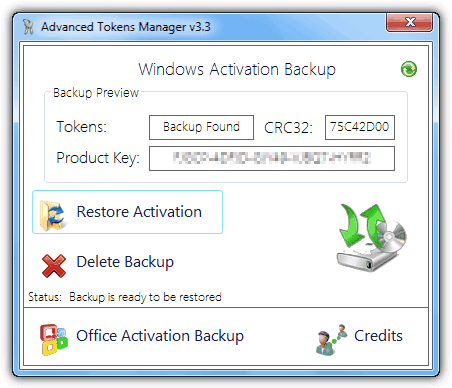
Click ‘Restore Activation’ to begin the process of restoring the tokens.dat and inserting the product key. After a few minutes the success window should appear. Now go and check by right clicking on ‘My Computer’ >> ‘Properties’ and checking the activation status. If it says not activated, you may need to reboot.
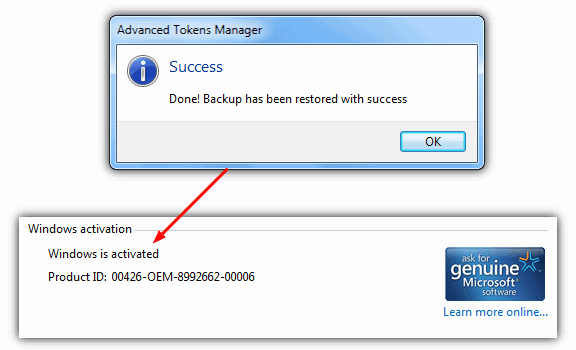
An easy to use and effective tool that saves you the hassle of entering product keys or having to phone Microsoft just to reactivate your product. If you have an OEM manufacturer PC, another tool called ABR is able to backup your activation files. This article was written for Vista but works in Windows 7 as well.

Compatible with Windows Vista, 7, Server 2008 / 2011 and Office 2010.

Requires .NET Framework 3.5

Website and Download

You may also like:

OPA-Backup Restores Your Office XP, 2003, 2007 and 2010 ActivationOPA-Backup Restores Your Office XP, 2003, 2007 and 2010 ActivationLinks for Windows 7 SP1 ISO from Microsoft's Official DistributerLinks for Windows 7 SP1 ISO from Microsoft's Official Distributer4 Repair Utilities to Fix the Majority of Known Windows Problems4 Repair Utilities to Fix the Majority of Known Windows ProblemsBackup and Restore Vista OEM Activation LicenseBackup and Restore Vista OEM Activation License

10 comments on “Backup and Restore Activation Files for Windows 7, Vista and Office 2010”

  1. Free Users says:
    11 months ago

    To update my last comment, I was using the ABR ver1.0 which does not work fine for Windows 7. I read the other posts and learnt that ABR-beta works on Windows 7. Chers.

    Reply
  2. Free Users says:
    11 months ago

    Tried the ABR on Windows 7, it does not work the same as Vista. The ABR looks for the tokens.dat in Vista version at SystemDr:\Windows\ServiceProfiles\NetworkService\AppData\Roaming\Microsoft\SoftwareLicensing\tokens.dat and does not create he activation certifivate backup-cert.xrm-ms as it cannot find tokens.dat when run under Windows 7 where it is located at Windows\ServiceProfiles\NetworkService\AppData\Roaming\Microsoft\SoftwareProtectionPlatform\. You would have to manually copy the tokens.dat by handf onto the restored machine.

    Reply
  3. Dr. Ritalin says:
    11 months ago

    Very useful. Thanks a million.

    Reply
  4. Patrick says:
    12 months ago

    Thank You HAL9000 for the tip. I will try this on a salved drive. Many thanks for your hard work researching and writing these tips.

    Reply
  5. Patrick says:
    12 months ago

    Is there a way to use this to backup the activation on a unbootable system on a slaved drive ? Thank You for the tips Raymond.

    Reply
    • HAL9000 says:
      12 months ago

      @ Patrick: I haven’t tried this so don’t blame me if it doesn’t work!…
      In the folder with the Advanced Tokens manager exe create a folder called ‘Windows Activation Backup’
      In there create a text file called config.ini. Below is the contents of a test ini, you will need to edit it to suit your system:
      Product Version: Windows 7 Home Premium
      Build: 7601.win7sp1_gdr.120305-1505
      Architeture: x86
      Product Key: *****-*****-*****-*****-*****
      Detected Tokens CRC: ********
      Then navigate to drive:\Windows\ServiceProfiles\NetWorkService\AppData\Roaming\Microsoft\SoftwareProtectionPlatform\ on the unbootable install and copy the tokens.dat to the Windows Activation Backup folder you created. Appdata will need to be unhidden if you can’t see it. This should work and let you restore the activation through the utility.

      Reply
  6. Joey says:
    12 months ago

    Thank you Raymond, this is one of the most useful apps you have posted.

    Reply
  7. Murphy says:
    12 months ago

    Hi,
    It is part of my ”arsenal” .
    Best regards !

    Reply
  8. brit says:
    12 months ago

    Thanks very much Raymond! It is very useful.

    Reply
  9. Jonathan says:
    12 months ago

    I have been using this program for awhile and must say that it can be a huge time saver also very useful for older systems where the COA sticker has faded off, I personally keep backups of my desktop as well as my wife’s and daughters laptops!

    Reply

Leave a Reply Cancel reply

Your email address will not be published. Required fields are marked *

Recently Updated

  • search local area network

    2 Tools to Search Any Files on Local Area Network Shared Folders

  • windows defender icon

    How To Disable, Uninstall or Remove Windows Defender

  • no fake av icon

    6 Ways to Kill and Remove Fake Antivirus Rogue Software

New Articles

  • task manager replacement icon

    Memory Usage Test to See Which is the Lightest Antivirus Software

  • kaspersky antivirus 2013 icon

    Activate Free Kaspersky Anti-Virus 2013 ROG with 1 Year License

  • remote access software

    Top 8 Remote Access Software for Providing Online Support

Popular Posts

  • Top 10 FREE Data Recovery Software

    Top 10 FREE Data Recovery Software

  • How to Hack Into a Windows XP Computer Without Changing Password

    How to Hack Into a Windows XP Computer Without Changing Password

  • 10 Free Software to Mount CD or DVD ISO Image File as Virtual Drives

    10 Free Software to Mount CD or DVD ISO Image File as Virtual Drives

Recommend on Google
Follow @raymond_cc
Subscribe Youtube »
(c) 2013 Raymond.CC Blog
  • Disclaimer
  • Disclosure
  • Privacy Policy
  • Terms of Use
  • Sitemap


