
5 Ways To Backup and Restore the Windows Registry or Selected Hives


 9 min. read
  Published on

One thing experienced users will always tell you is when you are undertaking repairs or performing tweaks in Windows, you should always have backups to hand in case things go wrong. Full system backups are of course a good method but if changes are being made that only affect the system registry, then it makes sense that you only need to backup your registry files.
The Windows registry is essentially a huge database that stores thousands of configuration settings for Windows, third party software, hardware, services, user specific settings and much more. It only takes a bad tweak or a corrupt registry entry to cause Windows to become unbootable. Many fixes rely on editing registry values, and sometimes it’s unavoidable, but backing up is still an important first step however safe they appear to be.
There are several ways to backup your system registry but simply copying the files to another folder is not an option as they are locked by Windows and cannot be copied. Another way is using System Restore but that backs up and restores lots of other files besides just the registry. Here we show you some ways to backup just the system registry files so they can be restored in the event of system instability or Windows failing to boot at all.
Backup and Restore the Registry Using Dedicated Software
While many backup solutions will backup the registry as part of the whole system or a System Restore, these tools below only backup or restore the registry itself.
Tweaking.com Registry Backup
Tweaking.com have a number of useful tools including the Windows Repair (All in one) utility. Registry Backup is actually included in the that program but is also available as standalone software if you want to just backup and restore the registry. Both portable and installer versions are available. We’re not fans of the GUIs used by Tweaking.com for their software although you can at least edit the colors to something more palatable.
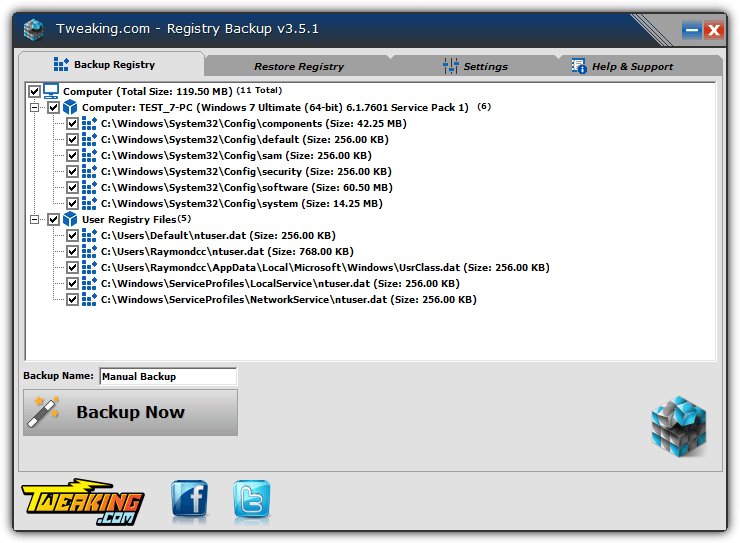
Registry Backup has 2 backup modes available, the Volume Shadow Copy Service (VSS) or the older RegSaveKey function. ERUNT and other old utilities rely on RegSaveKey but it’s recommended to use VSS if possible. It’s quite odd that Registry Backup defaulted to the old method while testing. You can tell it to prioritize VSS by going to Settings > Open Advanced Settings and unticking “Always use fallback backup method instead of Volume Shadow Copy”.
To make a full backup you only have to press Backup Now and it will copy the main and user registries to the target folder, which can be changed in Settings. A selective backup is a simple case of unchecking what you don’t want to include. Restoring is also easy and only requires selecting the stored backup from the drop down list and pressing the button, a reboot will be required. Automatic backups can be created by adding a scheduled task which triggers during Windows logon.
Registry Backup and Restore
This tool is installed or has a more preferable portable version which is under 500KB in size. It’s also got quite some nice features that make Registry Backup and Restore a useful alternative to the Tweaking.com tool. Another good thing is it uses a standard Windows graphical interface which will be easier on the eyes for some users.
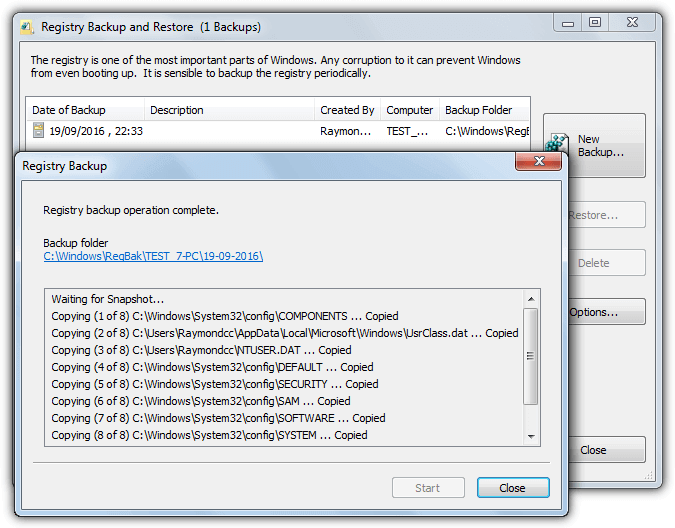
VSS and older RegSaveKey backup methods are offered, although this time the recommended method of VSS is enabled by default. A full backup is simply a case of pressing New Backup and clicking Start. Selecting a different save to folder, a comment and which registry hives are included or excluded are optional. Restoring is simply selecting the backup set from the list and pressing Restore. The Advanced restore options allow for selecting specific hives.
A couple of useful options in Settings allow for advanced renaming of the backup folders with custom times and dates, and compressing the files into the MS Cabinet format (.CAB). Registry Backup and Restore also has a special restore mode where running a simple script file called REGRES.CMD from the backup folder allows for registry files to be restored directly from the command prompt or recovery console.
Download Registry Backup and Restore
Experienced users will still remember the old but famous ERUNT registry backup tool although it’s well over 10 years old and produces numerous errors on newer operating systems. A tool which still works is Mz Registry Backup although it was discontinued by its developer some time ago.
Backup The Registry Using The Volume Shadow Copy Service
Using the Volume Shadow Copy Service (VSS) is a safe method that allows backup software and Windows System Restore to backup files that are locked by the system. You can also use VSS to manually copy any files, including registry files, using the right tool.
We’ll use the command line tool HoboCopy although there are other programs that can use VSS to copy locked files and any of them can be used. Download HoboCopy and extract it to C, open a Command Prompt and enter a command similar to the following:
C:\Hobocopy C:\Windows\System32\config C:\Backup\Config
or
C:\Hobocopy C:\Windows\System32\config C:\Backup\Config SOFTWARE
The second command would backup only the SOFTWARE registry hive, others like SYSTEM or SAM can also be used to backup individual hives. To backup the user’s profile registry:
C:\Hobocopy C:\Users\[username] C:\Backup\Userprofile
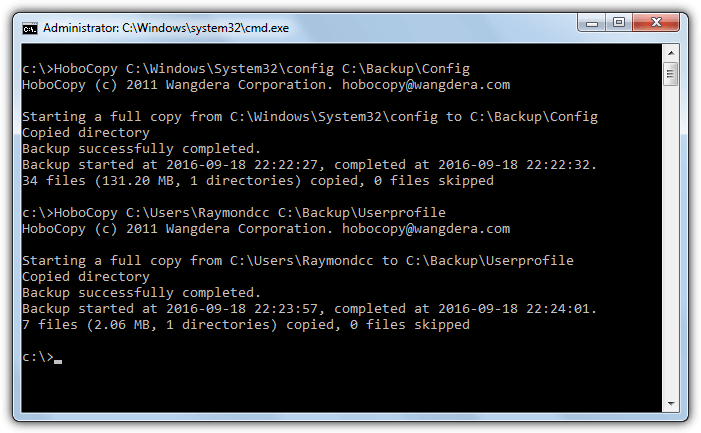
The 2 main commands will backup all registry files from the Config folder and NTUSER.DAT from the Users folder. Adding these and a date command together you can create a simple batch file that will backup the registry to a dated folder on double click. Have a look at this small Hobocopy .BAT file to get an idea of how it works. Note Hobocopy requires the Visual C++ 2010 runtime libraries installed, which are found on its download page.
Although you can backup the registry using this method easily, restoring is not possible in the same way and you would have to copy the files back while Windows is offline. See below how to do that.
Backup and Restore The Registry Offline
A way to backup the registry error free is doing so from another operating system. While your Windows is offline, registry files are not locked and can be copied just like any other file. It allows for both backing up and restoring the registry, what you need is another system to boot from.
There are many ways to get an offline bootable operating system. They include Mini XP from Hiren’s BootCD, a Live Linux distro or a Windows PE disk. The method we will use here is running a third party file manager after booting to a standard Windows install media. You may have a Windows install DVD already, if not, Windows 7, 8.1 or 10 ISOs can be downloaded direct from Microsoft.
1. Download Just Manager portable, it’s a free file management tool that works without Windows being fully loaded. Make sure to download the correct version for your Windows install media. E.g If your media is a 64-bit install DVD, download the 64-bit Just Manager.
2. Extract the Just Manager archive to a folder of your choice, for simplicity we’re using the root of C. The path to the executable is C:\JustManager\JustManager.exe.
3. Restart the system and boot to the Windows USB or DVD install media, when you reach the Install Windows screen press Shift+F10 to open a Command Prompt.
4. In Command Prompt enter the path to the JustManager executable. Do note that if your system has a hidden system reserved partition the usual C drive will likely be D. Therefore if the program is not found with C:\JustManager\JustManager.exe, try D:\JustManager\JustManager.exe.
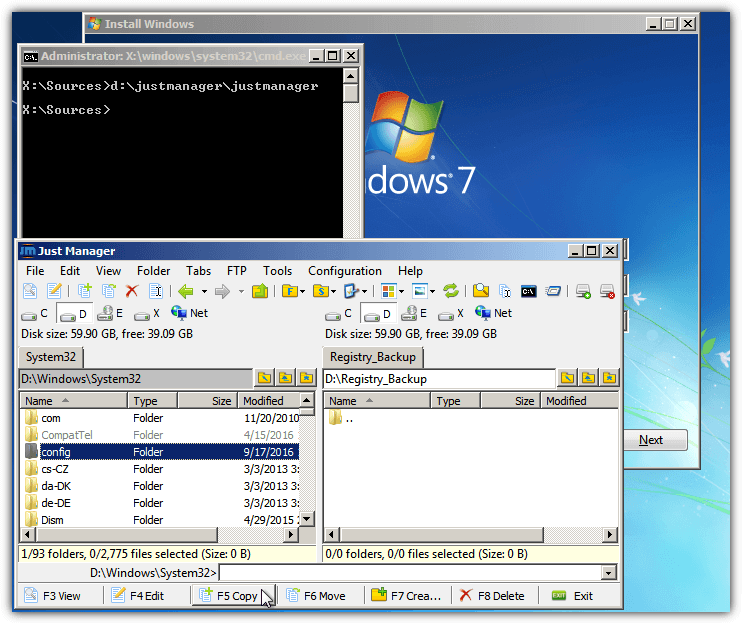
With the file manager open it can be used to copy (F5) the System32\Config folder to another location, backup separate hives or restore files to the Config folder. Don’t forget the user registry hive is NTUSER.DAT in the Users\username folder. If you haven’t made any registry backups yet and are having problems with your system there should be a folder called Regback in the Config folder that contains good copies of the 5 main registry files.
When you’ve finished, close the “Install Windows” window to reboot the computer. Of course, the built in Copy command can also be used from Command Prompt. That would be your only method if the computer doesn’t boot and you were unable to download the file manager program first. In which case a command like this should work:
Copy /y D:\Windows\System32\Config\Regback\* D:\Windows\System32\Config
Although you can use either the file manager or command prompt, the file manager method provides a full user interface. That makes it easier for users from all experience levels to copy and move any files without booting into Windows. Note that replacing the registry files should only be done as a last resort if your computer has major issues or cannot boot.
Manually Exporting And Importing The Registry With Regedit
If you look around the internet for ways to backup the registry, probably the most common method you’ll come across is using the Windows Registry Editor. Many sites will tell you to go to Regedit, right click on Computer and then select the Export option. To restore the registry back you simply double click the .REG file.
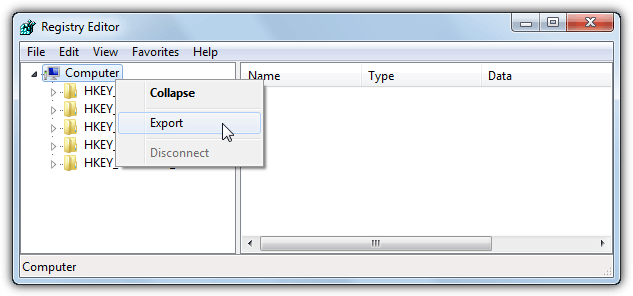
While this method does work up to a point it is not a full backup and has several issues, which are hardly ever mentioned. Exporting the registry in this way does not in fact export the whole registry. Values and keys that are locked or in use, the security hive and registry permissions are not backed up. That adds up to thousands of keys that do not get exported.
Moreover, importing into the registry is not a real restore as it simply merges the contents of the .REG file into the current registry. Any keys that have been added since the export will not be touched and locked or in use keys will not be restored, which causes errors during the import. We’d recommend you do not trust this method as a reliable backup and use another solution instead.



Improve this guide

User forum
0 messages