
10 Ways to Keep your LastPass Account Safe


 10 min. read
  Published on

Sometimes a piece of software being the most popular in its category doesn’t necessarily mean that it’s the best. However when it comes to LastPass, it is currently the most popular password manager and undeniably the best in the industry. While KeePass is an excellent open source offline password manager that is very flexible and extensible, it does require the user to be experienced in computers to be able to set it up and also to use it correctly.
LastPass has additional advantages over KeePass which include online cloud storage that allows you to access your password from anywhere as long as there is an Internet connection. It is also easier to setup and use if compared to KeePass. An important thing in using a password manager that a lot of people aren’t aware of is their role in keeping their password management account safe. Most people would only think that it is the company’s responsibility in keeping their encrypted password safe on their servers and very quickly to put the blame on LastPass when their account got compromised.
The 2 major security breaches in LastPass show that only small parts of the database that can be used to crack the user’s master password have been copied out by the intruder but did not touch the encrypted user vault data. So if you’ve used a strong non-dictionary master password together with a multifactor authentication, there is a very very low chance that your LastPass login account information can be illegally accessed by the hacker.
In order to further safeguard and secure your LastPass account, here are 10 guidelines you should follow.
1. Use Screen Keyboard
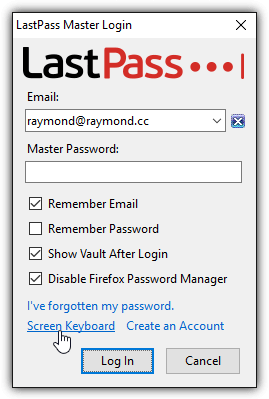
When you want to login to your LastPass account either from the official website or the browser extension, ensure that you always use the on-screen virtual keyboard to enter your password rather than using your physical keyboard. Below is a screenshot example of LastPass Master Login window. Simply click at the “Screen Keyboard” link located at the bottom of the dialog.
Your default browser will launch and automatically load the LastPass login page with the screen keyboard enabled. You can type your email address using your keyboard, but make sure the password is entered by using your mouse cursor to click on the characters.
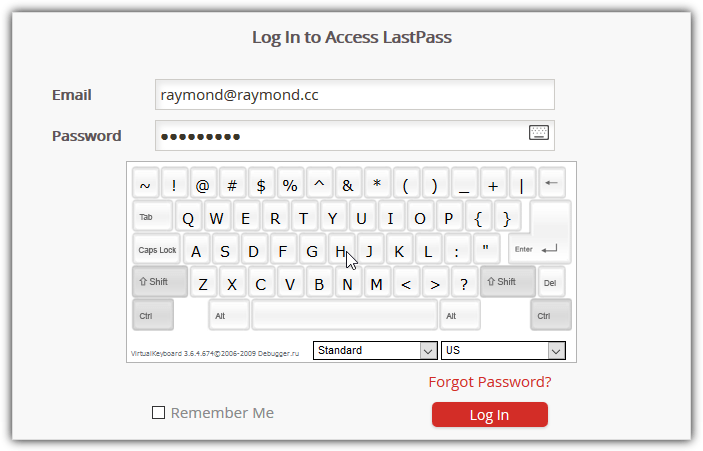
This will effectively protect against a keyboard logger from capturing your LastPass master password. However this is still not enough because a screen logger can still be configured to automatically capture your screen on mouse clicks.
2. Use Multifactor Authentication
You can do your best in protecting your LastPass master password, but humans can make mistakes. When a hacker manages to get hold of your master password, they’d be prevented from logging in to your LastPass account if you’ve enabled multi factor authentication. This feature adds another effective layer of security in protecting your LastPass account. Below is an example of LastPass prompting for YubiKey authentication after entering a valid master password.
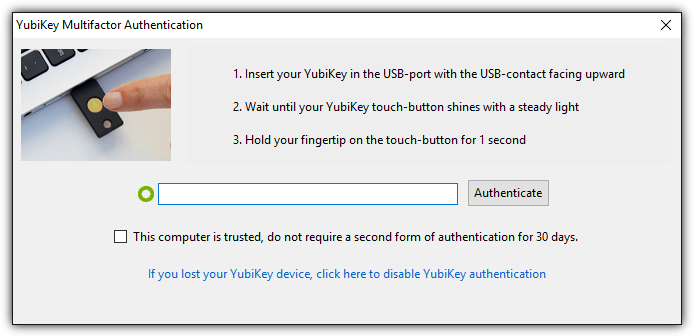
LastPass supports many different two-factor authentication methods which are smartphone-based apps, software-based services and hardware tokens. Obviously the hardware tokens like YubiKey are most effective because unlike a smartphone that can also be infected by malware to redirect messages to the hacker, hardware tokens are offline devices. To enable multifactor authentication, login to your LastPass account, go to Account Settings and select Multifactor Options. Choose the options that are possible for you to use.
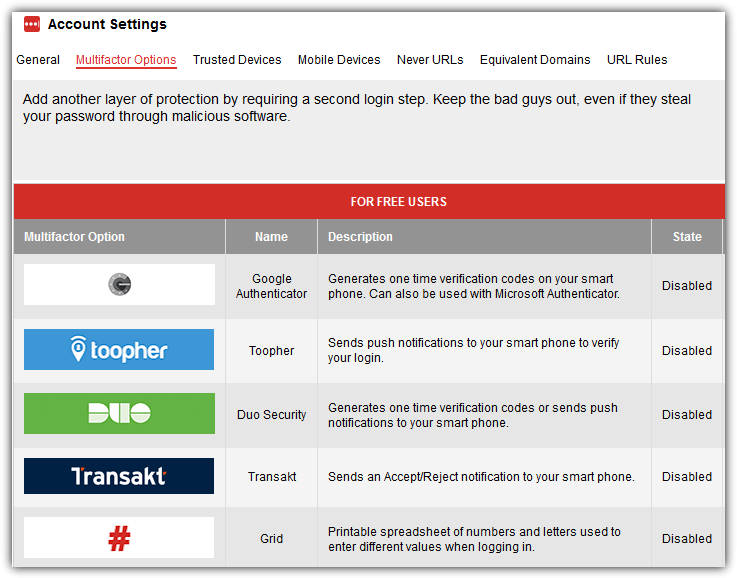
Do take note that the 2 factor authentication only adds another layer of security, but does not add more strength to the encryption of your database. This means that if you are using a very weak password and a hacker managed to successfully brute force your master password, they still cannot login due to the 2nd factor authentication.
3. Configure SMS Account Recovery
In every online account, there is definitely a feature to recover your login information by sending a unique link to your registered email address. LastPass actually comes with a better method which is by sending a text message to your phone but you must first register your cellphone number with the system for this to work.
Login to your LastPass account, go to Account Settings and at the General tab, scroll down until you see “SMS Account Recovery”. Click the Update Phone button, click the Add Number button, enter your LastPass master password to confirm the action, select the country and enter your phone number. Finally click the “Send Test Code” button and wait for LastPass to send you a text message with a 6 digit which has to be entered in the final step.
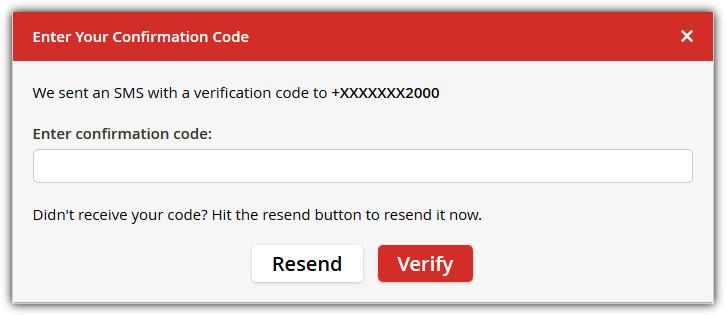
If you are unable to find the link to configure SMS account recovery, you can do so from this direct link https://lastpass.com/update_phone.php.
4. Enable Country Restriction
If you haven’t noticed, a lot of online services have started to detect if the user is logged in from a different country based on the IP address. For example, if you normally log into your Facebook account from the US and suddenly someone logs in to your account from Russia, Facebook would start showing photos of your friends and ask you to choose the names associated with the photos as a verification. You can also find a similar but more strict restriction which is to allow login from selected countries.
To enable the country restriction option, login to your LastPass account, go to Account Settings, click “Show Advanced Settings” located at the bottom of the screen, and tick the checkbox for “Only allow login from selected countries“. A list of countries will be shown together with the checkboxes, so just select the country that you’d most likely be in when you want to login to your LastPass account.
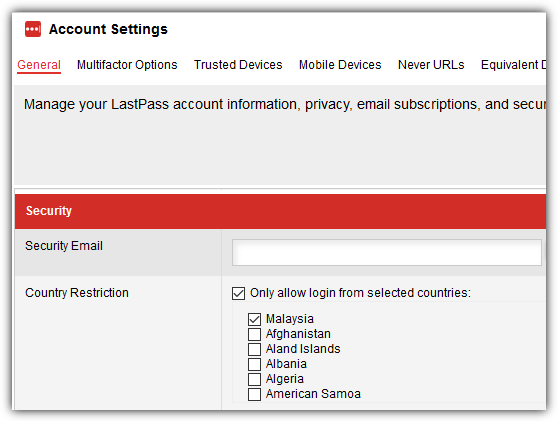
Although this restriction isn’t fool proof because the hacker can easily bypass this by using a proxy or a VPN that is located in the same country as you, it can add another layer of security.
5. Use One Time Passwords
One Time Passwords are great for logging into your LastPass account on a public computer that does not allow any installation of software or extensions. All you need to do is login to your LastPass account, go to the One Time Passwords web page and click the “Add a new One Time Password” link on the page to generate a unique password that can only be used once to login to your LastPass account. There is also a print button for you to easily print out the one time passwords without having to manually write it down on a piece of paper.
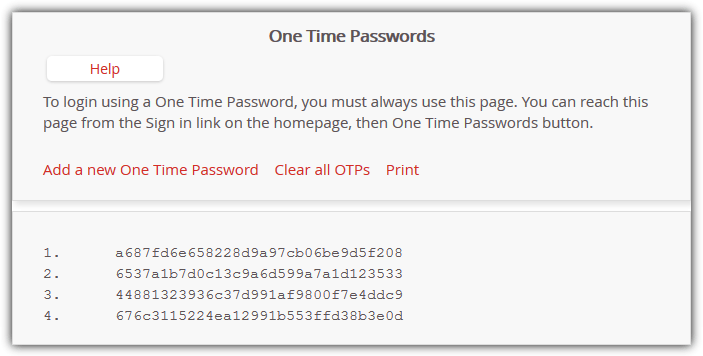
To generate your one time passwords, login to your LastPass account, go to More Options, expand Advanced and click on “One Time Passwords”. Alternatively you can also directly visit this URL https://lastpass.com/otp.php. Do take note that logging in to your LastPass account using the one time passwords must be done from the same URL that you generated the OTP.
6. Use Bookmarklets
Bookmarklets is an innovative way of instantly logging in a to website without having to install the LastPass extension to the web browser or manually typing in the password. This can be done by adding a line of javascript as a bookmark to the Bookmark toolbar which is normally hidden by default on most web browsers. Once that is done, all you need to do is ensure that you’re logged in to your LastPass account, then when you open a webpage that requires you to login and the login credentials exist in your LastPass account, simply click at the bookmark and it will automatically log you in.
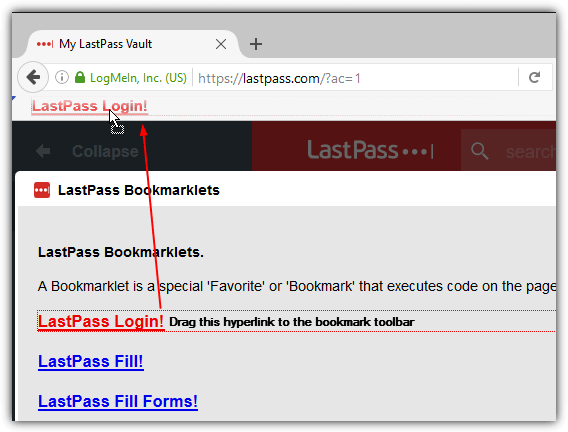
This method is safe from keyloggers because there is no typing from the keyboard nor is there any copying or pasting that involves the clipboard that can also be captured by keylogger software. The LastPass bookmarklets option is however quite hidden and you can find it in More Options > Advanced > Bookmarklets.
7. Use LastPass Portable
If the public computer permits, it is best to run your own portable Firefox or Chrome from your USB flash drive with LastPass extension installed. However, do take note that if you want to use LastPass Portable, there is a specific portable version of LastPass for Firefox and Chrome which can be downloaded from the official LastPass website. To install, visit the link provided, click on Windows tab, and scroll down until you see the LastPass Portable download button for Firefox or Chrome.
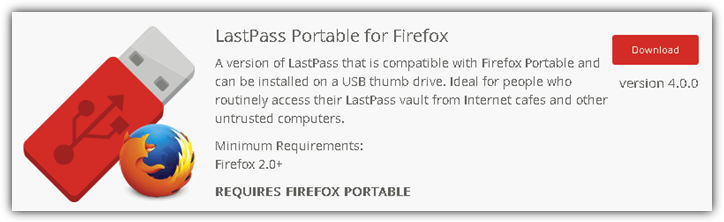
The reason why there is a special build of LastPass Portable for portable web browsers is because the normal version would save the encrypted offline database cache in the user’s LocalLow folder in AppData. When you use LastPass Portable, the extension doesn’t save the offline database to the local computer.
8. Use strong Passphrase as Master Password
We’ve said this a couple of times in this article and the people from LastPass also stress the importance of using a strong master password. A strong password is at least 8 characters long, contains uppercase and lowercase letters, numbers and symbols. With this incredible combination, it is very likely that you’ll find trouble memorizing it in the first place, or even worse if you one day forget it. A better and more efficient strong password would be to use a passphrase.
Here is an example of a strong password: 3Rv*dPprjy*1
And here is an example of a strong passphrase: Mybirthdayis0nthe1st0fjanuary198o!
You can of course make an effort in memorizing the super strong password but it would be much easier if you use the strong passphrase instead. It has much more characters and easier to memorize. Simply replacing some of the vowels with numbers and adding one or two symbols will greatly increase the strength of the password.
9. Run Security Challenge
If you’ve been using LastPass for a very long time or have imported your login credentials from another password manager, it is good to run the LastPass Security Challenge to automatically analyze the strength of all passwords stored in the LastPass vault. With this analysis performed locally on your computer and not on LastPass remote servers, you get to quickly know which password needs to be changed or updated with a stronger one.
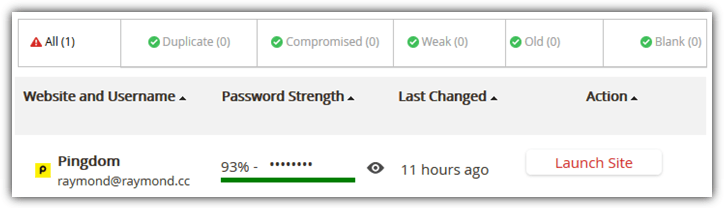
To start the Security Challenge, click at the LastPass icon, go to tools and select Security Challenge. If going from the online Account settings, it is found at the left hand sidebar. Alternatively you can also use the direct link below to instantly access the Security Challenge webpage.
Visit LastPass Security Challenge
10. Enable Mobile Device Restriction
If you have a premium subscription for LastPass which allows you to sync your vault with smartphone apps, then it is best to enable the mobile device restriction option. The concept of this feature is similar to the MAC address filtering found in most wireless routers that only allow connections from recognized MAC addresses of wireless adapters.
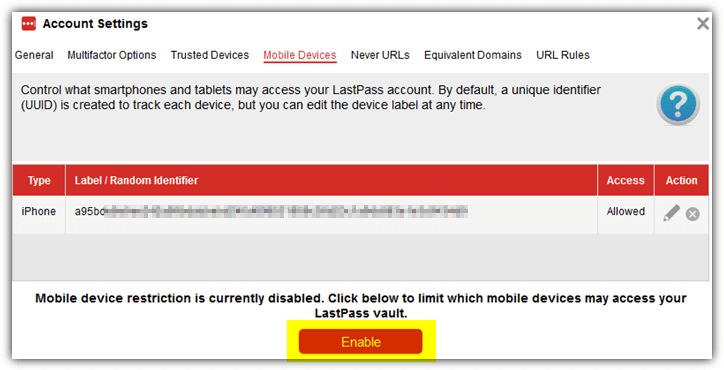
You can enable the Mobile Device Restriction feature in your LastPass Account Settings, go to Mobile Devices and click the Enable button located at the bottom of the page. Take note that you should only enable this restriction AFTER you’ve finished installing the app on your smartphone and logging in to your account. Enabling this restriction will prevent any mobile from being able to login to your LastPass account.



Improve this guide

User forum
0 messages