
For those of us who use an antivirus, they come in one of two flavours. Free, and paid. And as many of their users, as well as Softpedia can attest, they are just as good, if not better then their paid counterparts. As a person who tries to live off the freebies as much as he can, a good free protector is a life saver.
But there is a trade off for using some of the better ones, like Avast and Avira. They come with ads, which remind you that, they too, are trying to make a living. And that they’d like you to upgrade and pay for their antiviruses. AVG, Panda Cloud, and Microsoft Security Essentials doesn’t carry out advertisements in their programs, but as most of us can tout, AVG simply not ready for the big time anymore, missing viruses, trojans, and worms here and there. For those that don’t want a cloud scanner or want to be asked about Windows Updates (since that’s how MSE updates), it leaves us with two wholesome choices: Avast Free, or Avira AntiVir Personal. And while we’d rather you not block our ads, I’m going to show you how to block their ads.
Depending on your operating system, you’ll have to do different things to block Avira’s ads from popping up.
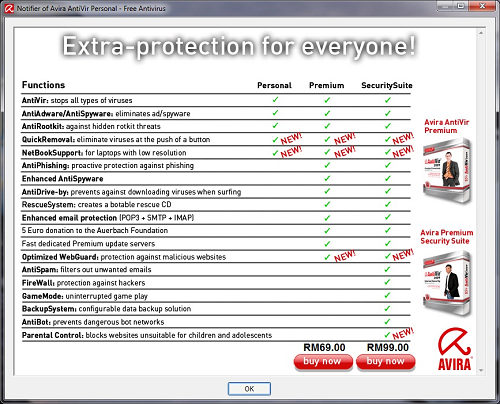
Windows 7: Open the control panel, then locate and run the Administrative Tools option. For those new to using the Administrative Tools, it is basically a folder shortcut, and the program we’re looking for is Local Security Policy. When you run it, go to the Software Restriction Policy under
Click on Software Restriction Policy subfolder, and select the Additional Rules option, before right clicking on the second pane. Right-click on the right pane, and go to Additional Rules, then New Path Rule. Click Browse and navigate to C:\Program Files\Avira\AntiVir Desktop\ and double-click avnotify.exe, then set the security level to Disallowed, click Apply and then OK. Close out of the Administrative tools.
Windows XP users can do one of two options, they can run at the Command Line Prompt (Start>Run>cmd.exe and hit enter) then in the box that pops up, they can run
cacls “%SYSTEMDRIVE%\Program Files\Avira\AntiVir Desktop\avnotify.exe” /e /d username
where username is the name you use to log in. If you’d like an even simpler way of doing it, ClickOff is a handy utility to do such a thing, if you just hit the hotkey and select the advertisement window, it closes automatically for you.
Windows Vista users can use the same tip that Windows 7 uses, or they can also direct themselves to C:\Program Files\Avira\AntiVir Desktop\, right-click avnotify.exe and go to Properties, then under the Security tab, under the group or username SYSTEM, click edit. This will pop open with a new window where you can put a checkmark under the DENY comlumn for “read and execute”, thus making it impossible to run.
However, unlike Avira, Avast’s advertisement comes on it’s main screen, when you open it up to run a scan of your computer completely, it shows up there, as seen in the screenshot below.
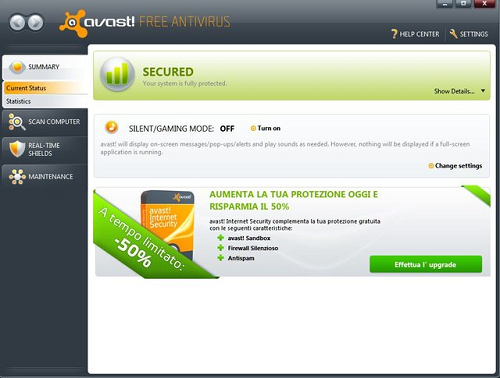
Thanks to one of our forum members, LeoFelix, he has managed to find a way to block that ad from popping up as well. A simple edit of the HOSTS file on your computer blocks this ad entirely, while keeping your system fully protected.
The places to look for your host file in Windows Vista and 7 is:
C:\windows\system32\drivers\etc\ or %systemroot%\system32\drivers\etc\
Under Windows XP Pro, the same file is located in:
c:\winnt\system32\drivers\etc\hosts
and finally, Windows XP Home, it is located in:
c:\windows\system32\drivers\etc\hosts
All you have to do is open the HOSTS file as an administrator and add one line, which is:
127.0.0.1 program.avast.com
That’s it! That sends the ad looking for itself into the loopback interface, meaning it’s no longer going to be shown on your PC. One reboot and it’s gone, at least until Avast updates it’s location of the advertisement.
- ClickOff Page -
Related posts:


Does blocking ads work in Avast 6? Because the screenshots that were shown are from Avast version 5.
It’s Paul who posted this tip… as for how to, I wouldn’t know. Not without testing at least.
Gr8 Trick Ray,
But How do i block the Flashget 3.4 ads.
They’re too annoying than Antivirus ads.
@Cae, You might have installed the 4.8 version, or the Professional demo. Take a look up at the screenshot, and see how it compares to that one
Just bought a laptop with windows7 and installed avast as you have suggested.
However, I did not see any advertisement yet?
After reading this article, I sort of freaked out, how can I confirm if I installed the real avast and not some malware?
@auscompgeek, true.. but then again, it’s not a big resource drop either.
Thanks Ray!!!
thanks a lot ray…it helps me a lot because i used to chat every morning. im using avira antivirus which free edition. im just really annoyed by this advertisement due to interruption of communicating with my family and friends. at last you reveal again another secret. hahahaha. keep up the good work.
Hi Raymond and co,
i would ask u not to neglect mse, it is at least as good as avira and better than avast (even though i do like avast ). The cloud function is excellent not as good as panda but mse is much more stable an successful in cleaning). Taking Windows Updates into account, that is something anyone should do anyway (if u consider security issues, in most cases anyway) and if u dont, u can deactivate it after installing mse anyway and mse will still update automatically
thanks for the articel
jj
I would use 0.0.0.0 instead of 127.0.0.1 to block certain web sites, this way, it doesn’t ask your computer for the file, potentially slowing your computer down.
That works too for Windows XP Home, cacls is just the command line way.
Very nice. Thanks Raymond!
Maybe after this I must change to Avira
I like the Avira ad notifier window. It lets me know the update went on schedule and it stays until I clear it so I know when I’m away from the computer.
great post hoping the the flash ad on vipre av suit canb be removed with it
I have worked it out :)
Don’t know where to find the Host file in Win 7 ??? Don’t understand it
Thank You Ray for this information,but I use a different method on XP Pro.
- – -
1. Boot into Safe Mode (tap F8 repeatedly after you restart the computer)
2. Log in using the Administrator account
3. Go to C:\Program Files\Avira\AntiVir PersonalEdition Classic\avnotify.exe
4. Right-click avnotify.exe-> properties-> security-> advanced
5. Under the Permissions tab click on SYSTEM under Permission entries:
6. Edit-> Traverse Folder / Execute File-> deny-> ok ->apply-> yes -> ok-> ok
7. Reboot the computer into Normal Mode (start-> shutdown-> restart)
- – -
I located this info from an online search and have no idea who to credit this to.
@Finer – this is my computer,I choose to configure it the way I see fit with no intentions of starving anyone.
just my 2¢
Wow, thanks, I’ve been looking around for some desent free internet secruities, and haven’t been able to find anything that doesn’t have some sort of pop-up.
Also good for my friend, he uses Avira, and will be very happy to get rid of the ad’s.
nice! it really help
Thanx a lot, very helpfull.
We’ve got double the pleasure and double the fun with the addition of HellNoire. Great post Paul.
Windows 7 instructions do not work with Home Basic or Premium versions.
Thanks for the post hellnoire and it is very helpful as well, but since i use avira and love it by the way, i have noticed that the ad pop up only appears when it updates , other wise it wont, not even notifications, and so i feel that it isnt really that annoying, but i am talking avira, and cant say about other antivirus software, once again awesome post……….
plz tell me if it is safe to use passwords of email in norton internet security identity safe card & login.
plz send the answer to my email id if possible.
this is request to all of the raymond fans..
Thanks! It will be helpful for my test computer.
Gael043
Great post HellNoire!! Glad to see that Ray has found a very good replacement to keep up this blog interesting.
Keep up the good work, both Ray and HellNoire!!!
You are great
Thanks for this ray…but can you give us some free kaspersky keys please..or tell us how to get 6 months free trials. It’s been a long time since your last kaspersky post.
nice of u, thanks
hello dear, its very interesting article and Thank you very much for this information.
Nice work Paul… Thanks!
Very informative.
Thank you raymond.Good information.
Cool, Thanks a lot
Thanks man…….i like it.
thanks
Good Post hellnoire….
gr8 job leofelix, i missed that one in the forums…
Thank you very much Ray.
This will help with some clients..
myself, I dont mind ads in my pc ;)
Thank you hellnoire. Raymond has given us chance to read you as well. Thank you both for your help.
Just a question, aren’t we then killing the good developers of Avast and Avira by disallowing their ads and compelling them to be an out-and-out paid product like the others?
interesting info mate, thanks!
ther’s another way to block avira’s annoying pop up ad….it’s by using Security Policy…..
good 1 man ……u always rocks……..
Thanks Paul, once again straight ahead raymond.cc
Thanks 4 the info…
You may also use your recommendation for Windows 7 for Windows XP. Another way to access Local Security Settings (in XP) is to click on Start, then Run, and type in “secpol.msc” (without quotes), then press Enter / click OK.
Nice, might have to try some of these out later.
Btw, AVG Free does have advertisements built-in to the security center. They can be dismissed temporarily. I don’t have AVG on this computer but I am sure if you did a netstat, the ad will pull up similar to the way Avast works and could be blocked by the same method.
@Agan, if you remove avnotify.exe, Avira redownloads it and rebuilds it on the next update. So while possible, it’s not a feasible alternative.
how about remove avnotify.exe in win7 mode is this possible.
@Shon, sorry about that. I think you can follow the Vista tip then.
@macinodazm, thanks. I might cover a small amount of Linux on the main blog too… so you might want to keep watch.
Hi,
Thanks for the tips. :)
Wow !!!
Did you see how many comments where in yesterday’s blog !!!
Wow !!!
Hi HellNoire,
I like your job, Raymond is right, you are very talented you have been the first guy I followed instructions on my first approaches to linux a year ago and I can say you have been very helpful.
This has been my very first site school !!!
Thanks guys !!!!
A note for Windows 7 Home users, this will not work as there is no Local Security Policy editor, afaik…..
Raymond you are the best , Ive learned something new from this , thanks a lot for posting such subjects ….
Best Regards
For XP use:
cacls “%ProgramFiles%\Avira\AntiVir Desktop\avnotify.exe” /e /d %USERNAME%
i was about to install AVAST5 free. this information will be very helpful. ;)
thanks…
Great post.
Congratulations;)
Sorry,habit.I have not read who is the author.
AVG free too carries a notification bar in the main window.
For AVG free users, here is the way to remove it.
techspot.com/guides/180-remove-notification-bar-in-avg/
@Stanly, it’s the other writer for this one :p lol
@Mike, thanks. Tomorrow I’m going to be ranting about security.. at least tomorrow my time lol.
Very interesting article and Thank you very much for this information. I always disliked them Avira popups.
Thank you Ray. IT realy help.


