
Raymond.CC Blog
  • Home
  • Forum
  • Giveaway
  • X-Ray 2.0
  • Contact
  • About
  • I’m Feeling Lucky
Search the site...
You are here: Home » Windows » Disable or Stop Auto CHKDSK During Windows Startup

Disable or Stop Auto CHKDSK During Windows Startup

Updated by Raymond - 10 months ago - Windows
92
  • Like
  • +1
  • Tweet
  • Printer Friendly and PDF
chkdsk icon

One of Windows annoying so called “features” is the Windows disk checker (Chkdsk) being automatically executed whenever you don’t shut down your computer properly. The blue colored screen appears on Windows XP or black colored screen for Windows Vista and 7 during boot that says:

Checking file system on C:
The type of the file system is NTFS.
One of your disks needs to be checked for consistency. You may cancel the disk check, but it is strongly recommended that you continue.
To skip disk checking, press any key within 10 seconds(s).

Simply pressing any key would stop Check disk from running but when you restart your computer, you’ll get this prompt again because Windows still thinks the drive needs scanning and will keep reminding you until it is checked. Sometimes, even after letting Check disk scan the drive that it wants to, the checking process would still automatically run at next boot and it wants to check the drives again.

Disable CHKDSK at startup

What we have found out is that when Windows detects there has been an improper shutdown or a drive such as a USB flash drive has been ejected before the system has finished with it, a secret value is stored on the drive to let Windows know about the issue and force a Check disk request. This value is known as a “Dirty bit” and is a single hex value (2 values for Windows 8) that Windows looks at on boot for system drives or when the the external device is inserted.

One easy way to determine if a drive letter is marked as dirty and will require auto chkkdsk on boot is to run the command fsutil dirty query C: in Command Prompt. If the fsutil tool reports that the drive letter is not dirty, the disk checking process will not want to run for that drive. However, when a drive letter is being marked as dirty, we discovered the location of the hex values on the drive that are being modified and resetting the dirty bit hex value to default will magically stop the auto disk check on boot.
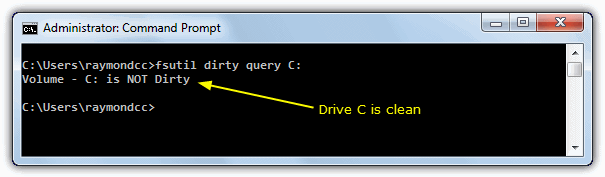
fsutil dirty query

While resetting the dirty bit manually would be the best solution for many situations, it is more difficult to do on system drives such as C because they will be locked and not allow editing from within Windows to change the bit value. Another option for these drives is to simply instruct Windows not to bother checking whether they have been marked as dirty on boot, so you’ll never get a request to auto check them again. Here’s how to disable or stop Check disk from scanning your drives in Windows boot for Windows XP, Vista, 7 and Windows 8.

There are people who suggest editing the registry to do this which works if done properly, but the recommended and safer way to disable auto Check disk from starting up is using the /x switch via the chkntfs command in Command Prompt. This switch will exclude a drive from the default boot time check. To get to the Command Prompt, go to:

Start -> Run (or Win key+R) -> type cmd and press enter

If you have drive C: as the drive you want exclude, then the command to disable chkdsk from scanning the C: drive would be:

chkntfs /x c:
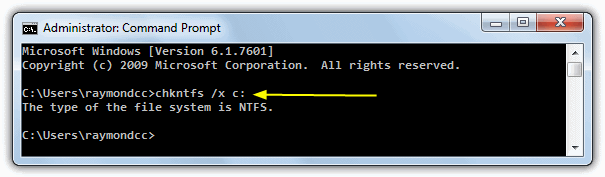
chkntfs switch

If you have a second drive to exclude, C: and D: for example, you can disable Check disk with the command below. Simply add all the drives you want to exclude in this way, separating them with a space.

chkntfs /x c: d:
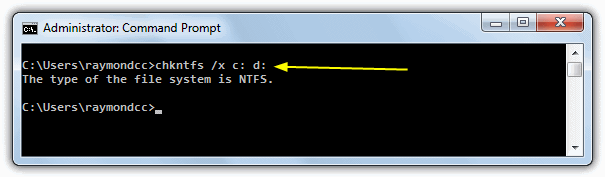
exclude 2 drives from chkdsk

Sometimes users don’t like editing the registry or using the command prompt, which is why for your convenience, we have created a simple batch file to run the command for you. Download and run the .bat file, then enter the drive letter(s) to exclude from autocheck when prompted, the rest is automatic. Make sure to right click and “Run as Administrator”.

Download Autocheck Boot Exclude.bat
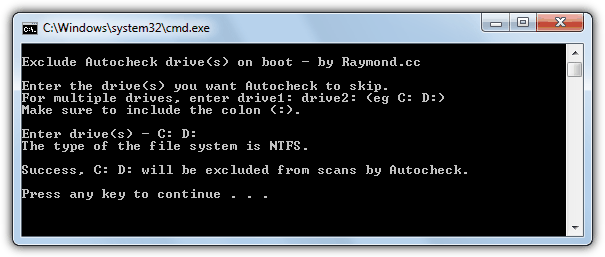
autocheck boot exclude

There are some experts who believe that it’s better not to disable Check disk from scanning your hard drive. But sometimes it makes sense if you don’t want it to scan your hard drive because if it finds anything bad, damaged files will be changed to File00001.CHK. When that happens, you will have to use data recovery software or some third party tools to recognize and recover the CHK files.

There are other important functions the Windows chkntfs command performs you should know about, which are discussed in more detail on page 2.


  • < Prev
  • 1
  • 2
  • Next >

You may also like:

Running a Check Disk with an Easy to Use InterfaceRunning a Check Disk with an Easy to Use InterfaceWeaknesses in Windows 7 User Account ControlWeaknesses in Windows 7 User Account ControlPossibly Solving Audio or Video Streaming Drop Out ProblemPossibly Solving Audio or Video Streaming Drop Out ProblemAnalyzing Windows Crash Dump or Minidump with WhoCrashedAnalyzing Windows Crash Dump or Minidump with WhoCrashed

92 comments on “Disable or Stop Auto CHKDSK During Windows Startup”

  1. kiran says:
    1 week ago

    Thank you so much

    Reply
  2. Thony says:
    2 months ago

    Thank you very much……!!!! It worked very much to me, so amazing!!!! I like it

    Reply
  3. Trevor says:
    2 months ago

    I was recently helping a friend who had a problem with chkdsk running on every boot-up, despite the fact that the computer had been shut down properly and having let the scan run multiple times each time the computer was turned back on. Most of any problem solving that I’ve done has been through automatic processes and I’m certain not tech-savvy enough to be comfortable messing with the registry too much – especially considering it’s not my computer. I was able to disable the disc check by typing the chkntfs /xc: command, which seems to have allowed the computer to boot up normally.

    Reply
  4. James says:
    2 months ago

    Thanks so much for the help.

    Reply
  5. Dodko says:
    2 months ago

    THANKS THANKS!!!!

    Reply
  6. L says:
    2 months ago

    Thanks You So Much. It’s working. I don’t believe it. And the script I downloaded from you, it works too.

    Reply
  7. Endriago says:
    3 months ago

    Thank you very very much, it worked :-)

    Reply
  8. Joe says:
    4 months ago

    Thanks. It worked.

    Reply
  9. acatatease says:
    5 months ago

    Thank you LARGE, Raymond. This “feature” was becoming a PITA and as I use a remote keyboard, it wouldn’t cooperate with pressing any key to halt the process.

    Reply
  10. manoj says:
    6 months ago

    its work……..thanks very much……*****

    Reply
  11. Rave says:
    6 months ago

    Thank you so much man, you save me hours of useless search.

    Reply
  12. متوكل عبدالله says:
    6 months ago

    Thank you very much,
    now i boot with out problem

    Reply
  13. Chris says:
    8 months ago

    Thank you! Win-Vista Win-Explorer wouldn’t let me open the properties of the C-Drive from MyComputer, so I knew I needed to do it from the command prompt…. I just didn’t know the command. This worked like a charm, Thank You! Before, I was having to stop ChkDsk from running by hitting a key (McAfee enabled this feature after I ran virus scan and selected Auto-Turn-Off PC if no problems are detected). Unfortunately, my laziness – not wanting to wait and shut off the PC myself – caused McAfee to select to AutoRun Chkdsk at StartUp (Urghh!!). Anyway, it is all fixed now! Thank you!

    Reply
  14. Sukanta says:
    9 months ago

    Great !! thanks much.. It worked exactly as you said. I had some bad sector in my main C: drive and chkdsk was running every restart and hanged with blue screen in its stage 3. It was disturbing to skip this every restart. I didn’t want to format the drive and reinstall Windows XP. It was OK for me to accept some bad sector instead, which was not bothering my daily laptop use. Your solution helped.

    Reply
  15. Paranoid says:
    12 months ago

    Thank you so much, I had this for the first time this morning and I couldn’t figure out if it was my computer crashing or a virus etc… and now I can shut it off too? Thank you again.

    Reply
  16. Hawkeye says:
    1 year ago

    I could live with the “press any key . . .” except that it does not respond to my wireless keyboard. Thanks for the solution.

    Reply
  17. sher2011 says:
    1 year ago

    Raymond-
    I finally got chkdsk disabled…kinda rough when it keeps turning off!! My computer and I are “oldskool” so the whole “instructions stuff” was a little difficult for me to follow, but I met the challenge! YES, your assistance is greatly appreciated, today and for the next times!

    enjoy your day

    Reply
  18. majid says:
    1 year ago

    thank you dear!

    Reply
  19. Cu says:
    1 year ago

    It really helps me, thank you very mouch.

    Reply
  20. nash says:
    1 year ago

    thank you so much it help me… :D

    Reply
  21. Károly Molnár says:
    1 year ago

    I tried the first solution and it works right away

    Thank you very much.    

    Reply
  22. Leo Masagca says:
    1 year ago

    thanks a lot i tried the first solution and it works right away thank you very much

    Reply
  23. Marc Lester C says:
    2 years ago

    thanks your the man.. bravo

    Reply
  24. justshootme says:
    2 years ago

    Awesome man……

    Reply
  25. dimuthu says:
    2 years ago

    great work, helped me to stop check disk at startup

    Reply
  26. yasir says:
    2 years ago

    great man, excellent indeed

    Reply
  27. Rap Music Guide says:
    2 years ago

    Yahoo! This solutions fixed my problem. Who needs Checkdsk anyways! lol Mine was using the D drive, so I changed C to D and it works perfectly. Cheers

    Reply
  28. Anil G. Gajera says:
    2 years ago

    Thanks. buddy

    Reply
  29. mario0ne says:
    2 years ago

    thanks :)

    Reply
  30. Rudra says:
    2 years ago

    Thanks Dude……It helped me a lot….

    Reply
  31. Atish says:
    2 years ago

    thanks man….now this annoying feature won’t disturb me

    Reply
  32. Bharath says:
    2 years ago

    THANK YOU SO MUCH… Its Very Useful… I m Very happy with this solution…

    Reply
  33. vinay chavan says:
    2 years ago

    Thanks a ton for solution which gives my friend a relief from long wait for startup.

    Reply
  34. voltsky says:
    2 years ago

    thanks, it really worked… straight and no many tweaks to apply… helpful….

    Reply
  35. Jacques Bouchard says:
    2 years ago

    Pure genius. Fast and easy. Thank you SO much for helping me fix this long-standing, annoying problem, both for me and for a friend with the same issue.

    Reply
  36. Kirykiry says:
    2 years ago

    Thanks for this article, straight to the point no mess or confusion like most other web pages. Solved my problem straight away.

    Reply
  37. Grace says:
    2 years ago

    This is fantastic. I mean it is simple, straight to the point, and does what it says and solves the problem
    Many thanks for the article

    Reply
  38. n3o says:
    2 years ago

    thanks

    Reply
  39. Brahim says:
    2 years ago

    This is very helpful, especially if we need to restart server remotely and you have disk that need check, it will take all the day and will not finish.
    Thanks again for this article

    Reply
  40. sanjay shaw says:
    2 years ago

    thanks for the nice and easy solution to solve my problem.

    Reply
  41. kryshna says:
    2 years ago

    Thank you.

    the article is able to solve my issue and is highly appreciated,

    Thanks indeed,
    Krishna Chaitanya P

    Reply
  42. cris69 says:
    2 years ago

    thanks for this very useful trick…..

    Reply
  43. Hyns says:
    2 years ago

    It worked! Now I can boot my computer without going through this irritating windows check disk. It does not correct the error no matter how much i allowed it to pass the check disk test. Brilliant idea on registry tweak!

    Reply
  44. adol says:
    2 years ago

    thank u a lot it was useful

    Reply
  45. notts says:
    2 years ago

    thank you raymond

    Reply
  46. hehe says:
    2 years ago

    thanks mr raymond. i hate windows as well chdisk.

    Reply
  47. Joseph says:
    2 years ago

    Nice post,it was really annoying,but as i have done as u instructed,it’s okay,thank you

    Reply
  48. gautam says:
    3 years ago

    Thanks to u very much Its working fine

    Reply
  49. Franz Capones says:
    3 years ago

    Hey, I gotta tell you. This is the only one that really worked for me. thanks for the tip. more power!

    Reply
  50. Richard says:
    3 years ago

    gotta say, this was very helpful, thank you very much

    Reply
  51. P says:
    3 years ago

    thanks ! never thought that would go away

    Reply
  52. Brummie from UK says:
    3 years ago

    lol thanks i owe u one!!

    Reply
  53. bob parrish says:
    3 years ago

    Awesome. Thank You Thank You. That did the trick.

    Reply
  54. jeremiah says:
    3 years ago

    Cool tip. Thanks and have a blessed christmas and happy 2010!

    Reply
  55. Cary says:
    3 years ago

    I had to remove the original BootExecute value and then run the chkntfs to get it right.

    My CEO is very pleased – I got his old win2000 working like a charm. Besides this annoying boot anomaly there were also some dll ambiguities…

    Thanks very much for the fix
    /C

    Reply
  56. Aryan says:
    3 years ago

    Thanks its Work.

    Reply
  57. wez says:
    3 years ago

    This was very helpful thank you very much.

    Reply
  58. alkita says:
    3 years ago

    Thanks

    Reply
  59. Satyaranjan Chongtham says:
    3 years ago

    Thanks a lot! At last I found the right site.

    Reply
  60. Gre says:
    3 years ago

    Worked a charm.

    Reply
  61. Kent says:
    3 years ago

    Many thanks! It saved my time!

    Reply
  62. Alternal says:
    3 years ago

    Your posting just saved my job!!!!

    A million thanks!!!!!!!

    Reply
  63. woross says:
    4 years ago

    Thanks so much!

    Reply
  64. Barbara Stebbins says:
    4 years ago

    Thanks so much – this was the trick!

    Reply
  65. Jag says:
    4 years ago

    Thank you so much worked great

    Reply
  66. jp says:
    4 years ago

    great!!! everyone else reiterates the microsoft description of the value needing to be set to “autocheck autoch*”, which is the DEFAULT.. even M$ says this is how to turn it off!!!!tempts)

    your pointer WORKS!!!! THANK YOU !!

    (after 2 hours of redundant searches & attempts)

    Reply
  67. Shivam says:
    4 years ago

    Thanks for the solution!

    Reply
  68. ajithkumar.r says:
    4 years ago

    Very very thanks

    Reply
  69. ROb says:
    4 years ago

    Thanks for the info!

    Reply
  70. Jim says:
    4 years ago

    Thanks for the help on chkdsk options. Very well done and easy for the less computer savvy individuals to understand.

    Reply
  71. Krishnan says:
    4 years ago

    Thanks to you very much Its working fine

    Reply
  72. Naqqash says:
    4 years ago

    Thanks for that it really works.

    Reply
  73. spunker88 says:
    4 years ago

    Tried this on my old PC with windows 2000 because this screen kept coming up and it was annoying me.
    Thanks, this worked good even on my fat32 drive.

    Reply
  74. baohp says:
    4 years ago

    Thanks a lot …!

    Reply
  75. Rex Aguillon says:
    4 years ago

    Thanks a lot bro, this kind of easy than the others… keep it up….

    Reply
  76. bashka says:
    4 years ago

    oh, my god.
    Thanks very very much!

    Reply
  77. arvelle says:
    4 years ago

    thank you for the detailed information, i was doubted for a minute why chkdsk run at startup, now i know the reason.

    Reply
  78. red says:
    4 years ago

    good

    Reply
  79. kristijan says:
    5 years ago

    thank you very much

    Reply
  80. Eriek Haelnx says:
    5 years ago

    Big Thanks!!!

    Reply
  81. Jagdish says:
    5 years ago

    It works fine, while booting system it showing disabled like.
    Anyway thanks

    Reply
  82. Horace says:
    5 years ago

    Thanks!

    Reply
  83. Chris says:
    5 years ago

    Windows did this to me once – it started ‘autochecking’ a FAT32 disk in a USB caddy I’d left plugged in. It spent several minutes listing files it thought were corrupt (and I think ‘converting’ to CHK files) before complaining the disk was full. When it finally booted into Windows the disk was practically unreadable and subsequent attempts at recovering the disk content using recovery tools have proven fruitless.

    Turn this ‘feature’ off at all costs. The usual crap you have to put up with when using Windows is tolerable but anything that actively destroys your data should be disabled.

    Reply
  84. Charlie says:
    5 years ago

    I have searched throughout Microsoft trying to find out how to turn off this annoying pain in the a**, and they had no answer. Then my son said to GOOGLE it and I found your solution. Thank you, you are an answer to PRAYERS, many many PRAYERS.
    Thanks again, Charlie

    Reply
  85. Chief_runningwater says:
    5 years ago

    OMFG this is what I have been looking for! For some random reason it started doing it and never has before and its annoying so i used this and it fixed it! thanks

    Reply
  86. Nishant says:
    5 years ago

    Thanks a lot… don’t have to press Esc any more at start up.

    Reply
  87. Ryu says:
    5 years ago

    Thanks Raymond! That solved my annoying problem.

    Reply
  88. John C says:
    5 years ago

    Adding my thanks to the many you already have. Invaluable help, much appreciated, thanks a lot,
    John C

    Reply
  89. Elvis says:
    5 years ago

    God bless you Raymond, you help me a lot.

    Reply
  90. irjan says:
    5 years ago

    Useful trick, thanks Ray.

    Reply
  91. bugtea says:
    5 years ago

    thanks. that work

    Reply
  92. Nelson says:
    5 years ago

    THANKS RAY, KEEP THE FRAME BURNING

    Reply

Leave a Reply Cancel reply

Your email address will not be published. Required fields are marked *

Recently Updated

  • no fake av icon

    6 Ways to Kill and Remove Fake Antivirus Rogue Software

  • abort shutdown

    4 Tools to Prevent, Cancel and Abort a Windows System Shutdown or Restart when Applications are Running

  • screen brightness icon

    10 Tools to Adjust Laptop and Monitor Brightness, Gamma or Contrast Levels

New Articles

  • task manager replacement icon

    Memory Usage Test to See Which is the Lightest Antivirus Software

  • kaspersky antivirus 2013 icon

    Activate Free Kaspersky Anti-Virus 2013 ROG with 1 Year License

  • remote access software

    Top 8 Remote Access Software for Providing Online Support

Popular Posts

  • Top 10 FREE Data Recovery Software

    Top 10 FREE Data Recovery Software

  • How to Hack Into a Windows XP Computer Without Changing Password

    How to Hack Into a Windows XP Computer Without Changing Password

  • 10 Free Software to Mount CD or DVD ISO Image File as Virtual Drives

    10 Free Software to Mount CD or DVD ISO Image File as Virtual Drives

Recommend on Google
Follow @raymond_cc
Subscribe Youtube »
(c) 2013 Raymond.CC Blog
  • Disclaimer
  • Disclosure
  • Privacy Policy
  • Terms of Use
  • Sitemap

