
5 Tools to Delete or Replace Multiple Lines for All Files in a Folder


 5 min. read
  Published on

One of the most useful features found in text editing software is the search function. By searching using keywords, you can quickly find information that you are looking for rather than referring to the index at the first page and then read the whole chapter. Another handy feature that most of the time you will find accompanying the search is the replace feature. You can find both search and replace feature even on Notepad, the most basic text editing software included in Windows operating systems.
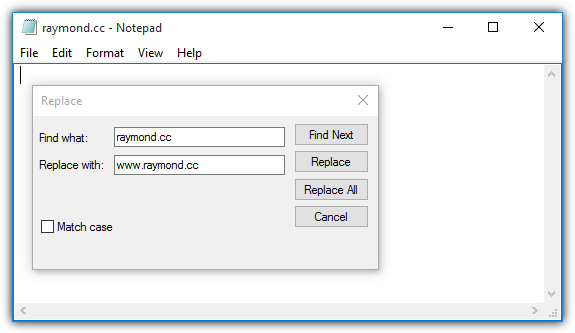
This search and replace feature is only limited to the text file that is currently opened in Notepad. If you want to automatically replace a word of phrase across multiple text files, there are plenty of third party free software that can do it because it is a very simple operation. For a more sophisticated search and replace that involves multiple lines, it is advisable to use regular expressions to do the job but regex is not easy and something that most people wouldn’t know how to use or even to write a working string.
For a simple replace or removal of multiple text lines, an easy solution that might work for some cases is by using the greedy dot star (.*) to match anything in between. An example is removing the whole HTML head tag from the starting <head> until the closing </head> in HTML files by using the following search syntax:
<head>.*</head>
After testing a bunch of third party search and replace freeware tools, here are 5 that can allow the dot star usage.
1. Notepad++
In our opinion, Notepad++ is one of the best if not the best third party text editing software. Not only can it perform find and replace on opened documents in the program, it can automatically process every file in a directory depending on the filters from the “Find in Files” tab which can be launched by pressing Ctrl+Shift+F.
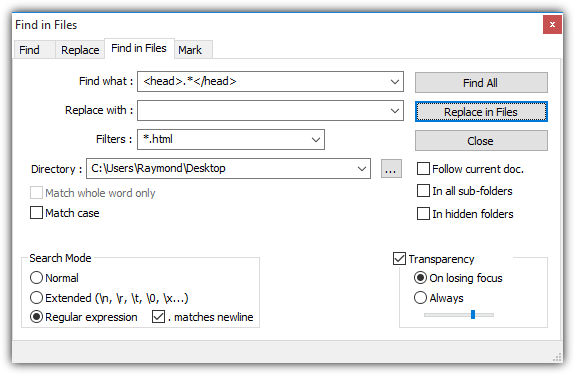
The find syntax shown at the screenshot above will search all HTML files in the desktop folder and remove anything in between the head tags. You will have to ensure that “Regular expression” is selected as the search mode and tick the “. matches newline” checkbox. Clicking the “Replace in Files” button will replace the matching text with the provided text. Alternatively, if you just want to view the matching results, simply click on the “Find All” button.
2. TextCrawler
TextCrawler is one of the best tools to find and replace text across multiple files which can be used by both beginner and advanced users. It has always been freeware until recently where an additional paid Pro version has been added to their list of products, fortunately the free version can perform find and replace using the dot star regular expression.
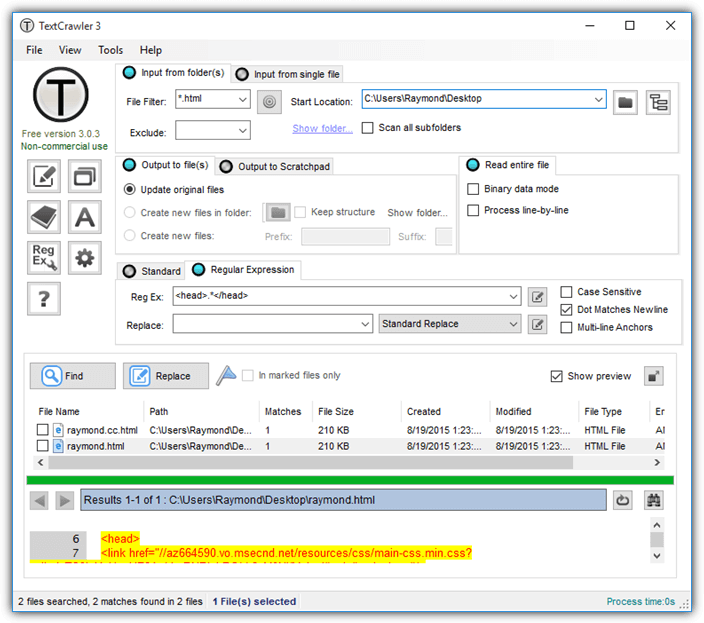
Unlike Notepad++, TextCrawler offers more filters such as exclusion, output to a new file instead of overwriting the original files, replace options, preview, processing of marked files only, and etc.
3. Search & Replace Master
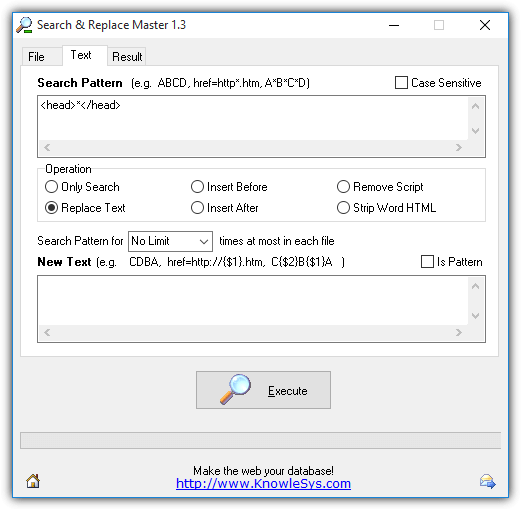
Search & Replace Master was made during the Windows XP era and still works perfectly under Windows 10. Unlike Notepad++ and TextCrawler, it doesn’t use regular expression but instead a more simple wildcard such as an asterisk. It also supports reference by using {$1} which is useful to keep the whole piece of random text intact while inserting or replacing text on other areas.
Since Search & Replace Master recognizes wildcards, a star (asterisk) alone would be the catch all and there is no need to use the dot star regex string. From the screenshot below, anything in between the head tag will be removed.
The program itself is actually portable even though it requires installation. You can just copy the SearchReplaceMaster.exe file and run it from anywhere. The settings including search pattern are also not saved on the computer.
Download Search & Replace Master
4. Ecobyte Replace Text
A unique feature found in Ecobyte Replace Text is the grouping that allows you to perform multiple search and replace operations at one time. It is quite advanced supporting many features while it is also easy to use at the same time because a few search modes are already included in the program. Unlike most of search and replace programs mentioned in this article that require manually entering the dot star regular expression string, you only need to select the “range search” mode from the advanced edit window.
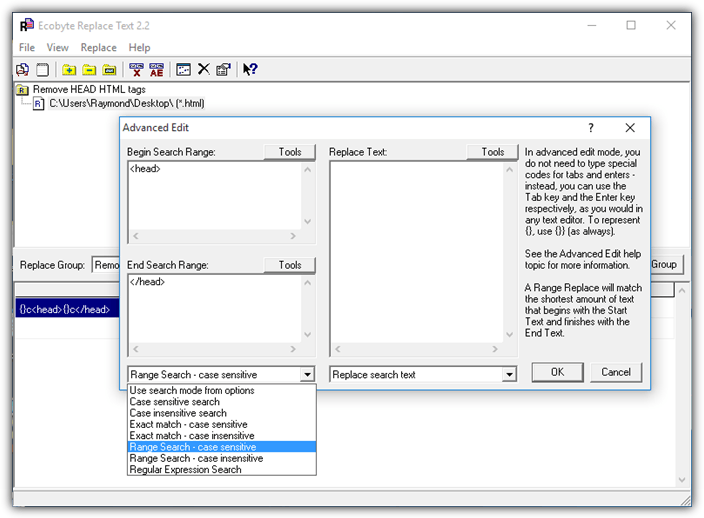
By using the range search mode, and specifying the begin and end search range, you can easily remove or replace the text that is found in between the specified range. After creating the find and replace rules, you will need to configure the path and files for the program to scan. Another useful feature is the ability to automatically create a backup before making changes.
5. InfoRapid Search & Replace
InfoRapid Search & Replace is the oldest program mentioned in this list as the last version was released 12 years ago and surprisingly still works without problems in Windows 10. After running the program, at the Search tab, enter the dot star (.*) regex string, specify the file extension and the directory to scan, and click Start to find the matching text.
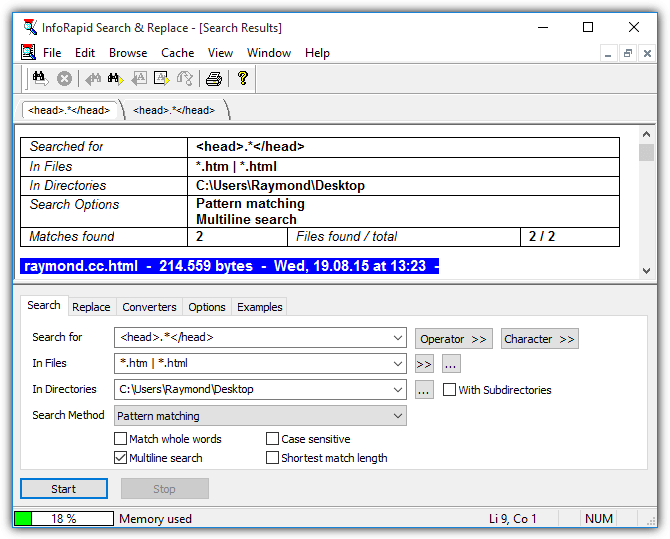
To replace or remove the matching text according to the search string, go to the Replace tab, fill up the “Replace with” box or leave it empty if you want to remove, then click the Start button. You will be asked to confirm the replace action on each file and if you find it annoying because you are performing a find and replace on thousands of files, it is possible to disable the confirmation window by simply ticking the “Replace all” checkbox.



Improve this guide

User forum
0 messages