
5 Tools to get Status Information About your Laptop Battery


 6 min. read
  Published on

The battery in your laptop might be an important component that makes your computer tick while it’s not plugged in, but Windows doesn’t exactly give you much information about it. The most you will usually get is an icon in the system tray, a charge percentage and a time remaining before it discharges completely. Other than that, the laptop battery status and detailed information is pretty much non existent.
You might also get the battery model and manufacturer if you’re lucky. That might be enough for most people, but sometimes it’s useful to have a bit more information than that. Windows can’t give you any idea why your battery isn’t holding a charge for very long, or if it’s starting to show signs of wear. A lot of laptop batteries actually have a more information to offer than Windows decides to give you, so it’s there but you can’t get at it.
What you need is a 3rd party utility to get hold of this extra information for you, and like most things, there are a few around to help get hold of it. Here’s a selection 5 of freeware tools to extract much more useful information from your laptop battery:
1. BatteryInfoView
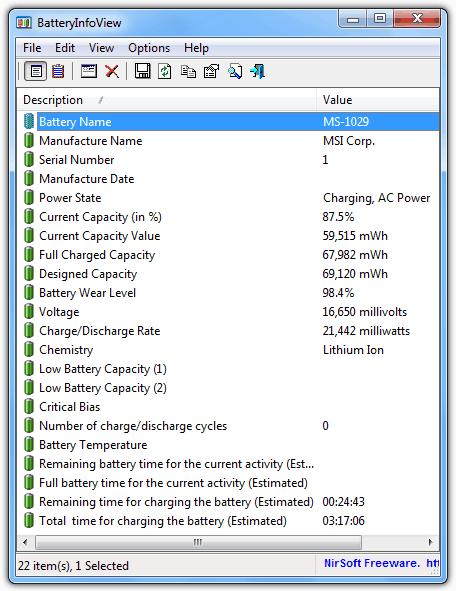
BatteryInfoView is a handy little tool from Nirsoft to display the status and information values your laptop battery is capable of offering. There are around 20 different values that can be shown, but it depends entirely on what your battery can provide as to how many of these are available. Details such as the manufacturer and model information, power state, charge and wear capacities, charge / discharge rates and times and also temperature can be displayed and these values are updated every 10 seconds.
In addition to the main battery information window, pressing F8 will show the log window which is updated every 30 seconds and gives you an idea as to what the battery has been doing. From here you can see the charge or discharge rates over a period of time, and because the log records standby and resume, you can see how much the battery has discharged while in the low power state.
BatteryInfoView is a tiny portable executable of under 100K and is compatible with Windows 2000 and above.
2. BatteryBar
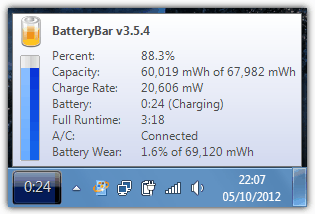
This utility displays less information in terms of numbers than BatteryInfoView, but still a lot more than what Windows provides. BatteryBar goes for a more user friendly approach and displays a very convenient graphical status of your laptop battery in the task bar which is much more readable than the Windows tray icon. This is accompanied by a popup status window that offers valuable information such as charge percent, capacity, charge / discharge rate, charge time left and a wear calculation.
BatteryBar also learns about the the discharge rate of your battery over time, and therefore the more you use the program the more accurate it gets at calculating the minutes left value. The battery graphic will change color depending on its status, blue means it’s on A/C power and charging, green is high charge, yellow is medium and red a critical battery remaining.
The .NET Framework v2 is required to run the program and once installed you don’t run an executable to start the program, but right click on the task bar -> Toolbars -> BatteryBar. This will show the battery status graphic on your task bar. Windows XP and above is supported.
3. BatteryCare
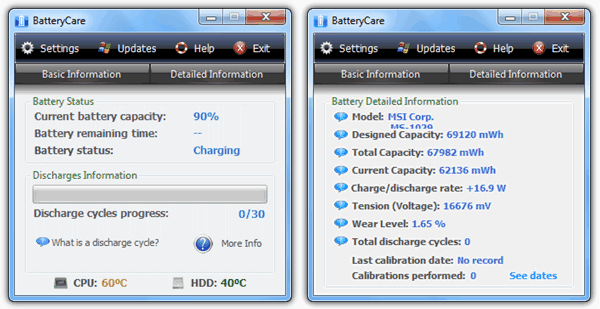
As well as being able to display several bits of information about your laptop battery and it’s status, BatteryCare also tries it’s best to help you extend battery life by giving you quick access to the systems power plans or even switching the plan automatically depending whether you’re on battery power or plugged in. There are also some other power saving optimizations on offer when on battery power including disabling the sidebar, disabling the Aero theme and pausing high consumption services.
The program also has its own tray icon and notifications about low battery status, and interacting with the icon several different ways gives you different displays. For instance, hover over it to get a quick display with charge percentage, rate, HDD/CPU temps and power plan, left click allows quick changing of the power plans and a double left click displays the main information window where you can get basic or detailed battery information (pictured).
There is a portable version available if you look in “more download options” on the website. BatteryCare works on Windows XP, Vista and 7 and the .NET Framework v2 is required.
4. Battery Status Monitor
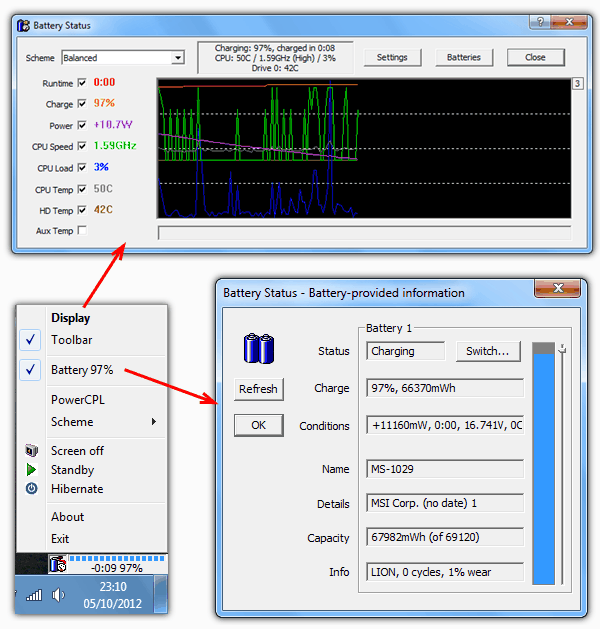
Battery Status Monitor works by way of a little floating widget that you can drag to anywhere on your desktop that gives a bar and percentage of the charge status of the battery. Right click on the widget and you have access to other options which include changing the power scheme, standby, hibernate and also a useful option of quickly turning the laptop screen off. Very handy to save a bit of battery when you leave the computer for a minute or two, a hotkey for it can also be configured in the settings window.
Clicking on Battery in the menu will pop up a window with more precise status details about it. Clicking the Display menu option opens what doubles up as the settings window and a live graph of 8 functions including battery runtime, current charge percent, current system power consumption and some stats about the CPU. Some interesting settings are to disable Aero at a set battery percentage and also tweaking the AAM and APM functions of your hard drive if supported.
Battery Status Monitor is compatible with Windows 2000 and above.
Download Battery Status Monitor
5. Notebook BatteryInfo laptop battery detail in XP
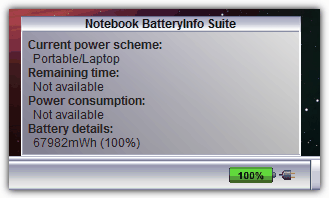
Notebook BatteryInfo is similar to BatteryBar in that it can display a graphical representation of your laptop battery inside the taskbar. Sadly this program does not officially work on any version of Windows above XP which is a shame. It places a battery graphic on the task bar which shows the current state of charge, hovering over it will pop up a small window with a few more details such as the power scheme, consumption and amount of charge.
There are a number of options on how the task bar meter and pop up will look and also the types of statistic numbers to display such as percent or remaining time or power consumption. There is also a window for battery status values if you right click on the task bar meter and select “Show battery values”. Something annoying the program kept doing though was popping up a nag reminder that Notebook BatteryInfo is for non commercial use only, once would have been enough.



Improve this guide

User forum
0 messages