Firefox Memory Optimizer: 3 Best Tools to Use
Mozilla Firefox and Google Chrome are by far the most popular third party web browsers around. Over time they have both increased in the amount of features, and consequently the amount of system resources they consume while running. Add in a few of the 1,000’s of extensions available and your browser could soon consume hundreds of Megabytes of memory and take up large amounts of disc space. Even though both have done work in this area, a lot of people still complain these browsers use far more memory than they should.
As the browser gets used, slowly it will take more time to load during startup, the overall speed might decrease, and browsing thorough the history will start to slow down. This is a very common problem and occurs partly because of fragmentation in the databases Chrome and Firefox both use. Also if Firefox is left open for several hours, consumed memory of well over a Gigabyte is not uncommon even with only a few tabs open, a long running memory leak issue that plagues Firefox sometimes.
A useful way to regain a bit of the lost performance in Firefox and Chrome is to compact the SQLite databases they use. A database gets fragmented over time and optimizing it decreases read and write times. Although not such a big problem with performance unless your computer doesn’t have a great deal of memory, optimizing the memory for the browser reduces overheads and leaves more memory available for other programs.
Here are 3 useful tools to optimize the Chrome and Firefox SQLite database files and help reduce the memory they use while open.1. SpeedyFox 2
SpeedyFox is a tool designed specifically for compacting the SQLite database files which will in turn reduce the time taken to read from and write to them. In addition to Firefox which it was originally designed for, SpeedyFox can now also compact the databases for the Chrome, Epic Browser, SRWare Iron and Pale Moon browsers. It also supports the Mozilla Thunderbird and Skype tools as well.
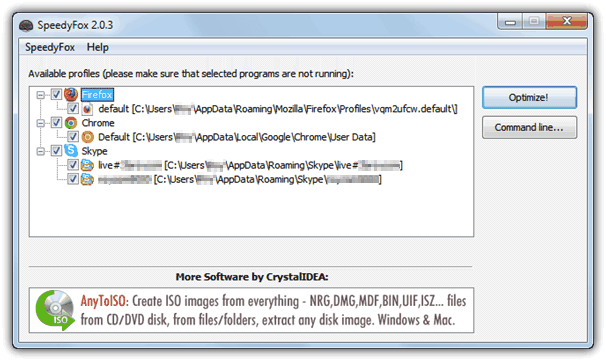
Upon running the portable executable, SpeedyFox automatically detects and loads the default profile for each of the supported applications. As they’re very popular these days, it’s also possible to load custom profiles for Firefox or Chrome portable versions. Click the SpeedyFox menu bar and select “Add custom profile” or drag the profile folder and drop it onto the SpeedyFox window.
Simply tick the application profiles to optimize and click the Optimize! button, SpeedyFox will start to compact the SQLite databases. The progress window shows what databases are optimized and also how much space is saved. You need to make sure the programs being optimized are not running at the time or they won’t be processed. In a quick test it reduced 14MB of Firefox databases to 6MB and 192Mb of Chrome databases to 186MB. The author of SpeedyFox recommends running the tool every 1-2 weeks depending on your usage of the included browsers.
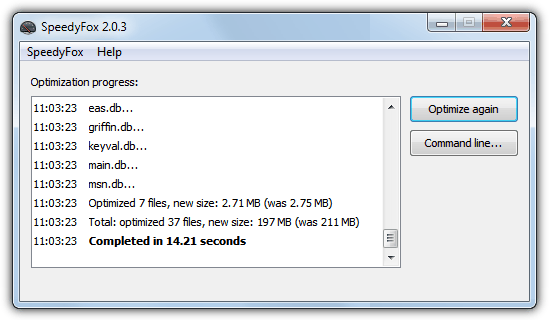
SpeedyFox also works from the command line and you can easily place it into a shortcut or script. Click on the Command line button and then click the Copy button to copy the current command and parameters to the clipboard. Then you can place it into a batch file or desktop shortcut to run from a double click. SpeedyFox works on Windows 2000 and above and the latest Chrome and Firefox.
2. Firemin
Firemin is designed specifically for Firefox and is a simple tool that works using a Windows system API function called “EmptyWorkingSet” which cleans up the memory work space of the Firefox process and frees up the memory it doesn’t need. The program sits in the background while Firefox is running, watches its memory usage and runs the optimization accordingly. As well as memory optimizing, Firemin also has the compact Firefox SQLite databases function found in SpeedyFox.
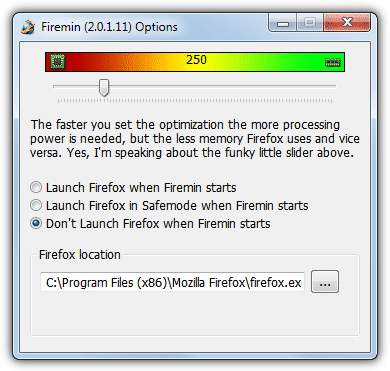
The program is free, portable and once started, will go straight to the system tray and is ready to do its work. Right click the tray icon and select Options to alter a couple of settings. The Firemin slider offers a trade off; the more you move it to the left, the less memory Firefox will be forced to use but the more processing power is required to keep it that way. The opposite applies in the other direction and the more memory Firefox is allowed the less processing is needed. The other option is to launch Firefox when you start Firemin.
The SQLite database optimize function is available through the tray icon context menu and simply click “Optimize Firefox” to start the compacting process. Firefox will need to be closed to do this.

This is obviously a tool where you get less benefit the more powerful your computer, but for users who have more normal spec systems or like to have Firefox constantly open in the background, Firemin could be very useful. Compatible with Windows 2000 and above.
3. All Browsers Memory Zip
All Browsers Memory Zip has no database compacting functions but is a dedicated memory optimizing tool for a large number of popular web browsers. It works very much like another memory optimizer called CleanMem, but this tool only handles browsers. In addition to Chrome and Firefox, it also works with other popular browsers like Opera, Internet Explorer and Maxthon etc, the full list is below.
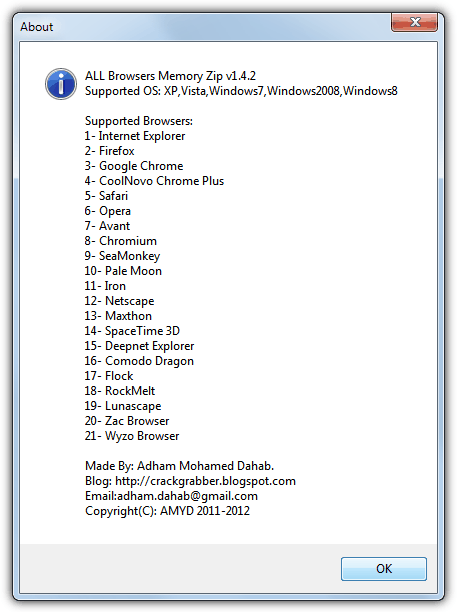
The program is portable but has separate 32-bit and 64-bit versions, and when you run it there will be a small tooltip and then All Browsers Memory Zip will sit in the system tray optimizing the memory of any running supported browsers. If you open Task Manager (Ctrl+Shift+Esc) before you launch the tool, you will see the used memory for the browser process(es) suddenly decreases by a massive amount. It’s not uncommon to see 1GB+ in memory usage drop to under 10MB in a few seconds.
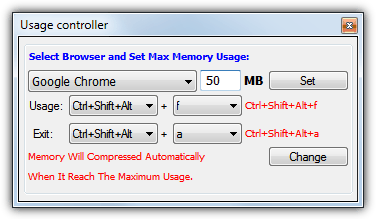
Right click on the tray icon to pause the program from optimizing and pressing Usage Controller will popup the window above that will allow you to set the maximum amount or RAM for each browser and edit the shortcut keys. Just select the browser form the dropdown, enter the max amount in Megabytes and click Set. works in Windows XP and above.





All Browsers Memory Zip doesnt work with Chrome on Windows 10 Pro. It’s too aggressive and throws up errors. The browser becomes unusable quickly. So far CleanMem seems to do a better job
Seems “Firemin” is moved to URL rizonesoft.com.
Link fixed, thanks for the report.
Can you utilize FireMin and All Browsers Memory Zip both?
I already run SpeedyFox before opening my browser(s).
I’m going to be getting CleanMem. Will that mean I need to foreswear All Browsers Memory Zip?
CleanMem and All Browsers Memory Zip do the same thing so you don’t need to use both.
Thanks Hal 9000! I’ve been a long time user of Firemin and it actually does work. Since upgrading to IE10 I noticed a huge spike on memory with that browser. So on your suggestion I tried All Browsers Memory Zip and it works a treat. Memory usage for IE10 is massively cut…Wow!
Thanks Ray.. This works perfectly and does in fact speed up Firefox.. I use it at least twice weekly.
Yes, it’s really speed up my Firefox..
It works well. Thank
Raymond,
Thank you very much for speeding up my Firefox!
You know what, it actually works. Thanks for the tip, Mr R.
Raymond, it works great!! Thanks for the info and software.
This works great Raymond.I was considering deleting Firefox and reinstalling it again.
I use firefox pretty much all the time and agreed it has over time starting to start up a lot slower then when i first installed.
i have few addons included with it maybe 5-6 that i use so that might slow the start up a bit.
But i tried the portable version of this app and have to say there was an instant improvement on start up time,it was very fast to load up the browser and the default page i have.
tabbing pages works fast also, overall i would say it has definitely made firefox load times a quicker.
thanks for the info and the links too the app.
Thanks once more Ray
you have got no idea how much useful are your blogs and how much people can learn,
I ‘m spreading the site among all friends here in Zambia.
Thanks very much
thanks raymond. it is of great help.
thanks Raymond..its great..Raymond always rocks………
Thanks Ray
thanks raymond it worked on win xp home ( dell 32 bit os) and vista home premium ( 64 bit)
Thank You !
Works great :-)
Thanks Raymond .. downloaded it
Wow…It’s really work for me.. :D My firefox is faster than before. Thanks for the great share Raymond.
thanks raymond this will speedup my firefox ^^
never used any other browser other than firefox. thanks mate, cheers!
Nice!;)
thanks raymond