
Find Out the Command Line Location When Windows Opens a Process


 4 min. read
  Published on

When you visit a lot of pages on the web looking for tips, tweaks and repairs, very often you will see people using command line arguments that you didn’t realize existed for that particular function or tool. Have you ever wondered how they find out what these shortcuts and command line arguments are? Do they actually find out themselves or do they look in the Microsoft Knowledge Base or search Google?
A simple example is in the article for how to open the Safely Remove Hardware dialog box when the icon is not located it the system tray. One way to fix it is run the command line “rundll32 shell32.dll,Control_RunDLL hotplug.dll” and the Safely Remove Hardware box will appear. As you can see, it’s a complex command and not as simple as running a single executable. It involves several different commands but how would you figure out something like this yourself?
Finding out commands and arguments is very easy when you know how to do it and where to look. Here’s a couple of possible ways.
Using Process Explorer
A popular program called Process Explorer from Sysinternals is a task management tool which can reveal detailed information about which handles and DLL processes have opened or loaded. Process Explorer looks like a slightly fancier version of the Windows Task Manager, but it’s a very capable tool and can be used for tracking down all sorts of process related problems and digs deep into what resources a program actually uses.
Here is how to find out the command line for the Safely Remove Hardware dialog box. Obviously you can substitute the Safely Remove Hardware example for anything you choose, the principle is exactly the same.
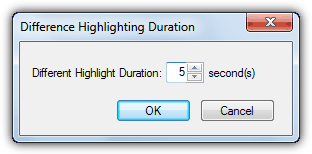
1. Download Process Explorer and run it. One option you might like to change is the time the program highlights a new process to make it easier to spot. Go to Options -> Difference Highlight Duration… and change the seconds value to 3 or 5 etc.
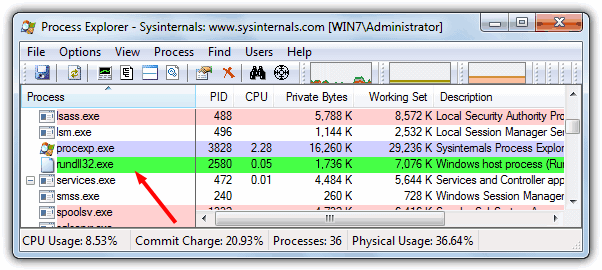
2. Open the Safely Remove Hardware dialog box by right clicking on the tray icon and selecting “Safely Remove Hardware”. Quickly look in the Process Explorer window and you’ll see a new process in the list that has turned green, this should be the process for Safely Remove.
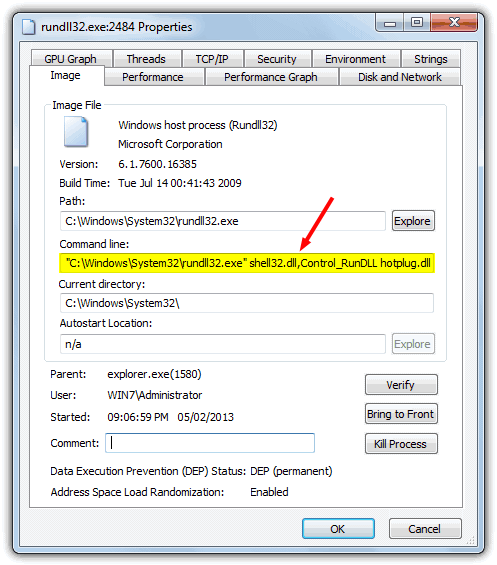
3. The simplest way to see the command line in use is just to hover the mouse over the process. This will show a tooltip which will also give the command line used. As you can see, this shows where the full rundll32 command comes from.

4. If you wish to have access the the command line arguments so you can copy and paste elsewhere, double click on the process to bring up the Properties dialog. Look in the Command line box and the command can be selected and copied.
As another simple example, when you create a backup using the built in System Imaging feature in Windows Vista, 7 and 8, it launches a tool called sdclt.exe. If you run this executable on its own though, you will only end up at the Control Panel backup window, not the imaging tool itself. With Process Explorer open, open the Create system image tool and you’ll find an extra argument is shown…
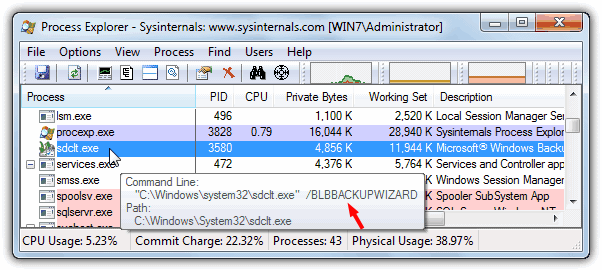
As you can see, a /BLBBACKUPWIZARD argument is appended to sdclt.exe which takes you straight to the system imaging tool and not just to the Control Panel applet.
The great thing about finding these command line arguments is they can be used in other places such as the Command Prompt, in your own batch files and scripts, and also in desktop shortcuts. Using this method you can find out just about any shortcuts you want such as Computer Management, System Properties, Device Manager and almost anything else. Process Explorer can be used in Windows XP and above.
Using Windows Task Manager
If you’re a user of Windows Vista or above, there is also an option in the Windows Task Manager to show the command line of running processes. This can be used effectively but obviously doesn’t have things like new process highlighting and the ability to copy the command line to the clipboard.
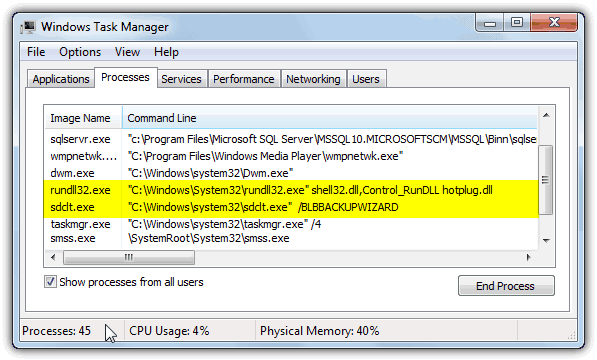
To access this extra column simply go to View -> Select Columns… and tick Command Line near the bottom. You should now be able to see the commands and any arguments in use by the process in a new column.



Improve this guide

User forum
0 messages