Steam Needs to be Online to Update: How to Fix
Steam by Valve Corporation is a very successful software to distribute games that are purchased online. This system makes it so much easier because there is no need to wait for the arrival of the installation disc after purchase and the need to care for the CD/DVD which can be easily scratched and damaged. Whenever you need to reinstall the game, simply install the Steam software, log in to your Steam account and the game is available to download.
This would not be a problem since most home Internet connections are broadband with fast download speeds, and it is also possible to backup the game files for offline installation. The only possible problem that a user can face is when Steam itself cannot be updated or fully installed. In a situation of a new Steam installation, the user will be required to download SteamSetup.exe at only 1.4MB in size and install it on their computer. Running Steam the first time will require downloading the necessary files at around 113MB in size.
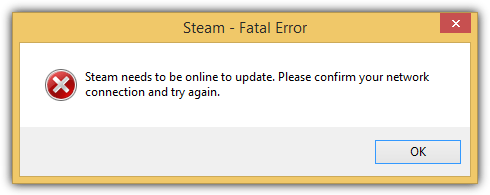
If you are experiencing problems in updating Steam, a fatal error window will appear with the message “Steam needs to be online to update. Please confirm your network connection and try again“.
It is important that Steam is able to update and run without problems or else you won’t be able to download or play the games that you’ve purchased. If you are experiencing problems in updating the Steam software, here we have some workarounds to fix the problem.
Steam used to have a huge amount of servers (some from Limelight CDN) located around the world and older versions of the software used an inefficient method to connect users to the servers. The solution to the problem was to edit the ClientRegistry.blob file located in the Steam folder using a program called ClientRegistry Toolkit and changing the CellId value to force the program to connect to a server at a different region.Our latest research shows that Steam has made a big improvement on the game delivery system by using 3 different high performing CDN companies, Akamai, Highwinds and Level 3 all at the same time.
http://media.steampowered.com = Akamai
http://media2.steampowered.com = Highwinds
http://media3.steampowered.com = Level 3
http://media4.steampowered.com = Akamai
Running Steam will download a small steam_client_win32 file from http://client-download.steampowered.com/client/ containing a list of files with SHA-1 checksum and size in bytes to check if Steam is up to date.
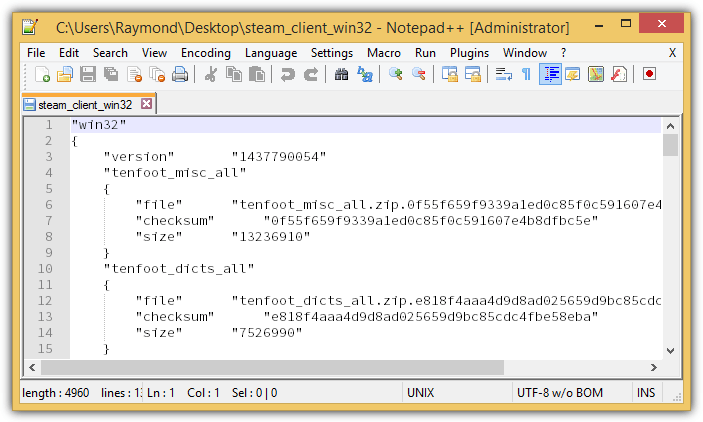
If Steam is outdated, it will need to download the updated files by randomly redirecting to one of their CDN hostname and the CDN’s nearest point of presence will be used to serve the files. If for some reason Steam fails to download the updates, simply rerun it again and it will try attempt to connect to another CDN.
Since Steam randomly connects to a host, it is possible that it doesn’t cycle through all four CDN hosts. Unfortunately there is no way to force connect to a particular CDN because there is no command line option to do that and Windows HOSTS file can only support mapping an IP to a hostname, but not mapping a hostname to another hostname. However, all hope is not lost because there is still 2 possible solutions.
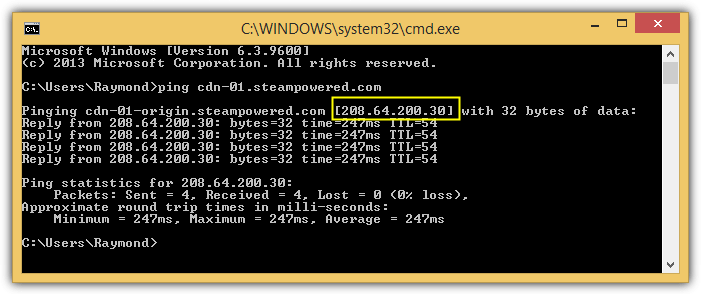
Although you cannot choose which CDN to connect to, you can map all 4 hostnames to the IP address of the origin server. The origin server is where the CDN will pull the files from and serve to users. This would mean that the origin server is less busy since it is not used to serve files to millions of users but only serve once to the each CDN. The origin server has a hostname of cdn-01-origin.steampowered.com or cdn-01.steampowered.com, and pinging the hostname will resolve to an IP address 208.64.200.30.
1. Now you will need to launch Notepad as administrator. Press the Start button, type Notepad, right click on it and select “Run as Administrator” followed by clicking the Yes button in the User Account Control window.
2. Click File from the menu bar and select Open.
3. Browse to C:\Windows\System32\Drivers\etc and click the “Text Documents (*.txt)” drop down menu located at the bottom right, and select “All Files (*.txt)”.
4. Double click on the hosts file to open it in Notepad.
5. Add the following 4 lines at the end of the hosts file from Notepad.
208.64.200.30 media1.steampowered.com
208.64.200.30 media2.steampowered.com
208.64.200.30 media3.steampowered.com
208.64.200.30 media4.steampowered.com
6. Click on File in the menu bar and select Save. If a “Save As” window appears, that means you did not successfully run Notepad as administrator. Make sure the first step is done correctly.
By following the steps above, you will force Steam to permanently connect to the origin server at the IP address 208.64.200.30 regardless of which of the hostnames are being used. As you can see from the screenshot below, media3.steampowered.com is mapped to the IP of the origin server instead of Level 3 CDN.
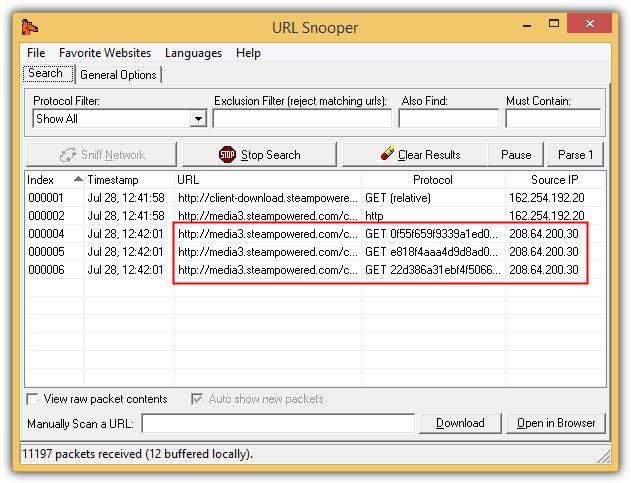
Do take note that the IP address of the origin server may change, so it is best to double check the accuracy by pinging the origin hostname.
If all else fails, you can perform a full offline Steam installation by manually downloading all the files that are listed in the steam_client_win32 and save it to the C:\Program Files\Steam\package folder.
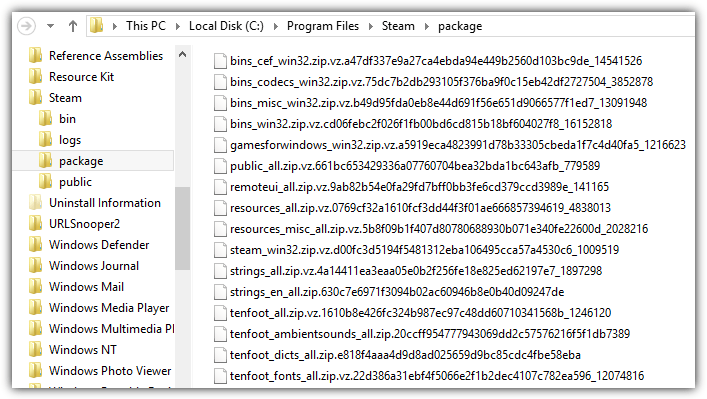
An example of the full hyperlink format to download the files are as follows:
http://CDN hostname + /client/ + filename
A real live hyperlink would be:
http://media.steampowered.com/client/tenfoot_misc_all.zip.0f55f659f9339a1ed0c85f0c591607e4b8dfbc5e
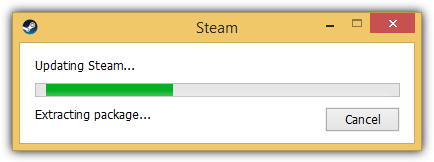
Another important note is if a “zipvz” value exists for a file in steam_client_win32, then you should append the zipvz filename at the end of the download URL instead of the filename. If you’re unsure, having both zip and zipvz in the package folder will also work. Once all the required files are found in the package folder, running Steam will instantly extract and install without the need to download anything else.
You might also like:
 How To Make a Non-STEAM Counter-Strike: Global Offensive Server Using RevEmu or LumaEmu
 Solutions for Slow Comodo Virus Database Update
 Avira not Updating: Main Causes & How to Manually Update
 NZB Online Downloader for Free Usenet Files [Best Tool]
 3 Ways to Replace Notepad with Notepad++ [Step-by-Step]
Genius….. Thank you !!!!
It’s worked!! Thanks!!
Directly modify hosts file by utools
it worked immediately, thanks a lot man you helped out big time :D
:O it works!! tysm ive been suffering trying to find a solution. ty ty ty
I didnt understand the answer…
When we wanna copy the servers adress to note pad…is it nessecerry to use # at the beginning?
Tell me about the steps plz … i try every other site solve but wasnt helpful…
No, it isn’t, that is why you are not told to use a #. Using the hash character tells the operating system to IGNORE the line completely.
Thank you very much, you saved my day, and maybe even my life)
WTF ITS WORKED OMG THANKS !
I don’t have any internet connection…. Can I download any steam?
Mate, you saved ma arse! This totally worked!
OMG!!!! i cant believed it worked perfectly. i reset my pc, but still nothing fixed by doing that. you are awesome dude.. :)
How can this work on steam machine?
Thanks Mate.. i gonna kill my self… Love u :)
I didnt get this,what to do here .. pleaase
click the “Text Documents (*.txt)” drop down menu located at the bottom right, and select “All Files (*.txt)”.
You need to do that when opening the file in Notepad.
below methods work
thumbs up
I tried so many solutions all of them didnt work for me. Luckily i found one that works.
1. Open Internet Explorer
2. Find Internet Options
3. Click Connections tab
4. Click LAN settings
5. Uncheck the Automatically detect settings
6. Click OK
7. Start your Steam
I tried so many solutions all of them didnt work for me. Luckily i found one that works.
1. Open Internet Explorer
2. Find Internet Options
3. Click Connections tab
4. Click LAN settings
5. Uncheck the Automatically detect settings
6. Click OK
7. Start your Steam
you are angle for me , take my hand to solve this problem
your comment are light for me, show my the way when my eye in dark
you are ” the fate of happiness ” for me when i ready your comment and
IT WORK !!!
after all thing i do from google search / youtube how to fix / nothing … nothing happen until i read your comment and try … now i can stop crying and smile again :))))
This is work, thank you very much!!
Now i Know how useful internet explore is.. at first i think how possible IE will solve this problem and when i try it, it actually work. Thanks man.. TQ..
Windows + R
type “regedit”
Hit enter
find “valve”
Delete
Run steam
worked ty
sorry to the one to say this it did not work for me my update stops at 1181kb to go pls help
thx, from myanmar !!
I solved this problem with switch the compatibility from xp sp 2 to win7 and it start to update.
Thanx Bro :) It Worked :D
Thank YOU so much, this fixed it in seconds. 100000xs Kudos comrade
Works great, even after 4 years. Very good work!
thanx a ton
Awesome dude! Thanks for sharing the info.
Raymond,
You saved my (gaming) life. Wow… Steam support are a bunch of newbs compared to you! Thanks!!
Raymond, thank you so much – this solved an issue that I have been working on for days on and off, having installed steam dozens of times before – was about ready to just write it off for this one particular computer and deal with it – but your fix was the only thing that worked – so, thank you so much.
good job man…thanks
Worked for me from Taiwan, thank you!
Thank you so much! While being on business trip my Steam had suddenly issues from one day to another. With your article I found out that I was locked to the China server, while being in Malaysia. Now I set to Singapore and it works finally again!
you, my friend are a legend, i would create 100 accounts just to say how awesome you are 100 times, valve should really employ you to solve their problems
Dude u just rock,
i bought mafia 2 and same error it showed i then changed 35 to 1 then it downloaded without showing any error
thank you
Champion!!! thanks heaps mate!
You my friend, are a genious. Post this on Steam Support, because this will help out a lot.
OMG… Im in New Zealand and best server is 79(US) WTF?
KTHNXBAI
you are a genius, this works. been trying to install my civ 5 for days
Man…You r The maaan… Keep it up buddy
DUDE U ROCKKKKKKKKKKK!!!!!!!!!!!!!
THNX A LOT, i wasted like 2hours lookin for the solution and than i found this site. BINGOOO STEAM IS FIXED!!
Thank you very much!
Thank You! Thank you SOOOO much :]
I tried deleting clientregistry.blob, running stema in safe mode with networking and possibly every solution the problem that exists but nothing seemed to work. This came along and changed EVERYTHING!
THANK YOU =’)
woah thanks a lot dude for the help and effort in writing this guide. appreciate it mate!!!
that is awesome
Worked perfectly. Thanks man!
Dude, u r a god sent :)
thank you so much. i have been hitting my head over this issue for 3 days and this little walkthrough fixed the problem.
THANK YOU !!!!!
Thank you so much Ray.
I’m in Singapore but I use Taiwan IP and
it works perfectly.
From Singapore with love..;-)
bro thanks thanks thanks alotttt…!!!
lv u lv u lv u man..u ROCK….tytyty
MUCH LOVE MAN! my hero
worked like a charm! thanks :)
it… it worked… I had lost all my hope and then I found this… YOU MUST BE GOD.
thank you so much i was about to stop using steam forever but then i found this thank you so much
hey!! it worked!!!
Thank you so much changing the value to 8 got it working for me.
you are good!
Well done – i’ve been struggling with this for a couple of days now! Thanks a lot!!!
Wow..
Thank you so much mate. I’ve just changed the value from 35 to 25 and it worked like a charm.
God bless you matey <3
ur GOD!!
Amazing !!.. Works like a charm !!
Thank you!!! IT WORKED!!!!!!!!!!! =D
dude ur god……may god grant u all ur wishes and mine also…..live long and enjoy
Thank you so much!!!!!
Worked great! Changed default of 0 to 2 and it connected no problem. US here.
hmm… Im from Singapore, however i cant seem to use other servers too. Which is the best? I tried australia and china ones.
Dude…simply….AMAZING…..
wrked like a charm….thanks man :)
Damn
nothing had been working from days
i was so so so sad
thanx genius
ur thing worked
God bless..
for singapore / malaysia or those near south east asia… use number 47 (china)….very fast..cuz singapore’s ip dead
Outstanding article..thanks for the awesome article..it fixed all my problems
Thank you. I have success connected to update server by method provide by you :D
Your a genius dude ! Works like a charm…I went haywire figuring out how to run this thing.
Ok for those in Malaysia, i got good downlaod speeds by using no. 27 (Australia – Telestra). I use Streamyx, Ip rage of 174.144.. I have read your articles raymond, but never commented on them…
Worked perfectly! Thanks a lot!
Thx i had this problem, weirdly changing to no. 47 worked well! (China)…. But im in malaysia….
This really worked THX!
You star… been battling with this one for days since I upgraded my PC. Steam support were no use – they just directed me to one of their FAQs that I’d already read and that was completely irrelevant.
Wee tip: if you delete the clientregistry.blob, then run an application like TCPView that lets you keep an eye on the network connections Steam is making, when you run Steam for the first time you’ll see that, as Raymond says, it connects to scores of different servers until it eventually settles on one or two unresponsive ones. You can tell the unresponsive ones as they usually show a status like ‘FIN_WAIT2’ in TCPView. However, a few of the servers will briefly say ‘ESTABLISHED’ as the network connection before dropping off: they’re the ones you want to connect to. Check from Raymond’s list above which servers they are (a couple of the US ones worked for me) then edit the ClientRegistry.blob in the way he suggests to set your CellID to one of those few responsive servers.
Hope that rather confused description makes sense.
omg! this fixed it! thanks!
Thanks man….great work!!!
:-) really this helped..keep up d great work
Thanks, i’m from Malaysia. Connecting to steam is such pain in the a**.
This one works like charm. Kudos
Good work ray. good to see you back again.
Thanks Raymond :). Very much needed.
Very usefull article. thanks
Genius is back!!!! Thanks ray…..