
6 Ways to Check What Version of Microsoft .NET Framework is Installed on your Computer


 8 min. read
  Published on

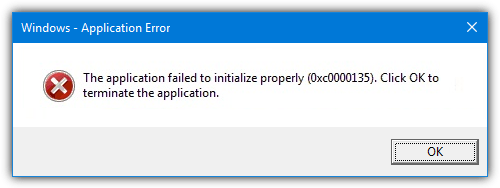
A vast amount of applications will require the Microsoft .NET Framework to be installed on your system before they will run. When a .NET based application runs on a machine without the correct version of the framework present, the results can be unpredictable. It’s a certainty the program will not work correctly or at all, but what happens to inform the user about the issue differs from program to program. Quite often you will get a rather obscure error message pop up which doesn’t really tell you anything informative.
The application failed to initialize properly (0x0000135). Click OK to terminate the application.
This is a common error message but gives no indication of whether the problem is related to the program itself or something else.
Some programs might be a bit more helpful and warn you a specific version of the .NET Framework is required before installation can continue. Other software could trigger Windows to offer to download and install the missing version of .NET automatically.
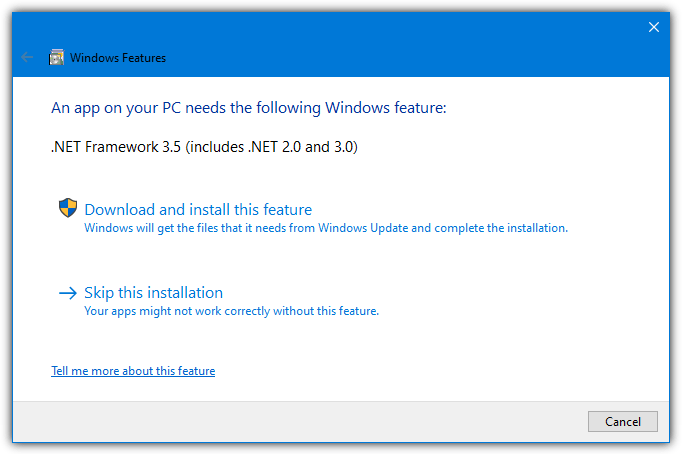
A big issue with .NET is it’s a sizable download and when installed can take up several hundred Megabytes of hard drive space. Programs are also built requiring a certain version of .NET so just installing one version probably won’t be enough. For example, Program A might need .NET 3.5 while program B might need .NET 4.6. In that case, you will need both installed on your system.
Windows Server, Vista, 7, 8/8.1 and 10 all come with a version of .NET integrated into the operating system. Since there are many versions of the .NET Framework (from 1.0 up to 4.8) and more than one are often present on the same system to run different applications, sometimes even you as a user might not even be sure which .NET is installed on your computer. Here are a few ways you can find out.
1. Raymondcc .NET Detector
One way to check which versions of .NET are installed is through the system registry. If a .NET package is installed, its information should be correctly entered in the registry. We decided to use this method and create a little tool which does the plain and simple task of telling you which versions of .NET you have installed.
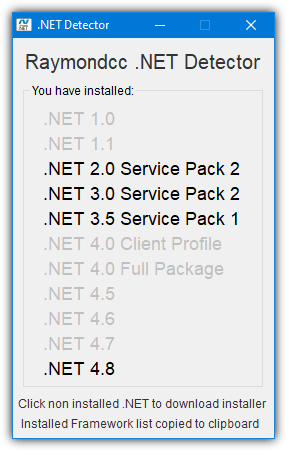
The tool couldn’t be simpler to use, just run the executable and it will tell you which .NET’s you have by showing them in dark text, the grayed out entries aren’t installed. Hover over an installed package to get its version number. Clicking on a version that isn’t currently installed will take you to its download page at Microsoft. The relevant package information is automatically copied to the clipboard so it can be pasted into help files or on forums etc.
The program is able to detect .NET Frameworks from 1.0 up to the latest 4.8 (including versions specific to Windows 10), is portable and works on Windows XP and above. Any feedback you might have about the tool is welcome.
Download Raymondcc .NET Detector
2. Raymondcc .NET Detector Command Line Edition
There doesn’t seem to be many tools around that allow you to use the command line to easily find out what versions of .NET are installed. As a consequence, we created a version of .NET Detector that works from batch scripts and the Command Prompt instead of a GUI. The output will be shown in the console window.
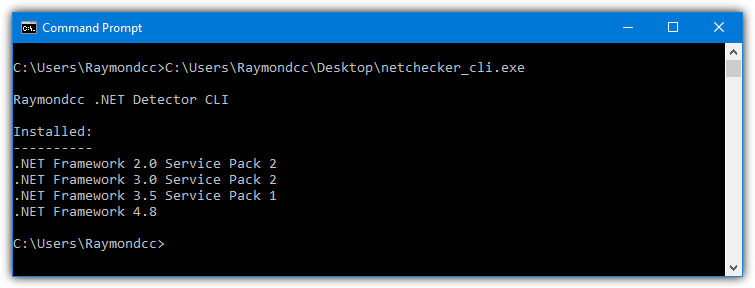
Run NET_Detector_cli.exe from a script or Command Prompt to get a simple display of the installed versions of .NET. Add the argument /v to include a second column with the full version number of each installed framework.
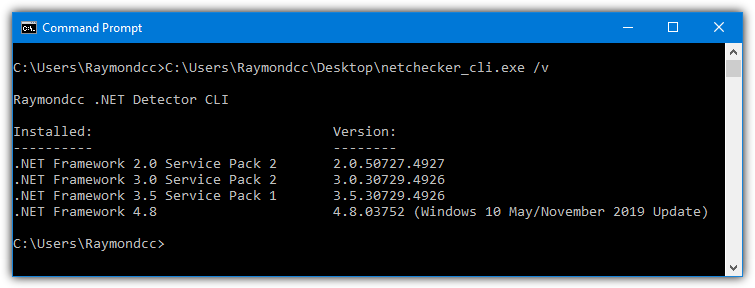
This tool works the same way as the GUI version and checks the system registry for the installed versions of the .NET Framework. It also works on any XP or above system and detects .NET versions 1.0 to 4.8. Feedback is welcome on this tool as well.
Download Raymondcc .NET Detector CLI Edition
Note: We are fully aware that both .NET Detector tools produce a small number of detections in some online Virus Scanners like Virus Total. Raymond.cc created and hosts these files so we know every line of code and can assure you any detections are false positives.
3. ASoft .NET Version Detector
This program is a small and lightweight portable tool that gives information on all the different versions of .NET Framework that are installed on a machine. If the system does not have a specific version installed, there are handy button links provided to give you access to the related Microsoft webpage page so you can easily download it. A link to download each version’s Software Development Kit (SDK) is also provided.
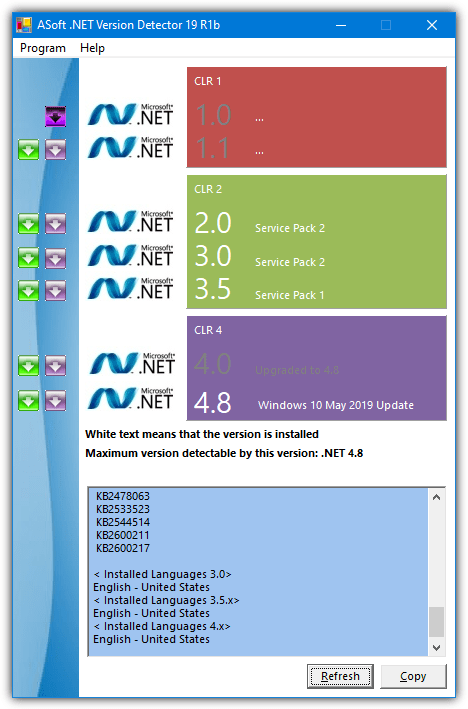
An installed .NET version will be shown with white text. Clicking the logo next to it will navigate to its install directory. The log box at the bottom shows which versions and related update patches are present, including 32bit/64bit, and the relevant folder locations. The copy button will simply copy all the text in that box to the clipboard.
Go to Help > .NET Version History to see which versions of .NET are installed on which operating systems as standard. ASoft .NET Version Detector checks versions 1.0 to 4.8 of the .NET Framework and can also be run in Windows 2000 and above.



Improve this guide

User forum
0 messages