
8 Options to Copy Text or Error Messages from a Window or Message Dialog


 8 min. read
  Published on

If you are having problems with Windows or a piece of third party software, something you might be asked to do is supply the information in any errors or messages that are being displayed to help with troubleshooting. Some error messages are quite short and not difficult to type in. Others could be long and a pain to repeat accurately with combinations of numbers, letters, and special characters.
It’s often better to also enter an exact error code or phrase into a search engine such as Google to get more precise results for the problem. Of course, taking a screenshot can be used to send an error message to someone else, but this isn’t always that helpful because they might have to re-type the message data in at the other end, and it also won’t help if you want to search the internet.
Windows error dialog boxes and general information windows don’t have a nice and easy button for you to copy all the error messages. They also don’t usually allow highlighting the text so it can be copied. However, there are ways for you to do it and copying information from Windows message boxes and third party software dialogs can be made easier. Here are 8 solutions to try.
1. The Built-in Windows Function
There is actually an easy way you can copy text from Windows dialog boxes. When the box appears, simply make sure it’s the active window and press the standard Windows copy shortcut combination of Ctrl+C. Now the data is in the clipboard, paste the contents into notepad or a webpage, etc.
For example, if you type raymondcc.exe into the Run dialog box (Win key+R), Windows will show a not found error:
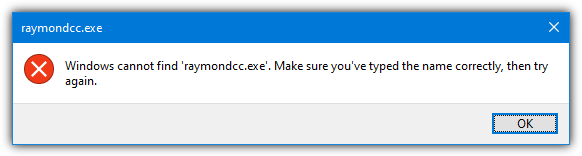
Press Ctrl+C, open Notepad, and then press Ctrl+V to produce the following:
[Window Title]
raymondcc.exe[Content]
Windows cannot find ‘raymondcc.exe’. Make sure you typed the name correctly, and then try again.[OK]
You will get not just the text content but also the window’s title and the name of any buttons. This is very useful but unfortunately only works on dialog boxes created by Windows. If the window message is custom and created by third party software, this method won’t work. For that, you will need to use one of the other tools below.
2. GetWindowText
GetWindowText is a small, free, and portable tool by SoftwareOK, the same developer of the popular Q-Dir file manager.
To use it to copy the text from control boxes, directly trees, and list views, left click on the question mark icon at the top left and drag the mouse cursor to the content area or window that you want it to read the data from. It can read almost all text from edit, static, sysTreeView, sysListView, Combobox, and groupbox controls, etc.
Highlight the content and use the context menu to copy the text from the box in GetWindowText or press the copy text button.
3. Textify
What makes Textify interesting is it takes a slightly different approach to capturing text from an open window or text box. Instead of dragging and dropping an icon, this time you just select the target by holding the qualifier key and pressing a mouse button.
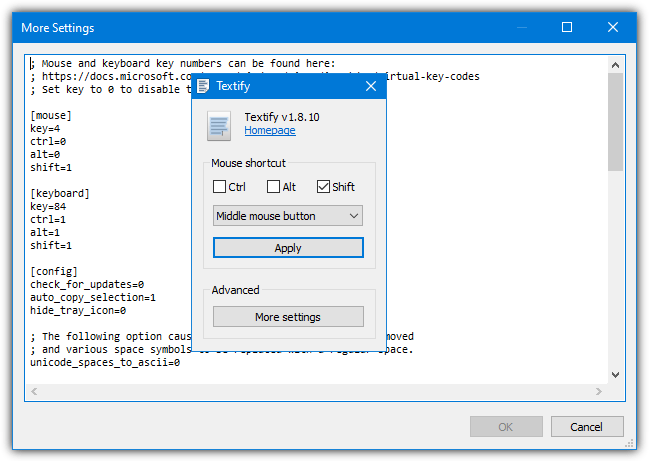
The qualifier key can be either Ctrl, Alt, or Shift. Hold that and press the left mouse, right mouse, or middle mouse button to capture the text. A useful feature for troubleshooting is built in search icons that will paste the text directly into a search engine. The options are Google Translate, Wikipedia, DuckDuckGo, or Google. A custom browser window will open up with the results.
The More Settings button opens a text based configuration file where you can edit options like auto copying text to the clipboard, disable checking for updates, excluding specific processes, editing the custom browser window sizes, or even adding your own web search buttons.
4. SysExporter
NirSoft’s SysExporter is another small and portable utility that allows you to grab the data stored in list-views, tree-views, list boxes, combo boxes, text-boxes, and web/HTML controls from most applications.
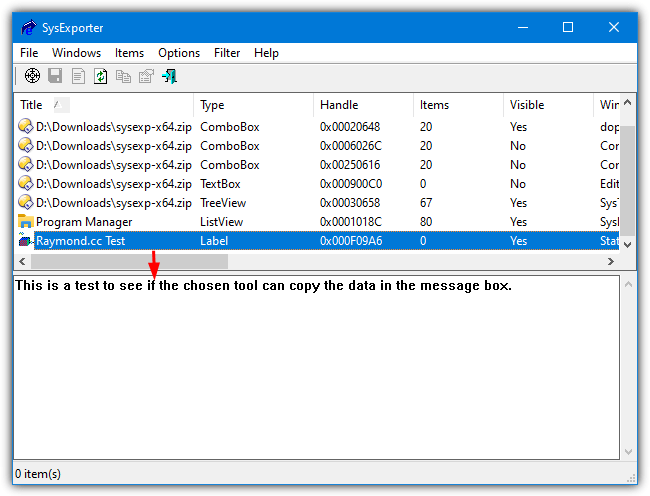
Like most of these tools, SysExporter also has a drag and drop target icon to catch specific window contents from error message boxes, requesters, or windows. It can be used to capture a folder tree or list of files from an Explorer or application window. Any data can be copied or exported to a text, HTML, or XML file. More advanced users can also make use of the command line options for use in scripts or Command Prompt.
Note: NirSoft also has another tool called GUIPropView that can retrieve text from an open window. However, this stool is more focused on gathering data about the entire window and not just individual areas where text is contained. Some users may be more interested in the extra information this tool provides, so it might be worth a look.
5. WinScraper
WinScraper is another old tool dating back to 2005 and as a result, it’s not able to capture text from as many windows, requesters, or text boxes as some other tools. It does, however, have a few interesting non related functions a few people may find useful.
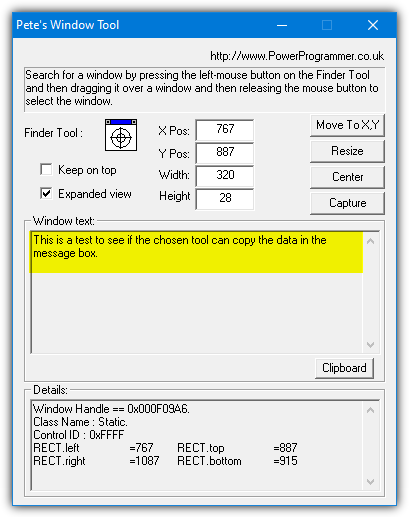
It works in the standard way of dragging the target icon from the user interface onto the target window or dialog box. The result will show in the “Window Text:” box and can be copied out and pasted as text into an email or forum post, etc. WinScraper can also capture icons or images from controls, just drop the target icon onto it and press Capture. The image should then be copied to the Clipboard.
The text boxes and extra buttons are to actually manipulate the target window or dialog box to move, resize, or center it. Just enter the appropriate numbers into the boxes and press the relevant button.
6. WindowTextExtractor
WindowTextExtractor makes a pretty bold claim in its description that it’s able to get text from any window. However, that is not the case and there were a number of windows we tried it on where WindowTextExtractor didn’t work. That’s not to say the program doesn’t work at all because it does in a lot of instances, just not as broadly as the developer claims. Your mileage will vary from program to program.
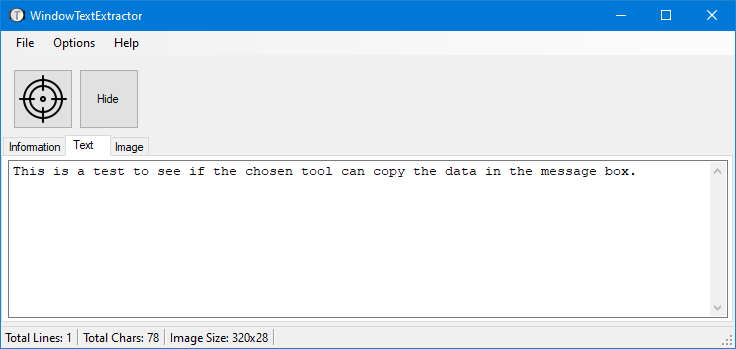
Usage is pretty straightforward, just drop the target icon onto a window to get information about it. Click the Text tab to see any specific text grabbed from the window or control. Highlight it and right click to copy the text ready to be pasted to another program. A useful option is the Image tab which shows a screenshot of the control or window under the cursor. The Hide/Show button affects the selected window’s visibility.
7. ShoWin
ShoWin is a positively ancient portable tool dating back to the turn of the Millenium and is from the well known security company, McAfee. Although it did seem to work during our testing in Window 10, we wouldn’t be surprised if there were limitations in what windows it can and cannot read data from.
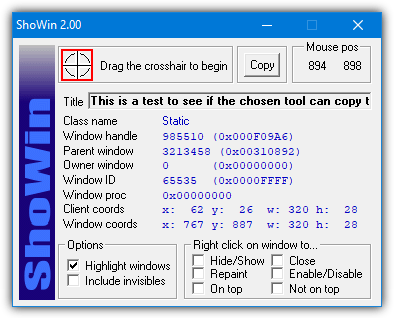
In addition to finding text in a window or dialog, ShoWin can also be used to display the password in a dialog hidden behind asterisks. Drag the crosshair over the control or text to get information about it and the included text. Pressing the Copy button will copy all details about the control, including the information shown in blue (like class/handle/coordinates).
Additional features include the ability to enable disabled windows, unhide hidden windows and force windows to stay on top or be placed below others.
8. Capture2Text
This last option is probably a complete surprise to some people but it can actually work. It is to use OCR (Optical Character Recognition) software to capture the data. If all else fails and you can’t capture text from the window or message box using the other tools, this option is worth a try. We’re using the open source Capture2Text for this task although other OCR software might work as well.
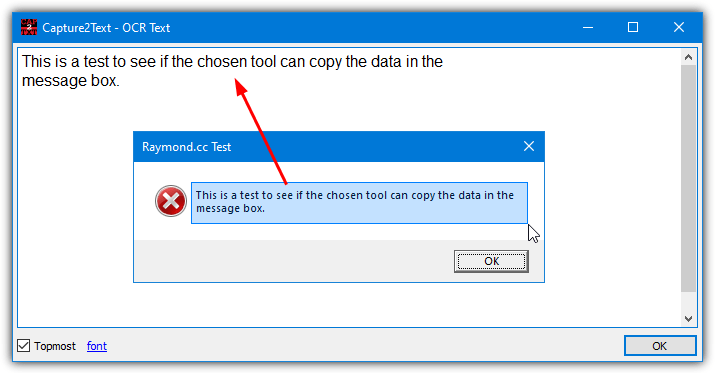
All you have to do is launch Capture2Text and position your mouse cursor over one edge of the target text area. Press the start capture hotkey combination and then drag the cursor to the opposite edge of the text area so that all the text is highlighted. Then press the left mouse button or Enter key and the program will work out what the text was in the highlighted area.
While you are hovering over the text, the program will show a live result in the upper left of the screen. It’s probably a good idea to change the default start capture hotkey from Win+Q to something like Ctrl+Alt+Q to avoid accidentally opening the Start menu. The results are not always perfect but the OCR route is a useful alternative to capture browser window text and from tools like Task Manager.



Improve this guide

User forum
0 messages