
Disable Removable Storage Devices such as USB Drives


 4 min. read
  Published on

Once in a while I have a friend, or customer that needs to keep people from using the USB ports to copy data off of a system. With USB drives so common these days and people able to carry them around on keyring’s, it take’s only a matter of seconds to plug in a USB device and copy a few files to it.
For experienced users, there are a few ways to turn certain devices off. One of the ways to lock down a machine is to disable devices such as a floppy or CD-ROM in the BIOS. You can also disable USB, but the problem there is it disables USB completely meaning none of your peripherals such as keyboards, mice and printers will work either.
There is also another partial solution although again not the best idea. That is to turn off a certain USB hub or connection by disabling from Device Manager. Not ideal, but you can at least perhaps use it for something like the front USB ports on your PC if you don’t want anything at all plugged into them to be detected.
The good news is there’s a simple registry change that will stop the USB mass storage drivers from starting when the system boots, and as a consequence won’t allow any USB pen stick or portable hard drives to run in Windows. This stops anyone from plugging in a USB device and trying to copy data , but allows you to keep your printer, keyboard, and mouse etc working.
Here are 3 different ways to accomplish this task that works locally on Window. Each one slightly more difficult than the one above, but even the hardest method here is still very easy for the average user. This registry trick works in all versions of Windows.
Using a ready made .reg file
The registry change is a simple one and all it does is disable the USB Mass Storage Driver from loading in Windows.
Download the following file to disable the USB Mass Storage Driver:
Download the following file to simply re-enable the USB Mass Storage Driver again:
Download and execute which one you want, and when asked, let the file be imported into the registry.
Using 3rd Party Software
For those of you that don’t feel like messing around in the registry or importing registry files, there is a freeware tool called IntelliAdmin USB Drive Disabler that does the registry modification for you by just clicking a button. The program is a standalone executable so simply run it, select whether you want to enable or disable your USB drives, and click Apply.
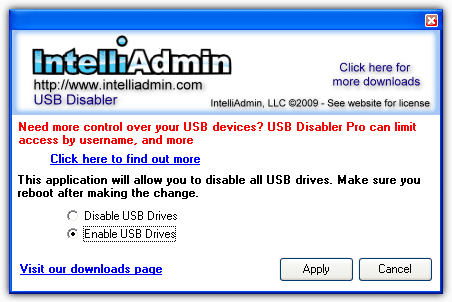
Download IntelliAdmin USB Drive Disabler
Manually Editing the Registry
As you should always do, back your registry up before messing around with it.
1. Go to Start -> Run -> Type regedit and hit Enter or click on the OK button. For Vista and 7 go to Start -> type regedit into the search box, press Enter.
2. Browse to:
HKEY_LOCAL_MACHINE\SYSTEM\CurrentControlSet\Services\UsbStor
Look for the value “Start” in the right hand pane.
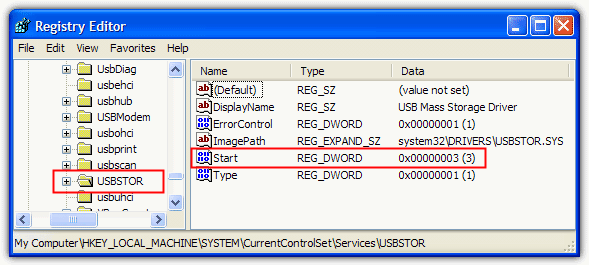
3. Double click the “Start” value in regedit and the default value data should be 3.
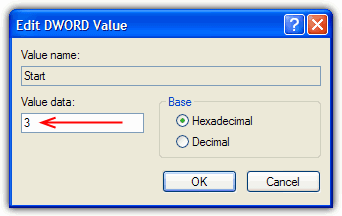
Switch this value data to 4, and USB storage devices are disabled.
Switch this value data back to 3, and USB storage devices are enabled again.
Remotely Disabling Removable Storage Devices
If you are a network administrator and would like to disable USB storage devices on a remote computer without being in front of it, you can use Remote USB Disabler that is also created by IntelliAdmin. Basically it does the same as the above with an additional authentication to remotely make changes at the registry on other computers. You can either manually specify the computer name, or pick from the list by clicking the browse button. Enter account login information and pick the options of either enable or disable USB drives.
Download IntelliAdmin Remote USB Disabler
When the USB drives are disabled using this method, plugging in the USB drive to the computer with show a yellow exclamation mark icon for USB Mass Storage Device in Device Manager. The device status shows the following error message:
A driver (service) for this device has been disabled. An alternate driver may be providing this functionality. (Code 32)
If you are seeing this error, it is possible that this problem is caused by the USB mass storage being disabled in the registry and you can try enabling it back.



Improve this guide

User forum
0 messages