
4 Ways to Edit Registry Key Values Without Booting into Windows


 7 min. read
  Published on

Many years ago when I was still a novice in computers, I accidentally disabled userinit.exe from startup thinking that it was spyware using the SysInternals tool Autoruns. When I restarted the computer, I was unable to login to Windows. Whenever I select the user from the list, it logged in and automatic logged off. I had a really tough time trying to restore userinit.exe back to the Windows startup list as it wasn’t easy accessing and editing the registry when Windows is unbootable. Autoruns is much smarter now because when you uncheck userinit.exe from Logon, it will warn you that “disabling or deleting Userinit will prevent users from logging on”.
In the end I managed to fix the problem but couldn’t exactly remember how I did it because I tried many many ways and I got lucky. I eventually found a real solution on how to edit Windows registry key values without booting into Windows. This is also useful for editing malicious startup items such as rogueware and ransomware. If you have a similar situation as my previous case which requires you to edit the registry without Windows, then here is how to do it.
Listed here are 4 methods to edit the Windows registry keys using a bootable CD. Although you are being shown how to repair the userinit registry key, these methods can obviously be used for any other keys in the registry that need to be edited.
Method One
This first method uses a great free tool called PC Regedit which lets you create, delete and edit Windows registry key values without Windows.
2. Burn the downloaded PCRegedit.iso to a CD. Refer to this guide on how to burn ISO images on a CD.
3. Boot up the computer with the PC Regedit disc and it will load up ISOLINUX.
4. When everything is loaded, you will see a MyFileChooser Title window. By default you are at the Config folder. Scroll down a little, select SOFTWARE and click OK.

5. Navigate to Root -> Microsoft -> Windows NT -> CurrentVersion -> Winlogon.
6. Look for the Userinit key and make sure that the value is set as:
C:\Windows\System32\Userinit.exe, (including the comma)
If the Userinit key is not there, you can add a new key by right clicking at the right pane and select Add Key.

You can use this method to load up other registry files and edit them. Here are the explanation of the 5 registry files for HKEY_LOCAL_MACHINE.
Registry Location: HKEY_LOCAL_MACHINE\SOFTWARE
File: SOFTWARE
Backup: SOFTWARE.LOG
Registry Location: HKEY_LOCAL_MACHINE\SECURITY
File: SECURITY
Backup: SECURITY.LOG
Registry Location: HKEY_LOCAL_MACHINE\SYSTEM
File: SYSTEM
Backup: SYSTEM.LOG
Registry Location: HKEY_LOCAL_MACHINE\SAM
File: SAM
Backup: SAM.LOG
Registry Location: HKEY_CURRENT_USER
File: NTUSER.DAT
Backup: ntuser.dat.LOG
Registry Location: HKEY_USERS\.DEFAULT
File: DEFAULT
Backup: DEFAULT.LOG
On Windows-NT based systems such as Windows NT, 2000, XP, Vista and 7, each user’s settings are stored in their own files called NTUSER.DAT and USRCLASS.DAT inside their own Documents and Settings subfolder (or their own Users subfolder in Windows Vista or 7).
Method Two
This method involves using the popular Hiren’s Boot CD and its Mini Windows XP feature to edit the registry.
1. Download the Hiren’s Boot CD ISO.
2. Burn the downloaded Hirensbootcd.iso to a disc. Refer to this guide on how to burn ISO images on a CD.
3. Boot up the computer with the Hiren disc and and at the menu select “Mini Windows XP”.
4. When the Mini XP is loaded, click the Hiren menu icon in the tray -> Registry -> Registry Editor PE.
5. When asked to, set the remote Windows directory (usually C:\Windows) and press OK.
6. Click OK on each window to select the related registry hive. If you want to edit a registry value from HKEY_CURRENT_USER you will need to select Yes when asked if you want to load an NTUSER.DAT and locate the file in the user directory.
7. Expand HKEY_LOCAL_MACHINE and the hives will automatically load with the _REMOTE_ prefix. Navigate to _REMOTE_SOFTWARE -> Microsoft -> Windows NT -> CurrentVersion -> Winlogon

8. Double-click Userinit and set it’s value to “C:\Windows\System32\Userinit.exe,”. Make sure you include the comma at the end after Userinit.exe, it is there by default.

8. Close the registry editor and the hives will be automatically unloaded.
The 3rd and 4th method can be found on page 2.
Method Three
Using a recovery CD by Lazesoft will also enable us to edit the registry from the bootable rescue disc. This has a nice bonus of including all the other tools from the Lazesoft Recovery Suite Home Edition such as disk backup and cloning, Windows product key recovery/user password reset and file undelete/recovery, so it’s a very useful disc to have around.
1. Download Lazesoft Recovery Suite Home and install the program.
2. Run the Recovery Suite and click the button that offers to create a CD or USB bootable media. You will then have the opportunity to burn to CD, write directly to a USB flash drive or save the ISO file for later writing.
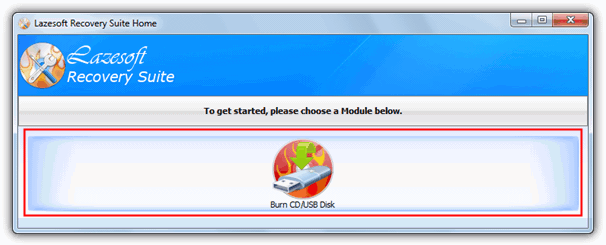
3. Boot the computer with your CD/USB media and when the Home window opens, select Windows Recovery then choose your operating system to load the registry from. This will obviously range from 1 entry to several for a multiboot system.
4. In the main recovery screen click either the LoadingCrash or RepairTools tab -> Registry Editor, and click on the Registry Editor button. You will notice that Lazesoft Recovery Suite can only edit HKEY_LOCAL_MACHINE although this should be more than enough for the majority of tasks because the Microsoft subkeys are usually where most major system issues such as logon and startups are found.
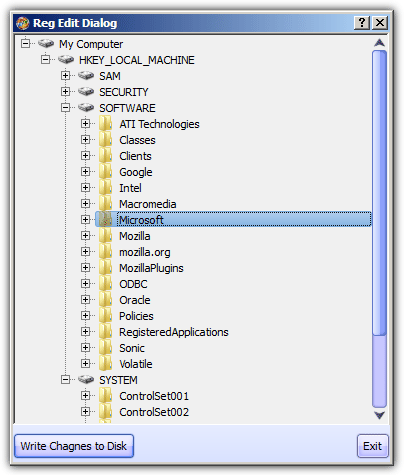
5. Navigate to SOFTWARE -> Microsoft -> Windows NT -> CurrentVersion -> Winlogon and find the Usetinit value name in the right pane. Double click it and you can change the value data to “C:\Windows\System32\Userinit.exe,”.
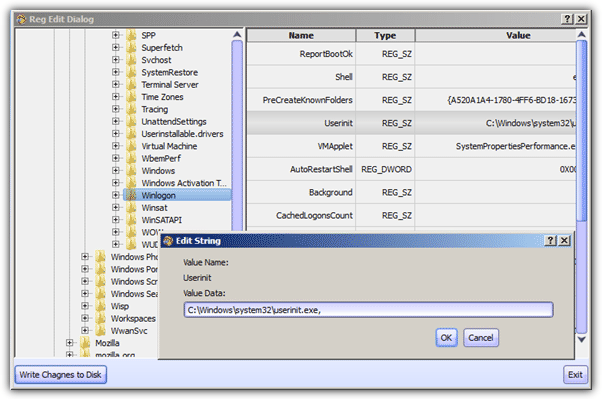
6. Once editing is complete click on “Write Changes to Disk”.
There does seem to be a slight bug on some systems where the main 4 keys in the editor (SAM, SECURITY, SOFTWARE, SYSTEM) will be empty, although there is a simple solution to get around this. Close the editor and also the Windows Recovery window so you’re back at the Recovery Suite Home screen, then just click on the Windows Recovery button, select the operating system again and then go back into the registry editor. This worked every time.
Method Four
This will explain the tougher method on how to access registry without booting in to Windows using UBCD4Win. We’ve previously written a guide on how to create a UBCD4Win CD. Once you have the CD created, just follow the few simple steps below.
1. Boot up computer with UBCD4Win.
2. Once Ultimate Boot CD 4 Windows is fully loaded, click Start -> Programs -> Registry Tools -> RegEdit.
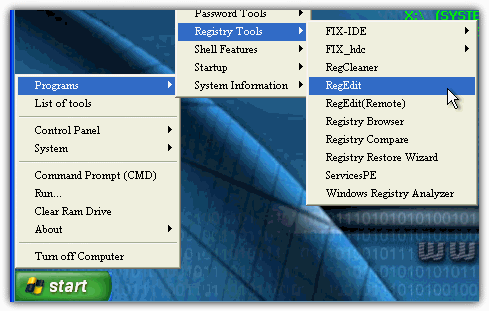
3. Select the HKEY_USERS key.
4. Click File from menu bar and select Load Hive.
5. Browse to C:\Windows\System32\Config\ and select SOFTWARE. Make sure that it is C:\ and not X:\ drive, otherwise you’ll be loading the CD’s registry.
6. Enter the Key Name as NEWHIVE.
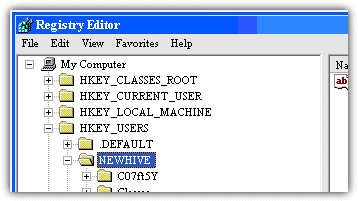
7. Expand HKEY_USERS and you’ll see a newly created NEWHIVE in the list. Expand the NEWHIVE and locate the following location. HKEY_USERS -> NEWHIVE -> Microsoft -> Windows NT -> CurrentVersion -> Winlogon
8. Double-click Userinit and set it to the correct value. Make sure you include the comma at the end after Userinit.exe if that’s what you’re editing.
9. Go back to HKEY_USERS and select NEWHIVE.
10. Click File from menu bar and select Unload Hive. Click Yes when asked if you are sure you want to unload the current key and all of its subkeys.
If you already have UBCD4Win created, the whole process is much faster. However, I understand that not everyone has a Windows XP install disc on hand.



Improve this guide

User forum
0 messages