How to Enable AutoRun on USB in Windows: Step-by-Step
Whenever you insert a CD, DVD, Floppy disk, portable hard drive or USB stick into your computer, the Windows operating system has the ability to automatically launch a program directly from the media or run a game installer etc. Unfortunately, in recent times times the function has been used for more malicious purposes and has become quite a common way to spread and infect machines with viruses, worms and trojans.
This function is known as Autorun and has been around since Windows 95 and is simply a small text file called autorun.inf that sits in the root folder of the inserted device. When Windows detects the presence of the file, it reads it and looks for the line to auto launch an executable or file, and if found, launches the program.
The Autorun functionality has been reduced in more recent versions of Windows for security purposes and in Windows 7 the autorun.inf file is almost completely ignored for all media except CD’s and DVD’s. You can still get your Windows DVD or game CD to launch automatically or via double clicking on the drive icon. USB drives when they are inserted haven’t really had the autorun.inf file fully processed since early versions of Windows XP, and instead the USB autorun launching is either included in the Autoplay function or ignored altogether as happens in Vista and 7.Usually when you plug in your USB flash drive or device, you’ll get the Autoplay window asking what would you like to do next. The options then differ depending on what type of media Windows has detected. For instance, if you insert a blank CD Windows will ask if you want to write to it, or a music CD will give you the option to play the contents. When using a USB stick though, the best you’re likely to get is the option to open it up and view the files.
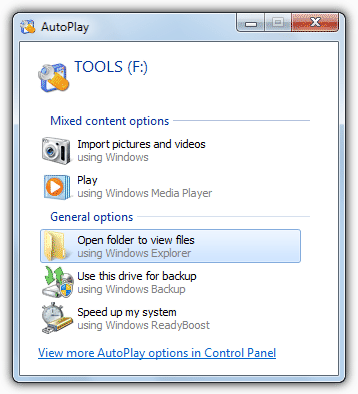
Autoplay is nice and everything, but what about if you want your Windows to recognize and process the autorun.inf file on a USB flash drive every time you insert it into your computer? Of course security conscious people might not like the idea of this, and enabling autorun is not something inexperienced users should be doing, especially if devices don’t come from a fully trusted source. But for those of us that like the function and wish to use it, there are a few 3rd party utilities around to help bring back Windows autorun to USB removable devices.
APO USB Autorun
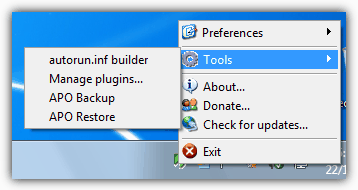
This is quite a useful autorun enabler for USB flash drives and also has a number of other functions thrown in for good measure. Unlike some other utilities that insert their own custom autorun files on the the drive, APO USB Autorun recognizes the standard autorun.inf used by Windows and processes it in the way you would expect by launching the required program.
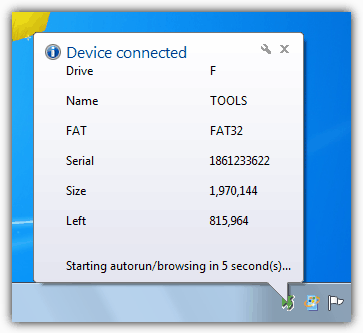
When you insert your USB stick you will also get a tooltip with some information about the the drive such as name, drive letter, file system, serial number, used and available space. There is also a delay in the options you can specify to start the autorun processing of between 0 and 60 seconds (default is 5 seconds). Left clicking on the program’s tray icon allows quick access to browse the USB drive and its contents, right clicking brings up the context menu with the preferences and the other tools included.
If you don’t know much about the autorun.inf file or how to write one for your devices, there is a handy autorun.inf builder utility where you can specify a number of options and have the program create one for you. This can then be saved for a later time or installed directly onto a plugged in device, it WILL overwrite any autorun files you already have on the USB drive. APO USB Autorun also comes with 2 plugins that can backup and restore a folder such as My Documents, this can be setup in the Manage plugins options to run automatically upon the drive’s insertion as well if you wish. The plugins can be disabled during installation if you don’t want them.
APO USB Autorun was tested and works great on just about all versions of Windows including 7.
USB Drive Letter Manager
USB Drive Letter Manager is a very powerful utility that handles drive letter assignments for USB flash drives, and one of its other features is the ability to control the USB autorun function in Windows. The program actually works as a Windows service so drive lettering alterations are not hindered by user privileges. There are massive amounts of options that can be configured, but USBDLM has one major drawback which is there is no user interface at all and settings are configured by manually editing an INI text file. If you can spend the time required though and get it setup and working how you want, it’s a very valuable tool to have installed.
If you want to setup USB drives to use certain drive letters like X or Y, or stop empty drives from taking up letters such as empty card readers, the program can be configured to do that as well as creating mount points so the drive behaves like a local folder.
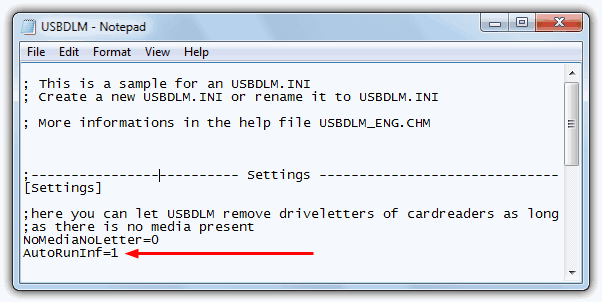
In its simplest form of enabling autorun on USB flash drives or portable hard drives, all you need to do is create a file named USBDLM.ini in the program’s folder (or rename the sample file) and create an entry “AutoRunInf=1” under [Settings]:
[Settings]
AutoRunInf=1
There are a couple of other settings which may be of use, such as setting a delay in milliseconds (below is a 3 second delay):
delay=3000
This setting is a basic security measure that won’t execute the autorun.inf unless both the ini settings file and the autorun.inf on the USB drive contain a predefined string with the “AutoRunKey=secretkeytext” entry:
AutoRunKey=Raymondccsecretkey
These are just a few of the basic options to enable autorun on USB removable devices and there is a huge range of other settings that can be configured for which you really need to read the documentation in detail to understand more fully and to implement effectively.
USB Drive Letter Manager is free for personal and educational use and works on Windows 2000 to Windows 7, separate 32-bit and 64-bit versions are available.
Download USB Drive Letter Manager
If you want to know a bit more about how to create your own autorun.inf file or which commands are accepted in the file have a read of the Wikipedia Autorun.inf page.
You might also like:
 7 Tools to Stop Windows Running the USB Flash Drive Autorun.inf File
 Disable AutoRun on CD/DVD Drives in Windows for Better Security
 5 Ways to Create Fake Dummy File on USB Flash Drive to Enable Write Protect and Prevent Modification
 How to Copy Files to Remote Desktop: Step-by-Step
 How to Download Windows Vista Bootable USB: Step-by-Step
Thank You for taking the time you take to pass on the well researched solutions.
Good advice…”enabling autorun is not something inexperienced users should be doing…” Thanks, Hal9000! I’ve been looking for this type of information and suggested programs and, lo-and-behold, you come to the rescue. Keep up the good work. Always a pleasure to come to this site…
Thank You for all the work you have done to post your learning and experience with Windows computers on your blog site. I have learned a great deal by following your advice and working with the software and information you have looked into and recommended after first checking it out and evaluating its performance, safety, and validity.
I don’t know if many people write just to say thank you, but I thought I should. I appreciate what you do and hope you continue for a long time.
warm regards,
Larry Holmes