How To Turn Off LCD Screen of Laptop [Best Tools]
Whenever I stop using my laptop but I decide to leave it turned on while on the battery, I’ll make sure that I turn off the LCD screen. The main reason I turn the screen off is I think that it’s pretty logical that doing so will save at least some power and prolong the charge in the battery. Even if the laptop is plugged in, saving a tiny amount of electricity and also possibly leaving the laptop slightly cooler all help in their own small way.
The Power Options in Windows have a setting to turn off the monitor after xx amount of minutes when your computer is idle. While this works, setting it to kick in too fast can be annoying because you don’t want the screen to go off when in the middle of reading something. The best option is to manually turn off the laptop’s LCD screen as and when you want to.
Some laptops have a shortcut F key combined with the Fn key to turn the LCD screen off and then by pressing any key will turn it back on. Unfortunately not every laptop has a basic button or combination key that can be used to manually turn off the LCD screen. It’s also entirely possible that your keyboard has issues and the Fn key is not working and there is no way to replicate that key other than changing the whole keyboard which could cost big money.
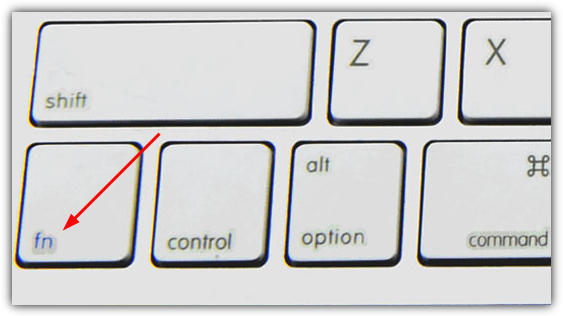
There maybe times when you just want to leave your laptop for a few minutes but don’t want to put it to sleep because it might be doing something like downloading a file from the internet. Similarly, you might be listening to an audio book or some music while on your travels. If you can’t turn the screen off manually using any keyboard function shortcuts to save a bit of power, here’s a selection of simple and easy ways that you can use to manually turn off your laptop’s LCD screen on command.
1. Turn Off LCDThis simple little tool was developed by Taimur Asad to turn off the LCD screen on the HP notebook he owns because it lacks a basic button to switch off the display whenever he wants to. The author decided to make his own small application which turns off his notebook LCD just with one click. The application is written in C# using Microsoft Visual Studio 2008.
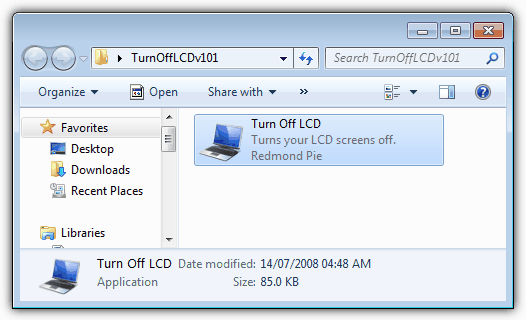
The program is very small, only 85KB is size and no installation is required. All you need to do is just run executable file “Turn Off LCD.exe” whenever you want to turn off your LCD screen. To turn on the screen, simply hit any key on your keyboard or move your touch pad/mouse. The .NET Framework v2 or higher is required.
2. Monitor Off Utility
Monitor Off Utility takes the simple double click to turn off the screen idea a bit further and gives you some extra configuration options on how and when you want to do it. You can create a hotkey for turning off the screen and also another one for switching on the screensaver.
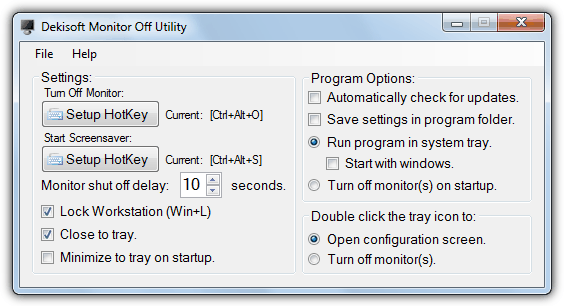
In addition there are also options to enable the Windows Lock Screen before the screen goes into standby and a delay countdown which will popup on the screen and give you a countdown of time to the screen turning off. If you just want it to behave like the Turn Off LCD program you can do that too and change the options to turn off the screen on launching the program and also when double clicking the tray icon. Do be careful when setting up a hotkey because you could easily configure it accidentally to conflict with a system hotkey such as print, copy or paste etc.
For the hotkeys to work the program needs to be running in the system tray which has a context menu for screen turning off, locking or enabling the screensaver. Monitor Off has some command line options for use in scripts, shortcuts and batch files, the list can be found in the Help menu. The .NET v2 is required and it runs on Windows 98 and above, portable or installer versions are available.
3. Monitor Energy Saver (MonitorES)
The Monitor Energy Saver program comes in two flavors; the first and most basic “Lite” version is a plain and simple portable tool of under 30K that you launch and it will sit in the tray consuming under 500KB of memory. When you want to turn off your screen, press the hotkey combination of Ctrl+F2 or the system Lock Screen keys of Win Key+L which will lock and then turn the screen off.
The standard version has more advanced configuration options and useful features such as setting your instant messenger client to Away and pausing the running media player while the screen is off, and re-enable them when the screen turns back on again. The media players supported include iTunes, WinAmp, Windows Media Player, AIMP, Media Player Classic and several more. The messaging programs supported are Google Talk, Yahoo Messenger, Miranda and Digsby.
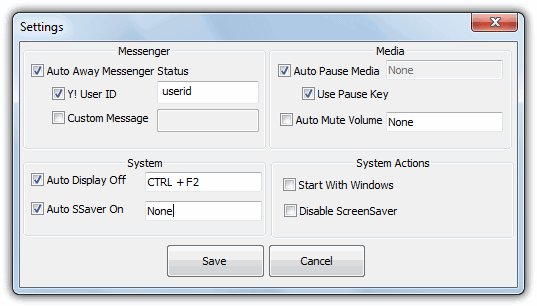
You can also set a custom hotkey for both turning the display off and enabling the screensaver along with a custom away message for the messenger program, and the extra option of muting the system volume. Both versions are completely portable and less than 50K each.


Thanks for this post.I need more details HP Envy 13?
Thanks for this post.I need more details for Monitor Energy Saver?
RE: “Turn Off LCD” program, when I downloaded it at the given link it appeared in Firefox download list with warning “this file may harm your computer” so I downloaded it from another site.
It is running now okay on Win7 but I have one question: Is this turning off the LCD only or also the backlight? I want to make sure I turn off the backlight since I had a backlight die a few years ago and it could not be replaced at reasonable cost.
That’s just Firefox being a bit silly I’m afraid. RedmondPie is a well-known site.
I can’t be 100% certain but am pretty sure it turns the display off and not just the backlight.
#1 works for me on HP Envy dv7. Keep it in downloads folder, drag to start bar to make a quick shortcut.
Which of the 7 listed would be best for use on a Toshiba Satellite laptop?
How can I turn my screen off in a way that it stays off while I wirte on the keyboard?
The text I write should be saved. I love to write on a black screen, it makes my mind more free and it’s more relaxing to my eyes.
With my old medion laptop I had the hotkey “fn + f11”, now on my new Thinkpad I miss this function a lot!
I only found software that turns the screen off, but it resumes after pressing any key. I need a software that resumes the screen only after pressing the hotkey.
Does anyone have any solutions?
Thank you very much!!
Did You Find Out How To Do This ?
On My Old Lenovo, The Screen Would Turn On Only If I Pressed That Specific Key …. But In My New Acer, Any Key Turns On The Screen …
Desperately Looking For A Solution
I have an idea. If this is really important to you, then connect a second screen. Turn the screen display brightness down to zero. Then, when you are working with your normal screen and want to turn it black, just use a function key to switch the active display to the connected screen that has the brightness turned down. You could even tape black paper over the alternate screen.
no need to download anything just click -> run and enter following command: %systemroot%\system32\scrnsave.scr /s
In actual fact, that doesn’t really help much because with a blank screensaver the LCD screen is still “on” and using energy with the backlighting etc. There’s a lot of articles on the web which say in most cases black pixels are no better at saving energy than white/coloured pixels.
use this, it’s lightweight and easy:
gallery.technet.microsoft.com/scriptcenter/Turn-off-screen-4d173e0a
Hi 8Kacy/Raymond.
I don’t know much about anything IT wise but I searched (Start button -search) for powershell and opened it up. ( looks like Command Prompt)
powershell (Add-Type ‘[DllImport(\”user32.dll\”)]^public static extern int SendMessage(int hWnd, int hMsg, int wParam, int lParam);’ -Name a -Pas)::SendMessage(-1,0×0112,0xF170,2)
Then I copied the belowabove “script” (?) in it by right clicking and a page of red type popped up with the last paragraph saying there were compilation errors in AddTypeCommands
I desperately need some way of turning off the backlight on the screen with some kind of hot key but not putting it to sleep nor waking it up with mouse or keyboard activity.
I wish to retrofit a Pixel Qi sunlight readable screen on a netbook (Toshiba NB550D) which will activate when the backlight is completely off.
That way I can use it in the sunlight while the screen works in a reflective mode thus conserving battery life per charge.
But I need to work on Word docs so needI DON’t want the mouse and keyboard to turn the screen backlight back on.
Could you or someone please walk me through the steps of how to install/use this script or any program to set up a hotkey for turning off the backlight and also one for turning on the backlight again.
Other computers such as Samsung and Lenovo have Fn+F5 etc.to do this.
Thanks heaps if you can help me with this anyone.
Lucien
Windows + P will give you an option for Projector only which cuts the signal to your built in display and causes it to go to power saving sleep mode. I use this method to get old Laptops working for the elderly so they can still access the power button but only use a large external monitor combined with a ‘real’ keyboard and mouse.
Thanks Noah, thats what everyone are looking for…
would be great for me except – “cannot find projector” pops up and screen turns back on within 10 seconds
thanks a lot!!!
Thanks alot !!! Very useful app
Thank u so much…… :)
perfect!
Exactly what i needed.
just what i need !!! thanx a lot for sharing :) :)
Thank you, brother!!! awesome stuff! just what i was looking for! works perfect with HP Pavilion G7.
Best regards!!!
I have a hp Pavilion too works great!
Its great. Thanks buddy. Works properly on Dell Inspiron machines!
It’s exactly what I wanted for a Dell Vostro 1015, thank you very much. It works perfect. This program, actually turns off the back light which is more useful than turning off the LCD.
Just what i needed, 1st application works perfect on Hp Probook 4530s (Win7 x64). Thanks.
Very nice… Thank you..
This is awesome. Thanks for posting!
Works great on HP Envy 15-3040NR :-)
Thanks SO MUCH! I’ve got a Sony Vaio VGN-BX740 with programmable S keys. This is perfect!
Works Great on My MSI GX 660 R, Specially when you want to clean the display.
Great… Works Perfect on Win7… HP Pavilion dm4… Thanks
cool gadget! I like it! Toshiba satellite A300 Win 7 Prof work normally
Working well, thanks
thank you!
just what i needed, works perfectly, thank you!
Awesome! Worked like a charm on my HP laptop. Very easy to install and easy to operate…just double click the icon.
I have my laptop on my coffee table right in front of the TV and the screen is a huge distraction. When I play video games I like to have some light music on and the screen will distract every time…until now! I can’t believe the makers of these machines don’t include an easier way to do this. Mr. Asad thank you for this very essential piece of programing. I hope to see more of your talent in the future.
Thank you again,
Glen
I’ve pinned this to my taskbar (drag n drop) on windows 7. Just 1 click on the taskbar icon… easy!!!
Thanks for this.. <3 from Vostro V13.
Thanks buddy. Was looking for such a shortcut for long. Thanks a lot.
Thanks a lot.. Works perfectly.. Dell Studio 1558..
Thanks it works wonderfully and so easy :) Vista 32, Sony Vaio
SO COOL! Just what I was looking for!
Thank!
Thanks. Been searching for this for a long time now. Works great with HP 6735b
Thank you mate, I am looking for a long time for such an app. I am using HP6820s, and it works great.
Regards
This app is awesome!
works well on dell inspiron 14. thanks a lot
Awesome. Just what I was looking for. Thanks.
Great! Work on my Dell Latitude D620. Thanks a lot.
Brilliant Redmond! I recently built a desktop with an ASUS M4A89GTD Pro/USB3 Motherboard. The Windows 7 Ultimate Power settings worked at first then stopped working to shut the monitor off after a set time. I was searching your Blog Site for a remedy. Came across your tiny TurnOffLCD program. After placing a shortcut from Program Files in the Win7 taskbar it works better and is more useful that the Power Timer in Windows7. It is important to conserve energy and this applies to not just Laptops.
I have been a subscriber to RaymondCC for years and am constantly learning from your wealth of knowledge. Thank you for your efforts and the valuable information you provide. This is my first post here after all these years.
Again Sir Thanks you are absolutely BRILLIANT :-)
thanks a lot!
thanks so much, i can now listen to my audio books on wmp at night, without the bright screen waking up the wife. 5*
Thanks buddy….
It works perfectly with my hp laptop…
Thank you so much for pointing out this app.
It works perfectly with my LG CRT monitor.
Thanks man, good job.
App runs fine on my Dell Studio 1555/Windows 7.
Put the exe in a folder and right click it, send to desktop as a shortcut which you drag to the task bar. Delete the desktop shortcut and the little icon looks like part of the OS.
Nice!
so great…. thanks…. 100 useful!!
Its a great application.simple to use.Thanks a lot.
Turn off screen by closing lid is not a better option as suggested by many because it is heating up touch pad area and more over we can’t hear the songs when lid is closed as speaker is inside. yours application is very useful.
Ravi
HP Pavilion dv2000, works great.!! THANKS
This program is really useful, working on Windows 7 100%
I’ve always hated how laptop screens glare even with black screensavers etc. I love this, thanks Raymond
This man is a complete legend for creating this :P
Works a treat on Dell 1545
Thanks Raymond for this find!
Works great. Thanks! (HP 530 – Windows Server 2008)
Thanks a lot!.
Thanks so much for this, it works great! (Dell XPS 1530)
thanks!!!!
Thanks man, Ive been looking around all day how to do this. I download a lot of stuff that takes a lot of time. I wanted to figure out how to turn off my screen so it wouldn’t burn out because I heard laptop LCD Screens aren’t as durable as Desktop LCD Monitors. They are pretty frail from what I here.
Big Thanks.
Great app, very useful!!!
Thanks, works great ! (Toshiba Satellite A200)
Works great on my Vostro 1500 (Vista)! Thanks a lot; it’s just what I was looking for!
thanks for this wonderful program..
Works also with CRT monitors to save power! Nice one!
Nice tool – Good to have.
honestly, i never know about this one. I think i need to give a try. :D
Thanks for sharing with us.
Thanks, this is an awesome tool – I’ve been looking for something like this for a while and it’s just what I needed!
Thanks
Thanks works excellent.
Thanks a lot. it works like a charm.
Thx Raymond. it looks very useful especially for my laptop. i will give it a try. btw I have Toshiba Satellite A-105 S4384 LCD Wide Screen 15″, with (dual booting) OS Xp MCE 2005 Sp3 and/or Vista Ultimate SP1. Hopefully it works/supports also
you are great Raymond i was just wondering how to do that because yesterday i connected my HP laptop to BenQ external LCD 19 inch which is bigger than laptop’s monitor and i wanted to turn off my laptop LCD but i could not..
Niche, I usually leave some download work going on in the background when I go off to sleep, however it is the dim light from the laptop LCD is annoying. Using it will solve that one.
Thanks for sharing a cool trick.
thanks … will be nice when i have a laptop :P
very nice find Raymond ….. Thanks