
5 Ways To Quickly and Easily Print from Firefox


 5 min. read
  Published on

Just like any web browser, Firefox allows you to print the webpage that you’re currently on for offline reading or storage. There are a couple of ways how you can quickly and easily print from Firefox, either using your keyboard by pressing a combination of shortcut keys, or by using your mouse. Fortunately all major web browsers such as Internet Explorer, Chrome, Firefox and Opera all use the same hot key to activate the print dialog box which is CTRL+P.
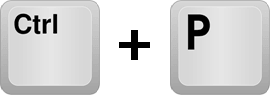
For Firefox, there are other places where you can activate the print dialog if you’re not comfortable in using the default hotkey. We’ll also show you how to configure Firefox to print silently without the confirmation dialog box and also how to print/save as PDF which is not found in Firefox but available in Chrome by default.
5 Ways to Print from Firefox
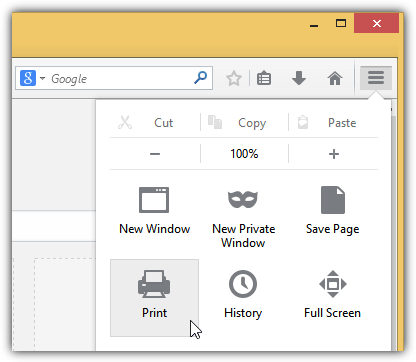
1. Firefox Menu
You can find a huge print icon from the Firefox menu which is located at the top right. Simply click on the menu icon that looks like three horizontal lines stacked on top of each other, and click the Print icon. This will bring up the print preview for you to see what the webpage is going to look like after printing and also allowing you to scale the page, select portrait or landscape mode, printing background, changing the header and footer margins.
2. Firefox Menu Bar
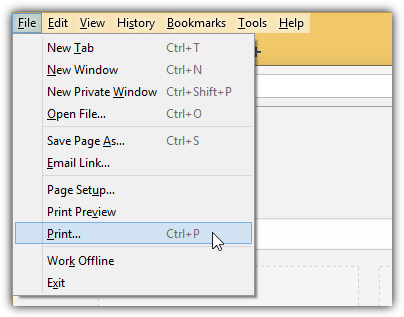
Not only you can find the print command at the top right, it can also be found at the top left from the hidden menu bar. Simply press the Alt key from your keyboard to reveal the hidden menu bar, click on File and you can either select Print Preview or Print from there.
3. Print Hotkey
As we’ve said earlier, the hotkey to print the current webpage is Ctrl+P which will open the print dialog box. Unfortunately there’s no hotkey for print preview but it is still possible using your keyboard by pressing Alt+F followed by the V key.
4. Adding Print icon to Toolbar
If you prefer to have a visible print icon on the Firefox toolbar so you can conveniently click on it, you can add it in by right clicking on the toolbar and select Customize. Drag the Print icon and drop it to the toolbar. Click Exit Customize to close and save the changes. Clicking on the print icon from the toolbar will show the print preview window.

5. Right Click Context Menu
If you’re a heavy mouse user who relies a lot on the right click context menu to get things done, you can add a Print command to the menu by installing the Print extension.
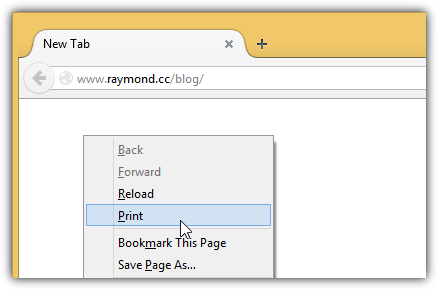
After installing the Print extension, there is nothing to configure and you’ll instantly see an additional Print entry in the right click context menu after restarting Firefox.
Setting Firefox to Print Silently
If you find that the print confirmation window is annoying and useless, it is possible to instantly send the print job directly to the printer.
1. Automatically through Extension
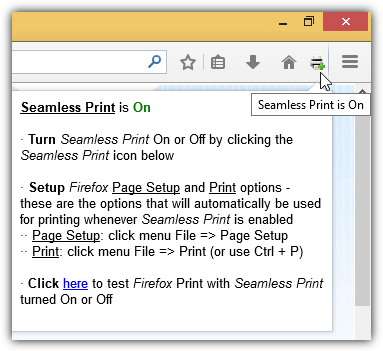
The easiest way is of course to install an extension called “Seamless Print” which has been preliminarily reviewed by Mozilla and does not require a browser restart. After installing the add-on, an additional printer icon will appear at the toolbar and clicking on it will either turn it on or off. When Seamless Print is on, the print confirmation window will not show and vice versa.
2. Manually
For advanced users that prefer to keep Firefox as lean as possible, you can actually add a new preference in about:config and setg it to true. Do note that the step below is exactly what the “Seamless Print” add-on does.
2a) Type about:config in the Firefox address bar and click the “I’ll be careful, I promise!” button.
2b) Right click, go to New and select Boolean.
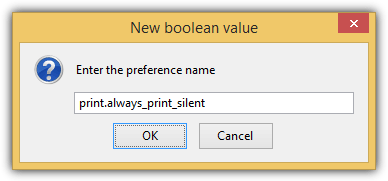
2c) Enter the preference name as “print.always_print_silent” without the quotes and click OK.
2d) Finally select the value as True.
To revert the changes, simply toggle the print.always_print_silent preference from the about:config to false or you can reset it.
Save or Print as PDF
A missing useful feature in Firefox is the ability to save the webpage as PDF from the print dialog box for offline reading or storage. This feature can already be found in Chrome by default and we’ll need to rely on third party extensions for this to be possible in Firefox.
1. Print Edit
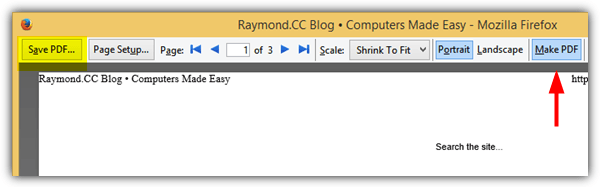
Print Edit is an excellent free extension for Firefox where you can remove unwanted content such as advertisements before printing. Other than that, you can also save the webpage as PDF from the print preview window. Click the Make PDF button and and the Print button will change into Save PDF. This extension also adds a Print selection to the right click context menu.
2. PrintPDF
There is a popular extension called “Print pages to Pdf” which is currently being used by over a hundred thousand Firefox users to print web pages as PDF but the addon is over 8MB in size! If you’re looking for no-frills easy to use plugin just to save the webpage as PDF, you should try PrintPDF. The only settings you can find for PrintPDF are the ability to exclude printing of background colors, images, header and footer.
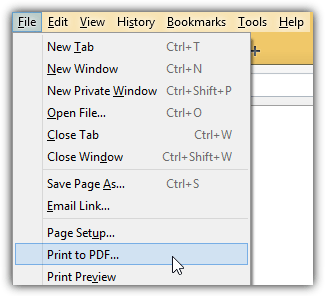
As you can see from the screenshot above, you can save a webpage as PDF from the menubar by pressing Alt+F and select “Print to PDF”.



Improve this guide

User forum
0 messages