
7 Task Management Tools that can Replace the Windows Task Manager


 12 min. read
  Published on

The Windows Task Manager is one of the very useful tools included in all versions of Windows, like Regedit and Command Prompt. When an application crashes or freezes and you can’t even close it, you can use the Task Manager to end the process. It’s also used extensively by users to monitor and diagnose when programs are consuming too much memory or degrading the computer’s performance by eating CPU cycles.
Task Manager can also help tell you if there are suspicious programs running in the background that shouldn’t be there. Modern malware will sometimes try to disable Task Manager from running because it’s such an effective and easy way of killing the malicious process. Windows Task Manager is an effective tool but it sometimes doesn’t provide you with enough information or power to monitor and kill tasks effectively.
The useful thing about the Windows Task Manager is the convenience in launching it because there are several different methods you can use to open it up:
1. Right click the taskbar and select Task Manager (Windows 11 users click on Start).
2. Simultaneously press CTRL + SHIFT + ESC
3. Simultaneously press CTRL + ALT + DEL to bring up Windows Security and click Task Manager
4. Simply go to Run or Start and type taskmgr
Have you ever wondered if it’s possible to use the above methods to launch a third party Task Manager instead of the default Windows tool? Well, it is possible and a lot easier than you probably thought. Many third party tools have the ability to replace the Windows Task Manager and all the ways you open it. Here are eight third party task managers that you can use to replace the default Windows Task Manager.
Most tools here have a built in function to replace Windows Task Manager either from a menu or options window. Those that don’t can still be used as a default by following the guide at the end of the article.
1. Process Explorer
Sysinternals Process Explorer is perhaps the most popular Task Manager replacement. This is partly down to the sheer amount of process information available while still being quite easy to use. There’s a configurable color coded display and hundreds of different columns that can be shown in the main window. Several monitoring graphs are on hand to show CPU, memory, disk, network, and GPU activity.

To terminate a process, right click and select Kill Process or press the Del key, you can also suspend/resume and restart. The search online option will open a Google search for the process name. Double click the entry to get a Properties window full of information about most aspects of what the process is doing with its open threads, network connections, security details, performance activity, and etc.
An optional lower pane can also be opened that will show what DLL files and handles are currently locking the process and can be closed to help release it. Process Explorer might not have advanced task killing functions like some other tools but it’s light on resources, portable, and updated often. The replace Task Manager function is in the Options menu.
2. Mitec Task Manager Deluxe
Mitec Task Manager Deluxe boasts a huge amount of information and data that should please advanced users. The main window shows network activity graphs, system resource graphs, and graphs that show current processes using the most resources. The program will default to showing the Processes tab that displays all currently running processes on the system along with the relevant information.
Right clicking on a process offers a number of options, including change priority and affinity, terminate/suspend/restart/monitor the process, open the window explorer, open a PE viewer, and search on VirusTotal/Google. Choosing the terminate option will pop up a secondary window that offers to aggressively kill the selected process. There’s a ton of data available if you want to go through it.

In addition to the Processes tab, there are other tabs for Services, Sessions, Autoruns, Network, Disk I/O, GPU, System info, and Performance. Some tabs contain text data, others contain graphs. If all this wasn’t enough, there are more options in the drop down menu for Desktop Explorer, layout view, open/locked files, machine journal, accounts, Windows updates, and taking an image snapshot.
Mitec Task Manager Deluxe is probably the most feature rich task manager around, is free for personal use, and is also portable. Weirdly though, it does not have a built in option to replace Windows Task Manager so you will have to do it manually. Dark theme lovers will find a dark mode option in Preferences.
Download Mitec Task Manager Deluxe
3. System Explorer
Although it doesn’t have the more advanced options to end tasks, System Explorer is a more complete all round process management and system monitoring utility than many others. It also contains a basic security scanner that can compare the running processes to an online database and will offer to scan open processes on the first run. Sadly, the development of System Explorer ended in 2016.

The process management tab has the standard options to end, suspend or restart a task with the option of sending it to VirusTotal or Jotti for a virus scan, and searching Google or the online database. You can also set the processor core affinity and the process priority but with the added ability to make each setting permanent. There’s also a “Processes memory usage cleanup” option which drops used memory for all running processes.
In addition to the Tasks, Processes, and Performance tabs, you also get history logging, dll modules, network monitoring, opened windows/files, Autoruns, Drivers and Services monitoring/control, WMI browser, before and after snapshots for files and registry, software uninstaller, Users, system security details and additional system information. Portable and installer versions are available, replace Task Manager is in General Options.
4. Process Hacker
Process Hacker is similar to Process Explorer but it also has several useful functions that help analyze and remove troublesome processes. The process list is color coordinated and there’s a Service tab with advanced information and the ability to start, stop and restart services. The Network tab also has some colors to represent opened and closed connections while the Disk tab tells you what tasks are writing to and reading from the hard drive in real time.

There’s a dedicated window to find out which handles or DLLs are attached to any process with the aim of closing any handles locking the file. On a simple level, processes can be terminated, suspended, resumed, or restarted. There are more advanced options to find out more about the process such as GDI handles and even the ability to inject a DLL into the process or reduce the Working set which drops its used memory to almost nothing.
The Miscellaneous context sub menu also has the Terminator option which offers every trick Process Hacker knows to try and kill the task. Sadly, this option was removed after version 2.38. Other useful options include sending the executable to VirusTotal, Jotti, or Comodo for analysis, saving process priorities, a Windows Service creator, a hidden process scanner, and a file signature verifier.
The option to replace Windows Task Manager is in Hacker > Options > Advanced tab or available as an option during install.
5. Yet Another (remote) Process Monitor (YAPM)
YAPM goes with the Micro Office ribbon style interface and isn’t just a task manager tool but more of a complete all round task monitoring, management, and analysis tool with a ton of features. The program also boasts remote monitoring and shutdown features using WMI or a remote YAPM server. For support purposes, there’s also a snapshot option that makes a complete record of everything in the program.
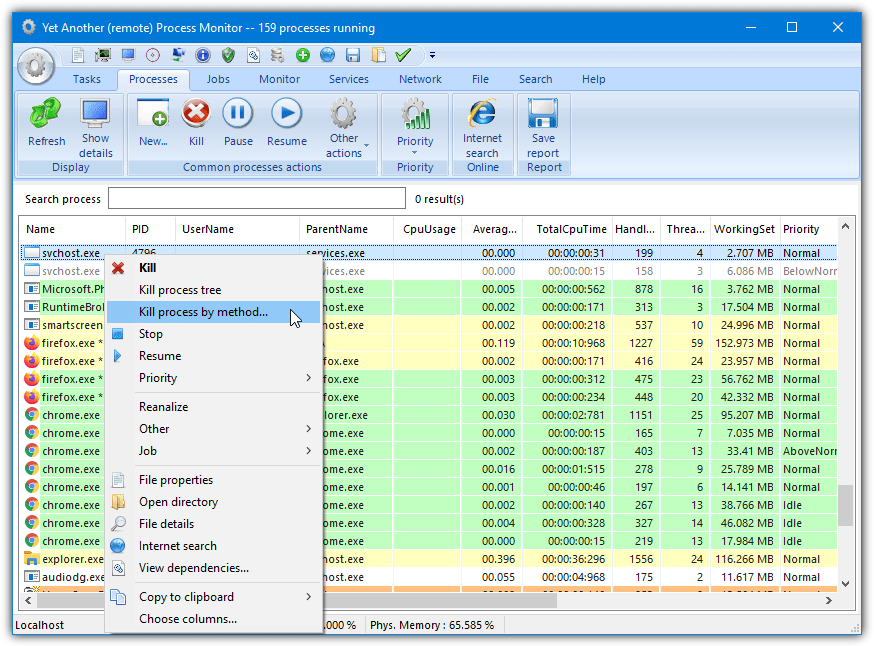
YAPM has some advanced task killing methods that can be optionally checked using the “Kill task by method” option in the context menu. These include terminating threads, closing handles and windows, or everything at once for stubborn or locked processes. There are also options to search the web for a process, view its dependencies, and also reduce its working set which drops the used memory of the process.
YAPM also has a separate hidden process viewer accessible by clicking on the green shield in the quick access toolbar. There’s a large number of other functions available in the program including a TCP/UDP monitor, Services information, advanced file information, a search facility, and a digital signature checker. The Windows Service creator allows you to make a service from a local or remote executable file.
The .NET Framework v2/3 is required for Windows 10 and 11 with portable and installer versions available. Replacing Window Task Manager can be done during installation or afterward from the Preferences window.
Download Yet Another (remote) Process Monitor
6. AnVir Task Manager Free
The free version of Anvir Task Manager has a few features missing compared to the shareware versions such as blocking processes, running programs as services, saving priorities, and temperature/SSD monitoring. It’s still quite feature rich though and has a number of useful options including extensive views and control over Startup items, a comprehensive system tweaking tool, and the ability to create a HijackThis log file.
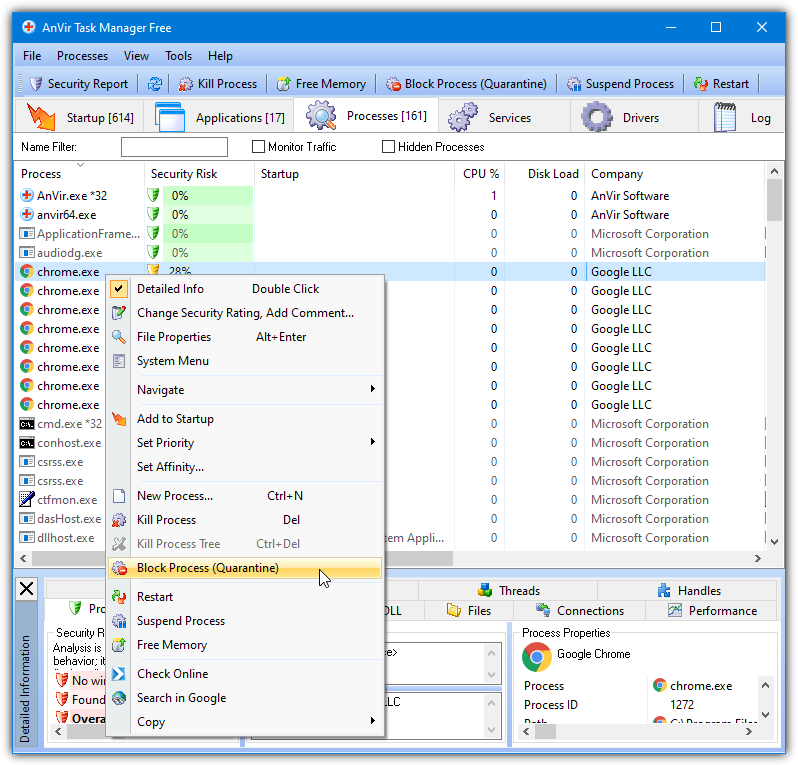
A process can be killed, restarted, or suspended with options to free up its memory, search for it in Google or check online at VirusTotal. Double clicking on a process will bring up the detailed information view which gives a quick security assessment and general process details, dll modules/files opened by the program, process performance, and all open network connections and drivers.
The Services tab can be used to monitor, start, stop, delete and change the startup type of a service while the log window will record all process driven events. Hidden processes can be shown from the View menu. Watch out for adware in the installer version and also some ads in the Options menu. The replace Task Manager setting is in Tools > Options > Properties.
Download AnVir Task Manager Free
Giveaway Note: Back in 2012, Raymond.cc hosted a giveaway for Anvir Task Manager Standard 6.5.0 worth $29.95. Although there is no free update support anymore, the program still works fine and you get the added features in the standard version such as memory optimizer, descriptions for autoruns and services, and hardware monitoring functions.
Simply download version 6.5.0 of Anvir Task Manager Standard and install it, watch out for the adware. Make sure to turn off the check for updates as they aren’t free anymore, and register the program with the below details from the Help menu.
Name: www.raymond.cc
Key: TN2M-HQLZ8Z-PW6GLN-JUJ611-13CF2U-3PTR8P-JK8Z1
7. SterJo Task Manager
Most average users will find SterJo Task Manager quite easy to use and get along with. It has a clean user interface and is not loaded with tons of options but there’s enough to handle normal day to day tasks. Advanced users will probably get more from some of the others tools mentioned here. The four main tabs are Processes, Registry startup items, Services, and TCP/UDP connections.
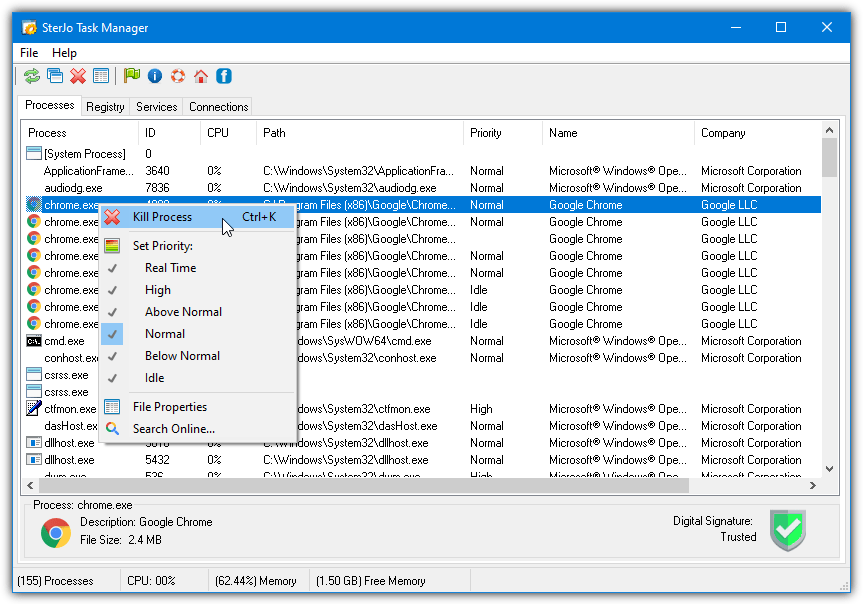
Right clicking on a process offers a simple context menu to alter the priority, kill it, or search for it online. The other tabs offer relevant context menus, such as being able to disable or edit registry startup items, start/stop/alter the startup type of services, or kill/close and resolve the hostname of connections. Portable and installer versions are available, you will have to replace Task Manager using the manual method below.
8. DTaskManager
If you’re looking for a no frills task management tool without fancy colors or unneeded functions, DTaskManager is a very useful program. In looks and layout, it isn’t that far away from Windows Task Manager, is lightweight, and has a number of extra functions that could prove useful. One of which is the ability to select and kill multiple processes with the aid of Shift or Ctrl clicking.
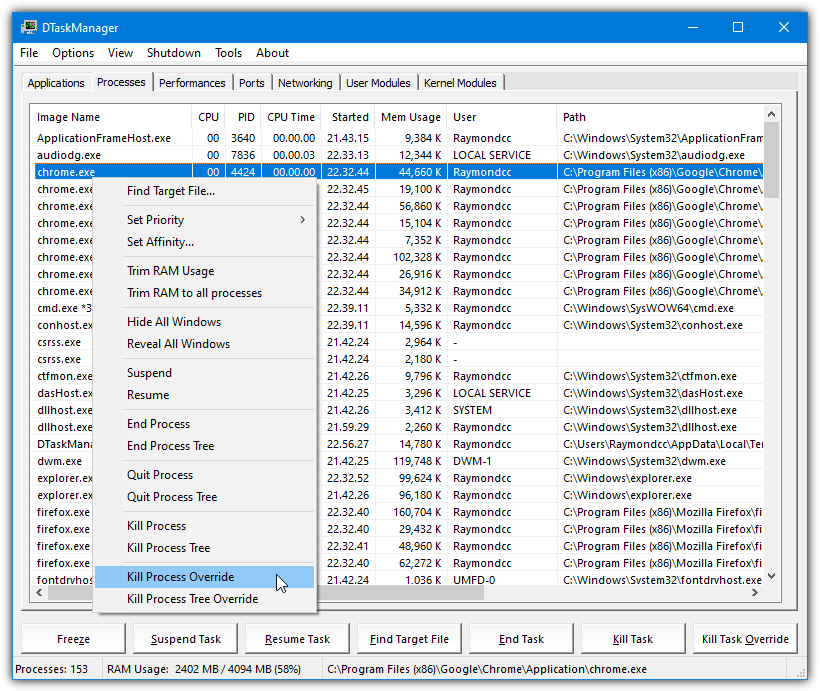
A process can be terminated using the standard End or Quit commands. For more stubborn programs you can force quit or even force quit while trying to bypass process permissions and protections. You can also suspend and resume tasks to temporarily free up the CPU, and “Trim RAM usage” behaves like the CleanMem utility and reduces the used memory for selected or all running processes.
In addition to the Applications, Processes, Network, and Performance tabs, DTaskManager also has an opened TCP/IP network ports tab, and the User/Kernel Module tabs allow you to view which files are being run inside the kernel space. There’s also a function to auto lower all non system process to idle and an undocumented auto priority function in the Tools menu. The default task manager option is via a sub menu in the Options menu.
If Your Favorite Tool Can’t Replace Task Manager Automatically
Most of the more popular task manager programs have some sort of option to replace the Windows one, but what if you have a program you like to use that can’t do it? Thankfully, you can also launch other task management programs with the help of a simple system registry edit.
Go to Start and type regedit. Browse to the following location:
HKEY_LOCAL_MACHINE\SOFTWARE\Microsoft\Windows NT \CurrentVersion\Image File Execution Options\taskmgr.exe
If the taskmgr.exe key is not there, right click on “Image File Execution Options” > New > Key, and type taskmgr.exe.
Right click on taskmgr.exe and select New > String Value. Name the new string value Debugger. Double click on the Debugger entry and enter the path to your third party task manager program.
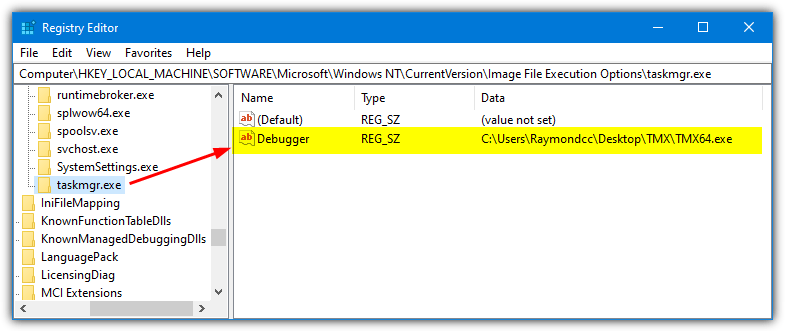
Windows will now launch your favorite third party task manager whenever you hit Ctrl+Shift+Esc or right click on the Task Bar, etc.
If you don’t want to modify your default Task Manager but want to run a third party task manager software using a combination of keys, then you can set a “Shortcut Key” on the program’s shortcut. Simply right click the program’s shortcut, select Properties, and click on the Shortcut tab.



Improve this guide

User forum
0 messages