How To Reset, Crack or Clear BIOS Password [Best Tool to Use]
Any amateur computer technician should know how to reset BIOS passwords that can be setup from within the BIOS because there are times when they need access to change some configuration options such as the boot order or disable functions like AHCI mode. If a password has been set, you cannot enter the BIOS or sometimes even boot the computer itself unless you know it, and this can be a real headache if nobody knows what the password is. It’s becoming increasingly common due to the amount of computers changing hands these days and previous owners have set a password and not passed on that information.
The most common way that most of us know for resetting or clearing the BIOS password is to physically remove the power from the computer by disconnecting all cables and removing the battery from the motherboard for a few minutes. Another way is to short the clear CMOS jumper on the motherboard itself if one is present. These methods work because on most desktop and a few laptop motherboards, a battery is used to sustain the BIOS/CMOS settings. By cutting off the power, the BIOS/CMOS settings and password will be erased.
If for some reason you’re unable to reset the computer’s BIOS security password by removing the battery or clearing the CMOS jumper, and you don’t know what the password is, here are several options which you can try out to clear it.
Generic Backdoor Default Passwords
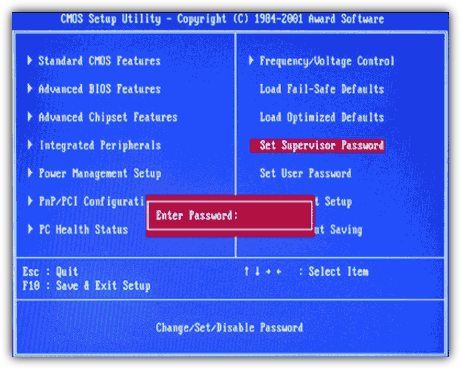
Before using any tools that try to reset or make changes to your BIOS, it’s worth seeing if any of the well known backdoor or default passwords that have been around for some time work. Click on the link below to view the list, the passwords are case sensitive.
View BIOS Default Backdoor Passwords
If you can Boot into Windows
CMOS De-Animator is an up to date tool compared to the majority of BIOS hacking/resetting tools out there, and can reset the BIOS password from within Windows. The latest version 2 executable of CMOS De-Animator is compatible with both 32-bit and 64-bit operating systems.
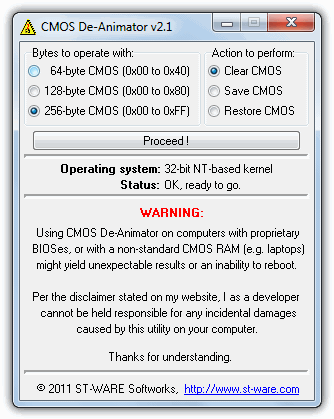
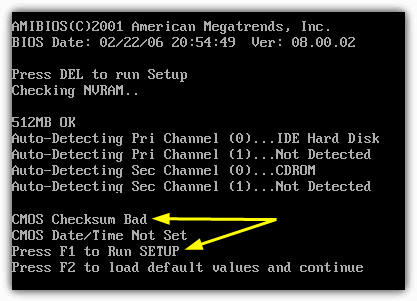
All you need to do is run the tool as administrator (right click -> “Run as administrator”) and click the Proceed button followed by restarting the computer. When your computer boots up, you should see a CMOS checksum error where it allows you to access the BIOS without a password. CMOS De-Animator works by invalidating the checksum of your system’s CMOS memory which resets all settings to default and clears any stored BIOS passwords upon reboot.
CMOS De-Animator also has a basic backup and restore option to give you that extra little bit of added security, the file will be stored with a .dea extension. Do take note of the authors warnings about the problematic nature of using the program on laptops and that usage of CMOS De-Animator is at your own risk. Because of its nature the program will sometimes trigger false positives in antivirus software and on sites like Virus Total.
If you Cannot Boot From Hard Drive or CD
Although disconnecting the power and removing the battery from the motherboard on desktop computers for a few minutes should remove the password, this is much less likely to work on laptops, but it’s still possible on some older models. For extra security the passwords for laptops are usually stored on a separate EEPROM chip which doesn’t rely on the BIOS battery and is unaffected by cutting the power.
If you enter the wrong password a few times on a laptop, there will be a message that the laptop is locked. You will be presented with something like a “System Disabled” or “Password check failed. System Halted” message with some numbers. If this message appears while entering the BIOS you can simply power off and on the computer to remove it and try again. Take note of the number because it’s a valuable piece of information and required to generate the BIOS backdoor password to get back into the laptop.
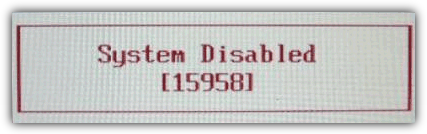
All you need to do is to have the number to hand and then visit the BIOS Master Password Generator webpage. This website has been setup to let you easily get the possible passwords based on the number entered, simply enter it and press the button. Then look at the results and note all the passwords which are close to your model of laptop.
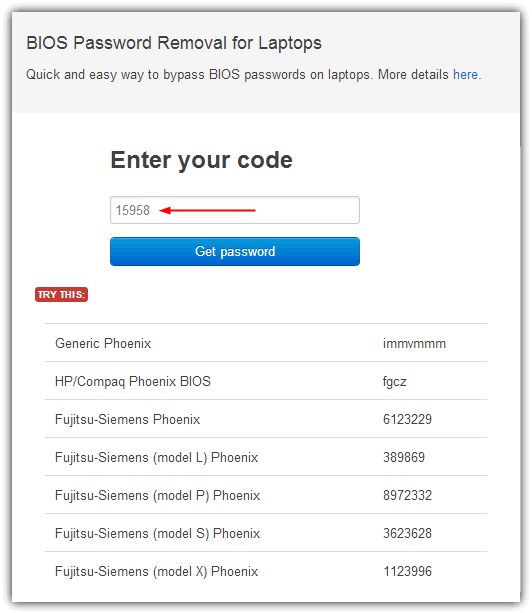
Try the codes on the locked BIOS message to see if it works, depending on laptop models you may need to press Enter or Ctrl+Enter after entering the code. The codes used are based on the work of “Dogbert” who’s done a lot of research and created a number of small utilities and also Python scripts for unlocking several different brands of laptop.
If the website above or its codes don’t work, visit Dogbert’s Blog where you will be able to find more details about your laptop brand and download a separate master password utility for it. To use one of the programs, simply download the correct one for your laptop and run it, then type in the number and hit enter. The master password will be displayed for you to try and unlock the computer.
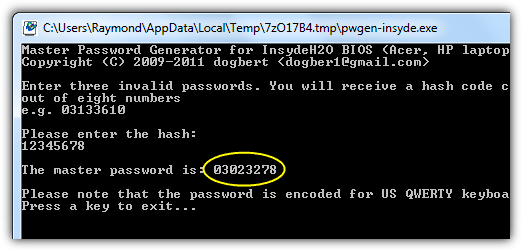
You have to run the master password tool on a computer that can boot into Windows and has .NET installed. If you don’t know which tool to use, it’s safe to try all of them until you find the one that matches your laptop.
There are a number of other reset BIOS password solutions on page 2.
If you can boot from CD/USB
When Windows doesn’t boot properly and you cannot get into the BIOS to change the boot order, you could be lucky enough that booting to CD or USB might already be set at a higher priority than booting to Windows and simply inserting a CD or flash drive will boot to it automatically. It’s also possible that CD or USB booting could be just below hard drives in the order, in which case you would need to temporarily disconnect the hard drive(s).
If you can still access Windows, another solution to enable CD/USB booting is using a great tool called Plop Boot Manager. What it does is allow booting from these devices even if the system BIOS doesn’t support the function or the boot order is not accessible. Even if you don’t want it for this purpose, Plop is a great tool to know about for using on older computers.
Here are some tools which can be used by booting from the relevant CD or USB flash drive. Simply burn the downloaded ISO file to a disc or use one of these ISO to USB tools.
PC CMOS Cleaner
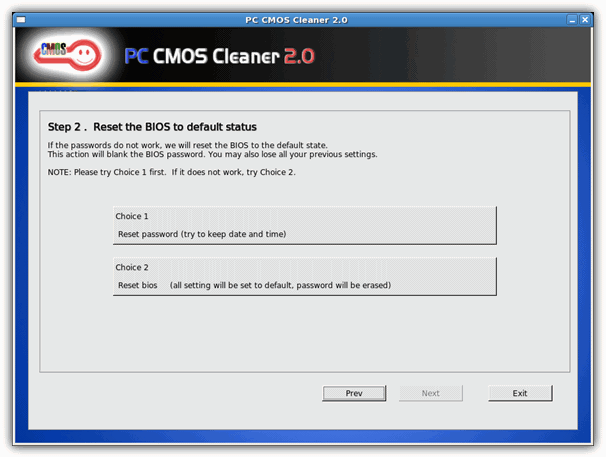
PC CMOS Cleaner is able to recover, remove, decode and display the user or supervisor password stored in the BIOS irrespective of the machine brand. Award, American Megatrends (AMI), Compaq, Phoenix, Samsung, IBM, Compaq, DTK, Thinkpad, Sony, Toshiba are all in the list of supported BIOSes so there’s a good chance your BIOS is included. PC CMOS Cleaner is a bootable Linux CD so you don’t have to worry about operating system compatibility. On launch the program will first try to decrypt and display a list of possible passwords. Failing that, you can choose to remove the password using two options, the second of which will completely reset the BIOS to defaults so you’ll have to go and reconfigure it afterwards.
CmosPwd by CGSecurity
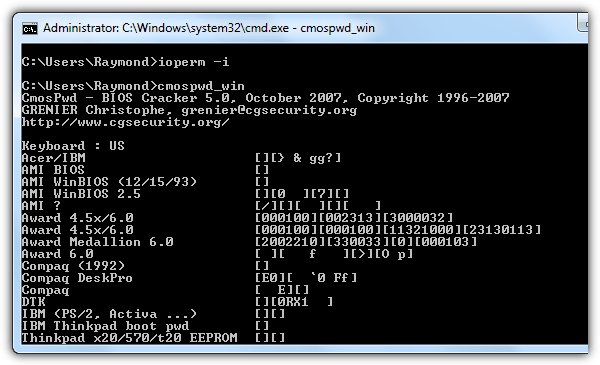
This is one of the more up to date and popular CMOS decryption tools although it’s still quite old dating back to 2007. CmosPwd decrypts the password stored in the CMOS and displays it. The following BIOSes are supported:
- ACER/IBM BIOS
- AMI BIOS
- AMI WinBIOS 2.5
- Award 4.5x/4.6x/6.0
- Compaq (1992)
- Compaq (New version)
- IBM (PS/2, Activa, Thinkpad)
- Packard Bell
- Phoenix 1.00.09.AC0 (1994), a486 1.03, 1.04, 1.10 A03, 4.05 rev 1.02.943, 4.06 rev 1.13.1107
- Phoenix 4 release 6 (User)
- Gateway Solo – Phoenix 4.0 release 6
- Toshiba
- Zenith AMI
With CmosPwd, you can also backup, restore, erase or even kill the CMOS. CmosPwd is included in the Hirens Boot CD DOS programs menu. Select “9. Next” -> “2. BIOS/CMOS Tools” -> “2. BIOS Cracker 5.0 (cmospwd)”. There’s also a version you can run from within Windows which is available on the CGSecurity website along with some useful information.
!Bios by eleventh alliance
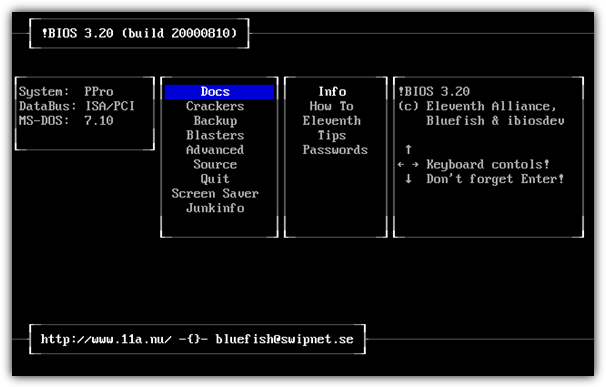
!Bios is a tool that was developed for a brute force attack on BIOS passwords. You can also backup and restore the BIOS and there’s even a Blaster option where can blank certain parts of the BIOS in the hope of removing the password, a powerful and potentially dangerous option because it could completely corrupt the BIOS. !Bios can try and crack the passwords used in some common BIOSes including various versions by IBM, American Megatrends (AMI), Award and also Phoenix. It’s a very old tool dating back to the late 90’s so is unlikely to work effectively on more recent computers.
Like CmosPwd, !Bios is also included in the Dos Programs menu of Hirens Boot CD. Select “9. Next” -> “2. BIOS/CMOS Tools” -> “4. !BIOS 3.20 (ibios)”. You can also download a separate !Bios Windows tool.
Invalidating the CMOS Checksum Manually
If you prefer to do it manually rather than relying on automated programs or the other tools like CMOS De-Animator aren’t working, it is possible to reset the BIOS password by using the debug.exe tool which will invalidate the CMOS checksum in a similar way to CMOS De-Animator. This can be achieved by typing two commands into the debug tool if you first boot up the computer in FreeDOS. Here are the instructions.
1. Install FreeDOS on a USB flash drive using Rufus or UNetbootin.
2. Download the debug.exe tool and save it to the root of your USB flash drive.
3. Boot up the computer with your USB flash drive and type the following commands: (take note that the second and third commands start with the letter O and not the number zero.)
debug
o 70 2E
o 71 FF
quit

4. Restart your computer with Ctrl + Alt + Del and you should encounter an error message like “CMOS checksum error” which is normal. You can now access the CMOS setup without entering a password.




Working
What is the Password for DEBUG-1608.zip Archive?
It’s on the download page…
i need bios password for my dell latitude 2017
T530 bought on ebay. Got black screen with lock. Can u help?
Hi can I have the master password for my Dell Vostro 3500. S/N 1YTK7L1. Please let me know what else is required.
Dude I have a DELL Latitude e3460 I don’t have the administration password. Please help!!!!
How do i get reset password for dell inspiron N5010, i’ll do already removal of bios battery but nothing happen still asking for system password
I have Leno a laptop forgot bios password and not giving me number after 3 tries anyone help please
im having the same issue so if you end up getting this resolved, id like to know how? lol
si :D
i have haire Y11B laptop. and I don’t know my system password (Bios password). when i type three times password it stocked and there is no code shown on desktop what ihave to do.
My laptop is lenovo ideapad310,i want to install a new windows but the software is damaged and i forget my bios password what can i do?
Thank you !!
Thank you,
BIOS password master generator, It really help me without a hassle.
I got to the Authentication Failed screen but there is no code, only a period. I’m using an HP Probook.
Like one dark pixel way below a message that says:
System Locked
Press the power button to restart the system
.
So WHO puts these “Bios” or HDD passwords in??? DELL swears they dont (they blame Microsoft or Intel….)
It’s not Dell, Microsoft, or Intel. BIOS and Harddrive passwords are always blank when they leave the factory, it’s the user who enters and creates a password, then they forget it and lock themselves out. If you want to blame a person for a password on your system, blame whoever stares back at you in a mirror.
I have Lenovo Desktop V520 PC I try to reset CMOS Password with the method of Remove Battery upto 18 minutes but not work.
Also i try to search CMOS CLR jumper but not found on this motherboard.
Did any method to reset bios password
I tried to reset my supervisor passwd in bios by removing battery/ shorting etc..
miserably may i say that I could’t get reset my password yet. is another ways to reset it?
i have a toshiba laptop and i cant access windows because of the passwor i opened it up and has no such battery accept a big square one
Got it working again with the EEPROM short SDA & SCL, lot of work but ok again and all PW removed.
Obviously debug.exe removes only the user PW, but not the supervisor PW.
Is there any possibility to remove both?
tried just now a Lenovo T500 with debug.exe. Unfortunately it asked me still for an user PW during start up, which is changed after debug.exe – no chance to access the bios anymore. What could be the reason?
That bios removing battery don’t work on any laptop newer than 2011
Hello I have a Acer V3-731 laptop. Have pulled the CMOS battery a few times and left it out for up to 30+ minutes, remove battery and charger, still coming up with enter password when pressing F2 to go to the CMOS menu Also tried to short out the jumpers
IDK
“The most common way that most of us know for resetting or clearing the BIOS password is to physically remove the power from the computer by disconnecting all cables and removing the battery from the motherboard for a few minutes. Another way is to short the clear CMOS jumper on the motherboard itself if one is present. These methods work because on most desktop and a few laptop motherboards, a battery is used to sustain the BIOS/CMOS settings. By cutting off the power, the BIOS/CMOS settings and password will be erased.”
That hasn’t been true for about 10 years or so. It was too easy, so the industry found other ways to safeguard the passwords.
If your laptop is older than about 10 years, it’s worth trying.
Doesn’t matter how old it is, it’s still probably the most commonly known method of trying to reset the BIOS password, irrespective of whether it still works or not.
What is password for DEBUG.zip???
It’s now on the download page, sorry, that one slipped us by…
Hi Raymond,
Are you sure that Debug command above with
-O 70 2E
-O 71 FF
QUIT
Could unlock BIOS Supervisor Password on Lenovo T440s ?
Thank you very mhch,The stale computer finally can run, see the benefit of your approach,I am a foreigner, did not understand English, little by little,Very thank you for your article
Hello I suffer alto on my Dell inspiron 15
Thank issue is I forgot the BIOS password can you help me plz
I cant get in my admin account even tho its mine i got my laptop 2nd hand so didt get a disk but iv noticed repairing my comp my sound as stopped drivers need reinstalling im unable do iv noticed downloading isnt always dloading ,Windows help pops up ? Can you recoment wot i try ……..
I just removed battery and CMOS and it worked perfectly. Thanks
That doesn’t work on this “win 7 home premium eMachines desktop pc”, had to jump the cmos by moving the cover on the 3 pins.Since a piece of plastic on that cover thing broke off! , not wanting to move it again. Re-installed windows 7 home prem.from cd’s and havent found the BIOS update anymore… all after Windows 10 upgrade that was great until it’s last updates that sends me to the Store to purchase what it takes out by deny access to roll back their drivers and then the store offered me to but a new pc… MSFT still doing what they do except you have to still buy a new pc!
Hi please help i’m unable to download debug.exe, the connection just times out, is there another alternative link i can use
My BIOS password is fine but hackers changed access level to user and created a user password that I can’t figure out. They also partitioned my C drive and moved everything to that new file. I need to get access to CMOS using a DOS command if possible. Using the boot drive they created, which is no longer full of theyre crap, I can access Windows dir. Is there any way to changeable CMOS user info through the commands?
My understanding of your problem is you have a user account you cannot access and your partitions are not setup properly. This has nothing to do with CMOS, however. Using a boot disk for another operating system, backup all of your personal files, reinstall windows and then restore your personal files. There are several tricks you can use to gain user access to the system, the most notable being the sticky keys method. If sticky keys is enabled on your machine this should work. First, go to the system32 directory in the windows system files, from an OS boot disk where you can access the windows drive. you have to rename the sethc.exe to something else (Dont delete it) and then make a copy of cmd.exe and rename it to sethc.exe. Once this is done boot into windows and press shift 5 times to bring up a console, where you can use the net user command to create a new user or change the password.
WARNING: Some BIOS configurations will lock you out of the system completely if you type in an incorrect password more than 3 times. Read your manufacturers documentation for the BIOS setting before you begin typing in passwords.
I did a BIOS reset using the .BIO files..But it is still asking for BIOS password..I tried every other method available on the internet but each in vain…What should I do???
Lenovo T460s has a Supervisor password (unknown) and the CMOS battery had also died. Obviously now I am being prompted for basic time date etc but cannot change anything because I don’t have the Supervisor Password. I have been told by several people that I am up for another motherboard – is this true – is there no other option here … that is crazy!
Have you had a solution to this as I have the same problem
leave cmos battery out, take battery off leave for half an hour to an out with no power then put coms battery in the main battery in and boot should have no password then. work 65% of the time some time batteries need to be out longer.
I also have the same problem, did you find any solution for this?
Thanks now it possible to enter in boot sequence
finally i found easy solution how to remove bios password without any program and i wrote it on acer page you can guys see there:
community.acer.com/t5/Legacy-Laptops-and-Netbooks/acer-aspire-unlocked-bios/m-p/429008#M68532
Page has been removed by Acer.
Hmm – any clues please !
hi there: after Reading a lot of web pages, I´m at a dead end. My vaio laptop has a bios password and, if I type the passoword three times wrong, appears one time password, then three times wrong again, appears “system disabled” but without any number.
What can I do?
Thanks!
what’s the solution please?
Tks again for this tips Raymond.
Heres a good bios password cracker than works guys! and its cheap!
bios-passcrack.org
After a long study of these solutions and a scouring of the internet, I have concluded that there is no solution for the newer laptops such as the Dell Latitude E5520. None of the code-generators nor the bios-flashing applications work on these.
We need a new solution.
I have a Lenovo Ideapad Z560 with InsydeH2O Bios and I have forgot its Bios Password, which was set four years ago. I cannot login to the windows because it is corrupted. But I can select the boot device priority from the bios by pressing F12 Key.There is no alphanumeric code displayed, when password is wrongly entered. Is there any way to flash this bios and remove its password? I tried several methods, and fed up with all of the methods. Can you please help me?
Hello i have a samsung NC215P/NC213P, and i have tried to flash the bios to change the image on the startup page, but it wont go away, pls , what do i do i need your help,
i have an asus notebook with a bios password problem i tried the cmos battery removal..didn’t work, tried to disassemble the notebook…didn’t work it still ask for a password, went to geek squad they say buy a new notebook…is there really no way to over the bios password?
If none of the methods here work, a last resort would be to try and get another BIOS EPROM chip but not all laptops allow for this and it depends if your laptop uses two chips for the BIOS/CMOS or one.
Thanks….
PC CMOS Link not working. Please fix it. TIA
Thanks for the report, the official site for the program has died now so we have hosted the file ourselves, use the same link above.
Thanks….
having spent weeks trying all sorts, i came across Raymond, and said to myself give him a go and what a RESULT, even packard bell fell short.
Raymond, thank you so much, have a GOOD LIFE.
Thanks for posting this nice lesson on your site.I was able to unlock my Acer laptop by reading and following the instruction on you website.At first,I though youtude could have help me but I tried as much I could and nothing like help I was able to get.But unfortunately,I was able to reach you site and my problems were able to be solved. Thanks
this worked for me, used bios-pw.org as referenced in this blog from Raymond.
thank you
New version of CMOS De-Animator has been published:
boginjr.com/it/sw/dev/de-cmos3/
I’m having Bios issues , my laptop screen displays Service Tag and requests System or Administrator password… My Bios doesn’t support Cd and flash options… I’ve tried removing the Cmos and resetting the Jumper.. Tried all the master passwords.. Still no luck.. And most of all the engineers here can’t fix it… The ones who claim they can are charging a fee too high or half the price of getting a Used laptop.. Its a Dell vostro 1540
Hats off man. Great work
Thanks Raymond
That is amazing Raymond. Thanks a lot.
PC CMOS Cleaner Tool is very useful.
Thanks.
This tool: PC CMOS Cleaner is very good ! Thanks a lot !
Thanks
two thumbs up
thanks ray it was really useful tip
Raymond, You Really Rock!!!!! Thanks a lot Bro, now i can reset the BiOS password of my laptop. It was so annoying before, but since you have told me about it, no more words anymore but YOU ROCK!!! again, thanks a lot Raymond!
Regards – Amirz
Cool tip. Thanks! I’ve been wanting to re-install windows but I just couldn’t access the BIOS to change the boot order.
…and because it’s a new laptop, I didn’t want to open it up.
Thanks again.
Thanks Raymond for all your amazing useful post for all computer user.
This post is very useful;
Thank you very match Raymond
Thanks for the info and for the PC CMOS Cleaner link cheers mate!
Thank you Ray.
Another useful tool from Raymond. Thanks
Thanks Raymond.
Useful tools.
Wonderful tip! Some new computers are physically locked with some kind of plastic strap and it can’t be opened because of the warranty. Really, great tip…