
How To Test and Boot an ISO Image Without Burning to CD or DVD


 5 min. read
  Published on

If you’re even a little tech minded, you would most probably know what an ISO image is by now. A lot of ISO images can be downloaded legally from the internet such as a Windows 7 install DVD, Live Boot CD’s and Antivirus rescue discs which all come in ISO form and you’ll usually have to burn them to CD, or use a utility to write the images to USB stick to test them out.
Sometimes I would like to test an ISO image first before burning it to a CD. Recently I’ve been trying to merge a few ISO images into one to create a multi-boot CD. With the ability to test the ISO image first, I don’t need to waste CD-Rs. Even if I can use CD-RW, it is still inconvenient because I don’t need to waste my time in burning the disc and booting up my computer with the CD-RW.
There are a few ways to actually mount an ISO in Windows to be able to read the contents of it. A portable tool which is able to mount and run the ISO virtually allowing you to test it quickly is MobaLiveCD. While MobaLiveCD is great for quickness and ease of use (because it can also be attached to your ‘Send to‘ menu), it uses Qemu as the virtual emulator and booting into larger ISO images can be incredibly slow.
The image above shows Kaspersky Rescue CD booted up in a virtual machine without burning to CD. While something like MobaLiveCD is good at testing small images, for testing something larger, I think other virtualization software like Virtual PC, Windows 7’s XP Mode or VirtualBox are much better suited all round.
Here’s how I test an ISO image without burning to a disc using Oracle VirtualBox. Of course, you can use any of the other virtual machine software to get a similar result. I also have Virtual PC 2007 installed and it too does a good job of mounting ISO images for testing, but for this article VirtualBox is used because it’s freely available to run on all Windows systems.
Simply follow the steps to load an ISO image into VirtualBox:
1. Download and install VirtualBox.
2. Run VirtualBox from Start -> Programs -> Oracle VM VirtualBox -> VirtualBox.
3. Click the New button and a new virtual machine wizard window will appear. Click Next.
4. Enter any Name and select an O/S Type. It doesn’t matter what you enter in here because it’s only for your own reference. (For example, I use the name “Load ISO Images” and OS Type as Other/Unknown)
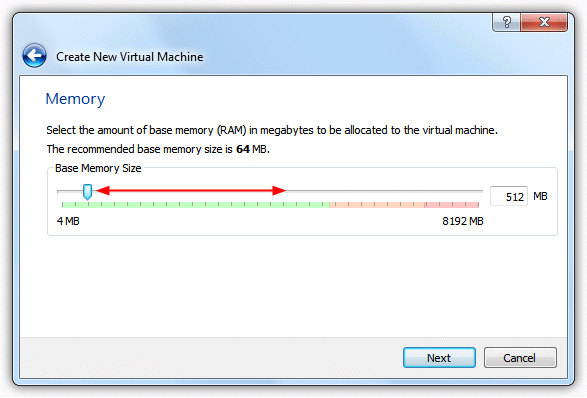
5. Select the amount of base memory (RAM) to be allocated to the virtual machine. The default is 64MB but I Recommend at the very least 256MB because a lot of bootable O/S images load parts of the system into memory to speed things up when running from CD. 512MB – 1GB is enough for most boot discs.
6. At the next screen, you’ll need to create a virtual hard disk. Click the New button, then click Next. It’s not actually essential to create a virtual hard disk for a bootable ISO to function, but some will complain about the lack of a partition or system drive if one isn’t present. If you want to try without a virtual hard disk, untick Startup Disk and skip to step 9.
7. When asked to select a virtual disk type, any of them will do, although a Virtual Hard Disk (VHD) is readable natively in Windows 7 and also Virtual PC/XP Mode. Click Next.
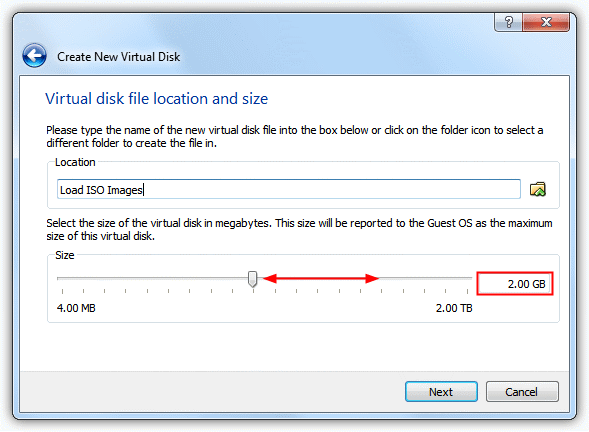
8. A dynamically expanding image initially occupies a very small amount of space on your physical hard disk. It will grow dynamically as the Guest O/S claims disk space. As for fixed-size image, it is fixed to what you specify in the window and does not change. Click Next again at the next screen which asks you to set the virtual disk location and size. The default size is 2GB but can be reduced if space is a concern. Click Next.
9. The last screen will give a brief summary of your settings. When ready click Create.
10. Now you’ll see the new virtual machine that you’ve just created on the list. Select the virtual machine and click the Settings button.
11. On the left pane of the settings window, click Storage, in the storage tree click Empty which represents an empty ROM drive. Then use the button far right to browse for an ISO image or choose from the recent list. The details about the image will show in the information area. The Live CD/DVD tickbox will keep an ISO loaded even if it is ejected by the guest system. Press OK.
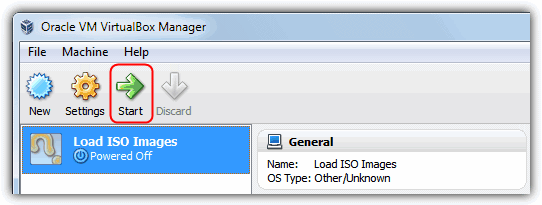
12. Finally, click Start button to boot the virtual machine with the ISO image file.
Please don’t be frightened by the long 12 steps. It is actually very simple once you’ve go through all the steps once and get to know the procedure. The power of the virtual machine can also be increased by changing some of the settings such as the number of usable processor cores, graphics memory, enabling/disabling network or sound and hardware virtualization etc.



Improve this guide

User forum
0 messages