
6 Tools To Insert Text or Commands With Keyboard Shortcuts


 9 min. read
  Published on

Most average computer users like to use the mouse for performing the majority of tasks in Windows. It makes sense because Windows is primarily point and click. More advanced users and professionals prefer to use the keyboard for many tasks because Windows has tons of keyboard shortcuts. Therefore with just a few key presses, you can do something which might take several mouse clicks.
If you send loads of emails or write lots of documents and endlessly type in the same text time after time, it makes sense to set up a keyboard shortcut to help you out. With a configured custom hotkey you can insert a block of commonly used text or run a program that doesn’t already have an assigned shortcut. That could be a big time saver and reduce mouse actions or repeated typing by a sizable amount.
If you are simply looking for an automatic text replacement tool, there are many dedicated programs available like WordExpander or PhraseExpress. If you’re looking to insert text, run programs, or perform other tasks from a custom hotkey, we have six free tools for you to try out. All were tested in Windows 10 and 7 64-bit.
Note: Windows has dozens of hotkey combinations or shortcuts already assigned to the operating system and included tools/apps. Also, most third party software will have custom hotkeys as well. If you assign a hotkey in one of these tools and it doesn’t appear to work, the chances are the combination is already in use somewhere else. In that case, try a different combination.
1. QuickTextPaste
QuickTextPaste is from SoftwareOK, the same developer as the well known Q-Dir quad pane file manager. The program is around 300KB in size and a single portable executable with settings stored in an INI file inside the same folder. QuickTextPaste is updated at reasonable intervals so new features are possible and any bugs or issues are likely to be fixed.
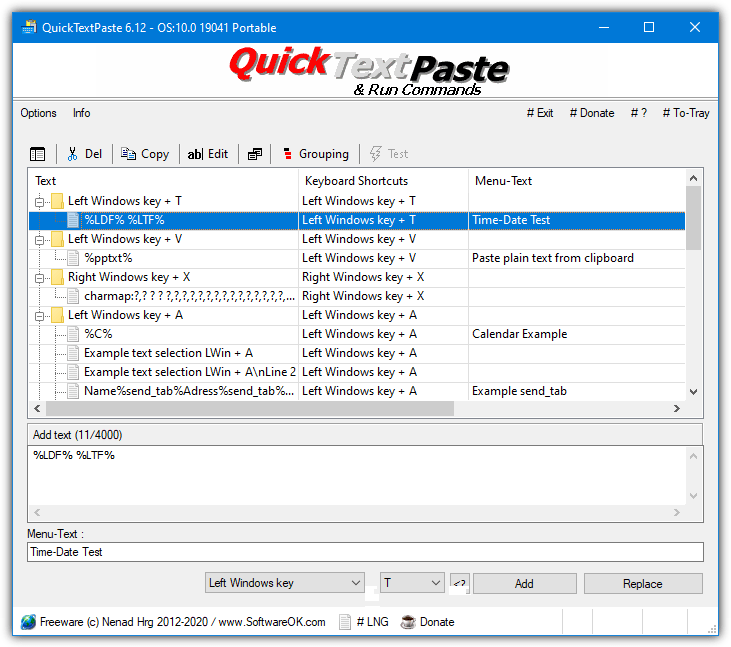
The program is quite simple to use with just a textbox for entering text to be pasted with the hotkey. There is more to it though, and you can also run programs, open web pages, and paste data from the clipboard. Inserting plain text has a number of extra variables such as date and time. First set the hotkey to use, the qualifier keys are left or right Win, Ctrl+Alt, Alt-Gr, Ctrl, Alt, R-Ctrl, or the mouse buttons.
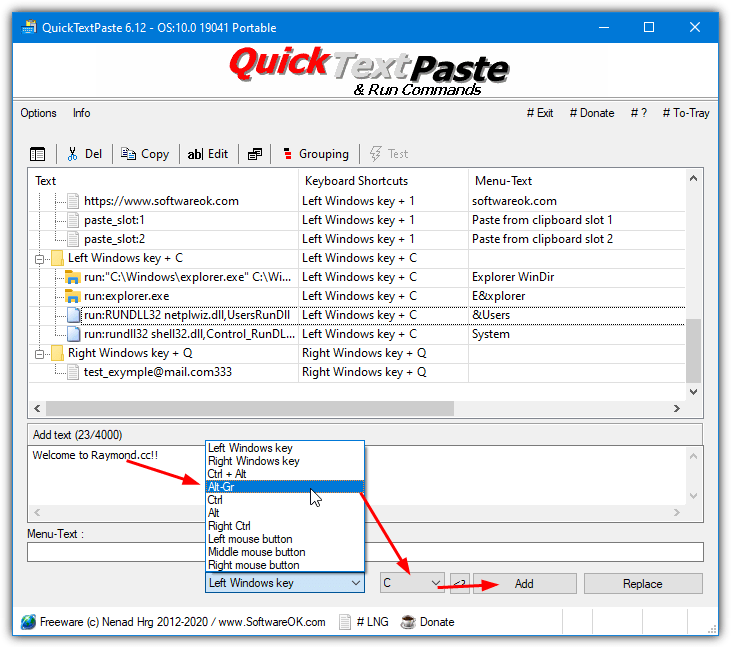
Enter the text or command in the box and press Add. QuickTextPaste allows for a multiple command menu which pops up if you assign the same shortcut to more than one command, the Menu-Text box is to name the menu item. There’s no help guide but the online FAQ should get you going. The included hotkeys and commands act as a useful guide to create your own, but they can be deleted if you don’t want them.
2. Clavier+
Clavier is not loaded with tons of features but it should have enough functionality to satisfy all but the most advanced users. The program is open source, around 200KB in size, is kept relatively up to date, and has both setup installer and portable versions available.
The main hotkey functions available are launching programs, opening files, folders or websites, and inserting text. It can also write special characters, simulate keystrokes, copy data to the clipboard, and emulate mouse movements or buttons. Some of the special commands will require you to have a quick read of the help file. A few examples are included but adding your own hotkey action is simple enough.
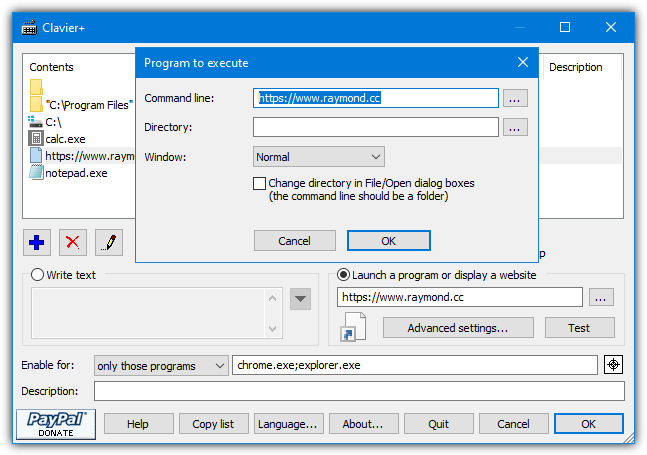
Click the Add button and select the action to perform from the list, then choose a hotkey combination (Clavier+ can optionally distinguish between left and right special keys). The lower half of the window then becomes usable with the text box on the left and URLs, programs, or folder settings on the right. The drop down arrow next to the text box opens up the more advanced commands that can be added.
There’s also an include/exclude option at the bottom so you can choose specific programs the hotkeys will or will not affect. This is quite useful because Windows 10 uses more hotkeys than previous operating systems and a conflict with another hotkey is more likely.
3. TyperTask
This is a tool we’ve mentioned before because it can act as a text expander when you type certain words or phrases in addition to launching programs or inserting text with a hotkey. TyperTask is a tiny portable executable of 53KB and it only consumes a Megabyte or two of memory while sitting in the tray. Sadly, the website has gone and the developer is no longer around but there is a useful help guide built in.
TyperTask doesn’t really have a point and click based user interface and its main window is similar to Notepad where you enter the commands manually. Adding an entry is not difficult, simply add a qualifier combination of {Winkey}, {Control}, {Shift}, or {Alt}, add the keyboard hotkey, enter an equals sign (=), and then add your text to be entered when the combination is pressed.
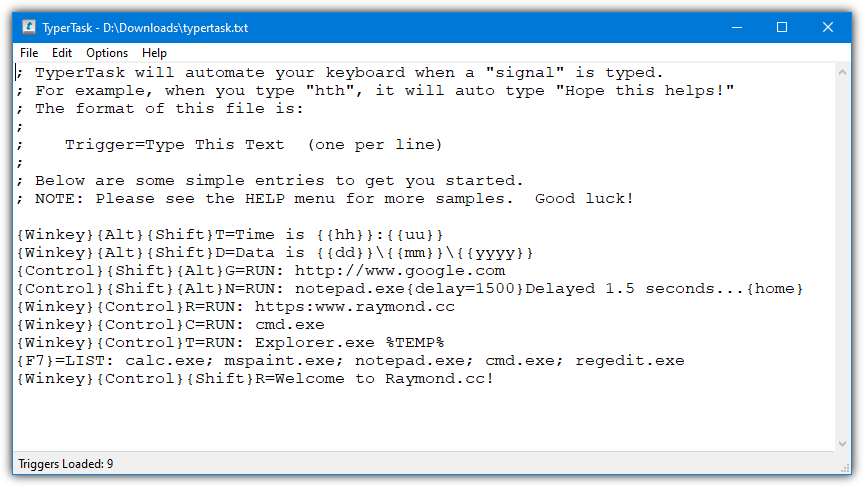
To run a program, open a website, or open a file, include “RUN:” after the equals, and enter the path or URL. TyperTask has more advanced uses like activating windows, emulating mouse presses/movements, adding delays, creating list menus, altering system volume, and entering the date/time. Go to File > Save and then minimize the window to the system tray. A few settings like start with Windows are in the Options menu.
4. HotkeyP
There’s potentially a lot to like about HotKeyP. It’s portable, open source, light on resources, and has a lot of interesting functions you can assign to a hotkey. The only real downside is many of the hotkey functions will need you to consult the help file to understand how they work and the arguments to use. Thankfully, the help text is thorough enough without being over complicated.
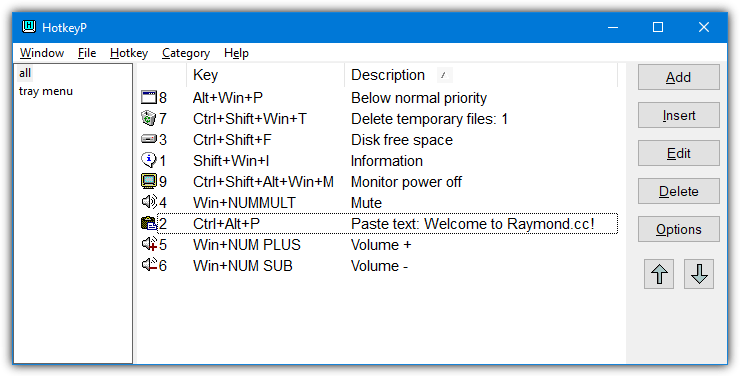
In addition to the standard function of inserting text with the hotkey, the number of other interesting functions is quite impressive. It can show a drive free space meter, kill processes, remove USB drives, start/stop services, perform media and volume controls, manipulate open windows, turn the monitor off, show the screensaver, show shutdown options, simulate mouse actions, run macros, and even perform joystick actions.
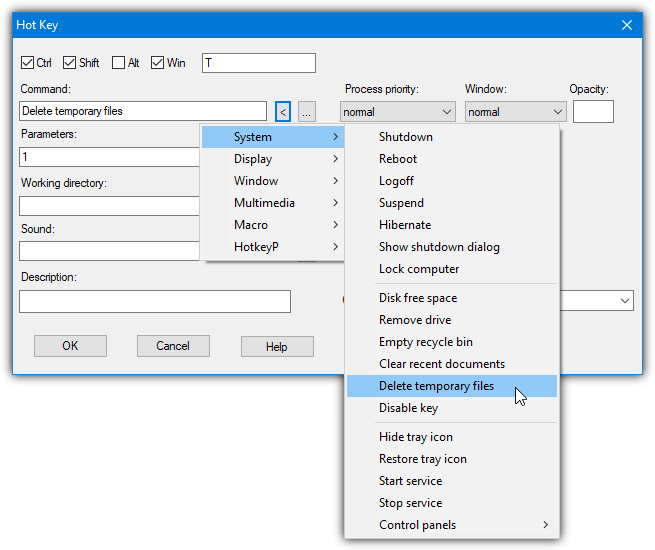
To create a new hotkey, click Add and enter the hotkey at the top first, then check the required qualifier boxes of Ctrl, Shift, Alt, or Win. Click the left arrow next to Command to bring up the dozens of included functions and select what you want from the list. The explanation of the command and optional parameters can be viewed if you press Help.
Other boxes on the page like adding a working directory, playing a sound, or altering process priority are optional. Run as administrator is useful if the target command or program needs full administrator privileges. Text, audio volume, and disk free space display colors can be edited in Options, as can the mouse and joystick settings.
5. HotKeyBind
The HotKeyBind program is actually very old dating back to 2004. However, apart from a couple of minor command issues, it works without too much problem. It’s similar to HotKeyP in many ways and offers a number of other command functions in addition to inserting text. Both installer and portable versions are available.
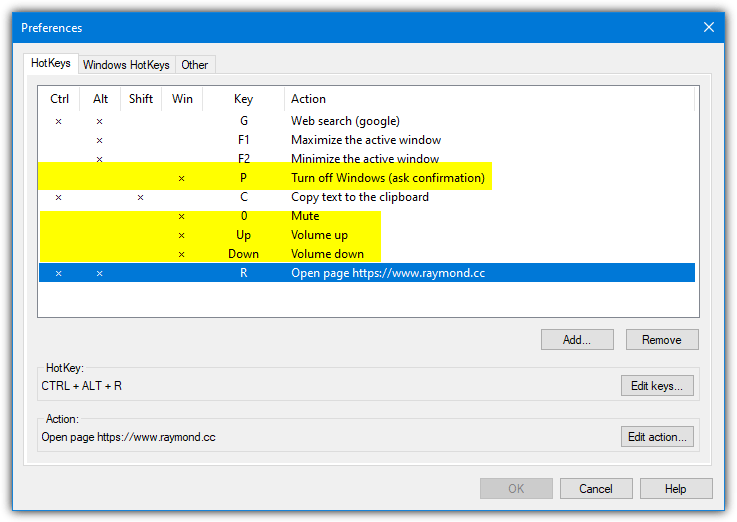
During the first run, HotKeyBind will ask to set up some example hotkeys. If you do that, the examples for volume up/down, mute, and turn off Windows will need deleting or changing as they conflict with existing hotkeys. The included actions range from inserting text or searching the web via different search engines to launching a command or folder, emulating mouse actions, or showing shutdown options.
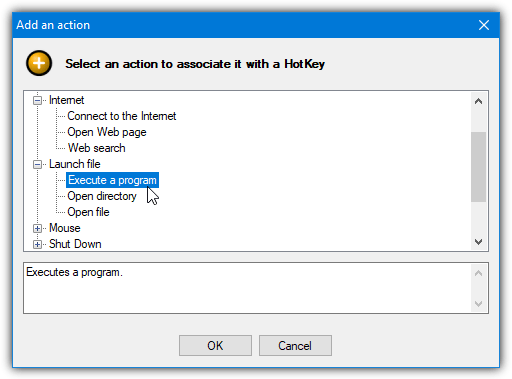
After adding a new hotkey and selecting the action from the list, you will be asked to select the qualifier keys and main hotkey. The main window gives a clear view of the hotkey combinations you have chosen. The volume functions didn’t work for us in Windows 10, or 7 and the Windows hotkeys tab should be left alone as it hasn’t been tested on anything newer than XP. The green on screen display can be turned off from the Other tab.
6. CopyTexty
CopyTexty is a free tool to use although it installs as the basic version with a maximum of five hotkey commands allowed. A free registration key can be requested from the website to unlock this limit which lasts for six months. After which you will need to request another key.
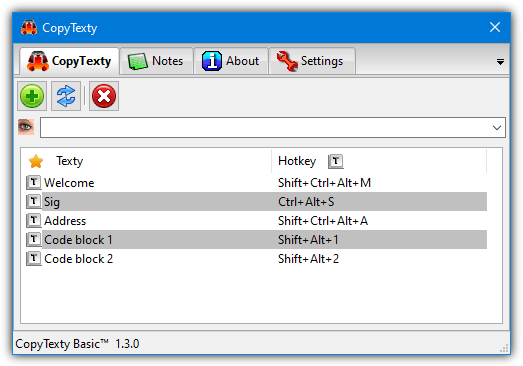
In contrast to other tools here, CopyTexty only allows you to insert blocks of text with a hotkey combination, no other commands or functions are available. While it’s not feature rich, it does make the program easy to use if pasting text is all you need. To set up a Texty, click the Add button, give the action a title and choose which qualifier keys of Shift, Alt, and Ctrl to use, then select the alphanumeric character as the hotkey.
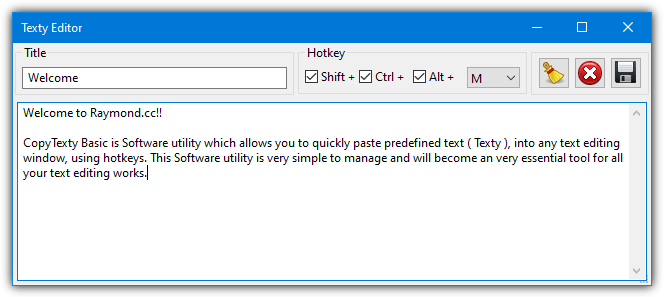
Finally, enter all the text to assign to the hotkey in the lower box and press the Save button. The text will be pasted into the program when you press the key combination. To simply copy the text to the clipboard without pasting it in to a program, double click on its entry in the main window.
Final Note: All these programs need to stay running in the background or the system tray so they can apply the hotkeys when required. Thankfully, none of them use too much memory. The most was CopyTexty with about 15MB, HotkeyP used around 8MB, QuickTextPaste and HotKeyBind used around 4MB. The most memory efficient were TyperTask and Clavier+, they used just over 1MB while sitting in the tray.



Improve this guide

User forum
0 messages