Cyberlink YouCam Download for HP Laptops & Install Guide
One curious omission in more recent versions of Windows is they don’t have any built-in abilities to view or test a webcam’s video display without installing additional third party software. It’s not possible by simply installing the webcam driver. Normally you would have to install the software that came with your webcam or use communication software such as Skype to check the feed. Weirdly, Windows XP allows you to view a webcam’s feed without additional software. Just go to My Computer and open the device. Windows 7, 8 or even 10 can’t do that.
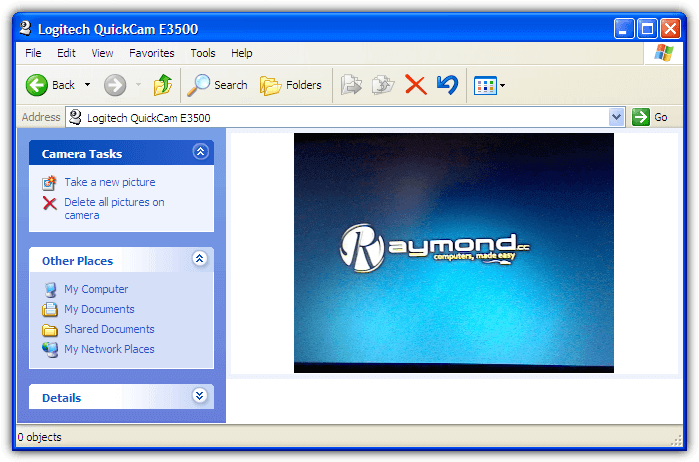
As newer versions of Windows have no built-in webcam viewer, it creates opportunities for other companies that make webcam software. One of the popular commercial webcam applications is CyberLink YouCam. Costing up to $39.95, YouCam allows you to add interesting effects to the live stream, record video, take snapshots, share the feed with multiple applications or even set it up as a surveillance camera. A free version of YouCam is often bundled with webcam equipped laptops, such as those from Hewlett Packard (HP).
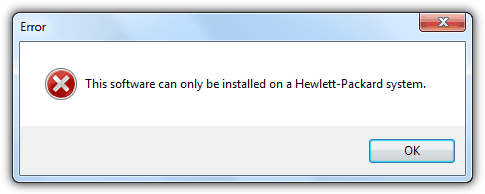
Here we’ll show you how to install any version of HP’s CyberLink YouCam on any Windows computer equipped with a webcam. Usually, the program will refuse to install if your computer is not HP branded, but there is a workaround. You can download and install HP versions of YouCam from version 1 right up to the latest HP version 6. We’ll give you the option of using any version you wish as each one has strengths and weaknesses, newer isn’t necessarily better for everyone.
All the CyberLink YouCam versions below have been tested using a Logitech E series webcam and work in Windows 7 and 10 64-bit. Other operating systems like 8.1, Vista and possibly XP should also work. Note, YouCam is not a driver for webcams and it requires the correct driver installed before use.
CyberLink YouCam 6This is the most current version of YouCam on the HP website and the last update was in late 2016. It is also by far the biggest setup installer weighing in at 282MB. In terms of what’s included, YouCam 6 comes without a few of the interesting features found in some earlier versions, but most of the major functions and features are present. One good thing about this version of YouCam is we could find no disabled functions that prompt you to upgrade to the paid version when clicked on.
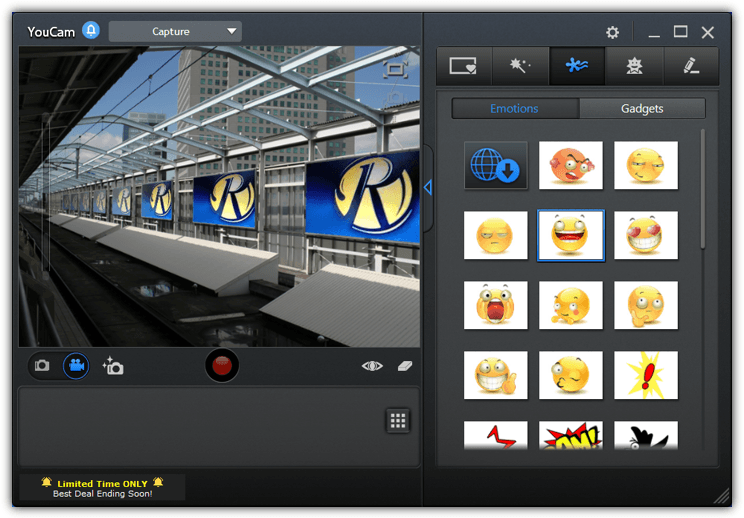
There are 41 framing effects and 18 scenes which add a number of predefined overlays to the feed. Also available are 14 particle effects, 9 filters and 12 distortions that can warp the feed into different shapes. The 34 emotions and gadgets are a bit of fun and add things like smiley faces, small animations, and facial disguises to the displayed image. There’s also a feature called Avatars. Point the webcam at a face and one of 19 characters will mimic facial expressions and head movements. You can create your own custom avatars from scratch.
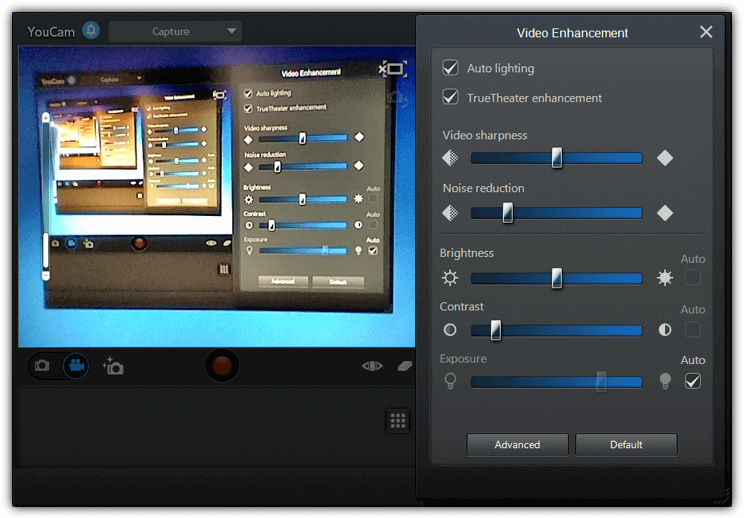
Besides the fun effects, YouCam 6 has a basic painting mode to draw over the image, stamps which add small clip art type images, a burst capture mode for still images (the number of burst shots is configured in settings), and CyberLink’s TruTheater. The TruTheater video enhancement functions improve the quality of the image coming from your webcam.
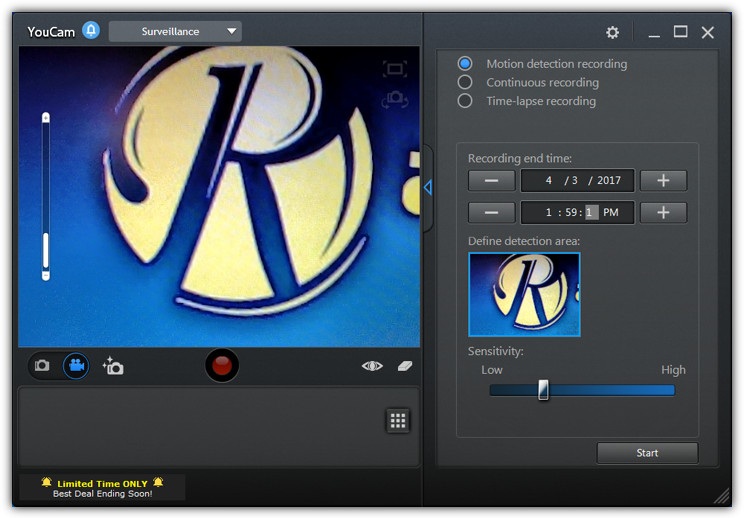
The drop down menu at the top offers a full-screen option, an edit window (which doesn’t seem to do much), and a library window. In the library, you can view images or videos by date and send selected files to YouTube, Facebook or to an email. The Surveillance option turns your webcam into a basic security camera and can perform motion detection recording, timed recording or a time lapse recording, which takes a snapshot every set number of hours/minutes/seconds.
Download CyberLink Youcam 6 (282MB)
Other HP Versions of CyberLink YouCam Available For Download
While version 6 is the latest YouCam offering from HP, you can try any of the previous versions. Version 1 and 2 are more basic but much lighter on the system. From version 3, more functions and features were introduced at the expense of install size and memory usage.
Cyberlink YouCam 1
YouCam version 1 is obviously the original program dating back to 2007 but it still runs fine. As you might expect from something this early, it’s a pretty basic setup without any real advanced features. It’s just under a 50MB download which is over 200MB smaller than version 6 and also uses about one quarter of the memory.
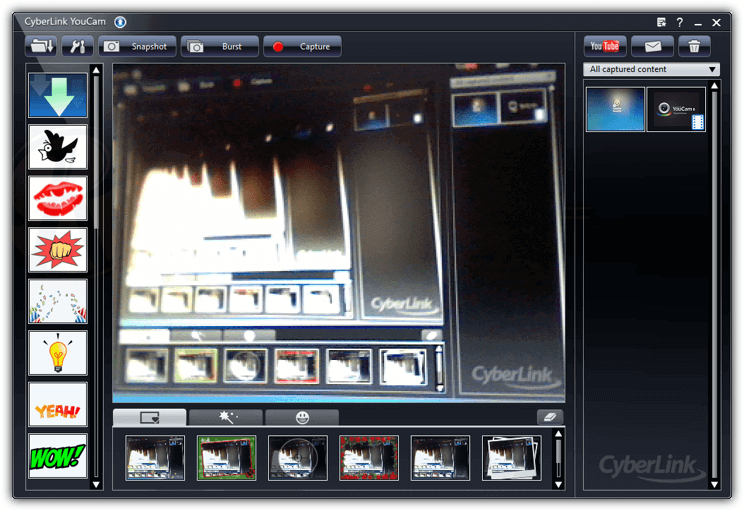
There are 20 emotion effects and a total of around 30 special effects that overlay frames, distort or apply filters to the video feed from your webcam. You can, of course, take a still image snapshot and capture a burst of up to 10 frames in quick succession. Captured videos can be emailed or uploaded directly to YouTube. Note the offered free minor update is not available.
Download CyberLink YouCam 1 (49.5MB)
CyberLink YouCam 2
On first glance, you might think version 2 of CyberLink YouCam is the same as version 1. Look closer and there are quite a few extra features which increase the value of this release. It’s also less than 2MB larger than version 1 so squeezes more into a similar size package.
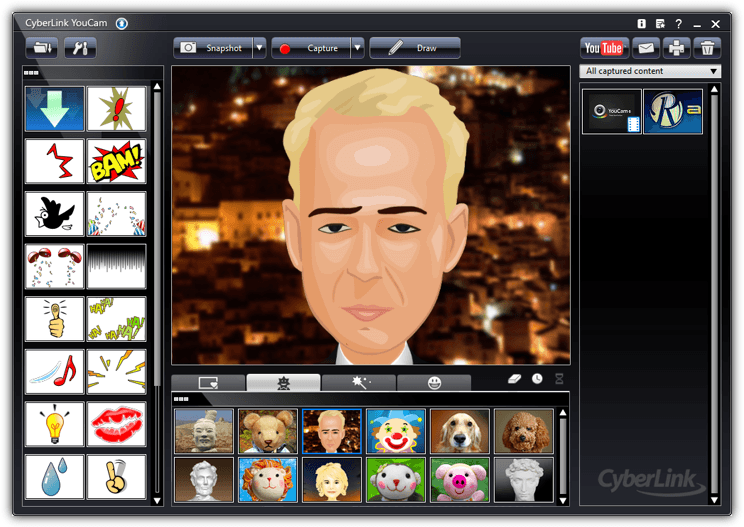
In addition to a few additional effects and filters than can be applied to the live image or capture, there’s also a few new functions. These include printing stills from the program, drawing on the video feed and the ability to overlay a timestamp onto the video. Version 2 is the first to introduce avatars, time lapse recording and motion detection recording.
Download CyberLink YouCam 2 (51.1MB)
CyberLink YouCam 3
There are two different major revisions of version 3, which are 3.0 and 3.5. The latter is a 40MB larger download. Over version 2, version 3 introduces some significant changes and additions. The biggest and most notable is the redesigned user interface which supports touch gestures. An unwelcome addition is some features have been disabled in this version and clicking on one asks you to upgrade to the latest YouCam.
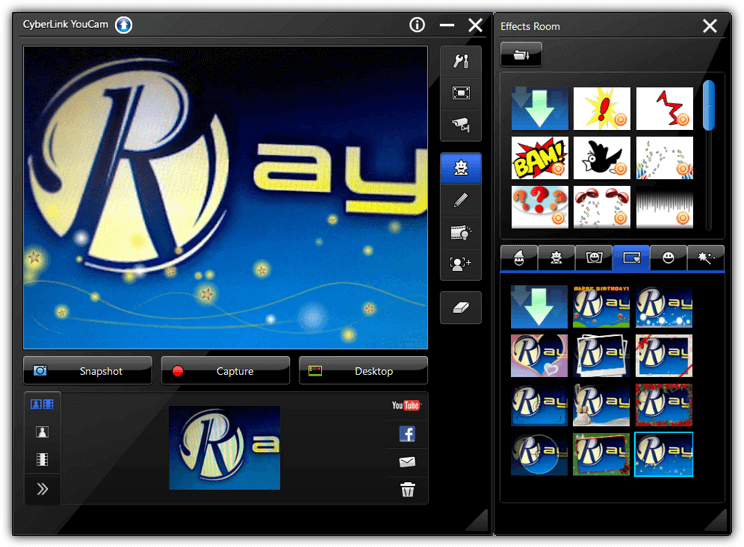
One key addition in 3.5 is you can now create your own custom avatar. Also, some of the disabled functions and the help file don’t appear in 3.0. Some new things in both versions are direct upload to Facebook, scene effects, face tracking which enables auto zooming, and gadgets. HD and 16:9 is supported along with auto lighting and noise reduction. A new is desktop capture mode allows you to record video of all or specific areas of your desktop. YouCam 3 is able to share its video with other open webcam applications using Split mode.
Download CyberLink YouCam Version 3.0 (120MB) | Version 3.5 (158MB)
CyberLink YouCam 4
Compared to version 3, the version 4 setup installer is much smaller. This is mostly explained by the complete removal of special effects, animations, overlays and avatars. YouCam 4 is perhaps oriented to more serious and functional use and focuses a bit less on the entertainment and fun aspects of the software. If you want a no frills webcam software, this is the YouCam version to get.
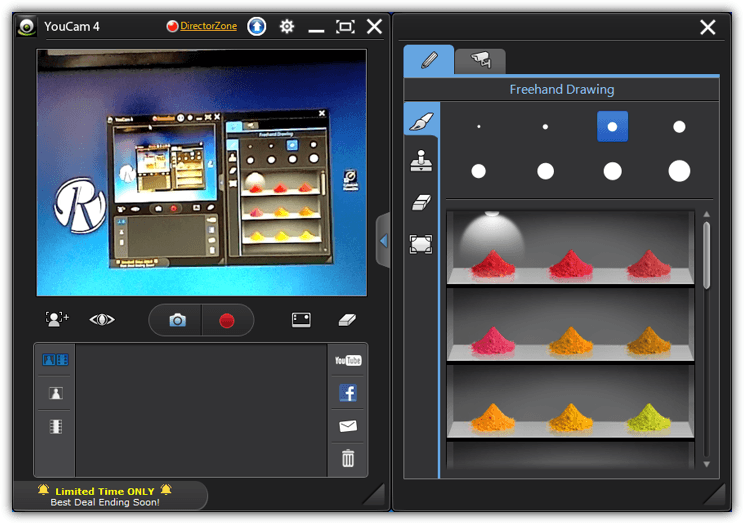
The user interface has undergone another change around, with functions like face detection, zooming, and video enhancements moved to the live video preview window. The Options and full screen mode buttons are now in the title bar. Some new features are the auto email option in Surveillance recording is now available, TrueTheater video enhancement is enabled and the freehand drawing mode has also been upgraded.
Download CyberLink YouCam 4 (58MB)
CyberLink YouCam 5
Version 5 reintroduces the overlay, frame and effects functions removed from the previous version. One big negative point is there are more upgrade to use buttons than ever, including Auto email and Desktop Capture which were enabled in YouCam 4. Other options like Face Off, Dual Video, Presentation and Augmented Reality are also disabled in this version.
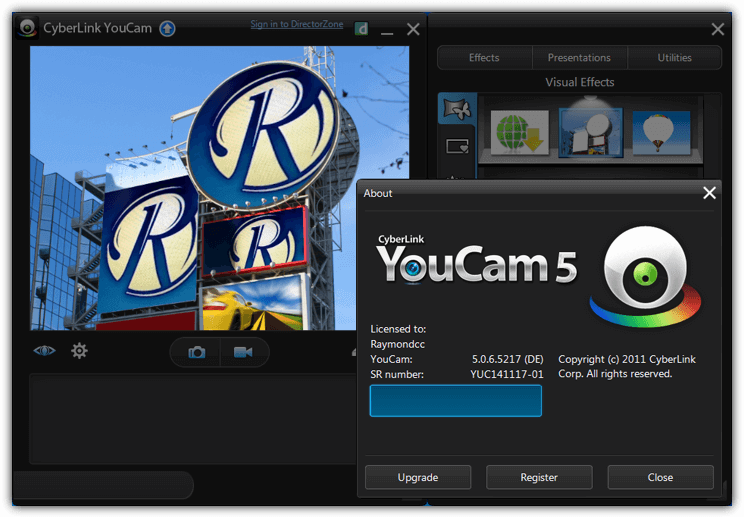
You do get a few more of the fun and visual functions like Avatars, Scenes and particle filters than previously, while the better drawing mode is also present. There is a brand new feature to version 5 called Face Login which allows logging into Windows (logging into websites through IE is disabled) using a snapshot of your face. Most other functions from previous versions are present but have just been moved to different areas of the user interface.
Download CyberLink YouCam 5 (145MB)
CyberLink DirectorZone
One of the features available from within YouCam is the ability to download and import additional effects, avatars, scenes, gadgets, frames and emotions from the CyberLink website. There are over 600,000 free effects to choose from. Either click on the Download button or DirectorZone link from within the YouCam program or visit the YouCam DirectorZone page directly.
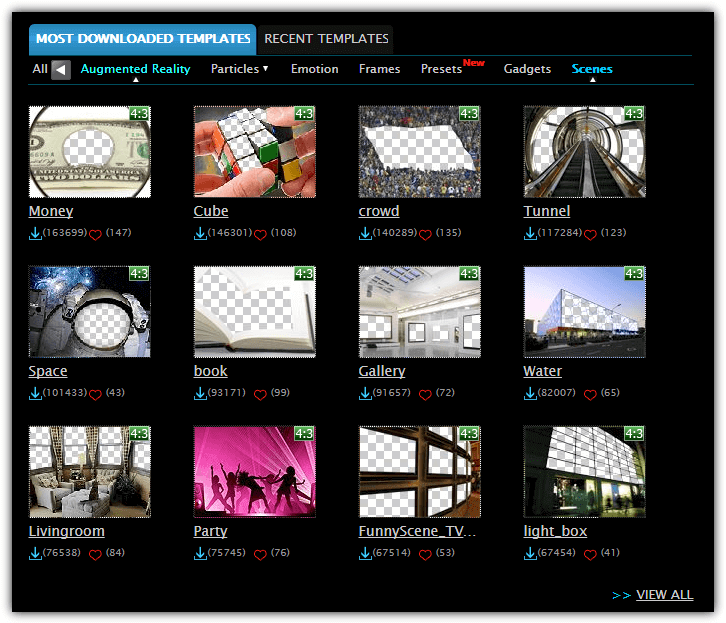
You do need to create a free account before effects can be downloaded, connecting with a Facebook account is also accepted. YouCam 3 or above is required to make use of this service.
Remove the HP Restriction and Install CyberLink YouCam
Before you can install CyberLink YouCam, you must first have a webcam attached to the system or the program might not install. This same procedure will enable any of the versions above to work on any Windows XP or newer computer equipped with a webcam.
1. First of all, download the version of YouCam you want to use from above. All the installers are hosted on an official HP FTP server and range from 49MB to 282MB in size.
2. After downloading, run the sp*****.exe file, where the asterisks are numbers. In the case of YouCam 6 it’s sp74820.exe. The setup will extract the files to a folder C:\SWSetup\SP***** and then try to install. You will receive an Error window that says:
This software can only be installed on a Hewlett-Packard system.
Click the OK button to close the Error window.
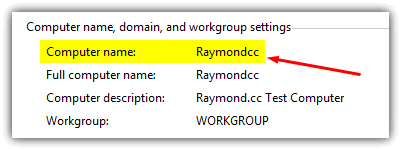
3. Now you need to know one of two things, either the Computer/System name or manufacturer name on your system. This can be done a few ways. For Windows Vista, 7, 8 or 10 users, just press Win key+Pause/Break or right click Computer/This PC and choose Properties. Then look for and take note of Computer name.
This second way works on Windows XP and above, press Win key+R and type msinfo32 into the Run box. Take note of the System Name OR the System Manufacturer, you don’t need both.
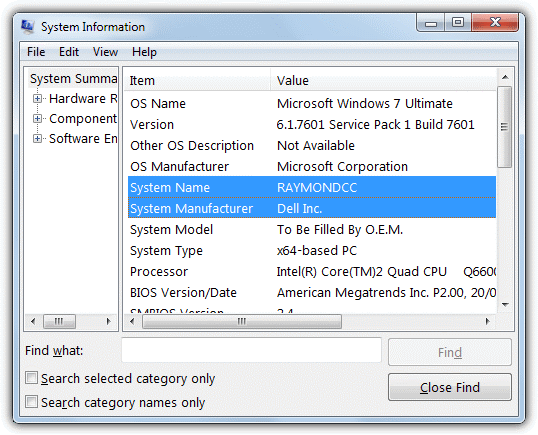
4. Go to the C:\SWSetupSP***** folder and open up the Custom.ini file with a text editor such as Notepad or Notepad++.
5. Look on the second line for CLScan=Hewlett-Packard or CLScan=Hewlett-Packard,HP. Replace Hewlett-Packard or Hewlett-Packard,HP with either the Computer/System name OR System Manufacturer that you found in step 3, then save the text file.
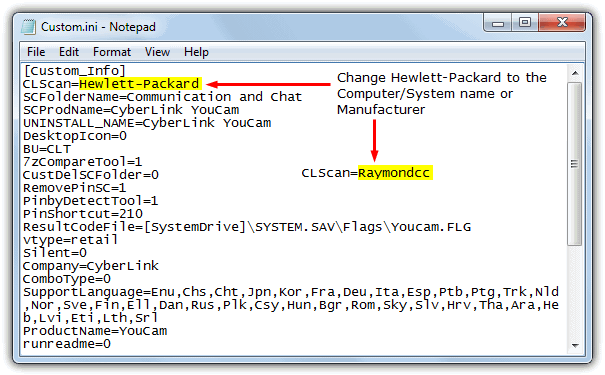
6. Run the setup.exe from the same folder as Custom.ini and you will be able to install and then launch the YouCam version chosen on your non HP computer. Make sure you close Windows Live Messenger, Skype, Yahoo! Messenger and AOL Instant Messenger programs that might be open or the installation will fail.
To show you how easy this procedure is, we’ve put together a short YouTube video below to demonstrate.
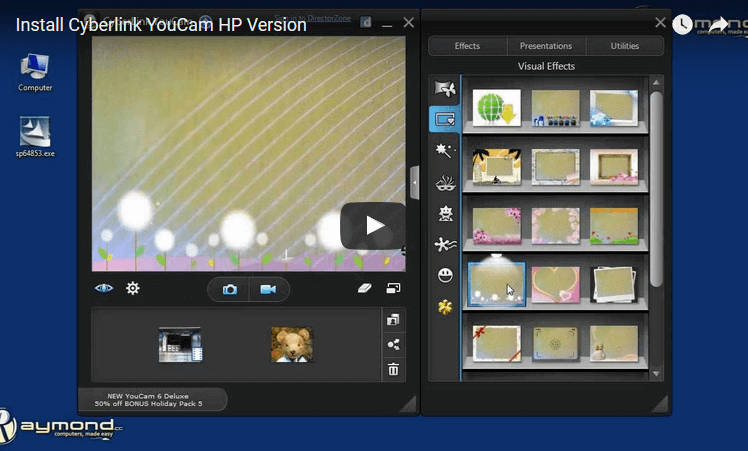
YouCam 6 is currently the latest version being used by HP even though it has reached version 7 if you refer to the official CyberLink YouCam webpage. When CyberLink decides to release a version 8, version 7 will likely become available from HP sometime after. If you really want to use the latest YouCam and don’t mind paying for the upgrade, click the “Upgrade CyberLink YouCam” blue arrow at the top of the program. It offers a sizeable discount with a Travel Pack and a Holiday Pack currently included to sweeten the deal.




i love cyberlink youcam 6 and its versions. i downloaded cyberlink youcam 9 b’cuz my cyberink youcam was deleted from my windows… i suggest cyberlink youcam 9 to download b’cuz it is the best app…i can click pictures with make up on my face and i can also do desktop capture.but… sadly its premium i didn’t wanted premium so i gnored it and after a month the cyberlink youcam 9 stopped… so i uninstalled it and i am again installing my old cyberlink youcam 6… But i suggest you all to use cyberlink youcam 6 or cyberlink youcam 9… But I am very sad to lose youcam 9.
where is download option
i used all suggested software and drivers here bit not working in hp cnd536689w serial number of hp product. plz help me out.
still facing —— you do not have the compatible VGA hard ware and driver to run You cam.
It would seem that they no longer have the two best avatars which were the Statue of Liberty and the Alien. The rest suck. That was the only thing that made this worth a damn
The camera is good gives quality pictures
Hi, I followed the steps and i could able to install successfully, Thank You!
it is my favorate app
As promised, no-frills YouCam 4 delivers a much superior picture from my USB camera than either Windows 10’s Camera or Linux Cheese.
The instructions couldn’t have been made more simple. Brilliant, many thanks. I may play with YouCam 6 one of these days!
VLC Player can play webcam (File / Capture Device)! It’s how I test laptop’s webcams after installing only driver or, if windows have a compatible driver, without manufacturer’s drivers.
hi
thanks it is working for me, thanks a lot,
Regares
Abdul Wahid
Works perfectly. Im definitely recommending this page to my family and Friends. Thank you :)
On my HP Vista notebook my web cam is linked to Quick play (which also include few other utilities)
To work the webcam I open Quick Play menu and click on camera picture and the image appears on
my screen. The five programs mentioned above certainly create multiple options for and to create
special effects to the images. Your above information certainly adds extra dimension to an installed
hardware and opens up a different level to create and manipulate images. CyberLink iis a well known
brand to work with and been going for a long time. I have an old Logitec webcam, (still inuse on PC) and
it includes all the features you have mentioned in five program relating to installed webcams in laptops
I must convey my appreciative thanks to you for this information you have put out online
BRILLIAN,WORKED LIKE A CHARM,WELL DONE
Thank you for this. It worked like a charm!
I’m trying this out now! Thank you for the article!
thankyou very much for the best quality service offred to us may the good lord bless you
Thank you very much for the best quality services offered to us. May the good Lord bless you.
i have a hp, but the youcam that came w/ my laptop keeps messing up. thank you so much if this works.
thank you so much
thank you,.
thanks
thanks
thanks
Thank you very much !
good to good
Thank you for this tips
thanks
thank you so much for helping me..my web cam have been disabled for so long..i really appreciate it..thank you very much!!!!
thanks
Too good. Thanks!
Oh my gosh! A big thanks to you! I’ve been wanting to get it
Thanks
Oh my gosh! A big thanks to you! I’ve been wanting to get the full version of Cyberlink Youcam before until I saw this. THANK YOU!!!!
That’s wonderful! Thanks a lot.
nice software thanks
You rock!!!! Had to download the second Cyberlink twice for the other define.ini to show up, but finally worked! You saved my a**! Thanks!!!!!!
very nice
Finally i got back my cam
Thank you for this
thank you so much i fix my cam issue through your instruction
thanks
i love cyberlink youcam a lot. it is the best
A big thank you from Africa
Free download for full version
Cyberlink Youcam is good
cyberlink is the best i have ever used
I do like it! Youcam is the best one of the best.
Thank you sir for giving us such a important information about You Cam.
Thanks buddy, you should be called the guy that knows a lot.
it’s totally working!!!i was upset because my dad bought me a new laptop and it didn’t have cyberlink youcam like my old one,and i found this!!!great job !you help people out there!
Hey,
this works great ^^
thanks ray, i really appreciate it… thank you very much..
Hey raymond, Thanks for the Cyberlink YouCam.. It works great thanks a lot!!!
Dude thank you so much!!!
It works so well!
Omg, thanks so much!
I’m always on MSN on Webcam with my friends, and i accidently deleted YouCam, So my webcam wouldn’t work! This saved me!
FABULOUS!!! Worked like a charm. Thanks a bunch(Y)
nice one among all . ilike it very very good
fantastic one
nice
thanks a lot
so this totally saved me
because i mistakenly deleted it the program off my brothers laptop and he would have killed me..lol
Nice trick. thanks.
Nice one!
Thank’s a lot Mr. Ray
thanks a lot ray and be blessed. keep up!
Good show. Thanks a lot Ray.
thanks for enhancing my cam experience
YES!! I love this Youcam very much and did actually tried it in Hp Laptop..can’t believe that i can have my own one in my laptop now..haha…thank u so much ray..
while some are learning a lot from me…its you who teach a lot for me…cool bro!
its great
thank you very much Mr.Ray.
:-)
thank you
Awesome.. thanks..
thanks ray nice trick.. have to try this one in my vista…
damn neat!! thanks a lot..
works like a charm..
Nice trick Ray, Viola.