8 Tools to Automatically Restart a Crashed or Closed Application
There are some important programs such as a gaming servers, webservers, databases or mail servers that we’d need to keep running at all times but not every piece of software will have a feature of monitoring itself and re-starting whenever it is closed. It’s a similar situation if you constantly download via P2P software or download managers because you might want to keep downloading or seeding even while you’re not at the computer.
It can be a source of frustration if the software crashes or hangs just after you leave it unattended because it will then have to stay that way until you come back to rectify the problem. What could be even more annoying is having other users or children closing the program down not knowing or caring that it’s supposed to stay running. This is where a third part tool comes in to help because you can setup your programs that are required to stay running to relaunch automatically if they are closed or crash. That way they will keep restarting to continue their tasks or until you stop them manually.
Here’s a selection of 8 free tools that can keep an application running by automatically starting it up again when it closes or crashes.1. Control Running Programs (CRP)
Control Running Programs is a multi functional tool to perform a number of functions on running applications. In addition to being able to monitor and relaunch closed processes, CRP can control how many instances of a program can be opened at once and also monitor the memory usage of a program, closing it down if a certain threshold is reached. An additional option can password protect the main window once it’s been minimized to the tray.
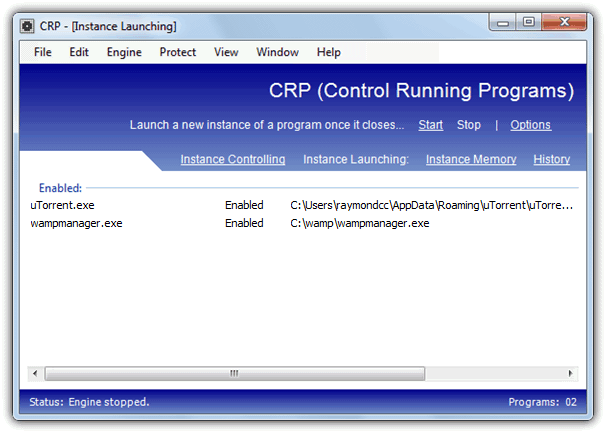
After installation, click on Instance Launching in the window and click on Add (or File menu -> Add), or alternatively drop an executable onto the window (not a shortcut). Then click the button to browse for an executable or use the arrow button to select a currently running process, and supply optional command line arguments. Once you have configured the program(s) required press the button to start the monitoring engine. You can’t launch different programs or set a monitoring interval etc, but simply dropping a file onto the window makes CRP very easy to get working quickly.
Download Control Running Program (CRP)
2. Application Monitor
Application monitor is quite an old utility dating back to 2005, but seems to work perfectly fine on newer operating systems. It has a couple of useful options built in you don’t find in many other tools of this type, including an option to send an email when errors occur and the ability to use different checking intervals for each application you want the program to monitor.
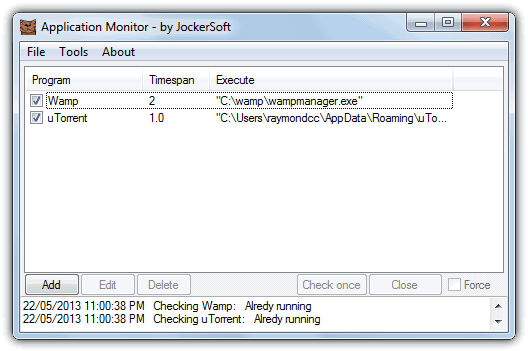
Adding a process to monitor is easy, click the Add button, give it a name and then browse to the executable file. Then add optional arguments and set the checking interval, the default is 2 minutes but it can be any where between 30 seconds and 3 hours in 30 second increments. As soon as you tick the box to activate the application profile, it will launch the process and begin monitoring. Application monitor is portable and requires .NET Framework 1.1 or higher.
3. Restart On Crash
Restart On Crash is slightly different because it was designed primarily as a tool to restart a program after it’s crashed or hung, but is equally at home in restarting an application that has been closed accidentally or by someone else. It’s an easy program to use and configure while being portable and quite light on memory, only using around 2.5MB of system RAM during monitoring.
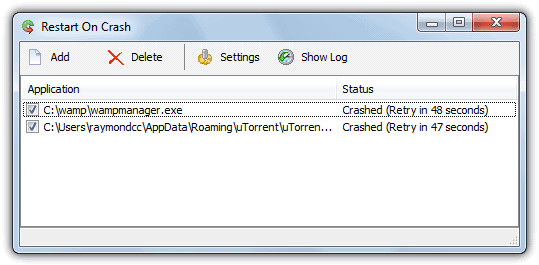
When configuring Restart On Crash you can assume a program has crashed and needs restarting when it has actually crashed and not responding, and also simply if it isn’t running which covers when the the application was closed manually. Click the Add button to enter a new monitored application and either locate the executable or select a running process, this will enter the same executable in the command to execute. You can of course run scripts or other programs if you want. By default closed/crashed programs are checked every 60 seconds, this can be changed and the log file can be setup from the Settings window.
4. Restarter
According to its developer, Restarter was originally intended for monitoring and restarting Counter-Strike game servers, but can be used on other applications with no problem. The main interface is a bit more complicated looking than some of the other tools here, but still isn’t really that difficult to configure. Restarter has portable and setup installer versions available and requires .NET Framework v2 to function.
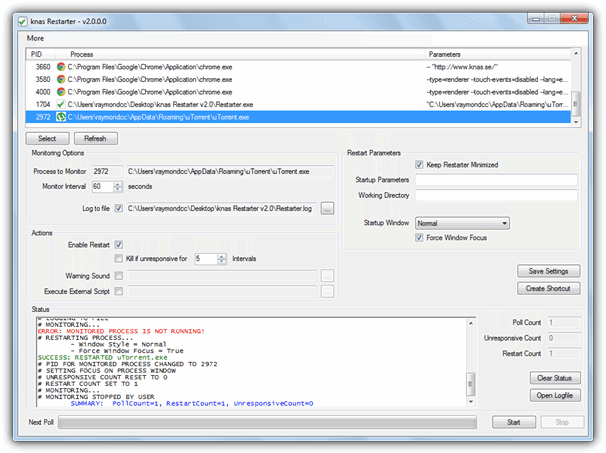
To monitor a program it first needs to be running as Restarter selects the executable from a list of opened processes, then you can choose the monitor interval (default is 60 seconds), whether to restart the process, kill an unresponsive process, play a warning sound and run an external script (reboot and send email VBS scripts are included). Supplying a working directory and startup arguments are optional extras. Restarter has a Create shortcut button which will add a desktop shortcut to allow launching the selected application and then monitor it automatically.
You might also like:
 5 Ways to Stop Windows Automatically Restart After Installing Updates
 How To Reopen Accidentally Closed Tab on Web Browsers
 5 Tools to Prevent User from Closing Application on Windows
 3 Tools to Minimize Open Application Windows to the Desktop as Thumbnails
 2 Tools to Monitor Specific Processes and Trigger actions
Restarter is very nice.
be careful if the command line a more parameters because it may not accept more parameters with caracters ” in it…
try to make start of the program with
“xxxx program file” “parameters”
a call with “c:\xxxx” /nostartup “progr.xxx”
was not allowed.
I did a batch to start the process with only
“c:\xxxx” “progr.xxx”
and restarter was ok to start it, but with /nostartup it was searching to open the program “/nostartup “progr.xxx”” and it was not loaded by the progr “c:\xxxx”.
I have been using Restart on Crash for a number of years and it really works well 99% of the time. The problem though, is that on occasion, after a crash (electricity failure) the App itself loses everything that you’ve programmed it to restart. This is a real frustration, but I can’t find any other App that better suits the purpose of restarting MT4 terminals.
I had the same requirement as Beth, except that I COULD use the .Net Framework.
On Windows 10 Professional, I tried ControlRunningPrograms and it didn’t save the program list and left a copy of itself running after closing down the UI.
After reading Simon’s post, I skipped a few. KeepRunning seemed a little more complex to configure than some of my users might be able to handle, so I tried ProcessAlive next.
It works like a dream. Small issue with not being able to set it to start when Windows starts. But you just need to run it as Administrator to set that option.
And also note that the program name must be unique. If you have a program by the same name in two different directories (MT4 terminal.exe for 2 different brokers) then it will only start 1 of them. So you will need to rename one of them.
I keep getting CEF binaries are missing and a long list of files. What do I need to install to make this work? Same error for all programs. I have .NET 4.8 installed
Can it restart a program requiring a password , i.e. a trading platform for automated trading?
hi i need to keep my forex trading terminal running, 1) upon OS startup after a reboot 2) accidentally close off. I dont have ,netframe installed on my vps, how can i do so? I tried processalive as well as restartme all of these i cant use without ,netframework. These forex trading terminal is just terminal.exe
Did you ever find a solution?
4. Restarter
Downloaded .zip requires a password but there is no mention of one in the review.
It’s in the download page.
No it’s not. Could you please help?
Yes it is, in bold letters. Look again.
OP here. Fairly certain that it was not there when I downloaded.
The page never used to have the password until a month or so ago when we added a load of new passworded files. There’s a small chance due to a caching glitch you for some reason saw the old page.
raymondcc is the pass. Says so on the first page of the link.
1. Control Running Programs (CRP)
Program doesnt run under Windows 10, installs and shows loader screen then immediatly crashes.
2. Application Monitor
can only monitor DIRECT exe files, not multiple files with the same name, e.g running multiple servers with commandline parameters.
3. Restart On Crash
Same as above, and if a EXE is restarted (tested with notepad.exe, had 2 windows opened) it will restart the EXE but still think its crashed and keep doing it.
4. Restarter
can only monitor 1 Process PER Restarter Instance, so iw ould need to run 100 of these if i wanted to monitor 100 processes, and with people inmdicating there is a memory leak in this program, HIGHLY not recommended on production environments
– didnt try the others as they didnt fit my purpose.
I’ve had success with CRP on win 7 and 10. Try running it as admin for the first time. Also make sure you have .net 2.0
it seems that processalive has the same issues. I have forex terminal, all terminal.exe. I created each acct one folder, eg, c:\acct1\terminal.exe, c:\acct2\terminal.exe
I put all the terminal.exe into processalive with each path being different, and try it by closing off 1 of the terminal, and nothing was restarted. To note this was run on win2012 R2
I installed the same processalive on local PC running win10 whereby i only had ONE terminal.exe
The moment i closed it off, it restarted faster than i can blink my eye. It does work but not if there are few programs/process with same name although different path name. I think this needs to be improved
I will try CRP and report back
Thanks for sharing, saved me lots of time! The best option for me is 3. Restart On Crash
I lov3 the restart on crash application. Simple and intelligent. Thanks!
Restart on Crash is awesome and just saved me days of programming to keep a server application running after a crash! Thanks for this!
Hello,
I have this error with sercviceEx
Service Ex: The service manager with a little extra.
Version 0.20
Error! Be sure there is a file called windowshostprocess.ini in the current directory and that it contains a ServiceExeName value.
Install service failed.
The name of the service I i gave is windowshostprocess and I have provided the ini file and instructed in the ini sample file.
Please can you help?
KNAS’ Restarter will crash your server due abnormal resource usage (bad coding I guess).
Application Monitor does not work on Win 10. It keeps starting multiple instances of same program over and over.
Not tried other one.. I guess I cant trust those programs. I will make my own with Auto it or similiar macro software.
all these work fine except when there’s a not responding ‘close program’ box open.
is there any that will close this box and restart the prog?
Agreed, this is a necessity as Windows almost always pops up a “Close Program” box.
You can disable the windows crash reporter service in services
Restart on Crash has a clause to close a program, so it can be restarted, if it is hanging… You need to tick the option under each application you want to use this on though…
Application Monitor is very easy to use and work fine. I put the configured Application Monitor into windows startup.
Is it possible to load Application Monitor minimized?
I would like to restart network connection if it was lost – does anyone have a solution to this?
Please upload ServiceEx.exe I can’t download it.
The link has been updated but please note ServiceEx doesn’t run on Windows 64-bit.
It’s working really well for us on some 64-bit Windows servers?
Thank you for the report, our download was actually corrupt. It’s updated and fixed.
Hello,
i was installing a new program when it said: ” crash in relaunch using create process ”
how can i solve this problem ??
thank you in advance ..
Anybody know which is the most stable of the bunch? I’ve noticed that things like screensavers derail the restart/keep running process of a few of these apps.
I use RestartMe because it’s less sensitive, but i haven’t tried them all.
What did the sadist do to the masochist? Nothing.
KNAS’ Restarter suffers from a major coding bug that can result in your system becoming near non-responsive. I’ve used this software for years and only recently was able to discover that this software, after running for days, can bog down your system to the point of non-responsiveness. I recommend trying the alternatives first, and only going with Restarter if nothing else works for you.
Im using Restarter from knas, it is very flexible and it is completly free
Hi,
Great list. Many thanks, and great content!
Thank you for this collection!
I’m staying with Restart on Crash.
thank you. really nice post to explain all useful tools for a specific purpose. I’ve been testing or using ServiceEx and it looks promising.
I’m using Keep Running since it can’t be closed. Thanks for the links!
Thank you!
This site has many “chips”.
Excellent!