8 Ways to Map Local Folder to a Driver Letter on Windows
With hard drives having such huge capacities these days, it’s not unheard of for some people to have millions of files spread across their system. When you have a lot of files it is really important that everything is stored in a well ordered directory structure so files can be found more easily. For the less organized there are tools to quickly search the contents of your drives.
Even if the overall directory structure of your system is efficient there might be several folders you access often that are found several layers down. An easy solution to get quick access to one of these folders is mapping it to a drive letter. This is a simple method and means instead of constantly drilling down through sub folders, just click on the drive in Explorer and you are taken directly there.
Of the 26 drive letters available on your system, probably only a few are in use. That leaves several free letters that could be used for this purpose. Although it’s easy to map a network folder to a drive letter, mapping a local folder to a drive letter is slightly more difficult. Here are some ways to do it.
Using the Windows Subst Command
Windows has included a command to substitute a folder for a drive letter since the days of Windows NT in the early 1990’s. The Subst command is pretty much unchanged in how it works and is still present in the latest versions of Windows 10.
Usage is quite simple, open a Command Prompt (press Start and type cmd). Type Subst and as an argument supply the drive letter you want to map the folder to, then add the full path to the folder.
Subst [Drive:] [Pathtofolder]
A simple example would be:
Subst X: D:\downloads\work\myfiles
Make sure to enclose the folder path in quotes if it contains spaces. Type Subst without arguments to check the mapping has worked as you are not notified if it was successful.
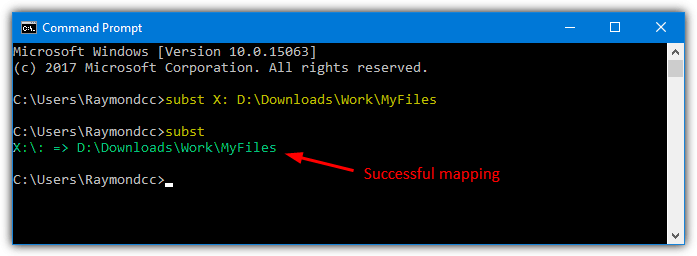
To remove the mapping enter the drive letter and add the /D argument:
SUBST X: /D
Mapping a folder to a drive letter with Subst isn’t permanent and you will lose the association after rebooting or logging off. Therefore, the delete command is only needed to remove the mapping immediately without restarting.
Forcing Subst to Run on Startup
If you want the mapping to work all the time, a simple solution is to run Subst automatically during every boot. This can be done via the registry. It is recommended less experienced users try one of the more automatic solutions before using this.
1. Open Regedit and navigate to the following key:
HKEY_LOCAL_MACHINE\SOFTWARE\Microsoft\Windows\CurrentVersion\Run
For the permanent mapping to only affect the currently logged on user, go to:
HKEY_CURRENT_USER\Software\Microsoft\Windows\CurrentVersion\Run
2. Right click on Run > New > String Value. Give it a name such as “Map X”
3. Double click on the name and for Value data enter the Subst command like above. For example:
Subst X: D:\downloads\work\myfiles
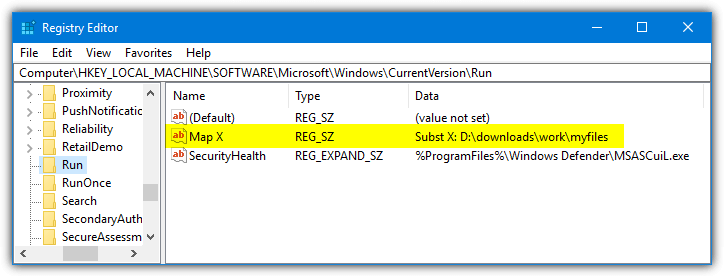
Close Regedit and after you reboot or logon, the Subst mapping will automatically be created.
A Subst GUI Frontend Tool
vSubst is a small, portable tool weighing in at only 18KB in size. The original developer website is now gone but the program is still freely available and perfectly usable. This is a pretty useful frontend GUI for the Subst command.
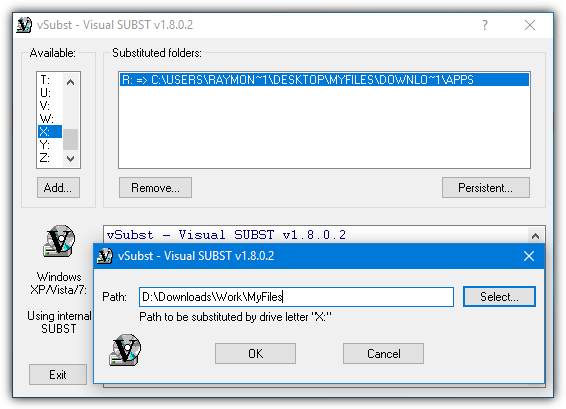
After launching vSubst, select the desired drive letter to map the folder to, then click Add. A small dialog will popup where you can manually type the path or locate it with the Select button. The new mapping will immediately appear in the substituted folders list. Just highlight an entry and press Remove to delete the drive and free up the letter.
The Persistent button will place an entry for vSubst in the Users Run startup key in the registry, similar to the manual method above. The vSubst executable will be copied to the Windows folder so make sure to run vSubst as administrator or the copy to Windows might fail.
Run Subst From a Batch Script
You can easily make your own batch script with just a couple of lines but this ready made script called Psubst is more Advanced. Its main purpose is to make drives mapped in Subst persistent so they survive a reboot. Use this script from Command Prompt or another script (run as administrator) like you would use Subst.
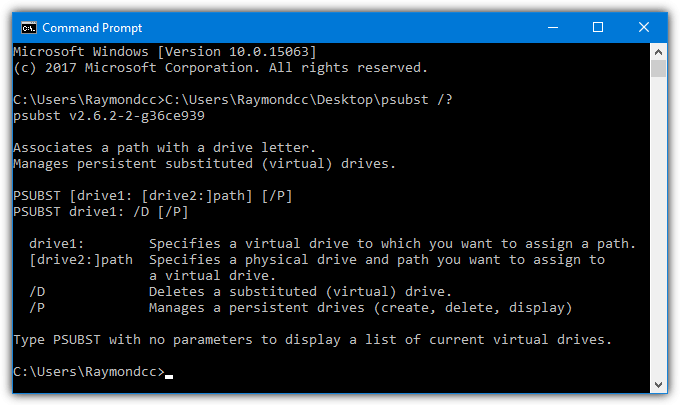
The arguments are virtually the same as Subst. The only difference is adding /P to the command will make the mapping persistent and it will remain after a reboot. It does this by adding an entry to Dos devices in the registry.
Psubst [Drive:] [Pathtofolder] /P (e.g. Psubst X: D:\downloads\work\myfiles /P)
“Psubst [Drive:] /D /P” will remove a persistent drive, “Psubst /P” will list current persistent drives, and “Psubst [Drive:] /D” will just remove a normal mapped drive. Adding a mapping with /P will only add its entry to the registry which will take effect on the next reboot. To also map the folder immediately you will need to run the same command again but without /P.
Using a program that can convert a batch file into an executable, Psubst can be made into a standard .EXE file. You can do this yourself by using a Bat to Exe tool.
Create a Mapped Folder with a Third Party Tool
Visual Subst is a simple to use tool that allows you to create a number of drive mappings quickly and easily. The program is portable and only 137KB in size. Although it uses the same API as Subst, the mappings created in Visual Subst are not visible when using Subst on the command line.
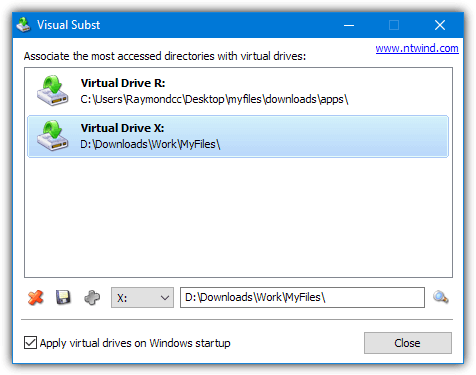
Select the drive letter from the drop down menu and enter the path to the folder manually or browse for it by pressing the magnifying glass on the right. Then press the Plus button to assign the mapping and it will appear in the main window.
Checking the box at the bottom will silently run Visual Subst during startup to assign the drive letters. Delete the mapped drive with the X button or save any changes to a current mapping with the disc icon.
Map a Folder to a Drive Letter Directly in the Registry
This next method has a couple of advantages over the Subst command. Not only does it add the mapped drive automatically on every boot, the drive letter is associated with the folder before any applications are launched. That means the drive letter can be used by other applications during boot. This option is not recommended for inexperienced users.
1. Open Regedit and navigate to the following key:
HKEY_LOCAL_MACHINE\SYSTEM\CurrentControlSet\Control\Session Manager\DOS Devices
This key will associate virtual drive names with paths and it does so very early in the boot process.
2. Right click on DOS Devices > New > String value, enter the drive letter to map the folder to, including the colon.
3. Double click on the drive letter and enter the following as a path:
\??\[Fullpathtofolder]
blockquote>
For example:
\??\D:\Downloads\Work\MyFiles
blockquote>
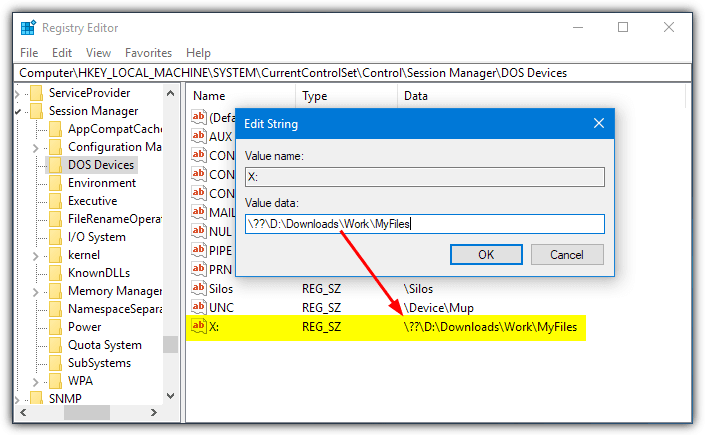
4. Close the registry editor and reboot the computer as this key is only read during startup. Upon rebooting, the mapping will show in Explorer in the list of hard drives.
If you decide to create a .REG file to add or edit Dos devices, add a second backslash to every backslash in the folder path. It won’t work otherwise. An example .REG file of the above would be:
Windows Registry Editor Version 5.00
[HKEY_LOCAL_MACHINE\SYSTEM\CurrentControlSet\Control\Session Manager\DOS Devices]
“X:”=”\\??\\D:\\Downloads\\Work\\MyFiles”
Map a Folder via the Windows User Interface
There’s an option to map a network folder to a drive letter in Windows Explorer. It’s not possible to map a local folder in this window by using the browse button because it only displays network locations. However, with creative use of network paths, it’s easy to map a local folder to a drive letter from the Map Network Drive window.
1. In Windows Vista or 7 open Explorer, press Alt and go to Tools > “Map network drive”. In Windows 10 or 8 open Explorer and make sure you are in the Computer tab. Press “Map network drive”.
2. In the Drive box drop down, select the drive letter to assign to the folder.
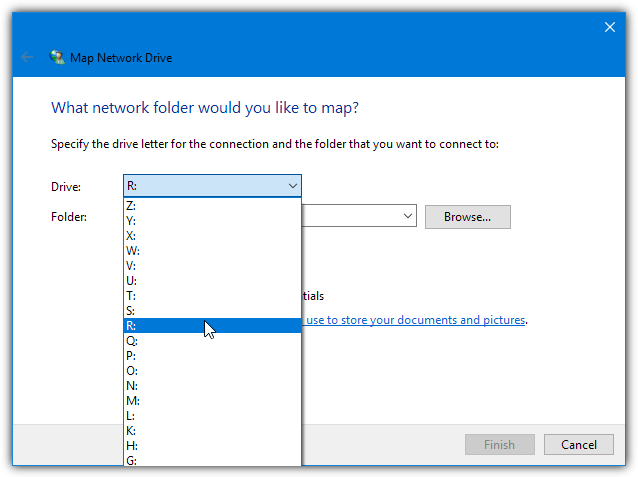
3. For Folder do not press Browse but Instead enter the following into the text box using your own arguments:
\\Localhost\[Drive]$\Pathtofolder
or:
\\Computername\[Drive]$\Pathtofolder
Using just Localhost should be fine for most users. Otherwise, use Computername which is the computer’s name. Find the name in System Properties. Right click Computer/This PC > Properties or press Win+Pause.
For Drive you must use a drive letter in the path and substitute the colon for a dollar sign ($). A couple of examples would be:
\\localhost\D$\downloads\work\myfiles
or using the computer name:
\\MyDesktopPC\C$\users\raymondcc\desktop\myfiles\downloads\apps
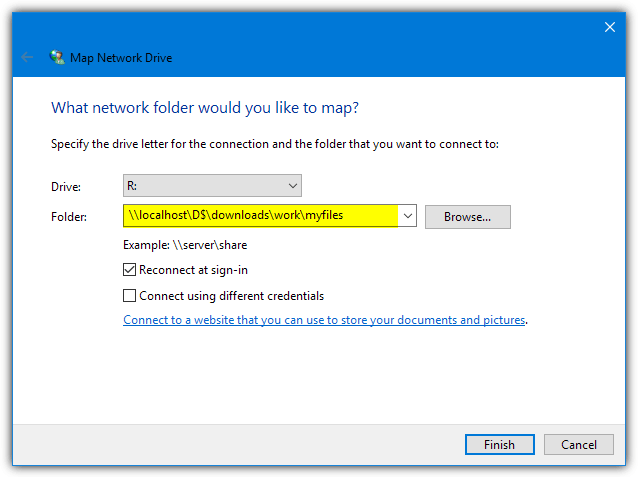
4. Leave the “Reconnect at sign-in” option checked if you want have the folder mapped to the drive letter every time your computer starts or you log on. Press Finish when done.
To remove the mapped folder simply right click on its drive in Explorer and select Disconnect.
Mapping Folders Using the Windows Net Command
The Net command in Windows is able to view, edit or manage many aspects related to the network. It is even powerful enough to change user account passwords or create/delete user accounts. Here we are using the Net Use command which manages shared resource connections. The syntax is as follows:
Net Use [Driveletter:] \\Localhost\[Drive]$\Pathtofolder
or:
Net Use [Driveletter:] \\Computername\[Drive]$\Pathtofolder
Enter the drive letter you want to map the folder to as Driveletter (including colon). For the path to the folder you can use either Localhost or the Computername like the method above. Make sure to use a dollar sign instead of a colon for Drive.
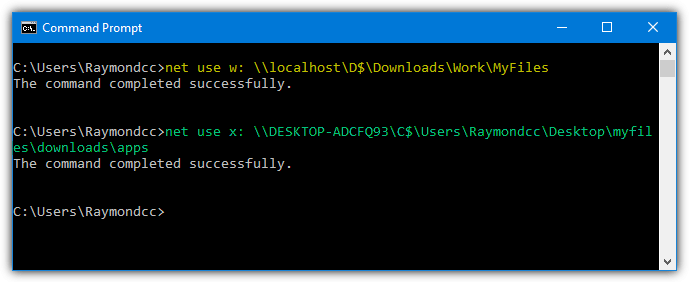
Although a mapped drive should automatically appear the next time you logon, an extra argument can be added in case it doesn’t. Simply append “/P:yes” to make the drive persistent and force reconnect at logon. Use “/P:No” to force the drive to disconnect at logoff.
To delete the mapping from the command line, simply use:
Net Use [driveletter:] /Delete
Use an asterisk instead of a drive letter to delete all currently mapped drives.
Net Use * /Delete
The Net Use command has an advantage over Subst because it doesn’t constantly try to connect if the folder is not available. Subst will constantly try to connect which can have an adverse effect on system performance.

Hi, Thank you worked fine but the I tried dism /Mount-Image but that did not work when the mountDir was in the new drive
So, when I use subst, the new drive letter shows up in the command prompt. I can access via drive letter there, but it is not showing up in my Windows 10 GUI, I can’t navigate to it to save files or anything like that. Anyone else have that problem?
Try using a non-admin Command Prompt.
These methods work well, but in Win 10, I have found that whenever I delete a file from the “drive” it bypasses the recycle bin and gets permanently deleted. Doesn’t matter which method I use to map the folder, the behavior is the same.
I never had this problem with mapped folders in Win XP.
Has anyone noticed this behavior and possibly found a workaround?
Which of the above methods did you use to map the drive? If you used one of the network based methods (i.e. the net command or map network drive), that might be why. I say this only because of what happens when you delete a file from an actual network drive (i.e. one that truly represents a share from another machine on the network): the deleted file does not go to the recycle bin (it’s fully deleted).
Thus, even though the mapped drive in this case is on your machine, the fact that that it is mapped as a network drive may cause windows to treat it as a drive mapped from another machine, with all of the attendant behavior that using a network drive entails.
This is just a guess on my part – I haven’t tried it. But if you’ve mapped it as a network drive, try one of the other methods (subst, registry).
If you did use one of those other methods already, and are still not getting deleted files sent to the recycle bin, then I’ve no idea, sorry!
So I just tried the method wherein you edit the registry to make the virtual drive available early in boot.
I created a virtual E: drive that maps to the root of my physical F: drive. Note that I did not map to a folder on F, just to its root; that is, the registry string name is:
E:
nd its value is:
\??\F:\
And with that method, I can confirm that if I navigate to the E: drive and delete a file, it does go to the recycle bin. I still have not tried (and won’t be trying, as this is the solution I need) one of the approaches that use network mapping, and therefore still don’t know if that’s why you’re having the problem you are, but given the registry approach deletes to the recycle bin for me, it’s nearly certain it would for you as well.
Thanks! I’ve not often forced to use Windows, but this has just saved me so much effort!
Tried many tip, but your SUBST solution is the only one that worked within powershell scripts !
Thanks !
WOW..Simply superb..
Great information!
I tried sharing a folder and then mapping it as a drive but it doesn’t work if you’re not connected to a network.
This way is definitely the elegant way of doing it.
Thank you!
Thanks a lot for sharing this information!
using SUBST is definitely one of the fastest way of creating mapped drives.
Thanks again
Great info, great tool. Managed to use up almost all of my drive letters :-)
Life saver, thanks!!
Thats Nice
It works on Vista as well. jfyi :)
Great tip!! Have been working in dos for long time but never knew about it. Worked out great for me!
Old DOS Command,… I always use some DOS commands to solve my trouble. Thanks Ray… in the some cases, “THE OLD IS THE GOLD”.
SWEET, never thought about it, but this is µber :P
That remindes me some old, old time when i usualy need this SUBST command working with MS-DOS…
Seems like something I would need. Thanks!
In the past, I used Drive Manager
It can substitute drive letters for local folders.
Hi Raymond, you made me remember years ago when i used subst to fake first games that used cdrom. Then it came more difficult, so changed to virtualdrive 2000, and then using daemon tools or nero image drive. Well times go by….
Great tip, thanks