6 Tools to Permanently Set Process Priority in Windows
Because Windows is a multitasking operating system, it has several ways to manage running processes to help your computer run more smoothly.
Besides Affinity, which controls how many processor cores a program can run on, there’s also the priority at which a process runs. This gives the program a setting while running that tells it how high up in the queue it’s placed when asking for processing time.
For example, if you’re running a processor-intensive task such as video encoding that has a higher priority than your web browser, it’ll use most of the CPU time, and the browser will get what little is left over. Give the intensive task a lower priority, and it will only take the CPU time left over, speeding up the browser. Changing the priority of a process is very easy. Simply right-click it in Task Manager and set it to your desired level.
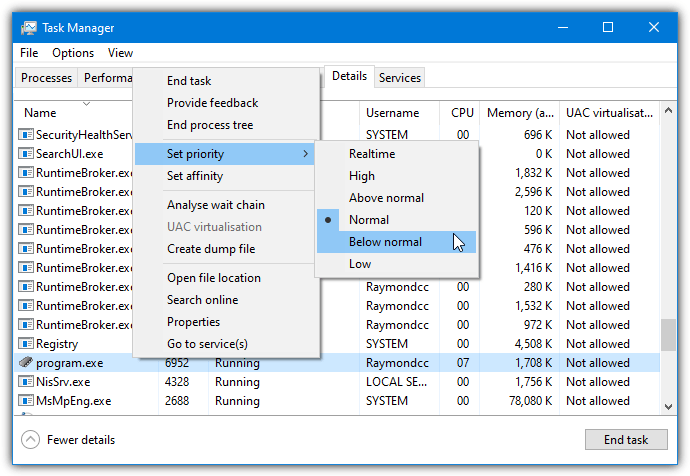
While this is less of an issue with today’s multi-core CPUs, it’s still a problem on laptops or older PCs with fewer cores. One higher priority process can slow the system to a crawl by hogging all the CPU. Even system tasks like Windows Update or Windows Defender can do it from time to time. Tools like Process Lasso were developed to try and automatically juggle process priorities, but they give mixed results.
Also read: best tools to reduce CPU usage
The problem with changing the priority of a process in Task Manager is as soon as the process is closed, the priority will be reset to its default level the next time you run it.
Here we have the top free tools that you can use to save the priority of a process so you don’t have to adjust it manually every time the process is started.
Best Process Priority Saver Tools
1. Prio – Process Priority Saver for Task Manager
- Operating System: Windows 7 and above
- Pricing: Free
- Developer: O&K Software
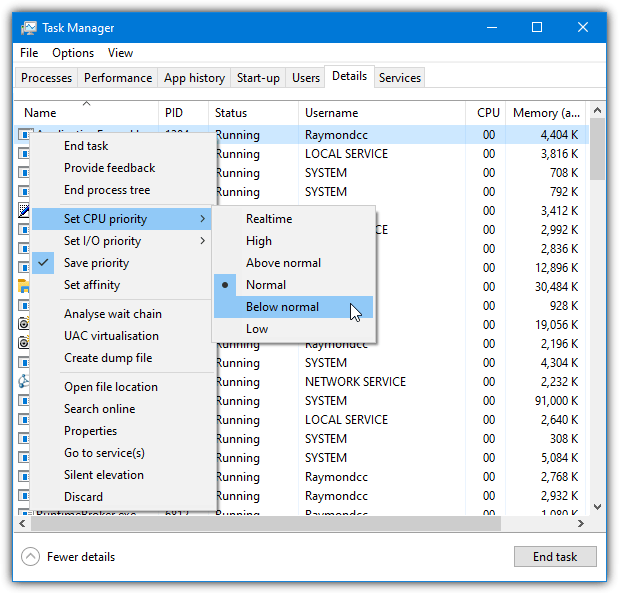
Prio is a very easy solution to this problem of Windows Task Manager not saving priorities. The tool is actually an add-on component for Task Manager itself, giving it the ability to do just that. This means you don’t have another full-blown program running in the background, only the Prio service, which consumes a tiny 390KB of memory.
After installation, reboot your computer for Prio and its options to start working. Making a permanent priority is simple and obviously done through Task Manager. In Windows 10, go to the Details tab; in Windows 7, go to the Processes tab, right click and set the priority like you normally would. The Save Priority option should already be enabled.
Click on it if the checkmark isn’t shown.
Prio lowers priorities based on process name, so lowering program.exe will lower all future processes called program.exe. It also adds better tooltips, optional TCP/IP and enhanced Services tabs, integrity checks, and a Silent Elevation option. The process priority and elevation options work in Windows 10, but most other features are unavailable unless you are running Windows 7.
2. Process Hacker – best tool to replace task manager
- Operating System: Windows 7 and up
- Pricing: Free; Open-source
- Developer: Winsider Seminars & Solutions, Inc.
Process Hacker is a well-known Task Manager replacement with several advanced functions for handling tasks and processes. Like any task management tool, being able to adjust priorities is a standard function. The ability to save the priority for any given process was added to version 2.30 in early 2013. Sadly there have been no new public releases since 2016, although nightly builds are still being produced.
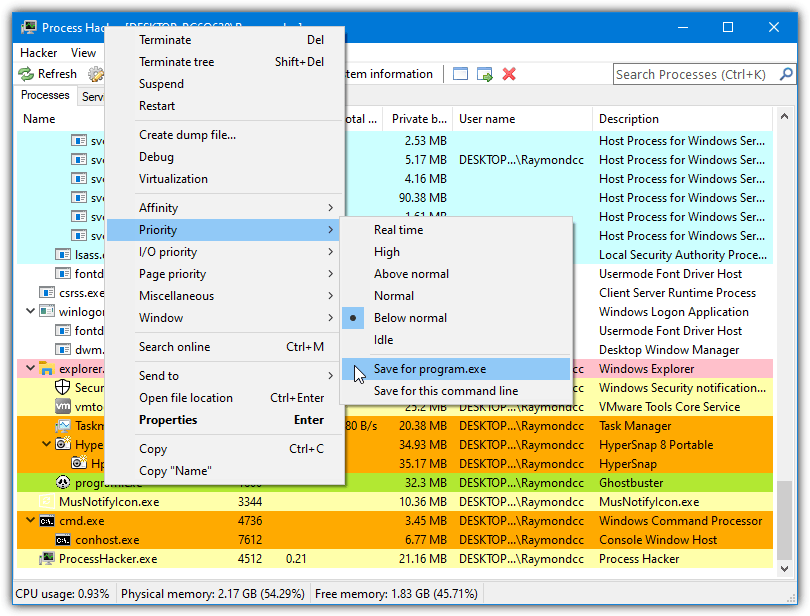
To set the priority to be saved in Process Hacker, right-click on the process, go to Priority, and set the level you want to run from now on. Go back to the same menu and enable the “Save for xxxxx.exe” option. Then it will be remembered in the future every time you run a process with the same name (and Process Hacker is running).
The “Save for this command line” option in the menu is slightly different because it saves the executable’s launch command. Then it will set the priority when only the same executable and command is run again. For example, the option wouldn’t work too well with Google Chrome because of all the different chrome.exe’s launch themselves with different arguments. A portable Process Hacker version is also available.
3. Process Tamer – simple process management utility
- Operating System: Windows 7 and up
- Pricing: Free
- Developer: Company Name
This small process management utility can automatically adjust the priority for running processes when they reach a certain level of CPU usage. However, you can easily turn this function off and set Process Tamer to adjust process priorities based on your selection manually. Go to the Configuration tab and uncheck “Tame Applications Based on CPU Usage”.
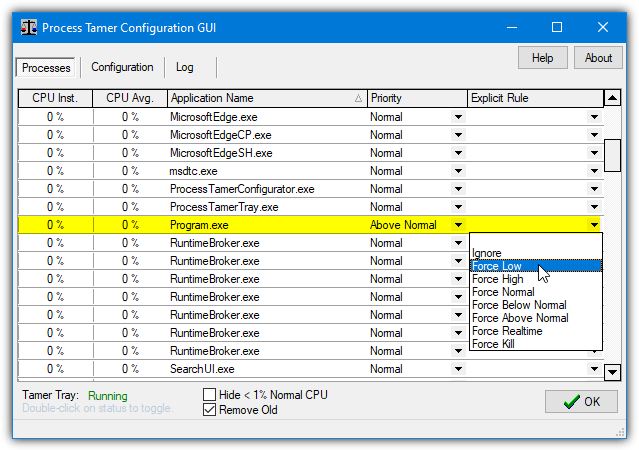
Making Process Tamer remember a priority is easy, just click on the Explicit Rule drop-down menu on the row of the process and select what you want it to be set at. Change the drop-down to the top blank option to reset the priority. Rules can also be deleted or added manually from the Configuration tab.
We tried Process Tamer in Windows 10 and 7, and the auto-adjust priority function didn’t work anyway. Luckily, the manual priority function we are using here does work.
The portable, installer, and updated beta versions from 2017 are available; the original program is from 2009.
Download Process Tamer | Process Tamer Beta
4. Bill2’s Process Manager – automatically adjust process priorities
- Operating System: Windows 2000 and above
- Pricing: Free
- Developer: Bill2 Software
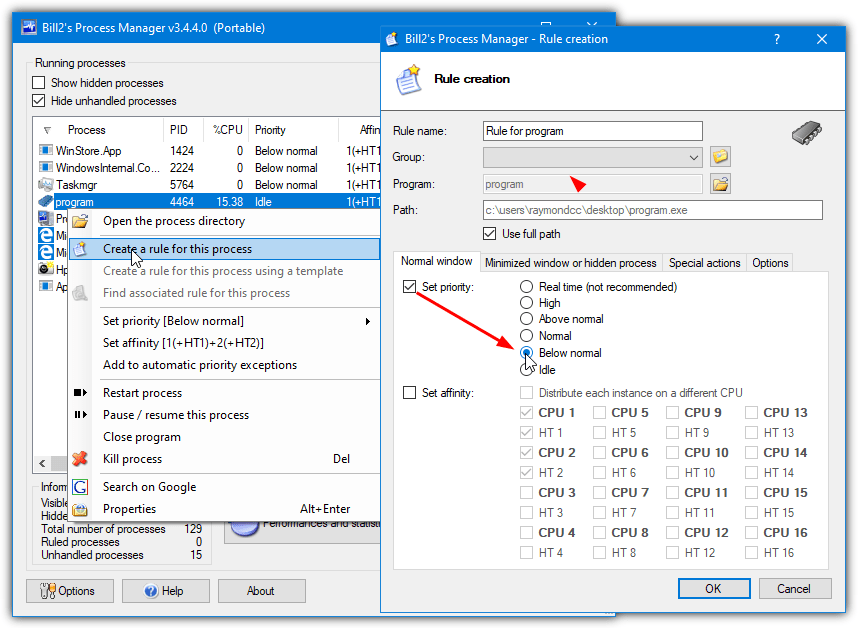
This utility is a bit like Process Tamer, which can automatically adjust process priorities based on CPU usage.
You can also turn this off and rely on your own settings by unchecking “Enable automatic priority lowering” in Options > Automatic priority. Bill2’s Process Manager works on the basis of rules and is quite a useful program to apply sets of rules to a specific application process while it’s running.
To apply a custom priority, right-click the chosen process entry and select “Create a rule for this process”, check “Set priority” in the rules window and choose the priority you want. If you don’t set a custom rule, Bill2’s Process Manager applies a predefined priority rule for all other processes below normal (not system processes). To disable this rule, go into Options > Rule by default and uncheck the box.
The .NET Framework 3.5 is required for Windows 10 and 8 users. The default French language can easily be changed to English in the Options window or by deleting the fr-FR folder. A portable version is also available.
Download Bill2’s Process Manager
5. System Explorer – system info and control components
- Operating System: Windows7 and above
- Pricing: Free for personal and commercial usage
- Developer: Company Name
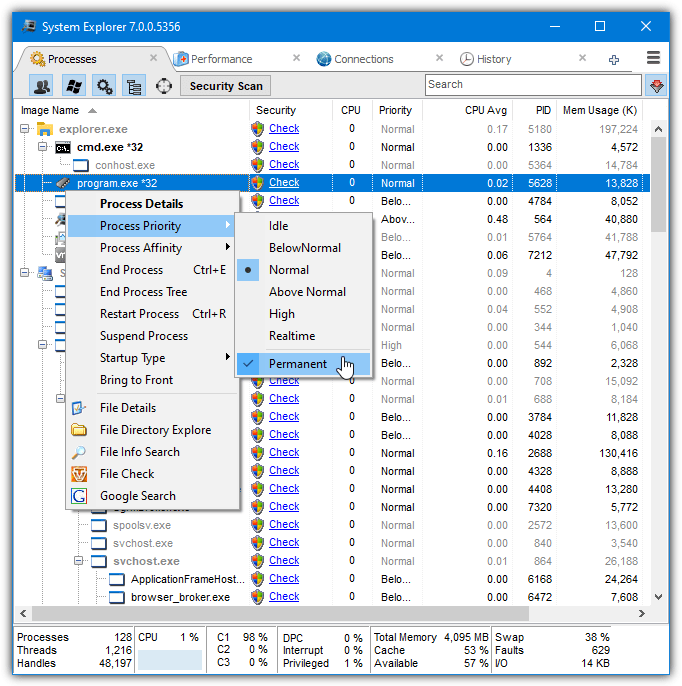
System Explorer has a huge array of system information and control components, all accessible via a series of web browser-type tabs.
It’s like Task Manager on steroids, which makes it a shame that development for System Explorer stopped in 2017. Like Process Hacker, System Explorer has the ability to save a given process priority and keep that setting when the program is launched in the future.
In the Processes tab, right-click on the chosen process, go to Process Priority, and set the level you want to use. Go back to the same menu and tick Permanent to make the setting stick. While sitting in the tray, System Explorer uses around 12MB of memory, which isn’t bad considering the number of functions on offer. A portable version is also available from PortableApps.com.
If you want to set the priority of an application that has multiple processes from the same executable, such as a web browser, set the priority of one process, close the prioritized application and reopen it again. The processes will now be the same priority.
6. Set Program Priority From The Command Line
While this last method can set the priority of a program you want to run, it does have one or two drawbacks.
The most notable one is that you have to be able to launch the process manually. If you can’t, or another program spawns the process, it won’t work. The main advantage is that you don’t need any third-party software running in the background (all the other tools must be running).
Start “” /BelowNormal “C:\Users\Raymondcc\Desktop\Program.exe”
The above command will start Program.exe with a priority of below normal. You can use Low, BelowNormal, Normal, AboveNormal, High, and RealTime.
In Windows 11, use the following command
wmic process where name=”ProcessName.exe” CALL setpriority “PriorityLevel”
Here, the priority level you want to use can be Realtime, High, Above Normal, Normal, Below Normal, or Low.
The real-time priority only works if the Command Prompt, batch file, or desktop shortcut has administrative privileges. Using the real-time priority anyway is not a good idea, so it shouldn’t be an issue for most users.
You have to make a minor modification to create a desktop shortcut that can do the same thing. First, right-click on the desktop and go to New > Shortcut.
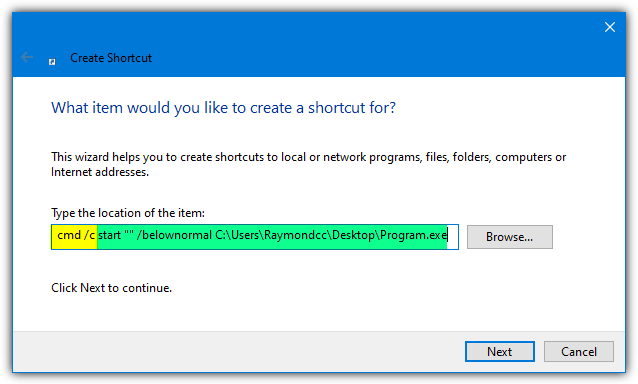
Type “cmd /c ” into the box and then add the Start command like above for your program and the priority. The Start command needs to be run from the command line, so you have to open a Command Prompt beforehand, which will very briefly appear on the screen. There are ways to hide the console window if you don’t like it showing.
Final Thoughts
Instead of raising priorities for specific programs, it’s a good idea to try lower priorities of other programs if possible. For instance, if programs A and B both have a normal priority but B is heavily CPU intensive, instead of raising the priority of A, lower the priority of B. This reduces the risk of program A causing the system to slow down or become unresponsive if it ever hangs or crashes.
Antivirus and security software often cannot be tampered with if they have self-protection on, which means you won’t be able to alter the priority. Also, be careful and don’t touch the priorities of system processes like svchost unless you really know what you’re doing. This could cause unforeseen issues with general performance and other running tasks.




So I am using system explorer, my goal is to have BF1 running at high priority as this avoids CPU spikes of 100% with framedrops. BUT, even with permanent, the priority changes back to normal after a couple of seconds when the programm is running. What makes a process do this and how can I force the priority.
Useful article thanks. I’ve been trying to get Amazon Music to stop stuttering when running other CPU intensive apps. Increasing it’s priority to real-time works but kept resetting every time I opened the app. Prio installed fine, showed up in task manager but didn’t save the settings. Process Hacker also failed to retain the priority setting. Bill2 seemed to freeze on launch and after about 3 minutes I gave up, killed the process and uninstalled it. Process Tamer actually works, I can force Amazon Music’s priority to real-time, closed and reload the app, and within a few seconds it’s priority gets increased automatically.
I use Process Lasso. It is very good, but not free.
While it is a pain in the butt to adjust process priorities every time I run certain apps (games), it really takes no more than a minute, at most, to do it. I don’t see any reason to add yet another running program to the task manager! The real solution is for Microsoft to have a setting for remembering process priority choices.
Yes per process too. Process Explorer, System Explorer just do it by name so when you reboot your system, every process called scvhost.exe, say, has the same setting when you just want to target one. I thought it would it would remember by command line parameters, especially if they are unique.
I am trying to put audio onto one core – that I can do but come reboot, every scvhost.exe has the same treatment.
It makes no sense why Microsoft doesn’t include a permanent option in the CPU priority settings but there is a workaround tweak using Windows Regedit that can set programs priority without the need for running third-party software in the background and wasting more processors resources in this link.
“tenforums.com/tutorials/89548-set-cpu-process-priority-applications-windows-10-a-2.html#post2342924”
I recommend everyone to contact Microsoft support in Teams for Windows 11:
1. Open Microsoft Teams.
2. Select Settings and more More options button.
3. Select Help.
4. Send them your suggestion for a permanent priority option as a new feature.
Hopefully, if enough people demand this feature. they will include in a new windows update!
None of these work on Windows Server 2012 R2.
Prio simply does not get added to the context menu.
Process hacker will only save the setting when you run it as administrator but for my admin user the priority remains the same.
…
If this is still relevant, there is a way to set and keep the priority of a process, through a small batch script. I wanted to have a way of keeping a set priority, without installing anything.
I wrote 2 scripts, one that was made in mind for Discord (one process) and one that was made in mind for Discord and Modern Warfare at the same time.
You can find the posts here, hope it still helps:
reddit.com/r/GamingHelp/comments/i5sn0u/discord_priority_changer_script_small_batch/
reddit.com/r/GamingHelp/comments/i5pyvz/stuttering_issues_in_discord_while_playing_modern/
oops, i take that back., the reboot is necessary.. sorry sorry., seems to be working at the moment.. :)
That’s OK, it does work after a reboot. If you don’t, it looks like it’s working but isn’t.
Remember, try to ask the questions first, there’s often a simple or rational explanation. ;)
prio does not work.. on win10 as stated.. if you close the program you work on, the priority is lost, in spite of the save priority tab being shown.. so total bs.. this article states it was tested.. well it wasnt..
Process Lasso
We’ve talked about Process Lasso in another article, its main task is to set priorities for you, which isn’t really permanent but more dynamic.
OK so, it’s 2020 now – ANY software that can currently do this in Windows 10?
same problem here trying to figure out one that works
I’m not sure what problems people are having, but I’ve just tried all these programs in Windows 10 1909 and they all work. Whichever tool you try, it has to stay running in the background to control the priorities. They won’t work well or at all on protected processes for Windows or security software, and also when programs are run under different users like SYSTEM or NETWORK SERVICE.
I am going to retest them on the latest Windows 10 2004 release in the next few days and will update the article with some other options as well.
As someone currently having this problem and going through articles, thanks for keeping up on this one!
For posterity:
My issue is with discord specifically. I tried prio prior to finding this article, and as stated in the article it didn’t work with my win 10 on this application. Process Hacker did.?
Thanks for your comment. I just tested Discord and it seemed to work with Prio. After a reboot and with Discord running, I lowered the priority of a single discord.exe, quit and restarted the app, and after that all Discord.exe’s were set to the same priority.
Prio works on a process name basis, so if you set discord.exe as low, it will set all processes of the same name to low the next time they are spawned.
Process Hacker is definitely better than Prio at forcing processes to keep their priority, Chrome is a good example of this.
Absolutely loved Prio, but it didn’t work in Win10. I read something about maybe an update for it in the comments. I just retried it and it still doen’t work in win10. Funny, how there is indeed a Win10-dll in the install folder.
It does work in Windows 10 after the recent update, if your process priority options are not there, it might be an idea to uninstall and reinstall Prio.
The options are there, but the priority is reset after restarting the process.
No, Prio does not work with Windows 10 anymore. Creators Update broke the tool and it no longer works. I have contacted the company many times over the past year and they ignore everyone. I was given the opportunity to test the Win10 BETA and worked great. Once Creators came out it stopped working and for good.
Do you mean the Fall Creators Update (Oct 2017)? I tried it on the standard Creators Update a few months back and it worked (up to a point).
ashampoo core tuner 2.01 , used it for years + always have run my games at ”real-time” , never any problems or processors going kaput and the games look better and run better on real-time , i can see the difference in quality of the textures from high to real-time
+ works with windows 10 , used it since win XP , served me well…
Thanks. I used Process Hacker. There’s a workaround to hide the tray icon for it. Go to View > Tray Icon. It won’t run in the background if you uncheck all of them. Instead select one that says “unavailable” on it and uncheck the rest. For me that was “Disk history”. Then double check File > Options and ensure the startup and hiding options are checked. Now it runs in the BG with no visible icon and the priorities auto adjust properly.
I forgot “realtime” priority can damage your pc.
“Real Time” priority does not damage your PC. If you are run a processor intensive program in real time, it will take precedence over everything: Your keyboard, mouse, desktop, etc., therefore locking you out of any type of input while that process is “doing its thing”. If you want to get un-stuck, you will have to either wait until the program finishes, or reboot (probably a hard boot).
But it does not damage your PC unless your PC suffers from insufficient cooling. Even then, most processors can protect them self by either throttling back the its speed or going into thermal protect and stopping.
I have a “prio” installed and it works on windows 10.Just instal “prio”, restart pc, run application you wanna go on low or high priority, go to task manager —-> details and set the priority you want.
There will be 2 options:
-Set CPU priority and -Set I/O priority
when you click with right mouse button on an application you want to change priority in “details” position.
Thanks for the reviews…definitely helped point me in the right direction.
Still having a small problem. Do any of these reviewed work without a user being logged in and running the process application? I need these settings to be persistent across a reboot on an unattended machine.
I’ve tried a couple (Including Process Hacker) and it seems when a non-Windows process I have set to run below normal starts, it only starts with the priority I set if the process-adjusting application is running…if it is closed, it starts with the priority it always did.
If none of the above apps do this, is there a way to set the process priority of a service and/or process name without having to be logged in and have the above app running?
Al of these programs needs to be running in order to change the app’s process priority from the default, that’s why they are needed in the first place.
I don’t think this person who wrote the article did a very good job at TESTING “Prio” with Windows 10. It doesn’t work with Windows 10. The person who made the software never updated it to do so.
The article clearly states Prio “works on Windows 7 and below, it doesn’t work on Windows 8 or above.”, did you not bother to read that part?
what about the “kotmorderca”-guy above, who says it works on their Win10 fine? I’m running win10pro 64bit myself, so I’m wondering… And on the tool’s website it doesn’t say *anything* about requirements…
Prio had an update in early 2017, about 6 months after my comment that it didn’t run on Windows 10. Previous to this latest 2017 update, the last version of Prio was from 2012, before Windows 8, 8.1 and 10 came out, which is why it didn’t work.
You are right though, some information from the developer or a changelog would be nice…
There is a “*win10.dll” file in the app’s directory, as well as *win7, *vista, *xp and *nt libraries.
I don’t have a dedicated Prio-menu with the rest items in Task Manager. Also no TCP/IP tab and the Services-tab seems unaffected.
I installed today, so it’s the latest version available. Works fine so far.
Just downloaded Prio on Vista 64 and Task Manager crashes when clicking on “show all processes”. Any fixes to this bug?
Not a full fix but there is a workaround which is to disable User Account Control (UAC) on Vista.
Prio still has a one or two issues on Vista such as crashing if you enable integrity checking, but it seems to work OK if you don’t mess with that setting.
There is a great tool for advanced users that
should be also mentioned here: Proces Lasso.
It is free as long as you want it to be; there is however a nag window that asks that it be registered,Simply click
Continue or
I agree,
depending on version and it will keep on working.
The many available settings can make one’s head spin.
Simply download and install ProcessLasso.zip.
It is unlikely that one can change things to all the desired settings in on session;it is definitely not for the newbie.
Prio is instead recommended for the computer challenged individual.
If you have read the article you will know that we do mention Process Lasso but it’s really a different category of tool which from personal experience gives very mixed results. The tools mentioned here are all quicker and easier to use for the task at hand.
So a tool like Prio which does the intended job easily and effectively is only for the “computer challenged”? Does a tool have to be hard work and complicated to be considered good enough for a geek or advanced user??
Thank you so much. I have searched for a solution to this problem and System Explorer was perfect.
I love that it can even tell you what dependencies a process has, and the process trees are a welcome feature. Glad it is windows 10 compatible.
Great article! How did I do without one of these utilities for so long?
Hey, HAL9000 – :-) you left out Sysinternals Process Explorer, the grand daddy of Windows process tools, which allows you to set priorities AND CPU affinities. However, I like Prio best for on-the-fly process-priority tuning because it simply adds a new tab to Windows Task Manager, so you don’t have to run a separate application.
Note: For some reason I cannot get the prio.dll to register on my Windows 7 64bit machine although it runs fine on Windows 7 32bit rig.
I tested Process Explorer a few times and it never saved the process priorities when you exit and rerun the program. If it is supposed to do that, it wouldn’t for me. That’s why I went for Process Hacker instead because it saves the custom priority of a process.
Just a question, I saw a program listed up top called “process lasso” but no review is given in the article. Does it function as well as the other programs mentioned?
Process Lasso is more of an automatic kind of program and it’s main aim is to control process priorities for you. A lot of people love it and and an equal or greater amount of users think it’s a terrible program and makes their computer worse.
The free version pops up nags on startup and during program usage from 3 days after install, we decided not to add it and concentrate on programs where you have control over your process priorities and don’t annoy you more than help you.
Thanks for the post, but unfortunately, only System Explorer works with Windows 8.1, 64-bit. The other four applications are all outdated: they either do not support Windows 8 as stated by the vendor or the feature in question does not work. For example, in Process Hacker, the option “Save for …” is absent from the drop-down menu (but shown in your screenshot).
I’m not quite sure how you’re testing but Process Tamer, Bill2’s Process Manager and Process Hacker all work fine for me on Windows 8.1 64-bit and control process priorities correctly. In Process Hacker the “Save for ***” option is there the same as it is for Windows 7.
Raymond, thanks for that. This is exactly what I needed to tame a backup process.
Totally works in Vista – one of my Top Ten Apps of all-time, for sure. Keep up the great work.
This works great. Thanks!
you are great!
good to know that ray, thanks :)