
2 Tools to Detect Problematic Drivers causing Audio or Video Streaming Dropouts


 4 min. read
  Published on

While most people will think that only old computers would suffer from lag in streaming audio or video in real time due to the slow hardware not able to cope up with the requirements of the operating system and software, new computers with a clean Windows can also experience such problems. When a dropout occur in an audio or video application that requires real time processing, one of the possible cause is the third party drivers of a device being implemented improperly and causes excessive latencies of Deferred Procedure Calls (DPC).
If you know that device drivers can cause such problems, it is quite easy to solve the problem by using the trial and error method. You will just need to disable one driver at a time from the Device Manager which can be launched by typing devmgmt.msc in Start menu. Fortunately the Windows operating system only allows you to disable devices that are not essential for your computer to function. So it is safe to go ahead and disable devices one at a time while the audio or video streaming program is running.
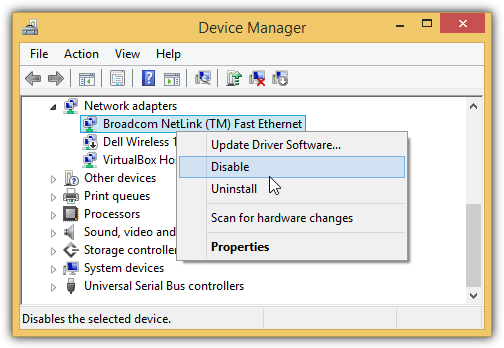
If the dropout stopped occurring after disabling a specific device, then you have found the culprit. To have a better confirmation on the dropout problems, there are third party software that can detect the dropouts and even to the extend of showing which possible device is the cause.
1. DPC Latency Checker
DPC Latency Checker is a free tool that is simple enough to use to show your computer’s DPC latency in graph chart that is updated every second. If there are any high DPC latency being detected by the program, the bar will in red color as shown in the screenshot below. There’s no real problem when a high latency being detected once in a while but if there is a constant spike after every few bars, then you should attempt to find the cause of the problem.
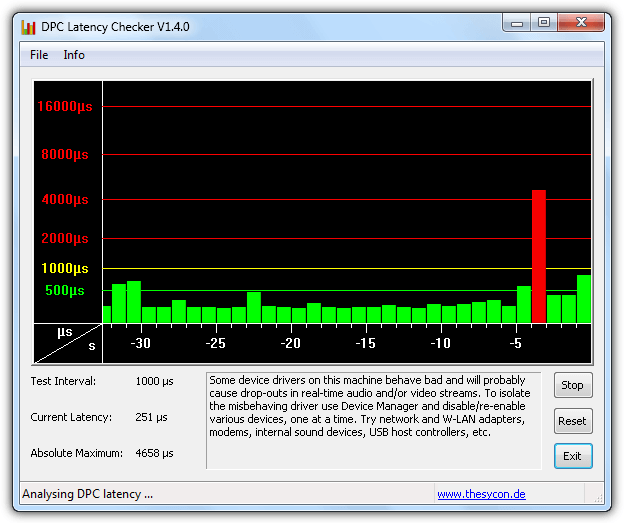
DPC Latency Checker does nothing else other than showing your computer’s DPC latency. It is a good reference to confirm the latency occurrence rather than playing an audio in attempt to listen for dropouts, clicks or pops while disabling the devices one at a time. The most common device that normally causes dropouts are network adapters for ethernet and wireless. So you should visit the manufacturer’s website to obtain the latest driver version which might solve the dropout problem.
Do take note that DPC Latency Checker has a compatibility issue in Windows 8 by showing a much higher latency although it runs without problems. If you need to analyze DPC latency in Windows 8, use the next program listed below.
2. LatencyMon
LatencyMon by Resplendence is a more powerful tool that one can use it to accurately pinpoint the driver that is responsible for causing dropouts. All you need to do is download, install the program, run it and click the Play button to start monitoring for latency. The Drivers tab is where you will find the problematic driver and the list is sorted based on the driver that takes the most time to execute.
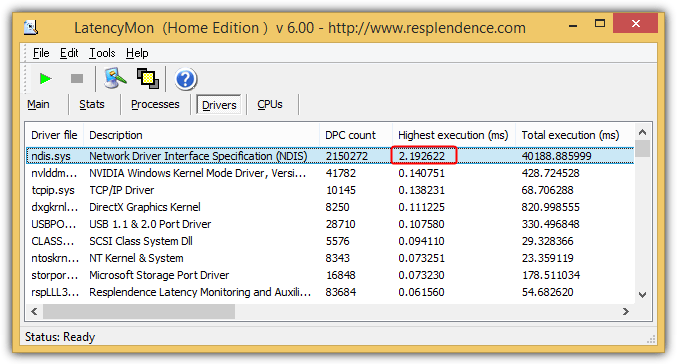
Most of the DPC execution is very fast and takes less than 1ms to complete. If you are seeing anything unusually high like the screenshot above, then it can affect audio or video applications that requires real time processing. Disabling the device from Device Manager can temporary prevent dropouts but an updated driver replacing the old one is required to permanently solve the problem.
The Stats tab provides detailed information containing your computer’s specification such as CPU, OS version, RAM, interrupt service routines, DPC, hard pagefaults which can be copied and pasted to forum or email to get help from experts.



Improve this guide

User forum
0 messages