How to Reconnect USB Device Without Unplugging
In a Windows operating system, it is a safe practice to always use the “Safely Remove Hardware and Eject Media” to eject a plugged in USB flash drive instead of directly pulling it out to prevent any opened files from being corrupted. Doing this will also trigger Windows to enable the dirty bit on the flash drive where Windows will automatically prompt to scan the drive for error the next time you plug it in. If Windows found corrupted files during check disk, it will simple convert them into .CHK files that can only be recovered via third party tools.
Although Windows provides a safe and convenient way to safely eject your USB flash drive, there are no options to easily remount or reconnect the ejected drive. It seems like the only way is to unplug the drive and reinsert it into the USB port for Windows to re-detect and re-mount the USB flash drive. This can be very troublesome if the device is connected to the USB port located at the rear of the computer.
Fortunately there are a few workarounds to remount an ejected USB device without unplugging and reinserting into the USB port, and here are 5 ways to do it.
1. DevEjectDevEject is a simple software that can be configured to replace the Safely Remove Hardware and Eject Media in Windows. It has the ability to eject, unplug, detect files in use that prevent the device from ejecting, and hotkey support.
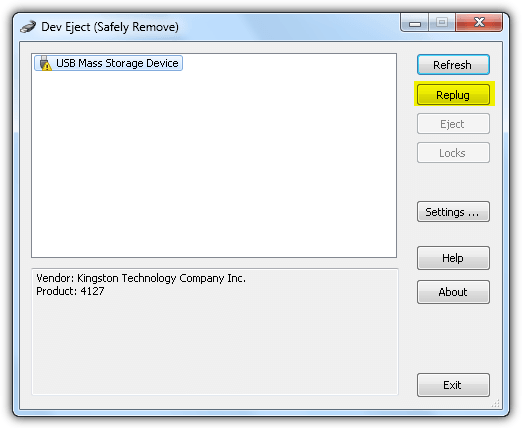
To remount an ejected USB drive, simply select the device from Dev Eject and click on the Replug button which we’ve highlighted in the screenshot above. The replug feature worked perfectly when tested in Windows XP and 7 but not in Windows 8.1 as the program kept on crashing. Although Dev Eject comes in a setup installer, you can actually copy the program folder to another computer and use it without reinstalling.
2. USB Safely Remove
USB Safely Remove is an extended USB device manager. It is able to completely replace the native “Safely Remove Hardware Icon” in Windows and offer a lot more functionality such as renaming/stopping/hiding a device, program autorun on connect/disconnect, command line and keyboard shortcut keys support, investigate why a device cannot be stopped/ejected, and most importantly returning a device back without reconnecting it (unplug and reinsert). USB Safely Remove can even detect and notify you if other devices will be affected when returning the device back.
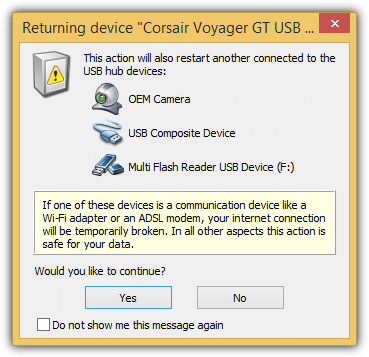
Although USB Safely Remove is a shareware claiming that you can use all the features for the first 30 days. The program can still fully work after expiration though, a registration reminder notification will be displayed with a 30 second countdown before you can continue the popup.
3. Zentimo
Zentimo is the successor of USB Safely Remove created by the same developers with the aim to be a Swiss army knife for the management of external storage devices. It has all the features found in USB Safely Remove plus a quick launch menu to easily launch portable applications, testing the speed of the drive, disabling Windows autorun, portable settings and TrueCrypt integration.
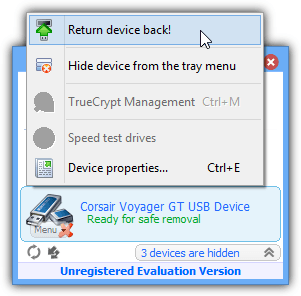
To return a stopped device back, simply click on the device that is marked with “Ready for safe removal” or you can also right click and select “Return device back!”. The development for both USB Safely Remove and Zentimo has slowed down a lot recently with no updates for a year but they do officially support Windows 8.
Zentimo is also a shareware and the trial limitation is exactly the same as USB Safely Remove where you can still continue using it even when it has expired.
4. Disable and Re-enable USB Mass Storage Device
This fourth method is a manual way of remounting an ejected USB device without relying on a third party software. When you’ve ejected a USB flash drive, the device icon will be shown with a yellow exclamation mark in Device Manager with the message saying “Windows cannot use this hardware device because it has been prepared for safe removal but it has not been removed from the computer (Code 47)”.
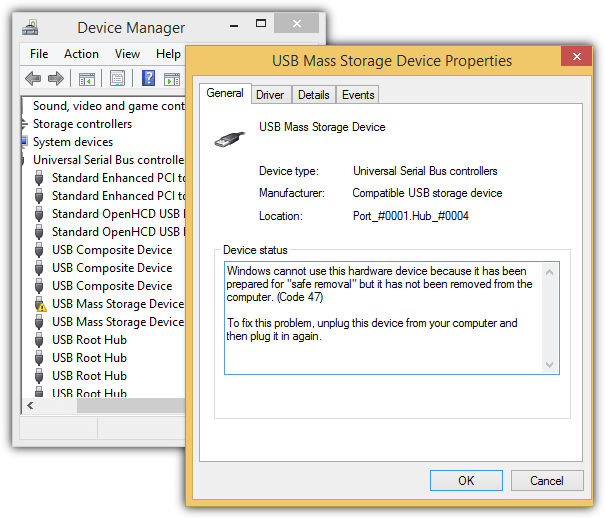
Tip: To access Device Manager, press WIN + Pause/Break keys to bring up System and click on Device Manager from the left pane.
For Windows XP, all you need to do is right click on the device, select Disable and click Yes to confirm. Right click on the device again, this time select Enable and you’ll notice that Windows will start to re-detect and remount the USB drive.
For Windows 8.1, do the same as above and make sure you click on No when prompted to restart your computer after selecting Enable. Repeat the steps of disabling and enabling the device one more time and again click on No when asked to restart. Amazingly Windows 8.1 remounts the ejected Drive after cycling the disable and enable twice. Strangely this method does not work on Windows 7.
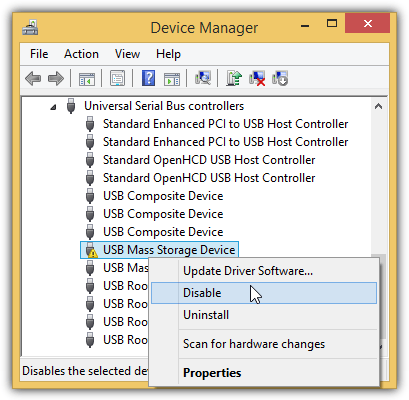
You can automate this task automatically using a batch file with devcon.exe. DevCon is a command line utility that can perform a number of actions such as enabling and disabling a device in Device Manager. You can download devcon.exe from here, extract and use the build (either 32-bit or 64-bit) according to your Windows architecture.
First you’ll need to find the Hardware ID of your USB flash drive from Device Manager. Double click on the USB Mass Storage Device, go to Details tab, and select Hardware IDs from the Property drop down menu. Note down the value of your USB device.
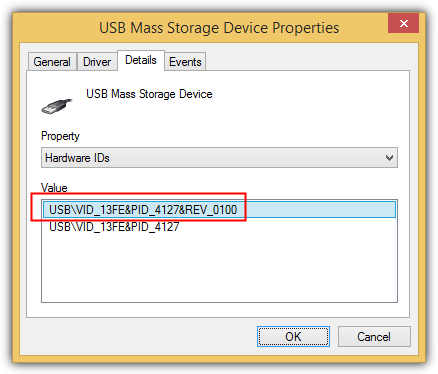
Copy the 4 lines below and paste it into Notepad. Replace the values of *Your_PARTIAL_HW_ID* according to your device’s hardware ID.
devcon disable *YOUR_PARTIAL_HW_ID*
devcon enable *YOUR_PARTIAL_HW_ID*
devcon disable *YOUR_PARTIAL_HW_ID*
devcon enable *YOUR_PARTIAL_HW_ID*
You can either enter full or partial hardware ID depending if you have another device with the same vendor ID. As you can see from the screenshot below, we used a wildcard on VID_13FE because we know that there is no other device with the hardware ID VID_13FE other than our USB flash drive.
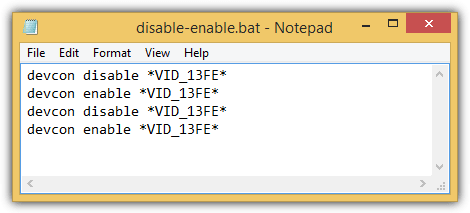
Place the batch file together with devcon.exe. Whenever you run the batch file, it will automatically enable and disable your USB device twice to force Windows 8.1 to remount your ejected USB flash drive.
5. Uninstall USB Root Hub
Uninstalling USB Root Hub and reinstalling it again can also trigger Windows to remount an ejected USB flash drive. The steps are quite similar to the fourth method and it works on Windows 7. First you need to eject the drive, then go to Device Manager by pressing WIN + Pause/Break keys and click on Device Manager at the left pane. Click on View menubar and select Devices by connection.
Locate the USB Mass Storage Device with a yellow exclamation mark, right click on the parent “USB Root Hub” and select Uninstall. If you’re using Windows 7, click on the Action menu bar and select “Scan for hardware changes”. This will force Windows to register and reinstall any USB devices under the USB Root Hub that you’ve uninstaller earlier. If you’re on Windows 8.1, Microsoft has made it so much easier because Windows will instantly remount your USB device after uninstalling the USB Root Hub.
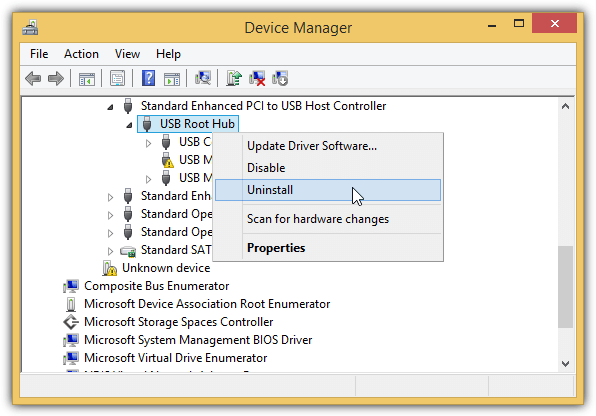
Unlike disabling and re-enabling a USB Mass Storage Device, you won’t be asked to restart your computer but if you have another device such as an ADSL modem connected to your USB port, then it might get disconnected when you uninstall the USB Root Hub. The devcon command is also much simpler because you don’t really need to identify the hardware ID that you want to uninstall. Use the command below:
devcon remove *root_hub20*
For Windows 7, you’ll need to add a second line to rescan for hardware changes.
devcon rescan
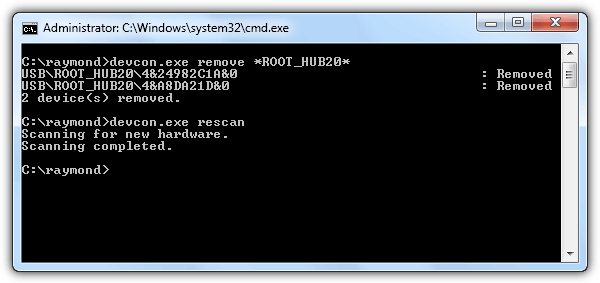
A ready made batch file to remove the USB Root Hub and rescan for hardware changes has been made available for you which can be downloaded from the link below. Simply download the package according to your Windows architecture.

Changing a drive letter helps sometimes…
Fix #4 works on Windows 10. Do it all twice!
Hi, test this one:
HotSwap!
mt-naka.com/hotswap/index_enu.htm
The dev eject can’t replug my usb flash again when I restart the windows after I press the eject button. Which software can replug my usb flash when i restart windows 7?
P.S. so that I need to plug it physically when I reboot the windows or turn on the computer! After that , this problem is not exist, it can be replugged and ejected. However, when i restart the windows, i need to physically plug it once. I hope you get my meanings!
Good tips, except they don’t seem to be working in Server 2012 R2. After you disable and enable the USB Mass storage, the server wants to reboot. Of course if it is in the middle of the day, one can’s simply do that. And the drive/s would not show up until a reboot. Which defeats the purpose of doing all this to avoid a reboot in first place. I guess #WindowsProblems…
As written in the original article – try it twice.
Thanks, it is very useful….
Can this be automated without a GUI. We want an end user to be able to walk up and unplug an external drive and plug in the next “safely” without logging into this (headless) PC that run backups to these drives.
Would be good to run a batch to disconnect the drive at end of backups and connect at the beginning.
Also can these be run on a remote device. I’ve tried to look at ejecting an portable device from a remote desktop but couldn’t find an answer there.
thanks for the article. useful for me since i work where the processing unit is on the other side of the building where my workstation desk is located.
yes it is usefull advice for me…………………………….tnx for advice
deveject worked for me, thank you so much excelent tool, thanks for the reference
DevEject doesn’t work for SSD on Win7.
USB Safely Remove is the best!
Whoa, USB Safely Remove is *suspiciously* similar to Zentimo (read: one, or the other, is – most certainly – a rip-off; from the looks of it :)); WTH, lol. Anyway, looks good – functions great, thanks!! =)
That’s because it’s by the same company, Zentimo is like USB Safely Remove with a few extra things added on.
DevEject did not work for me. I have Win 7 x64. It installed fine but no USB devices appeared in the list even though I have 4 USB devices connected. Manually unplugged my usb flash drive and plugged it back and still nothing.
There was no contact information on the program’s website so I gave up and decided to uninstall it. During the process I got a bluescreen and the file in question was volsnap.sys. This was very surprising considering my computer has been running completely fine and I can’t even remember the last time I got a bluescreen on my computer.
After rebooting the installed folder was gone but the name still showed up in Add/Remove programs. Decided to reinstall the program but it failed at first because it couldn’t find the temp directory that contained the .msi setup file even though I was using the setup.exe. I had to manually search for the temp folder that contained the .msi file before it would reinstall. After that I uninstalled the program through the setup.exe which had an unintuitive interface. Very bad experience and the program didn’t even work. I wouldn’t recommend DevEject at all.
Then I installed USB Safely Remove which worked without any issues.
That’s madness, thank you for the warning!.. What’s really confusing is that you appear to had lost system functionality, upon install: “Manually unplugged my usb flash drive and plugged it back and still nothing.”
^^ Rly strange, meh. :-/
Thanks. Nice tips. I’m having a issue that my ssd and HDD shows up for safety removal like as pen drive. I’m running AHCHI mode with windows 8.1 pro. How can solve this issue?
Disabling and Re-enabling USB Mass Storage Device in the Device Manager (Win XP sp3) will cause an automatic reboot. So why disabling and re-enabling at all? Just reboot and the device will be mounted just like that.
Disabling and re-enabling a device in XP Device Manager shouldn’t cause an automatic reboot, whatever device it is. Windows should always ask you first if it needs a reboot.
Also, disabling and re-enabling a “USB Mass Storage Device” will not cause or ask for a reboot because it’s a plug-and-play device which means you can disable it as many times as you like (we’ve just tested it again). If what you are saying was the case, you would have to reboot every time you unplug a USB flash/hard drive…
However, disabling “USB Root Hub” with devices attached to it will ask for a reboot.
Under Startup and Recovery, in Advanced System Properties, teh “System failure” option *Automatically restart* maybe had something to do with it.. Just btw. :)
If there’s a system failure when plugging in a USB device, there’s something quite seriously wrong!
In Windows 7 I’ve found another way: attach the usb device to a running virtual machine, safely remove from the virtual machine, detach from the virtual machine.
Hehe, that’s fresh; congrats! xD
(& yes, it’ll re-initialize the USB device in Windows – once it’s freed from the VM :))
Excellent tip! thanks Raymond
I had to reattach a drive using remote desktop on a PC 300 miles away when unplugging and re-attaching is not an option. This solved my problem
P.S. of course a possible side effect is that I may feel less compelled to clean out under the desk, since I may not have to crawl around down there as often ! ;)
This is a valuable tip. Other than the data card, in many laptops, the CD rom is attached with the USB internally. There are many times I removed my dvd rom accedently thinking that as an other flash drive and had to reboot again to get DVD rom back.
Now I have just to run devmgmt.msc and take my DVD rom back.
Thanks
Awesome, this is a really useful tip. I can’t remember how many times I have accidentally removed the card reader from my computer and need to reconnect it again.
VERY NICE ED KEEP IT UP!!!
hi Ray… we expect more of this kinda tips.. :)
@ Raymond
Thanks.
I sent email to Nir Sofer, maybe he likes it too and can put this in USBDeview, I hope.
I like it for remote administration, no need to call someone or drive 20 miles.
I am on Windows XP/SP3 and have no problem, no need to reboot. I think that sometimes we put USB drive and Windows say “Finished installing drivers but you must reboot to use the device”. Maybe this is the same type of errors some posters are having?
This work in XP follow the steps
Win+pause
click Dev manager
click view click device by connection
Righ click on USB root hub instead of uSB mass storage device ;Disable first then enable
I like this trick, but i like it more a new shortcut I learn.
Win + Pause = PC Properties
I don’t know that…
Thanks
excellent :D
Mr. Raymond:
I am one of those who has a computer with USB ports not easy accesible so this trick it’s very hepful to me.
Many thanks and keep on this way.
thx for your tips, raymond