
Raymond.CC Blog
  • Home
  • Forum
  • Giveaway
  • X-Ray 2.0
  • Contact
  • About
  • I’m Feeling Lucky
Search the site...
You are here: Home » Windows » Restore or Fix Missing Accessories Shortcuts in Start Menu

Restore or Fix Missing Accessories Shortcuts in Start Menu

Updated by HAL9000 - 5 months ago - Windows
28
  • Like
  • +1
  • Tweet
  • Printer Friendly and PDF

If you regularly have people asking you how to do something on their PC, usually the easiest way to guide them is through the Start Menu and tell them to simply click on the icon. A lot of very basic and highly used functions are tucked away in the Start Menu, and notably in the Accessories folder. For example they can find accessories shortcuts for simple tools like Sticky Notes, Paint, Calculator or Notepad in the Accessories folder, as well as more advanced tools like the Disk Defragmenter, Resource Monitor or Windows Easy Transfer.

For various reasons, sometimes these shortcuts can go missing and it makes the average persons job to run simple tasks and tools a bit more difficult. Most of the Start Menu entries in Accessories are simply shortcuts to utilities contained within the Windows or System32 folders and are there purely to give quick and easy access. More advanced users could probably live without them because they know the commands to run them anyway through the Run box, but more inexperienced or average users rely on them a lot more.
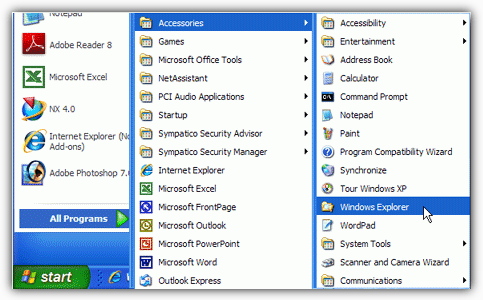
Windows Start Menu Accessories

There are a few ways to restore back the Accessories group to the Start Menu and funnily enough XP users have it the easiest because there’s a simple tool that can do it for you. Vista and 7 users aren’t quite so lucky as there doesn’t seem to be the equivalent tool around for them.

Restore Accessories group is a small utility designed for Windows XP that does the plain and simple task of restoring the Accessories icons that may have gone missing by accidental deletion or some other means.
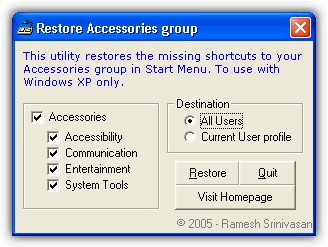
Restore accessories group

The Accessories group includes the four sub-folders inside it by default; Accessibility, Communications, System Tools and also Entertainment. If you only have one of the folders missing for example, you can select just the sub-folder that you want to restore. The Destination buttons will obviously decide whether you are restoring the icons for All users on the system or just the Current User profile. Then just press Restore and the process will be completed in a fraction of a second.

The Restore Accessories Group tool is a tiny portable executable of only 60KB and is designed to work in Windows XP. It will actually work and restore several shortcuts back into Vista and 7 but this is not recommended because a lot of them won’t work as they have since changed or been removed. In addition you will also get XP specific shortcut icons such as “Tour Windows XP” appearing. It’s best to try the solutions below for Windows Vista and 7.

Download Restore Accessories group


Unhiding Hidden Accessories Entries

For some reason a lot of people report the Accessories Start menu entries sometimes become hidden and they are still there but you need to unhide them again to make them visible. This can even happen if your system is configured to show hidden files and folders by default, so is worth checking.

The simple way to check 1st is to open an Explorer window by clicking on the task bar icon or opening “Computer”, then click the Organize button -> Folder and search options -> View tab. In the View window select “Show hidden files, folders and drives”. Users who already have the option on can skip this.

Show hidden files folders and drives

Then click Apply and navigate to the following folder (Replace the username with the name of your user account):

C:\Users\username\AppData\Roaming\Microsoft\Windows\Start Menu\Programs\

Along the way, check the Microsoft, Windows, Start Menu, Programs and finally Accessories folders to see if the icons are faded which indicates they are hidden. Or right click on them and select Properties.

Accessories Folder Properties

If any folders have a tick in the hidden box, click to clear it then click Apply. If this was your problem, they will then come back once the folders have been unhidden. It’s also worth checking the following folder for the same problem because this is where the default icons for all users are stored:

C:\ProgramData\Microsoft\Windows\Start Menu\Programs\

Check the Accessories folder and its contents inside. You should find 3 or 4 folders and around 13 icons including Paint, Sticky Notes, Wordpad etc. If they are missing then the only option is to replace them from another source…


Copying the Accessories Folder from another source

If your Accessories folder and/or icons in ProgramData and possibly AppData\Roaming are completely missing, then the only thing you can do is copy them onto your machine from a different system. Using the System File Checker (SFC) won’t restore them and neither will the trick of creating another user a account and copying the icons from there. That will get back some of the icons but those gone from ProgramData, which is most of them, will still be missing.

For your convenience we have zipped up the default Accessories folders for Windows Vista and 7. Simply download the correct 2 files for your o/s, extract the archive and copy the “Accessories” folder inside, pasting it to the location given.

Download:

Accessories folder for Windows 7 ProgramData

Accessories folder for Windows Vista ProgramData

Extract, copy “Accessories” and paste to:

C:\ProgramData\Microsoft\Windows\Start Menu\Programs\

Download:

Accessories folder for Windows 7 User

Accessories folder for Windows Vista User

Extract, copy “Accessories” and paste to (Replace username with the name of your user account):

C:\Users\username\AppData\Roaming\Microsoft\Windows\Start Menu\Programs\

If everything has gone correctly, the Windows default accessories shortcuts should be back!

Windows Vista/7 Accessories Shortcuts


Didn't find what you want? The links below could help:

Right Click Context Menus Added to your DesktopRight Click Context Menus Added to your DesktopRemove Stuck Print Jobs or Fix High Spoolsv.exe CPU UsageRemove Stuck Print Jobs or Fix High Spoolsv.exe CPU UsageInstalling Windows 7 System Recovery Disc onto USB Flash DriveInstalling Windows 7 System Recovery Disc onto USB Flash Drive5 Ways to Fix Windows Tooltips Showing Behind the Taskbar5 Ways to Fix Windows Tooltips Showing Behind the Taskbar

28 comments on “Restore or Fix Missing Accessories Shortcuts in Start Menu”

  1. Maryam says:
    2 weeks ago

    The problem is paint and sticky notes are not in my accessories folder. I don’t know what happened. Can you please help?

    Reply
    • Maryam says:
      2 weeks ago

      Never mind I got it

      Reply
    • HAL9000 says:
      2 weeks ago

      Have you downloaded the Accessories for ProgramData zip file and extracted it to the right folder? Paint and Sticky Notes are in there and will come back once copied to the folder mentioned…

      Reply
  2. Bill says:
    1 month ago

    This worked, with the exception of, it wouldn’t let me extract the new files into the ‘accessories’ directory. I created a new folder on the desktop and extracted the files to that location. They can be run from there and that is all I need.

    Thank you for the step by step!!!
    Bill

    Reply
  3. J watson says:
    3 months ago

    Excellent tool. Did exactly what I needed. Thanks for putting it together.

    Reply
  4. Hurley says:
    3 months ago

    It is one thing to know how to fix the problem and still make it easy enough for a computer dummy like myself to fix by myself.

    Thank you very much

    Reply
  5. patneal says:
    8 months ago

    Thank you so much!!

    Reply
  6. Sac says:
    8 months ago

    THANK YOU MR. RAMESH SRINIVASAN. Great tool, saved a lotta time.

    Reply
  7. Raj says:
    1 year ago

    Very Much intelligent utility, does it very easily..

    Reply
  8. kieran says:
    1 year ago

    cheers,,had lost the shortcut for win media player,lol,,back in a flash

    Reply
  9. Amrita says:
    1 year ago

    Thanks a lot! It was very useful :)

    Reply
  10. Les says:
    1 year ago

    Thank you very much for the great restore program. My PC got many viruses and after removing all of them my PC was in a mess. I was ready to resinstall my OS. This virus or group of viruses actually hides all of your icons and hides all of your folders. I have also lost most of my shortcuts. I have decided to create new shortcuts for programs I need to open when I need to.

    Les

    Reply
  11. Ronny Patel says:
    2 years ago

    Thanks a lot! I was able to restore my ‘Accessories’

    Reply
  12. Stephen Warcup says:
    2 years ago

    That was cool and easy, Just one ? is there a way to also add the backup tab it’s the only one missing now thank you have a great day

    Reply
  13. WOW says:
    3 years ago

    just wow, simple easy to use, i was super drunk and i figured it out, thank you!

    Reply
  14. Lee says:
    3 years ago

    Sweet! I just bought a new computer and in the middle of all my upgrading and reinstalling I accidentally deleted system tools cause Im a tool!

    Nice little piece of software you have here!

    Thank you!

    Reply
  15. Daveo says:
    4 years ago

    Hey this worked fine on my Vista x86! My Remote Desktop Connection (in addition to many others) was restored without issue. Thanks for a quick solution that works!

    Reply
  16. mike says:
    4 years ago

    Hi this is if you have lost most of your programs in the Vista Home Premium start all programs area
    First of all you need to do is create shortcuts from the following programs and shortcuts
    To get these open start>computer>search
    Start to type or copy paste the following into the search bar located in the top right hand corner
    The 1st 7 are folders and the rest are just shortcuts and save to the desktop.

    Accessories
    Extras and Upgrades
    Administrative Tools
    Games
    Maintenance
    Programs
    Startup
    Shortcuts
    Launch Internet Explorer Browser
    Media Center
    Media Center
    Windows Collaboration
    Windows Contacts
    Windows Defender
    Windows DVD Maker
    Windows Media Player
    Windows Movie Maker
    Windows Photo Gallery
    Windows Sidebar

    Once you have done this you will need to do the following:

    Right click on the Start button and click on Open All Users or Explore All Users, not Open/Explore.
    NOTE: This will open this hidden Start Menu folder in Windows Explorer:
    C:\ProgramData\Microsoft\Windows\Start Menu then you copy or cut and paste all of the folders and
    Shortcuts you have just made in the folder then close this and then hey presto all done:
    Click start all programs then you will see all back to normal…
    This took a while for me to figure out and no doubt it will happen again so I will be smart
    Write it all down and copy all the folders and shortcuts I have made and this no file to a cd for
    Future use
    I hope this helps anyone with this issue thanks for looking… you don’t need to install
    Any other software to do this as my old Pappy said to the best way to learn About a Pc is to read
    The forums lol

    Reply
  17. Randy says:
    4 years ago

    Thanks a lot! I was able to restore my ‘Accessories’ in Window$ VISTA!!!!!

    Reply
  18. Sophea says:
    4 years ago

    Thank your raymond. It really great for your comment.
    Your commend is very useful for people like us.

    Wish your success in your business.

    Many thanks again!!!

    Sophea

    Reply
  19. Ricky says:
    4 years ago

    Thanks Raymond. As other said it will come handy some times in the future. This is very usefull info for people like us “Friend”.

    Thanks again Raymond.

    Ricky

    Reply
  20. jeff says:
    4 years ago

    thanks raymond. its really helpful!

    Reply
  21. Solaris says:
    4 years ago

    Thanks for the tip. :mrgreen:

    Reply
  22. Rusty says:
    4 years ago

    Thanks Raymond never know when this may comein handy.It appears that this old PC does something different every day

    Reply
  23. KALMANI says:
    4 years ago

    @friend…PLEASE STFU!!!…THIS IS USEFUL INFO…THANX BTW RAYMOND.

    Reply
  24. Roy Raay says:
    4 years ago

    Thanks mate, cheers!

    Reply
  25. Friend says:
    4 years ago

    Please put some useful information. But i appretiate your hard work.

    Reply
  26. Ammar says:
    4 years ago

    Thanks Raymond.

    This might help in future.

    Reply

Leave a Reply Cancel reply

Your email address will not be published. Required fields are marked *

Recently Updated

  • flash bios icon

    5 Tools to Easily Install FreeDOS or MS-DOS onto USB for BIOS Flashing

  • avast icon

    Reset or Remove avast! Authorization Password to Access Settings

  • U3 icon

    How to Customize U3 USB Smart Drive to Become Ultimate Hack Tool

New Articles

  • task manager replacement icon

    Memory Usage Test to See Which is the Lightest Antivirus Software

  • kaspersky antivirus 2013 icon

    Activate Free Kaspersky Anti-Virus 2013 ROG with 1 Year License

  • remote access software

    Top 8 Remote Access Software for Providing Online Support

Popular Posts

  • Top 10 FREE Data Recovery Software

    Top 10 FREE Data Recovery Software

  • How to Hack Into a Windows XP Computer Without Changing Password

    How to Hack Into a Windows XP Computer Without Changing Password

  • 10 Free Software to Mount CD or DVD ISO Image File as Virtual Drives

    10 Free Software to Mount CD or DVD ISO Image File as Virtual Drives

Recommend on Google
Follow @raymond_cc
Subscribe Youtube »
(c) 2013 Raymond.CC Blog
  • Contact
  • Disclaimer
  • Disclosure
  • Privacy Policy
  • Terms of Use
  • Sitemap


