
Schedule BitTorrent Clients to Automatically Start and Stop Downloading


 8 min. read
  Published on

Although many Internet Service Providers offer a nearly or fully unlimited amount of traffic or bandwidth, many do not. One of the common ways to restrict traffic is to throttle the entire connection or specifically reduce Peer2Peer traffic speed until a certain time when the network will be quieter. Others might reduce your connection speed if you exceed a specified quota during peak hours.
Some ISP’s sometimes don’t monitor or count what you download when the network is at its quietest, which is mainly overnight. If you’re a heavy torrent user that downloads or uploads torrents nearly every day, you either have to physically be there at the best time to start transfers, or start the torrents going when you can. Even if it means running them during peak hours and possibly risking restrictions.
Luckily there are ways to automatically start or stop downloading and seeding your torrents. Most of the popular torrent clients have this feature built in or easily available. Here’s a selection of popular Torrent clients and how to schedule BitTorrent downloads in each one. This saves you the trouble of starting and stopping torrents yourself.
qBittorrent
There isn’t a specific feature in qBittorrent that allows you to set individual schedules for every day of the week. However, you can set an overall schedule for every day, weekdays only, weekends only, or for one individual day.
1. Click the Options button (right most button) or go to Tools > Options (Alt+O).
2. Click on the Speed icon down the left. Check “Schedule the use of alternative rate limits”, set the from and to time, then choose when to apply the schedule in the dropdown.
3. Finally, set the download and upload speeds to apply during the scheduled time from the boxes above.
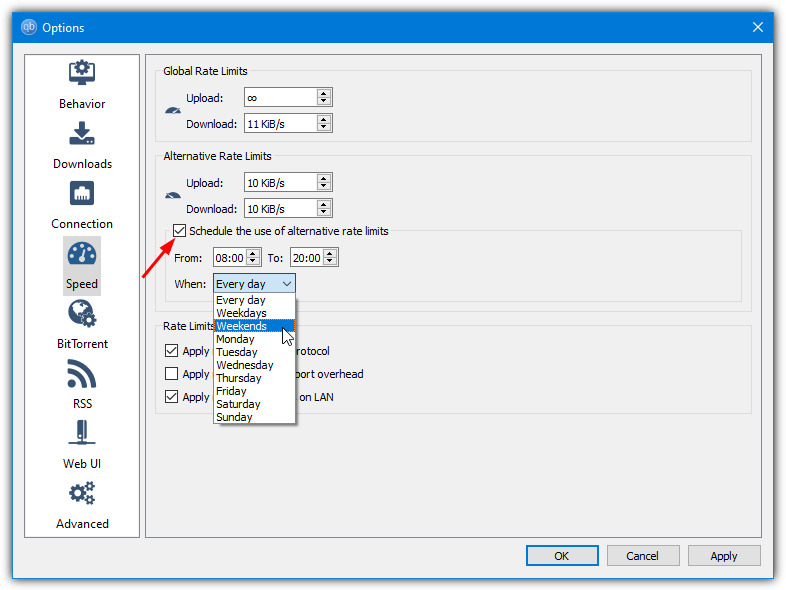
Setting the download/upload box to Zero will mean unlimited transfer speed.
Deluge
1. Click the Preferences button on the toolbar or go to Edit > Preferences.
2. The scheduler plugin is not enabled by default so it needs switching on before you can use it. Click on Plugins down the left and in the window put a check next to the Scheduler plugin, then press Apply.
3. A Scheduler option will now appear at the bottom on the left of the Preferences window for you to select and make changes.
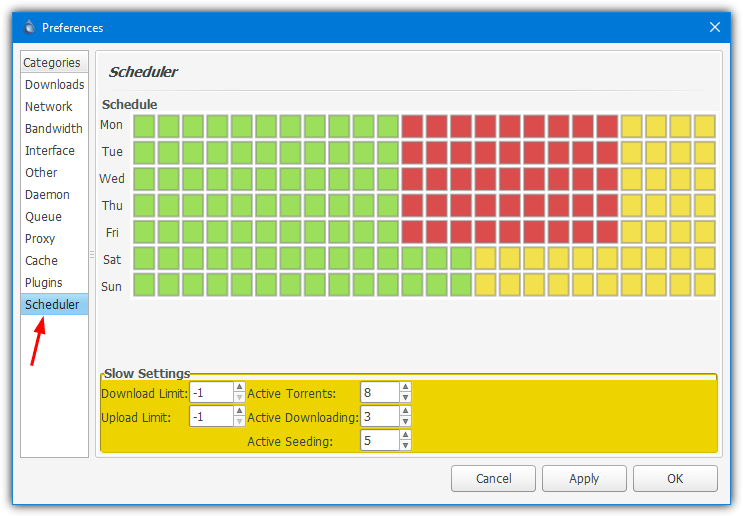
There are no label descriptions but the one hour blocks and colors are easy to understand. Green is normal transfer conditions, orange is the limited mode for which you can alter the settings below for upload/download limits in addition to the number of active torrents. Red will stop transfer activity completely.
Free Download Manager
Although this is primarily a general file download manager, it also is a torrent client. There is a scheduler built in that works on each downloading file or torrent individually.
1. Right click on a torrent in the download list and select Schedule.
2. The Scheduler should already be enabled, all you have to do is check the Everyday box or check specific days individually. Then set the From and To times.
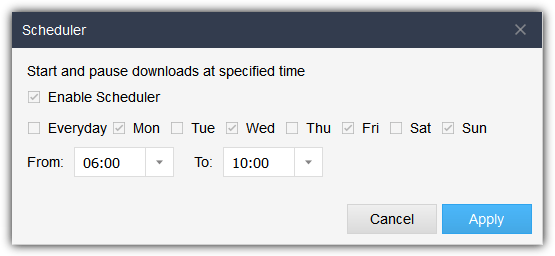
Right click on any other downloads to set their own separate schedule.
Download Free Download Manager
Transmission
The scheduling feature in Transmission is virtually identical to the one found in qBittorrent. That means you can set a download/upload speed for every day of the week, weekdays only, weekends only, or for one individual day.
1. Go to the Edit menu > Preferences, the options are on the initial Speed tab under “Alternative Speed Limits”.
2. Choose the download/upload speeds, check the “Scheduled times” box, set the time, and select the day schedule from the drop down box.
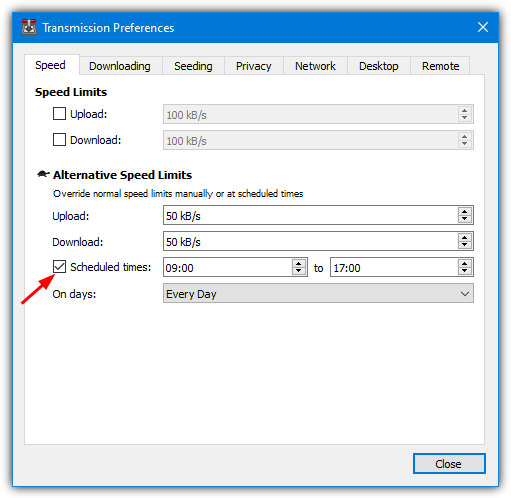
There appears to be no unlimited transfer option in this mode. The workaround is to set the limits to exceed your internet connection speed.
uTorrent/BitTorrent
As these two clients are pretty much identical, they both have the same (although different color) interface and the Scheduler is also the same for both. If you are one of those users hanging onto the old version 2.2 of uTorrent, the scheduler function is still the same.
1. Go to Options > Preferences (or press Ctrl+P).
2. Click on the Scheduler category down the left and tick the box to enable the scheduler.
3. You can now set your schedule by clicking on the blocks in the grid.
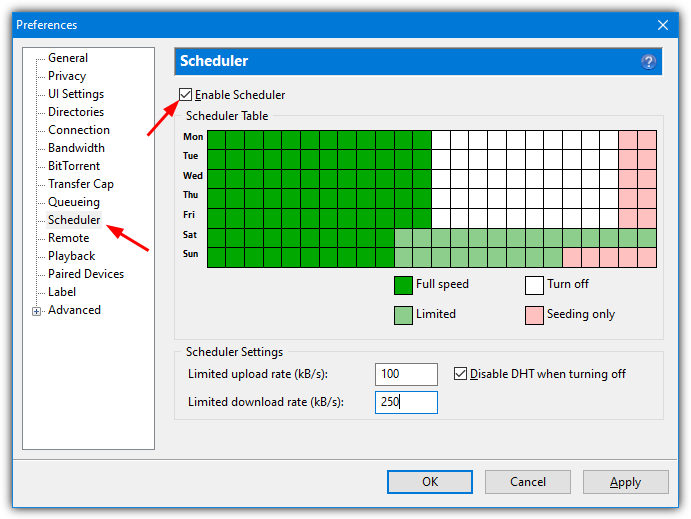
All blocks default to Full Speed, repeatedly click on the block or drag the mouse to cycle through the other Limited, Turn Off, and Seeding only options. Each block represents one hour and starts at 12 AM midnight which should be enough for you to set it to your liking. There is also the option to set the upload/download rate when running in limited (light green) mode.
Download uTorrent | BitTorrent
Tixati
Tixati has quite an advanced scheduling feature, but this does inevitably come at the expense of being trickier to configure than other clients.
1. Click the Settings button on the toolbar, click on Scheduler down the left and select On from the “Active Scheduler Feature” dropdown. There are a couple of options you might like to look at in the window such as what happens if a schedule is missed and default schedule options.
2. Close the Options window and a Scheduler button will now be present on the toolbar. Click on it and then on the Add button.
3. In the “Add Scheduler Task” window, enter a name for it, and set your options for which days and time the task will be executed. Then click on Add which will determine what happens. There are a number of options here and you are not limited to adding just one action.
For example, you can set one task up to simply start the torrents, or also add in another action for bandwidth limiting. Similarly, a task can be configured to stop all torrents and then close the program or even shut down the computer.
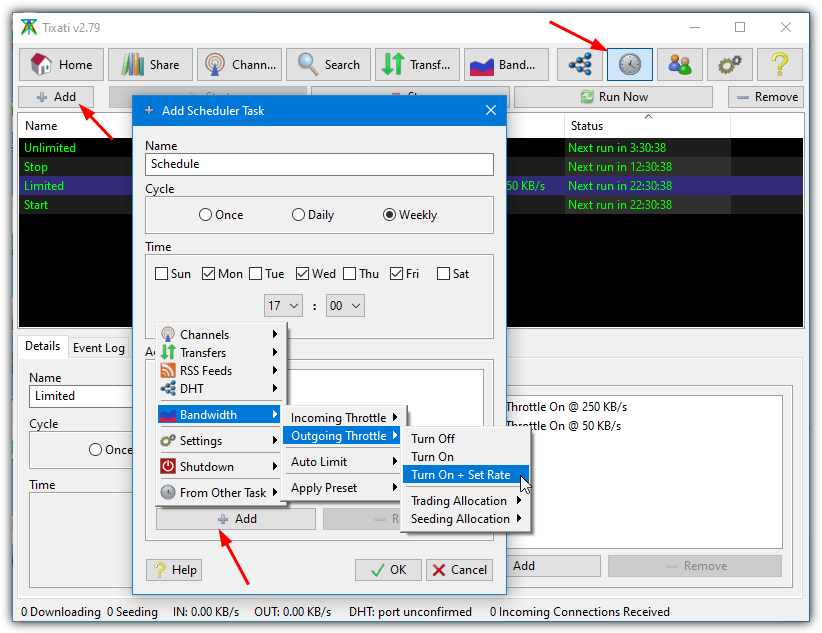
Obviously, if you set up a task to start, stop, or limit, then an opposite task needs to be configured to provide the reverse effect. For example, if you set up a task to begin downloading at 11 PM every night, you will also need another task to stop downloading.
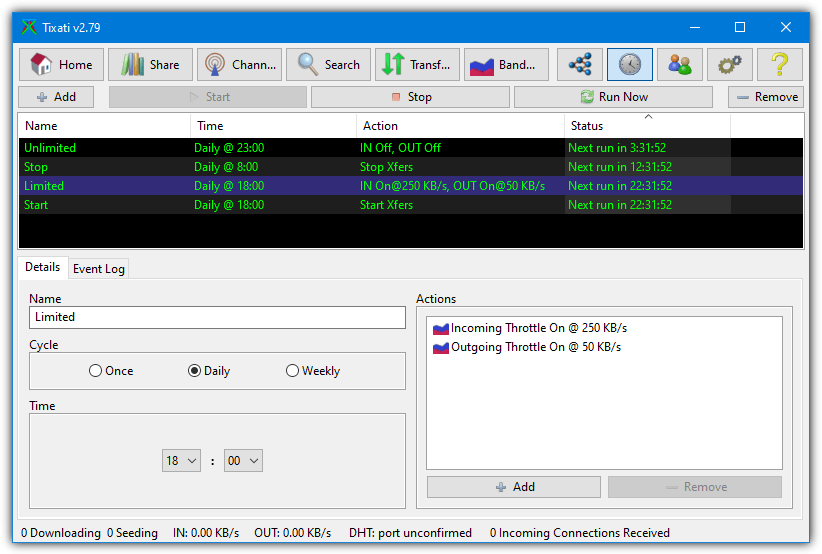
All created tasks will show in the main Scheduler window and can be started, stopped, removed, or edited. The Status column is useful because it tells you when the task is next due to run.
BiglyBT (also Vuze/Azureus)
This is a slightly more involved process because the scheduler component is not built into BiglyBT by default and needs downloading. Once installed, the scheduler is similar to the one found in Vuze.
1. Go to Tools > Plugins > Get Plugins. The BiglyBT plugins webpage will open in your browser.
2. Find “Speed Scheduler” and click the Install button. Accept if your browser asks for access to open BiglyBT. In the Component/Plugin Installer window, press Install and then Close once the process has completed.
3. The Speed Scheduler option is found near the bottom of the View menu. Check the box to enable it and then click the New Schedule button to the right.
4. Now you can create a new schedule by either choosing to leave or tick the pause downloading/seeding boxes which obviously will start or stop the torrent transfers at the specified times and days. The time increments are quite small in BiglyBT with 15 minute intervals.
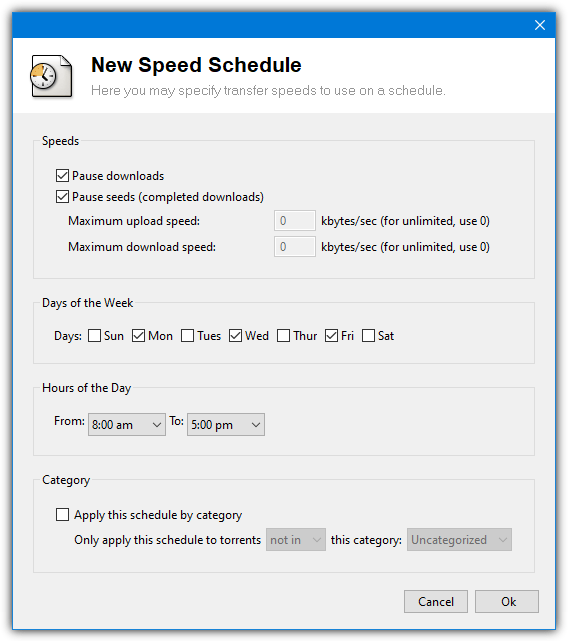
Something the plugin can’t do is span the time across midnight so you can’t set up a simple start at 11 PM and stop at 8 AM type schedule. There either needs to be two separate schedules (one up to 11:59 PM and another starting at 12AM), or the reverse and tell it not to download or upload from 8 AM to 11 PM and etc.
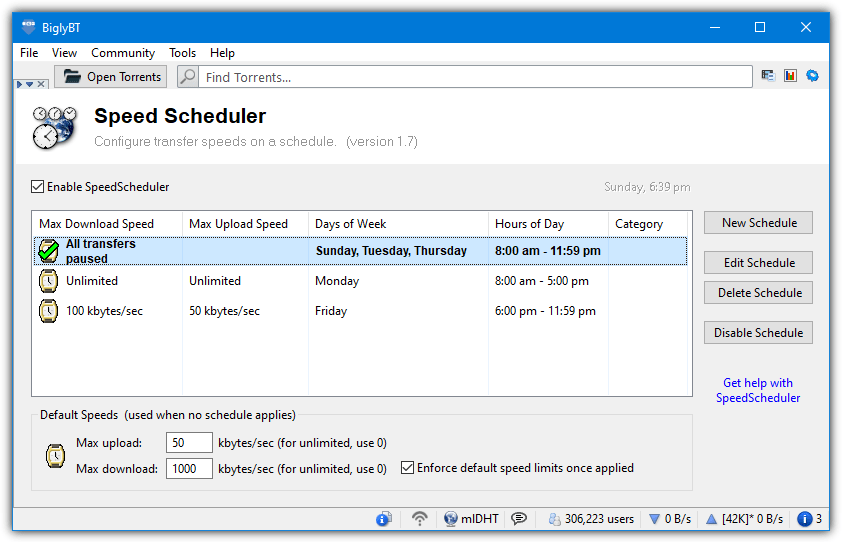
Setting up multiple schedules is pretty easy and they can also be disabled or removed. The green checkmark is there to tell you which schedule is active on the current day and time.
BitComet
1. Go to Tools > Options or click the Options button on the toolbar (or press Ctrl+P).
2. Go to Scheduler on the left, then tick the box to enable the Scheduler.
3. Click on the individual blocks to enable High Speed, Low Speed, or Turn Off.
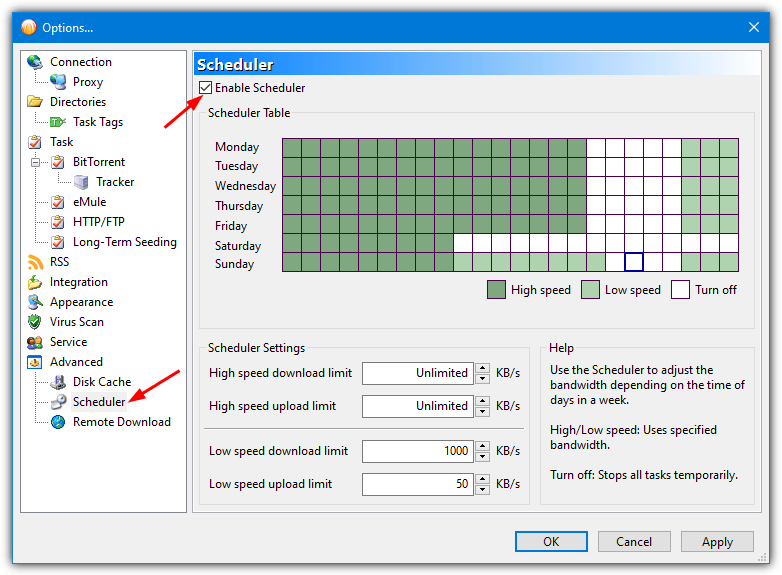
The BitComet scheduler doesn’t have a seeding only schedule but does have High speed and Low speed limit settings so you could always get creative with them and set download speed to 0 if you only want to seed torrents at set periods.
BitSpirit
You might notice the BitSpirit scheduler is another one that looks pretty much identical to uTorrent with full, limited, seeding only, and off options available.
1. Click on the Options menu > Preferences.
2. Expand the Advanced tree on the left and click on Scheduler. Then check the Enable Scheduler box.
3. Click on the required hour boxes in the window to cycle through Full, Limited, Seeding only, and Off. Hold the mouse button down and drag to change several boxes in one go.
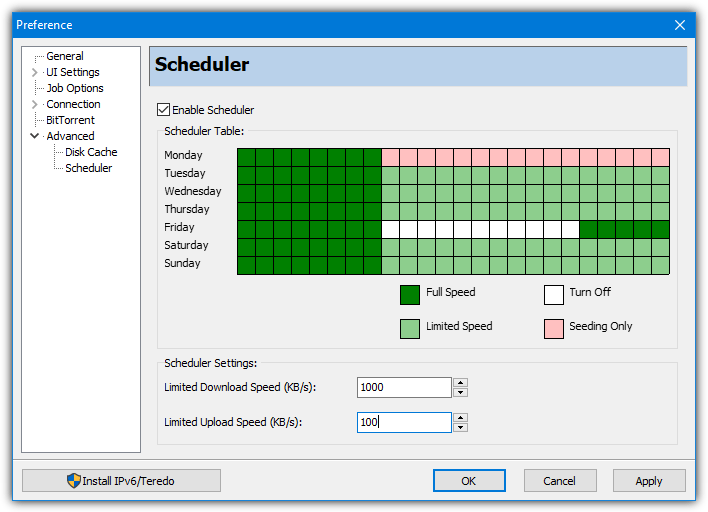
Each box shows a one hour interval and the left side starts at midnight, the limited speed settings can be configured in KB/s from the text boxes below.
Note: Another well known torrent client we tested is the lightweight PicoTorrent. Sadly, it doesn’t have any form of scheduling function at the time of writing.



Improve this guide

User forum
0 messages