How to Disable UAC For a Specific Program [5 Ways]
Whether you like the User Account Control (UAC) feature in Windows Vista, 7, 8, and 10 or not, you should have it enabled if possible. This is because it’s capable of blocking some actions by malware such as adding itself to global startup, adding or modifying files in important folders, installing rogue software processes and etc. There are certainly weaknesses in UAC and there are ways to bypass its restrictions on a system, but not all malware is capable of doing that which is where UAC can work.
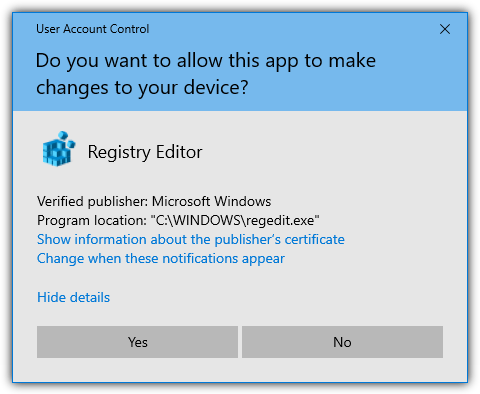
Unfortunately, the effectiveness of UAC will probably diminish over time for many users. They will probably just end up pressing Yes to allow access without even looking at what is asking to run because the prompt appears so often. Power users will no doubt find UAC extremely annoying and it’s the first thing that many will disable after installing Windows. However, it’s better for everyone to keep UAC on if they can.
If you have UAC enabled it can be quite annoying when you use a piece of software often and every time you run it, the UAC prompt appears. The program is perfectly safe, you’ve run it several times, and yet Windows keeps asking. Thankfully, there are ways around this problem to stop the UAC prompt from appearing for programs you specify and trust, here’s a selection of ways you can do it.
Note: These methods are specifically for administrators with User Account Control enabled to disable the prompt for specific programs. They are not for bypassing UAC on standard user accounts. Also, please make sure you are certain the program you want to disable UAC for is safe. It could damage your system if you willingly allow an unsafe program to bypass UAC.
1. Winaero Tweaker (Formerly ElevatedShortcut)ElevatedShortcut is a standalone program from 2010 that was discontinued and incorporated into the developer’s other software, Winaero Tweaker. It brings compatibility with Windows 10 and you also get a Windows tweaking tool with hundreds of options. A portable version of Winaero Tweaker is available if you select “Portable mode” when running the installer.
The Elevated Shortcut function allows you to create a Windows shortcut to elevate the privilege level of the program you’re trying to run. It’s done using a Windows scheduled task created with the “Run with highest privileges” option set. The program is elevated quietly so you receive no UAC prompts.
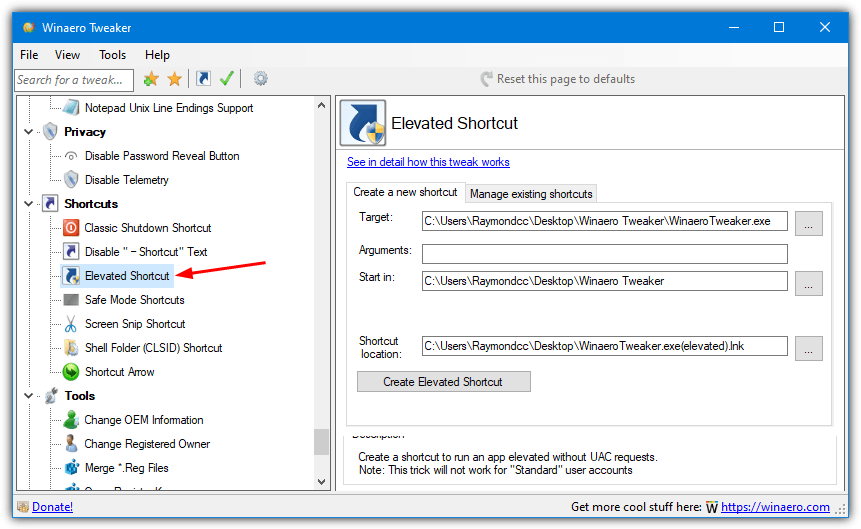
Run Winaero Tweaker and the Elevated Shortcut option is near the bottom in the Shortcuts tree. Type “elevated” into the search box if you can’t find it. Browse for the target executable, add optional arguments for the executable, change the starting folder if required, then choose the destination for the shortcut to be created (Desktop is the default). Finally, click “Create Elevated Shortcut”.
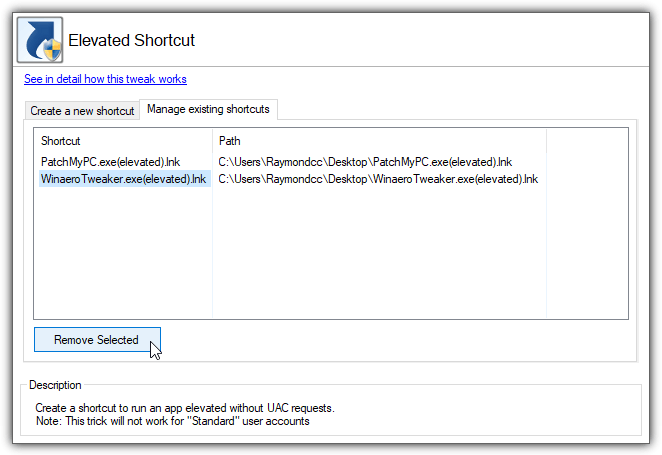
It’s best to click on the Manage Existing Shortcuts tab in Winaero Tweaker and remove selected shortcuts from there instead of just deleting the shortcut. That way, the task will also be removed. ElevatedShortcut is no longer available from the developer but still works for Windows 7 and 8. It also has a couple of extra options not in Winaero Tweaker such as context menu shortcuts and modifying existing shortcuts.
Download Winaero Tweaker | ElevatedShortcut
2. UAC Pass
UAC Pass is a small and portable executable created in the Autoit scripting language that creates a UAC promptless shortcut on your desktop with drag and drop. Similar to Winaero Tweaker above, this is made possible by adding the application to the Windows Task Scheduler automatically and the shortcut runs the task with high privileges.
There are some preset options in UAC Pass that allow you to create a shortcut for different scenarios such as a USB drive, a Windows startup entry, and on the desktop. You can also allow multiple instances, create a batch file, use relative paths, and pin a shortcut to the Start Menu or Taskbar. For most situations, the default preset of creating a desktop shortcut will be the most useful.
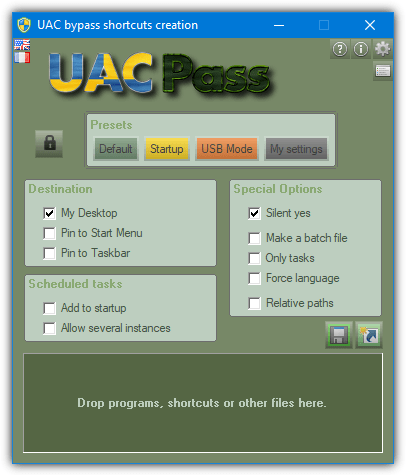
All you have to do is drop a program or shortcut onto the window and it will automatically create a scheduled task and then create the shortcut at the chosen location. Before you delete a created shortcut, drop it onto the window of UAC Pass which will delete the scheduled task. There is also a window to show and delete tasks if you press the button below the settings button (second button down, top right).
Do note that the Pin to Start Menu and Pin to Taskbar options don’t work in Windows 10 but they work fine in Windows 7. There are five skin colors for UAC Pass in the settings but they are sadly all pretty bad. However, you might find something other than the default green more readable.
3. RunAsRob
Besides RunAsRob, Robtronic has some other useful tools centered around account permissions and UAC. RunElevated forces any application to request elevated privileges while RunAsSpc starts programs as another user with advanced options. RunAsRob itself is multi-purpose and can run programs as other users, as a service, and also over a network.
RunAsRob works by installing itself as a standard Windows service that can then be used to quietly launch other software that normally requires a UAC prompt. In the Zip archive, there are separate 32-bit and 64-bit versions and each folder contains three executables. Launch RunAsAdmin.exe to get started.
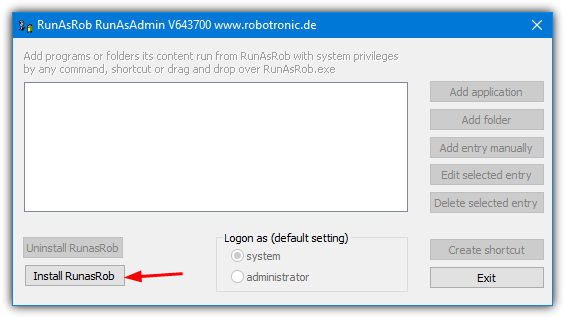
Firstly, press the “Install RunasRob” button to install the service otherwise you can’t disable the UAC prompt. Then press “Add application” and browse for the executable file or script. Click the just added entry to highlight it and then press “Create shortcut” and finally Exit. Leave “logon as” at the default of System as administrator will simply show an error saying you are already an admin.
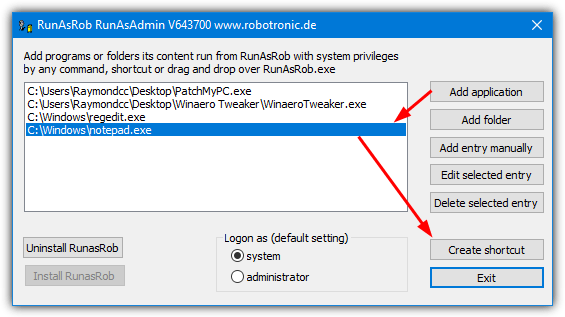
A slight drawback is the created shortcut appears in the RunAsRob folder with a RunAsRob default icon. Copying the executable’s icon and placing the shortcut on the desktop would have been nice but it’s not a big deal and both things can easily be rectified. A much bigger annoyance is the random popping up of a nag window that reminds you RunAsRob is free for private use only and must be purchased for business use.
4. UAC Trust Shortcut
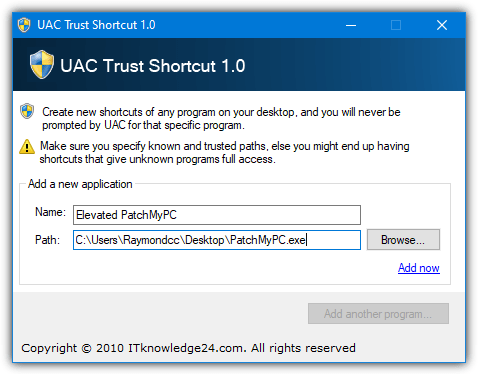
UAC Trust Shortcut allows you to disable User Account Control for a specific application. This program works in a similar way to RunAsRob by using its own service to elevate the program instead of a scheduled task. Windows 10 users will need to have .NET Framework 3.5 installed or it will be offered during installation.
To create a trusted shortcut, go to Start and click on the “UAC Trust Shortcut 1.0” icon. A window will appear where you can add the name of the program that you want to allow and browse for the program executable. Click “Add another program” to start if the options are grayed out, click the small “Add now” link when the options have been entered. The trusted shortcut will be added to the Desktop.
You need to manually start the background service (tracer.exe) whenever you start or log on to Windows or shortcuts will show a UAC prompt. This can be done from the UAC Trust Shortcut system tray icon where you can also open the add new trusted shortcut window. A simple trick to get the tracer.exe service to start automatically on boot is to run it as a scheduled task, refer to option number 5 below for help.
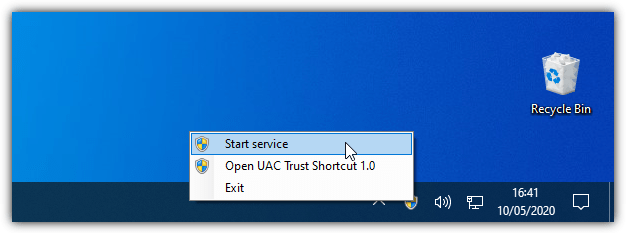
Once the service is running, you can launch as many trusted shortcuts as you want without getting the UAC prompt. A drawback of UAC Trust Shortcut is it doesn’t support options like command line arguments, changing the start folder, or executing batch files. There are separate 32-bit and 64-bit installers so make sure you download the correct one.
Download UAC Trust Shortcut 32-bit | 64-bit
5. Manually Bypass User Account Control Prompts Using The Task Scheduler
If you’re having issues with any of the tools that use the Task Scheduler shortcut to elevate the application, you can always create a scheduled task yourself. It’s not difficult and only takes a minute or two to set up. Here are the steps on how to make a program run elevated in Task Scheduler without the UAC prompt.
1. Click the Start button or press the Windows key, start typing “scheduled” and the Task Scheduler option will appear.
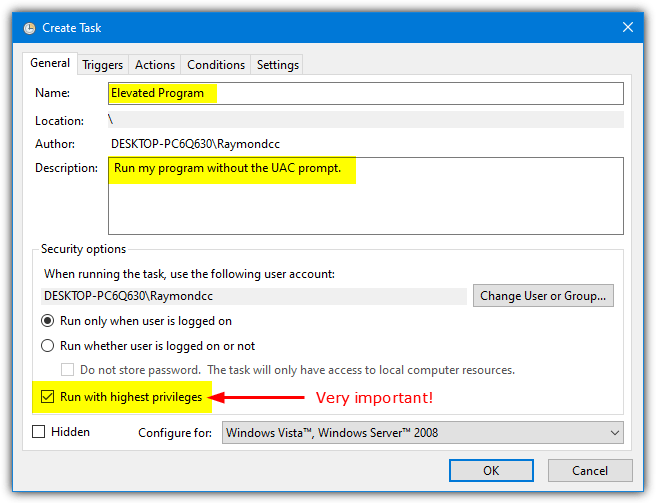
2. Click Action from the menu and select Create Task. Fill in the Name and optionally the Description box. MAKE SURE to check the “Run with highest privileges” checkbox. This is the option that elevates the task to bypass the UAC prompt. Without it, the task and program you are trying to launch will silently fail.
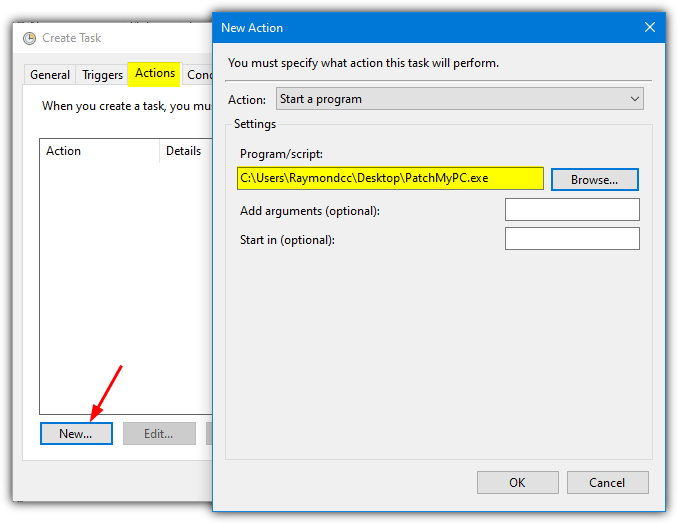
3. Go to the Actions tab and click the New button.
4. Make sure that the “Start a program” action is selected and browse for the program that you want to run without a UAC prompt. Optionally you can also specify any command line arguments and a different starting folder if required. Click OK.
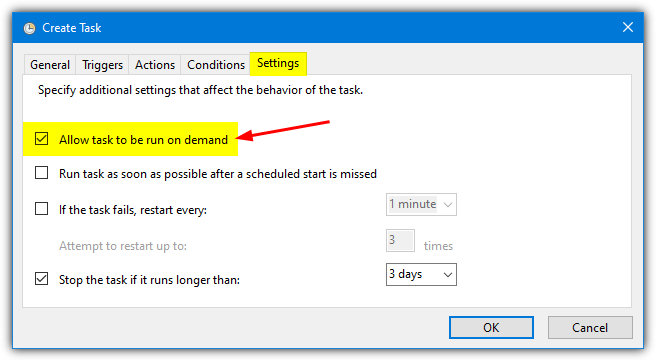
5. This step is optional and the setting should already be enabled by default, but it doesn’t hurt to check. Go to the Settings tab and verify that the “Allow task to be run on demand” box is checked.
6. Click the OK button to create the task and the task will be added to the Task Scheduler Library. You can manually run the program directly from Task Scheduler, right click on the task and select Run.
7. It’s possible to create a shortcut which is very useful to launch the program on demand. Right click on the Desktop and select New > Shortcut. Type the following into the location box and click Next.
schtasks /run /TN “[Name of task]”
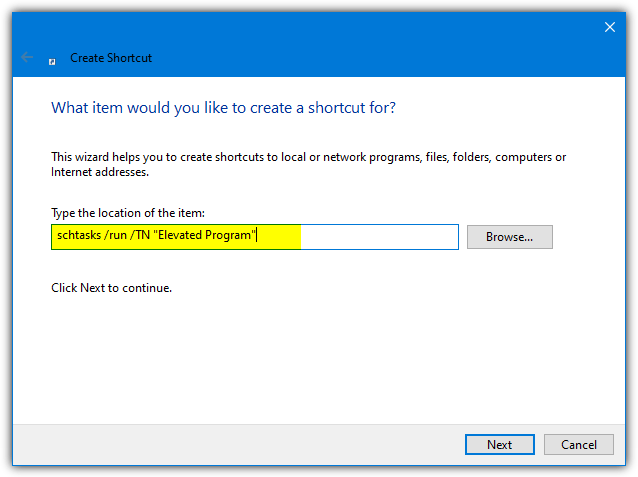
You will obviously need to change the task name in double quotes to the name of the task which you’ve used in step 2. Any name can be used for the shortcut at the next window. Finally, click the Finish button. Whenever you need to run the program without a UAC prompt, simply double click the shortcut which has been created.
Tip: If you want to start the elevated program in question when booting into Windows or during user logon, a simple additional step when creating the scheduled task is required.
After step 5 above, select the Triggers tab and click New. In the “Begin the task” drop down menu, select either “At log on” or “At startup” and press OK. At startup will only run the task during a full boot while log on will run whenever you sign in (which includes after signing out or at boot).
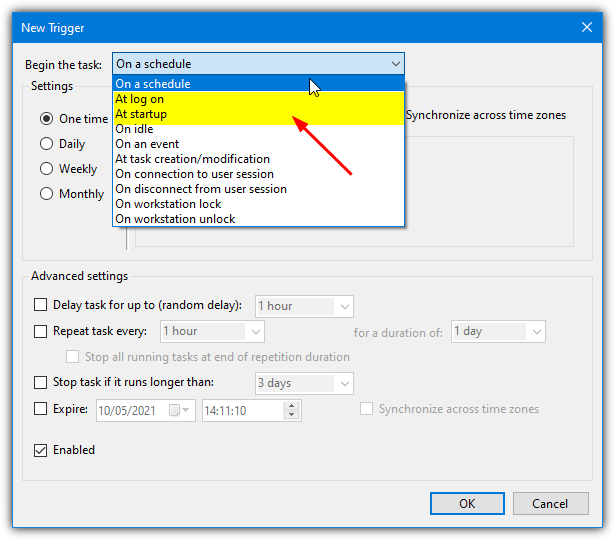
Using this option along with the steps above will allow option 4 (UAC Trust Shortcut) to launch its tracer.exe service silently on startup.
If you totally disable User Account Control, then you don’t need to use these methods. However, it is good to know that there is a way to bypass the UAC restriction using different ways if needed. If you have UAC enabled and would like to keep it that way, or would like to allow another user access to a safe file without needing a prompt, then these tips could be useful if you need to run certain programs that require elevation when they startup.
You might also like:
 10 Ways to Run Program as Administrator [Powershell, Script]
 7 Ways to Disable or Enable UAC [CMD, Best Tools to Use]
 4 Ways to Automatically Disable Wireless Network Connection when Local Area Connection is Enabled
 4 Tools to Disable Windows Default Newbie Features
 6 Ways to Disable Right Click on Mouse in Windows
On step 7 above, I noticed you state “Actions” when I think you meant to state the “Triggers” tab to create a new trigger, when a user want the service to start at “At logon on” or at “Start up.”
Ah yes, thanks for reporting the typo.
Further to “Mister Two’s” post, I also am using option 5 (Task Scheduler) in Win11.
I wanted to add a note that if you organize tasks into folders in Windows Task Scheduler you need to include that parent folder with the task name (‘/tn’) in the shortcut you create. For example, a scheduled task you named ‘Process Explorer Elevated’ located in a folder named ‘Skip UAC’ would have this shortcut:
schtasks /run /tn “Skip UAC\Process Explorer Elevated”
Task Scheduler (Local)
v Task Scheduler Library
> Microsoft
v Skip UAC
– Process Explorer Elevated
– Task_2 Elevated
– Task_3 Elevated
These shortcuts are even more useful now that Microsoft has restored the ability to pin apps to, and also group shortcuts in, Win11’s start Menu (Win11 Insider Build 22581.200).
Thanks HAL9000, Mister Two, and everyone else who added to the discussion.
Even running Win 11, the option 5 run via Task scheduler still works, I only had to add the schtasks /Run option /I (Uppercase i) “Runs the task immediately by ignoring any constraint” to the shortcut.
So my shortcut looks like:
C:\Windows\System32\schtasks.exe /run /TN “Run PuTTY elevated” /I
Works every time, thanks HAL9000
On Win 10 I’m finding Task Scheduler would run my program from a (copied) folder on the desktop, but not from it’s installed location in C:Program Files\… The solution for me was to (under the “General” tab) change the user from my own login account to “Users”. Hope this helps someone!
it asked for user account information and a password. what do i do?
Any way to disable UAC and then run some program without Admins right?
Thank you for writing this, Raymond.
I opted for the Task Scheduler route. Finding the Scheduler wasn’t immediate. Then all worked, except the shortcut to the task, which did not.
Still, because my issue was with a program I want run at startup, I went via the Begin the task” drop down menu, and it seems I nailed it.
Thanks again.
BTW – I tried UAC Pass [which I found about on another web site], and it hung after dragging the shortcut onto the UAC Pass.exe.
Would it be time to update this thread? Today we’re stuck with W10 so anything older may be useless. UAC drives me nut with a home non shared pc. But we don’t want to be too exposed either.
I wonder why W10 or rather MS does not give us something more flexible and easier to use, that we have to use 3rd party pgr.
Just like so many other features that could have a on and off button or setting to have control on our machine.
I’m looking at updating this article, and you might be disappointed to know that there appears to be no amazing new ways to do this since the article was written in 2013.
I tried the UAC Trust program and it seemed to work well. However there is a big problem: It only works until the next reboot. After a reboot when you try to use the shortcut it doesn’t find the target. This is the case even though UAC Trust is enabled at startup. You can fix this by running the UAC trust program again, but it’s still pretty useless.
Hallo, The Task Scheduler option worked fine for the program, but when I nominated a file type to open with the program, and then clicked on a file to open the program, it still came up with the UAC prompt. Is there a way round this?
Les
Thanks very
Thanks a lot to the author of the article. Very good explanation especially the fourth option. As I didn’t wanted to use any utility program I went for fourth option, it worked for me. I’ve been looking for it for long time.
when i click to install it says user account control needs pass. its a collage pc and i cant install anythng
please help me with e mail.
Trying to create the shortcut but if I enter the location as schtasks/run/Logger32 I get an error message “The file schtasks/run/Logger32 cannot be found. But if I enter the exact same text into my Run window it launches the program just fine. What is missing????
you need to give absolute path, then it will do.
Or copy the shortcut to a place where it an be found e.g. c:\windows….
I used method 4 on Windows 10. Since it did not work, I want to undo what I have done, as other “strange ” things are now happening (which may or may not be related to what I did). So what are the steps to undo what I have done?
I can only warn you about UAC PASS:
it ruined my brandnew Win10x64 system.
The program apparently quietly accepts the ‘dragging’ of icons to the odd interface, will not pop up any information, nor show that icons have been successfully dropped, altered whatever..
There is NO information which programs are currently under its control.
It will NOT create any visible new(altered icons on the desktop, or entries in the Task Manager (Autostarts).
Yet it will AUTOMATICALLY start ALL ‘dropped’ apps at every Windows start, and you cannot stop this behavior! Meaning about 1/2 a dozen apps are now firing up whenever I start my Windows, WTF?!
Dropping the same icons AGAIN will not show reaction nor change, even a DEINSTALLATION and REINSTALLATION of the affected programs (e.g. WinZip) will let them autostart whenever Windows is booted.
For now I have not found any system hooks that this malicious UAC PASS tool has bent and broken.
As it is neither installed nor deinstalled officially it leaves invisible traces deep inside the registry that will never disappear. What puzzles me most is that NOTHING is added to AutoStarts, yet the programs fire up anyways.
Be VERY careful when playing around with this hack tool; it looks as weird as it works, I consider it a non-
removable virus. No malicious software remover will ever fix these defects.
I contacted the author, hoping for an explanation or solution, so far in vain.
All this because Windows 10 is still too stupid to allow a UAC control for individual EXE files, as ridiculuous as it sounds: All needed was a simple verification for any started EXE, checking if it matches the known/user granted credentials (file size, date, version, hash sum, whatever).
You could use the registry editor to remove the traces left behind by the program. However, you could screw up your windows even more if you don’t now what you’re doing.
My problem is I have a USB wireless adapter running off it’s own software. So each time I reboot, during the reboot section the popup occurs not because of the dongle but because of it’s software. I should point out this dongle works flawlessly because it runs exclusively on Linksys software and Windows10 can not get near or update it. Linksys actually recommends preloading the drivers so Win10 can’t bugger it up. A shortcut does not help since it is an autostart program. Any competent programmer would set a flag on the properties of the program to allow it to be bypassed but as we well know competence and Microsoft don’t share the same car. So, yes dear readers… UAC is now turned off. Honestly, how many versions of Windows have to get made where we turn off UAC before someone grows a brain at Microsoft and allows a ‘bypass’ option. Every virus checker does this without a problem.
Using the Task Scheduler Trick works fine, but I’m not able to have the target open in a maximized window. Running Windows 10 here and tried -maximized, but doesn’t work. Suggestions
I like this neat professional program.
But, could it do one more thing:
I open execute a program by extention EXT association.
i.e. I call up Irfanview by clicking of a file that is associated with irfanview (e.g. jpg gif, etc).
Is there a way to make this work?
Thanks in advance.
By “this program” I means UAC Pass.
UAC is more than a notification service and should always be left enabled. When an administrator logs in to a windows machine, with UAC enabled, two access tokens are created, instead of one. A standard user access token and a full admin access token. Because of that, the user (administrator) is protected in many ways. A couple of them:
-Malicious software cannot be silently installed, as you will get a notification prompt.
-Embedded malicious code executed from within an application (ex. Powerpoint) won’t affect the system more than the standard access token permits.
Even if you exclude specific applications from the UAC protection, you put yourself at risk, because that application will run with elevated privileges… and I can think a couple of ways to manipulate that trust in order to execute a malicious code. To be honest, I would even recommend to raise UAC to the highest level, in order to prevent “trusted” windows applications from running with elevated privileges (like the task scheduler).
Even if you are a skilled systems Administrator, it is always a best practice to protect yourself from accidental mistakes. Personally, I always log in to my system with a standard user account and I set UAC to the highest level possible.
Lefteris Karafilis
Windows 7 Ultimate : Service Pack 1 : x64
I agree that UAC should never be turned off but on some occasions security and system protection can work against against us.
We use a third party backup application that starts at Windows startup and is scheduled to carry out security backups starting at 3:30pm each day.
Every morning, checks are made to ensure that the previous days backup was updated.
Some time back, following a W7 update, a Wednesday backup was not updated and showed file dates of the previous week.
On further investigation it was found that the backup application had suddenly started popping up a UAC prompt on startup. Because the computer is manually turned on and left to boot (while tea was made), no one had accepted the UAC prompt so the backup application start up was aborted.
Finding a way round the UAC prompt for this specific software took a while and a great deal of experimenting. The chosen method is quite close to [The Task Scheduler Trick] above but somewhat more complicated.
I shall try it later today and if it works on my system shall use it.
Thanks to All.
~MikeG~
RunAsRob is the solution
Thank you for sharing
Worked perfectly for me! – Thanks!
Very useful. Thanks lot.
I have 2 standard users (non admins) on my computer.
The trick works for one of them, and not the other. That is, for one account the command
schtasks /run /TN “{Name of task}”
will *not* prompt for UAC and launch the program.
For the other user though, the UAC prompt still pops up.
I have setup as task for each user and they each run their own, so that the task runs under the correct account (not the administrator account).
Does anyone have an explanation on why one account works fine and the other is still prompting ? Windows has always bewildered me in acting different in 2 similar situations…
Thanks
thank you!
i wonder if you might be able to help me with another issue i am experiencing. in order to circumvent the uac nags, i am running a batch file to simply ‘route print cmd /k’ via task scheduler and desktop shortcut but i want the DOS window to remain open and allow me to continue typing into it. when i execute the actual file, it runs as desired, however when it runs via task scheduler, the dos window closes immediately. to no avail, i have tried multiple things such as changing the ‘program/script’ field from C:\location\batchfilename.bat to just cmd and inputting the various arguments including cmd /k or /k or /k C:\location\batchfilename.bat to the task’s ‘add arguments’ field and/or the batch script itself. although i do not want pause as it would close the window after pressing any key, i have also tried it in the script itself and the arguments field but it too does not keep the dos window open when running as scheduled task. nothing seems to work – please help
Download the free “RunAsROB” app, it’s the only thing I’ve ever had to use for UAC-related task & start-up automation: robotronic.de/runasroben.html
Another useful tool to bypass the UAC for a specific application is Runasrob.
You don’t have to start it after each restart and you can also start applications which need administrator rights from a non-administrator account.
Brian
thanks
Wow! Really Cool , thanks for sharing :)
A better way is to elevate User Account Control without prompting. It leaves User Account Control enabled and tinkers just a bit with some of the settings of UAC instead of completely disabling the UAC function which disables the complete security feature in Windows 7 which is not a wise thing to do.
Press Windows + R, enter secpol.msc and hit enter
Click on Security Settings
Local Policies
Security Options
double-click User Account Control: Behavior of the elevation prompt for administrators in Admin Approval Mode
choose Elevate without prompting
click ok
This setting becomes immediately active. Test it by launching a program that prompted for allowance before. You will have no prompt now.
I’m using Windows 7 Home Premium 64-bit and I get “Windows cannot find secpol.msc”.
That works on admin account only, not for standard account.
Actually, it only works on Windows 7 Ultimate (and maybe Professional)
Peppino Peppino, Bravo Bravo! Exactly what I was looking for you. Gratzi! Gratzi!
Perfect! :)
THAT FIX IS BEAUTIFUL! Thank you so much! Can it be made to work for a non-administrator account as well?
Finally something worked. THANK YOU!!!!!
The service is not available in the Home Premium edition and is available only in the Professional and ultimate editions.”Deepak B”
Proposed solution worked from in windows 8. Thanks lot.
This “solution” does disable UAC completely for the selected account (in this case Administrator account). The same effect can by achieved by toggling the UAC setting to never show UAC prompts…
How are your steps a way to “leave UAC enabled and tinkers a bit”?
Looks to me that it FULLY turns off UAC as soon as you pick “elevate without prompting”.
Is that true?
Very useful, Ray. Will probably use this. Earlier I had UAC disabled in the registry, but that caused some side-effects and was no ideal situation, so edited it back in the registry.