
5 Text Expansion Tools To Insert Text Snippets And Common Phrases


 8 min. read
  Published on

If you spend a lot of time at your computer it probably means you are going to be doing a lot of typing. That will be the case if you use the computer to work, write letters, documents, emails, articles or simply spend time on forums or social networks. Whether you realize it or not, you’ll very likely be typing in the same things like long words or common phrases, names, addresses or email signatures over and over again. That all takes time that could be saved if you shorten the process.
It’s possible to use something like the Clipboard to paste in the same text over and over, but the Windows Clipboard has it’s limit of pasting a single copied item at a time. Users of Microsoft Word will likely know about the Autocorrect function that can take an abbreviation or short string and replace it with another word or short phrase. While that works in Word it doesn’t help when you want to use something similar in other applications or web browsers.
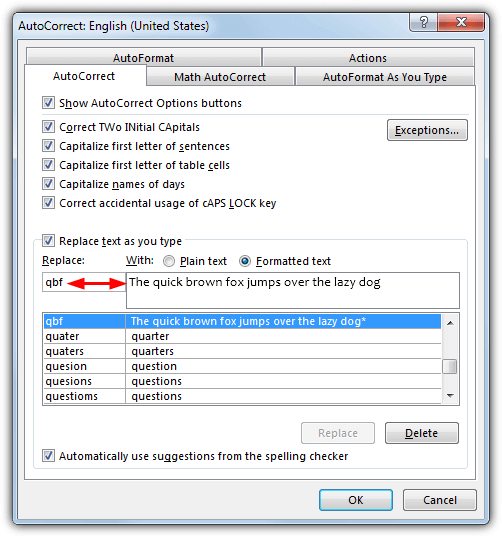
As Windows doesn’t have the ability to expand words or strings into phrases a third party application will be needed. We’ve previously written about how to insert words or phrases with hotkeys, but here we list 5 free tools that can quickly or automatically expand a short typed string into a longer string. All programs were tested in Windows 7 and 10 64-bit.
1. PhraseExpress
PhraseExpress is probably the most feature rich and comprehensive free text replacement tool around today. Depending on your needs it may be exactly what you want or you might prefer to use something smaller and simpler. There’s an add-on system where phrase files can be downloaded and imported, such as sample phrases, special functions, English contractions, autocorrect words, chat acronyms and sample macros. Even Autotext and Autocorrect From Word and emails from Outlook can be imported. PhraseExpress has both portable and setup installer versions.
Adding a phrase can be done a couple of ways, either open the main window and press the Phrase button in the ribbon toolbar, or highlight a phrase in some text and press Ctrl+Alt+C. The second method is simpler and quicker because you only need to supply the abbreviation autotext. The first method is more powerful as the replacement text can include a massive array of content. It includes text formatting, images, URLs, tables, date and time, automation such as create email or run program, text operations, clipboard operations and mouse/keyboard functions.
After typing the autotext shortcut the phrase content can be inserted immediately, after a delimiter such as Enter, Space or Tab is pressed, in a manual confirm popup menu (press Tab to accept), with a predefined hotkey or SmartComplete suggests as you type. PhraseExpress also has a clipboard cache that stores clipboard data allowing you to select it from a menu, and an option to include or exclude individual phrases or whole phrase libraries in specific programs. Memory usage is a touch high at around 30-40MB.
2. TyperTask
TyperTask is from the same developer as the popular TinyTask macro creation tool. It’s a plain no frills program that does the task at hand with a few more interesting features besides. These include entering text snippets via keyboard shortcut, launching programs/websites, creating list menus and emulating keyboard keys/mouse actions. It can do all that from a portable executable of only 56KB and consuming only 1-2MB of RAM in the background.
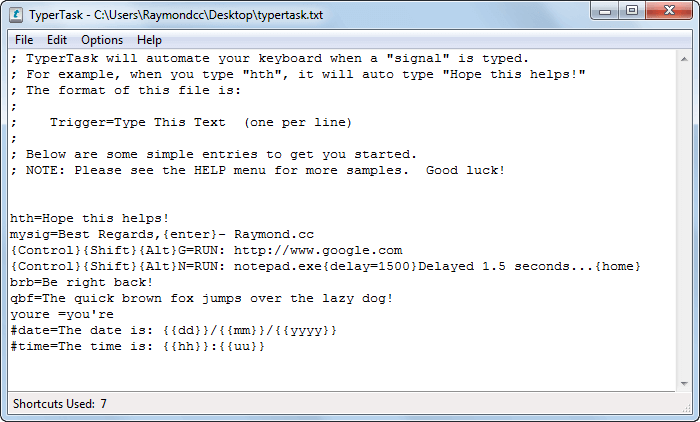
As it packs several features into a tiny package that does also make TyperTask a touch more difficult to setup. This is because the settings have to be configured manually in a user interface that closely resembles Notepad. Luckily, creating a simple text expansion is easy. Enter the abbreviation on a new line, add an equals (=), then add the expanded text snippet. For a line break add {enter} into the text. Additional keyboard keys and abbreviations for date and time can also be used.
Go to File > Save and minimize TyperTask to the tray. An informative Readme file is available for the more advanced uses of the program and how best to use text snippets. Go to Help > Help Reference to open it.
3. WordExpander
WordExpander is by Bartels Media, the people behind Sharemouse, and advertised as a free alternative to the shareware and quite expensive PhraseExpander. The program is a traditional text replacement tool and not stuffed with features like PhraseExpress, which is good if that’s all you want. There are two modes of operation (called Libraries) in WordExpander, phrase replacement shortcuts or autocorrection.
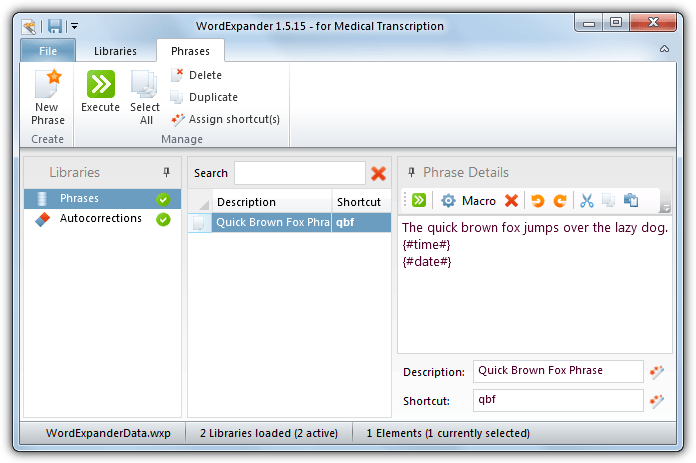
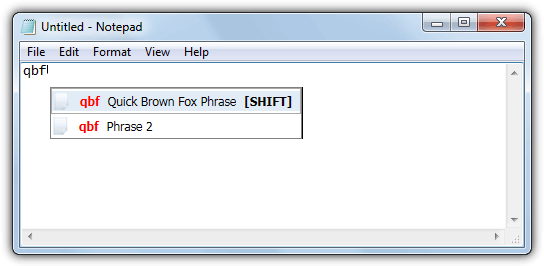
For a Phrase you supply a shortcut word and then add the snippet or block of text to replace it with. When you type the shortcut a menu will popup with one or more snippets that are configured for that shortcut. Press the default qualifier key Shift to insert the replacement text. Autocorrection is different because it’s meant for auto correcting misspelled words but can also be used for phrases or sentences. Enter the Typo (shortcut phrase) and replace with text in the Correction box. As soon as you enter the typo text and press space it will automatically be replaced.
WordExpander has some downloadable phrase libraries but they’re all medical related for some reason. There is an English autocorrect file which has over 4,100 word corrections. Download it then use the Import Library function to import the text file into the program. WordExpander was a bit erratic on memory usage, averaging anywhere between 20MB and 60MB.
4. Texter
Texter was developed by an editor working at Lifehacker and created in the AutoHotKey scripting language. Sadly Texter is not in active development and the last version was from back in 2007. That’s not to say it doesn’t work on newer operating systems because we tested it in Windows 10 and it worked OK. Any found issues or bugs are never going to get fixed though. Both setup installer and portable versions are available, as is the AutoHotKey source code if you want to have a look.
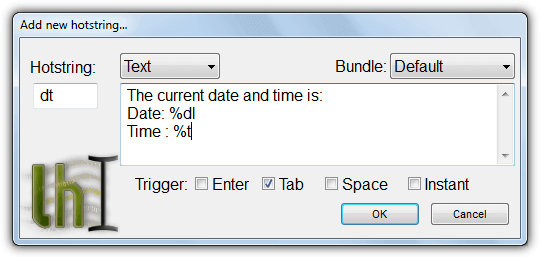
After launching Texter and it’s sitting in the tray press Ctrl+Shift+H to open the create hotstring window. Alternatively double click the tray icon and press the plus button. Enter the hotstring into the small box which is the abbreviation text, then enter the replacement text into the large box. A new line here will also insert the text as a new line in the software. The Trigger is how you would like the text to be expanded, either after you press Enter, Tab, Space or instantly after the hotstring has been typed. Press OK when done and test out your new hotstring.
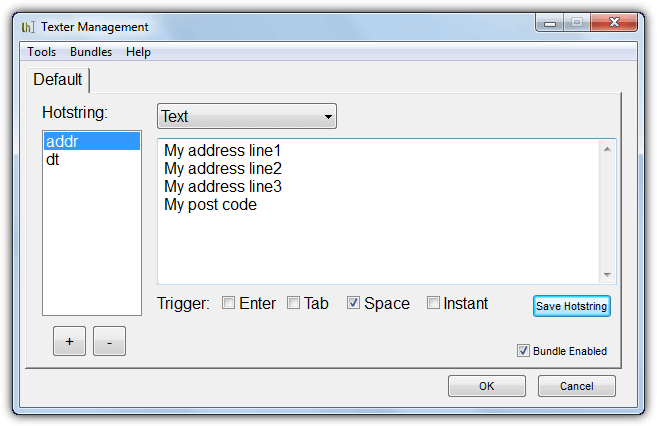
To edit or delete the hotstrings open the management window by double clicking the tray icon or pressing Ctrl+Shift+M. Texter also has a basic scripting mode which can add keystrokes to the text, change the Text drop down to Script to enable that function. More help can be found on the Lifehacker page for the program. Texter uses about 4MB of memory sitting in the tray
5. ProKeys (Google Chrome Extension)
If you only want to use text expanding capabilities within your web browser to fill online forms or forum posts etc, it makes sense to use a browser extension. That way only the browser will be affected and other software on the computer will not, and nothing will be running in the background while the browser is closed. ProKeys is a Chrome extension that can do the job.
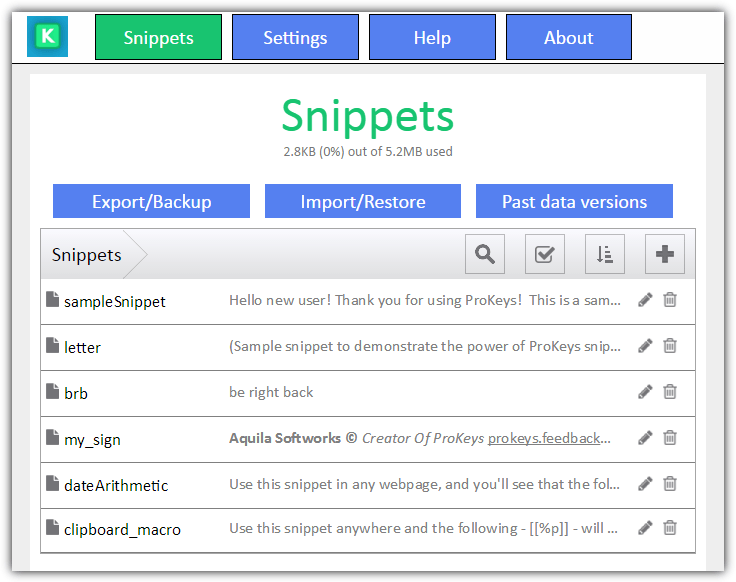
The extension works much like the other tools by adding a keyword or phrase and then entering the expanded text to replace it with. Text replacement is not automatic and you press a hotkey after typing the abbreviated word to expand it, the default is Shift+Space but can be changed. ProKeys also has an auto character pair insert option (if you type a left bracket it will add a right bracket and place the cursor in between them) and an exclusion list where specific websites can be added that ProKeys will ignore.
Download ProKeys Chrome Extension
We did look at some other extensions for both Chrome and Firefox, such as Auto Text Expander and Text Complete, but found they didn’t work very well or never worked at all. One issue with using an extension is it will use more memory than the lighter tools listed here. If your system is quite old or its memory is limited it might be better to use something like Texter or TyperTask instead.



Improve this guide

User forum
0 messages