
Unable to Remotely Control or Configure Kaspersky using Remote Access Software


 4 min. read
  Published on

An antivirus software must be efficient in detecting and blocking a malicious software to ensure that the computer stays safe while connected to the Internet or network. Other than that, the antivirus must also be very good at protecting itself to prevent its processes from being forcefully terminated or modified by an external application so that it can continue to run on the system and monitor for suspicious activity.
A simple example is attempting to end the avp.exe process that belongs to Kaspersky using the Task Manager and it shows an “Unable to terminate process” error window with the message “Access is denied”.
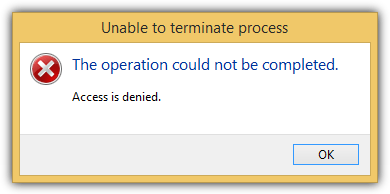
The example above is only a very basic self defense mechanism and it actually protects much more than that. A unique feature found in Kaspersky but is not available in other antivirus such as Avast, Avira, AVG, ESET, Bitdefender and Norton is the ability to prevent most third party remote access software from interacting with the program’s interface. If you’re connected to a remote computer using a remote access software, you won’t be able to configure and control Kaspersky as the graphical user interface does not respond to mouse clicks.
While this is a safety feature to protect Kaspersky, it can also be a possible annoyance when an administrator legitimately wants to remotely configure the antivirus or internet software.
From what we’ve tested, Kaspersky versions 2010, 2011 and 2012 block all remote control programs except for the Remote Desktop Connection that is built-in to Windows from controlling Kaspersky. Starting from version 2013 onwards, it has started allowing some third party remote desktop applications such as TeamViewer and LogMeIn to remotely control and configure Kaspersky. As for other remote access software such as Ammyy Admin, ShowMyPC, NoMachine, Radmin, imPcRemoteInstant, Firnass, Google Remote Desktop, GoToMyPC, DameWare Mini Remote Control and RealVNC, they are all prohibited from remotely controlling Kaspersky.
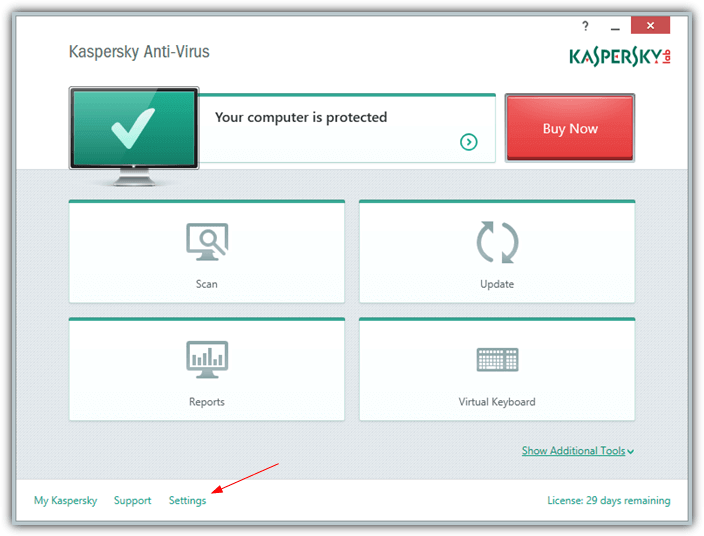
Since this restriction is due to the self protection system, disabling Kaspersky’s Self-Defense will allow any third party remote access program from controlling the software remotely. Kaspersky’s Self-Defense can be disabled by clicking Settings from the main GUI.
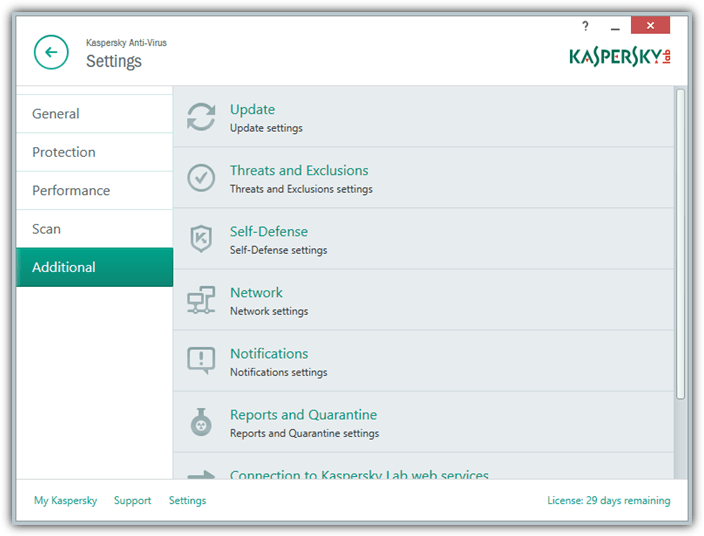
Select Additional from the left hand sidebar and click on Self-Defense.
Uncheck the “Enable Self-Defense” checkbox and the setting takes effect instantly.
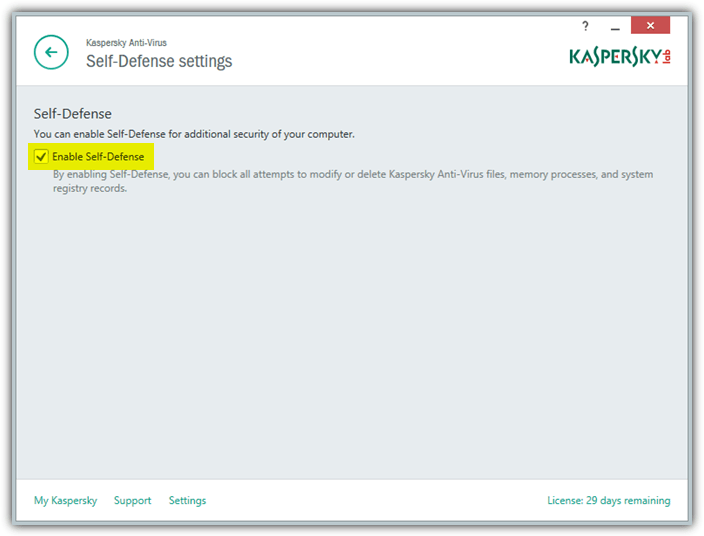
While disabling Self-Defense in Kaspersky will allow third party remote access applications to control the program, it is not an ideal solution because this will also potentially allow malicious software that is hiding in the system to terminate or modify the antivirus program. A safer and recommended solution is to add the remote access program to the “Trusted applications” list allowing it to interact with Kaspersky’s interface.
Click on Settings from the Kaspersky’s main graphical user interface. Go to Additional and click on Threats and Exclusions.
Click on the “Specify trusted applications” button that is located below the “Configure exclusion rules”. Do take note that you want to add the remote control software into the trusted applications list and not as an exclusion. Click the Add button from the “Trusted applications” window and click Browse to choose the files that belongs to the remote control software. Finally tick the “Allow interaction with Kaspersky Anti-Virus interface” checkbox and click OK.
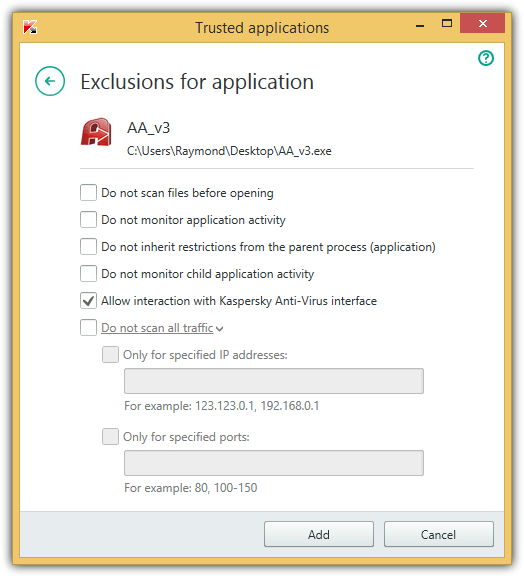
The file will be listed in the trusted applications and will be allowed to remotely control Kaspersky software. Which files need to be added to the trusted applications list varies. If the server/host file is only a single executable file, then adding that file alone to the trusted zone will work. However for some software such as RealVNC server, multiple files are installed in the program directory, you need to add the correct working server executable file to the trusted zone.
Final Notes: As we’ve mentioned earlier, we’ve tested a number of popular remote access software and found that only a very small number of software is allowed to remotely control Kaspersky software and they are Remote Desktop Connection, TeamViewer and LogMeIn. If you know of any other remote access software that can control Kaspersky without disabling self-defense or adding it to trusted zone, please do leave a comment and we’ll add it to the list.



Improve this guide

User forum
0 messages