XBoot Download for Windows & Usage Guide
There’s probably quite a few users reading this who have got at least a couple of bootable CD’s laying around for performing various repair tasks. A lot of developers these days make available ISO images which can be burned onto CD of even transferred onto USB stick. From Antivirus scanning and Linux distro’s, to password resetting tools and data backup or recovery, there’s a massive selection of disks that can really give you a comprehensive repair and recovery collection of disks. Oh, and not forgetting a lot of peoples favorite repair utility disk, Hiren’s Boot CD.
For a long time though, when you downloaded one of these CD’s, it had to be one ISO image to one CD or DVD. That makes it rather inconvenient if you wanted to take your whole repair collection with you to another location. There are tools that let you write an ISO onto a USB stick such as Rufus and UNetbootin which is helpful but still doesn’t make the best use of your disk space.
In recent years things have become much easier because there are utilities around that can enable you to put several ISO’s onto one CD, DVD or pen stick and allow them to be multi booted making more effective use of your media. A couple of these tools that will set up a multi boot menu on your disks are Yumi and SARDU and they’re pretty good.Another program which also does this and a few other things besides is XBoot. The program can create nicely ordered menu’s for a number of ISO images and then either output them as an ISO image to burn onto a disk or write everything straight out to USB stick. And when completed, it will then offer to test the finished result by running it through the Virtualization tool QEMU. XBoot is a standalone executable and is free to use but does require the .NET Framework v4 to run.
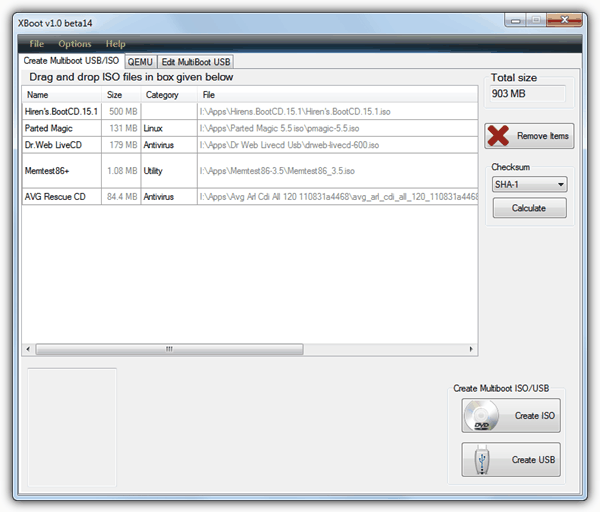
ISO’s are added to the program by means of dragging and dropping onto the window. If XBoot doesn’t recognize the ISO automatically, you will be asked to select what it is from a list. It is up to you to then choose the matching name or closest match. Images such as Hiren or DOS based CD’s are recommended to use ‘Grub4dos emulation‘, where something like a live Windows distro would likely need the related ‘PE, MSDART,ERD‘ selection, and something like Linux Mint will work with the ‘Ubuntu‘ option.
Not all ISO’s are supported and you may have to experiment a bit to test if something not listed will work, but it’s known and made clear by the author that trying to use XBoot as a multi boot to install Windows does not work. The currently supported list is shown below:
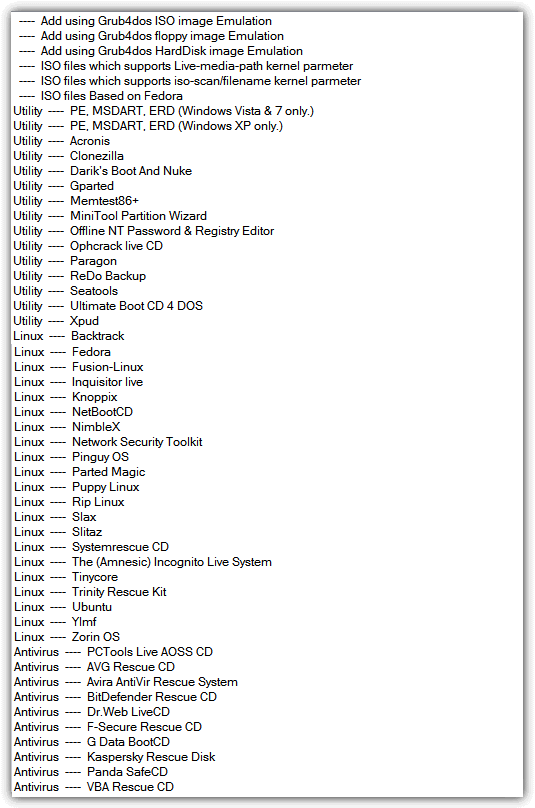
If anything in the list above looks interesting, click on the main window’s File Menu, and select Download. From the dropdown you can select any image in the list and then click ‘Open Download Webpage‘ to take you to the related website or download page.
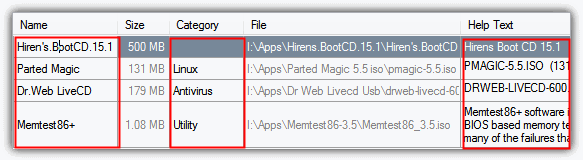
On the main screen the image name, category and Help Text can be edited by double clicking on it. Choosing a category will place the entry in a sub menu on the boot screen, so if you want everything on one single screen, delete the category from all entries.
Once all the ISO’s have been added the total output size will have been calculated so make sure the size isn’t going to be too big for its destination. There is also a checksum calculator if you want to verify any images before writing. Then you are ready to click the ‘Create ISO‘ button or ‘Create USB‘ to begin the process. Creating an ISO will simply ask for the destination of the file and will then create it for you.
The option to create a USB multi boot is also very easy, just point to the USB drive from the dropdown and select OK. The option is there to change the Bootloader from the recommended of Syslinux to Grub4dos if you know what you are doing. Something XBoot can’t do is prepare the USB stick for you or burn a disk inside the program. It is advisable to format the stick in FAT32 for the greatest compatibility because some Linux distro’s cannot boot using NTFS.
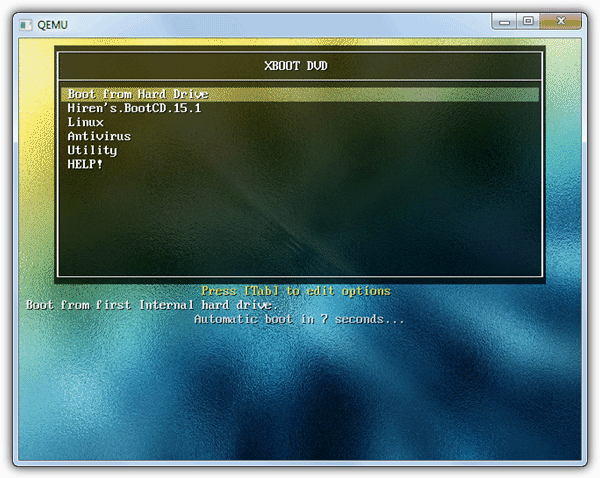
When the process has completed, XBoot will ask if you wish to test the result in QEMU to see how it looks and performs. If you select ‘Yes’ a new window will pop up and begin booting. The menu certainly looks better than some other multi boot utilities I have seen!
The other two tabs in the main window are; The QEMU tab will let you drag and drop any ISO or select any USB stick which will then be booted using QEMU, useful for testing any other images you have from elsewhere. The ‘Edit MultiBoot USB’ tab can be used to edit the menu.lst of Grub4dos or the Syslinux.cfg menu configuration files, and will let you reinstall either Bootloader on USB stick again.
I’ve used this a few times and it works pretty well and a multi boot USB stick certainly makes things easier with something like multiple antivirus CD images crammed onto it. If you’re just looking for a simple tool to get Windows Vista, 7 or 8 onto a USB stick to install, you might like to try this tool.
Compatible with Windows XP, Vista and Windows 7 32bit and 64bit
isnt it possible to boot an own iso ?
I got some boot CD images which i want to start.
And what about downloading Windows ISO files to istall from Microsoft?
Dear Raymond
How can I do integrate into XBOOT for OS as: Windows XP or Windows 7 Windows 10 (all as in ISO files).
What command should I select it?
-Add using as grub4dos…
or which one from your table?
Thanks in advance
Ngon Pham
[email protected]
Which setting should I use for an XenServer 7 installer ISO?
put on a usb stick a hiren boot + any windows
now try to boot and acronis director from the hiren stuff
the emulation of the emulation will kick off and make you fail :(
Two questions:
1) Does xboot need to be on the USB stick?
2) Since MS .net framework 4 is needed, this probably only needs to be installed on the laptop or desktop. Does it install its own driver on the USB stick?
When programs are advised on this excellent blog, a text file that includes files and registry strings added from a monitored install would be helpful.
XBoot is a program that installs the ISO images and a standard Linux boot loader to be able to select them from a menu. XBoot itself isn’t needed on the stick and it doesn’t install a driver, just the Linux boot files.
@Frank: Thx for mentioning EasyBCD, I’ll test it out.
I’m using xBoot for an year now and my experience with it is so so… Good program, but would like to see it develop a bit further with some additional features.
Very Great Tool bro.
Thanks :)
The problem is if you are planning to add discs like hirens konboot etc, you need to know which type of linux it uses because it doesn’t recognise them automatically….
I’m looking for a tool to place numerous boot ISOs on a portable hard drive – that would provide more storage space than even my 64GB thumb drive. Is this XBOOT the answer, or what do you recommend?
I rather use EasyBCD (neosmart.net/EasyBCD/ , free for personal use). A great tool that never disappointed me.
What I strongly dislike about XBoot is that it does not have ‘projects’ where I can save my settings (like which ISO to mount under what emulation). I even created *.txt files reminding me how to mount which ISO. Until I found EasyBCD which is just another league.
Regards, Frank
I tried Xboot many months ago and was very encouraged by its progress, but the developer seems to have given up on the project. It still bears the “beta” label and hasn’t been updated in quite some time.
Currently I’m working with YUMI (formerly known as MultibootISOs) utilizing a flash drive. So far I’ve had great results and the application appears to be frequently updated.
Will this version work with MS Darts? I’ve tried it before and it kept failing.
That`s wonderful , thank you Ray..
Thanks for the heads up mate ;). Will try soon :D. Have a nice weekend ;).
PLEASE TELL ME HOW TO RECOVER INFORMATION FROM A “RAW” FILE
Thanks. This should be handy since I have 8db pendrive.